Launch a quiz in Safe Exam Browser
Safe Exam Browser (SEB) is a secure browser designed to provide a controlled environment for online assessments. Adobe Learning Manager supports Safe Exam Browser for quizzes that require a secure testing environment. When you select a quiz that requires Safe Exam Browser, Adobe Learning Manager prompts you to download or launch Safe Exam Browser before you can access the assessment.
Safe Exam Browser provides a restricted environment for taking the quiz. After Safe Exam Browser launches, access to other browsers and applications is restricted, and active calls are disconnected.
Safe Exam Browser is required only for the selected quiz and does not affect other course modules, such as virtual classroom sessions.
This article explains how to download Safe Exam Browser, launch it from Adobe Learning Manager, and access the quiz.
Download Safe Exam Browser
If Safe Exam Browser is not already installed on your device, follow these steps to download and install it:
-
Open the course and select the self-paced quiz that requires Safe Exam Browser.
-
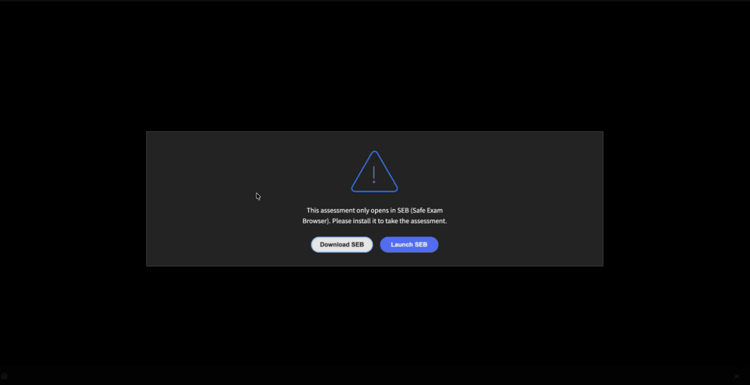
Select Download SEB. The Safe Exam Browser download page opens.
-
Download and install the appropriate version of Safe Exam Browser for your device.
-
After the installation is complete, return to the quiz in Adobe Learning Manager.
Launch Safe Exam Browser
After installing Safe Exam Browser, launch the application to access the quiz.
-
Open the course and select the self-paced quiz that requires Safe Exam Browser.
-
Select Launch SEB.
-
Allow the required system permissions when prompted.
Safe Exam Browser launches and opens the selected quiz. -
Access the quiz and complete the assessment in Safe Exam Browser.
note NOTE When you sign in to Adobe Learning Manager through Safe Exam Browser (SEB), you can access only your assigned, unattempted quizzes that require SEB. You cannot access other learning content. -
Select Exit SEB.
You are redirected to the page configured for your account.