On this page: Learn how Adobe Journey Optimizer checks the web links in your message content when you preview it, so you can catch broken, insecure, or unreachable URLs before you send.
When you preview your message content, you can have Journey Optimizer check the web links it contains. This helps you catch broken or inaccessible links before your message reaches your audience.
Run URL validation access
URL validation is available for channel actions in journeys and campaigns across all channels, and when you preview content templates. It runs automatically as soon as you open the Simulate screen, so you don’t need to start it yourself. To review the results:
-
From the content editor, click Simulate content. Learn more about simulation
-
From the Simulate screen, check the URL validation icon:
-
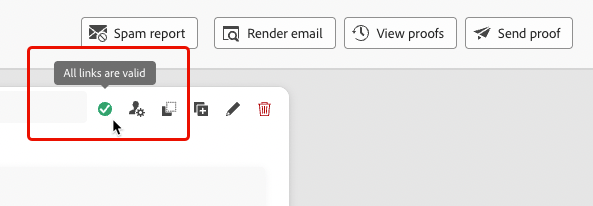
If all URLs are valid, the icon shows a green check mark.
-
If any URLs are invalid, the icon flags it.
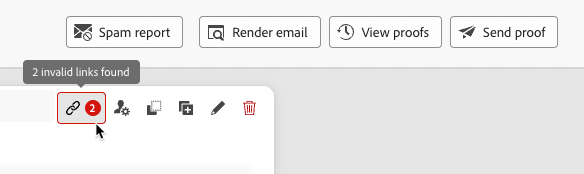
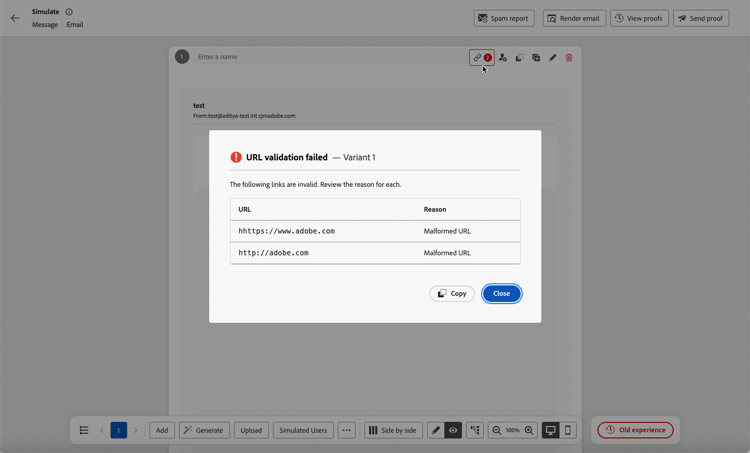
Click the icon to open a pop-up window that lists each invalid URL and the reason why it’s invalid.
-
-
Click Copy to copy the list to your clipboard, then paste it into a document or email for review.
-
Close the window and fix the invalid URLs in your content. Learn more in the Troubleshooting section.
-
Simulate the content again for validation to re-run automatically. Repeat until the icon shows a green check mark.
How it works how-it-works
- Every
http://andhttps://URL in your content is checked — including links, images, and stylesheets, not only clickable text links. - Each URL is checked to confirm that the host resolves, responds with a success status, and responds within an acceptable time. Only the response status is checked; page content is never downloaded.
- If issues are found, they’re identified along with the reason and guidance on how to fix them.
What gets flagged invalid-urls
http://example.comhhttps://, ttps://localhost, 192.168.x.x, 169.254.169.254For steps to fix each of these, see Troubleshooting.
What doesn’t get checked not-checked
The following aren’t flagged as broken, even if they appear in your content:
- Non-web links —
adbinapp://,mailto:,tel:,sms:, anddata:URIs aren’t web URLs. - Relative links —
/pageor./image.jpghave no host to check. - Anchors —
#sectionis a local page reference. - Empty links — An empty
hrefisn’t a link.
Caveats caveats
https://example.com/profile/{{crmID}}https://example.com/offer?promoCode={{promoCode}}
Content is scanned for URLs wherever they appear, not only in clickable links. As a result, a few other categories are often flagged as false positives:
- Adobe namespace URLs, such as
xmlns="http://ns.adobe.com/..."in XML/HTML, are identifiers rather than pages to visit. They return a 404, which is expected. - CDN resource URLs — images, fonts, or stylesheets that aren’t meant to be clicked. If the CDN is slow or temporarily unavailable, they may show as invalid.
- URLs in comments or metadata that are never shown to your recipients but are still checked.
Best practices best-practices
- Use
https://for all links — HTTP links aren’t allowed. - Confirm external dependencies — CDN URLs, third-party APIs, and remote images — are healthy before you preview.
- Simulate personalized links with a real Adobe Experience Platform profile — manually entered, imported, AI-generated, or simulated-user data can make valid links show as invalid.
- Stay under the 50-URL limit — going over it doesn’t trim the extras, it rejects the whole validation request. Consider splitting your content across multiple messages or templates.
- Expect namespace or data URIs in your schema to show as invalid — that’s expected, since they aren’t meant to be clicked.
Troubleshooting troubleshooting
https://.{{ }} personalization token is flagged as invalid