Optimize email text for AI inboxes email-text-optimizer
Adobe Journey Optimizer comes with an email-channel capability that helps you structure the text version of your messages for improved AI-assisted inbox experiences—such as Apple Intelligence and Google Gemini in Gmail—so they can answer questions and summarize mail based on your content more accurately, with better results.
With this email text optimizer, you can ensure that the plain text version of your email content is enhanced for AI-assisted inbox experiences, so that the information you provide to the AI features of these email inbox providers is exactly the one which you want to provide.
How it works how-it-works
Typical questions recipients may ask in AI-assisted inbox experiences are What is this email about? or What are these offers?.
-
The answers provided by these AI assistants may be a short summary (for example that the message is promotional, mentions VIP early access and a sale, and includes links to product categories) but still omit objectives the marketer cared about because the assistants are inferring from whatever text they effectively see—not necessarily the full story you intended.
-
Also, the assistants may proactively search for discounts or coupons related to the brand and fold those into the answer, so the user is no longer looking at only what your message actually promised. That behavior is useful to end users, but dilutes control for marketers who need answers to track the real terms in the send.
To prevent these issues, Journey Optimizer rewrites the plain text so that coupons, discount ranges, call to actions, and other priorities appear up front in clear linear copy. The goal is for inbox AI to ground summaries and Q&A in your defined offers and actions—instead of leaning on a thin default text part or on unrelated web results.
Recommended use cases use-cases
-
Dense or fragmented auto-generated text — When default plain text is hard to scan, optimization can produce a clearer linear narrative with explicit offers and links.
-
Controlling inbox Q&A — When you expect recipients to ask assistants what the email is about or what the offers are, a strong plain text version reduces partial summaries and reduces reliance on web-supplemented answers that are not tied to your approved copy.
Optimize for AI inbox experiences optimize-with-ai
To optimize the plain text version of your email for AI inboxes with Journey Optimizer, follow the steps below.
-
Open your email in the Email Designer (from a campaign, journey, or template, depending on your workflow).
-
Select the Plain text icon to open the text version of your email. Learn more

-
The text version of your email is displayed. Click the Optimize for AI Inbox button to generate an improved plain text version that highlights key information for AI-assisted reading and summarization.
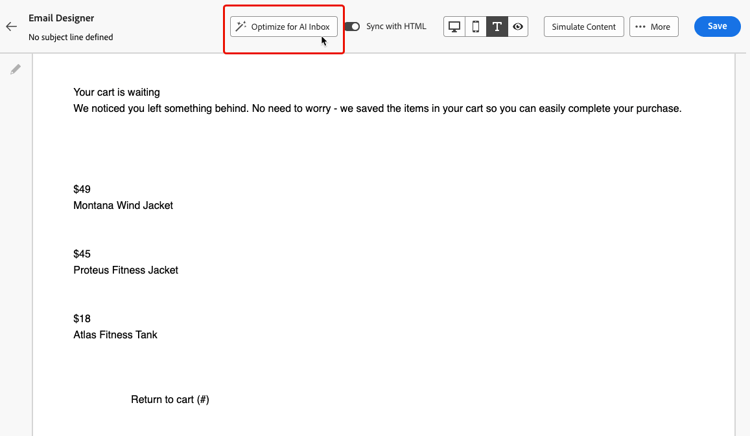
note note NOTE Upon clicking the Optimize for AI Inbox button, the Sync with HTML option is automatically disabled. Learn more -
If this is the first time you are using Generative AI in Journey Optimizer, you will be asked to agree to the user agreement. To learn more, check out the Adobe Generative AI User Guidelines.
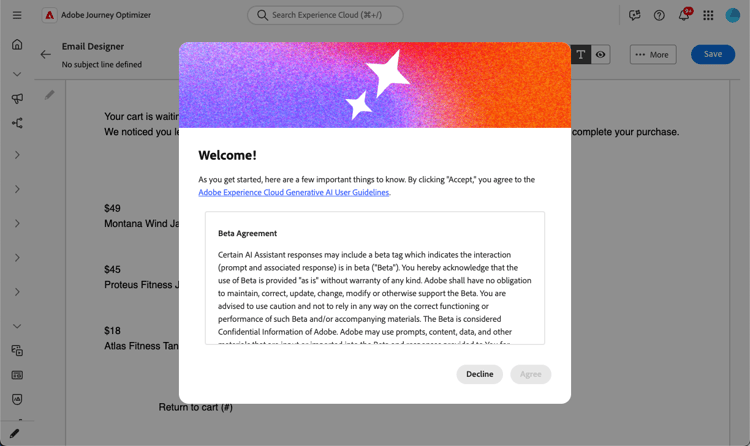
Click Agree to continue.
-
The generated text is displayed. Review the changes, edit if needed, then save your email as usual.
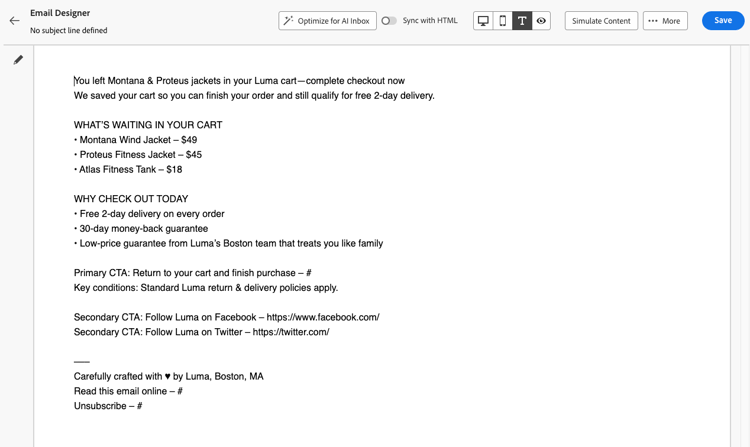
note note NOTE The email text optimizer updates the plain text body only. It does not change your HTML design, layout, or images. -
You can switch back to the HTML version of your email at any time by clicking the Switch to Desktop view icon. Your changes in the text version are preserved.
note caution CAUTION If you enable again the Sync with HTML option, your changes will be lost and replaced with text content generated from the HTML version.
Risks and limitations of third-party inbox AI inbox-ai-risks
The Optimize email text for AI inboxes capability helps you prepare plain text for how mailbox providers may process your Journey Optimizer sends. It does not control those providers’ products. Once a message is delivered, any AI features in Gmail, Apple Mail, Outlook, or other clients operate under their terms, models, and policies—not Adobe’s.
-
Unpredictable presentation — Summaries, notification blurbs, and conversational answers can omit offers, misstate prices or dates, merge content with unrelated web results, or paraphrase in ways that no longer match your approved copy. Behavior changes when vendors update models or UI without notice.
-
No guarantee of parity with HTML — Recipients who rely on previews or assistant answers may never see your full HTML design, images, or legal footers. What they believe the message “says” may come only from a short AI-generated digest.
-
Privacy, compliance, and data use — Inbox AI may process message content on provider infrastructure subject to that provider’s privacy policy, retention, and regional rules. Organizations in regulated industries should assess whether recipient use of such features affects their obligations, independent of how the email was authored in Journey Optimizer.
-
Brand and legal exposure — Incorrect or incomplete AI summaries can still create customer confusion or disputes about promotions, terms, or opt-out language. The optimizer improves the text layer you supply; it does not ensure that a third party’s model will reproduce it faithfully.
-
Optimize for AI inbox in Journey Optimizer — The authoring-time action in the Email Designer is a separate system from end-user inbox assistants. Always review generated plain text before send.
Related topics related-topics
- Manage the text version of an email
- Get started with email design
- For Adobe generative features more broadly, see Get started with AI Assistant to create content.