On this page: Learn how to build a journey that gradually ramps up your email deliveries using the Optimize activity and a profile cap, helping you warm up a new IP address and establish your sender reputation.
If you recently moved to another email service provider, IP address, or email domain or subdomain, you need to establish your reputation as a sender. Otherwise, your deliveries might be blocked or moved to the spam folder of the recipients’ mailbox. Learn how to increase your email reputation with IP warming in the Deliverability Best Practice Guide.
To warm up your IP, you can gradually ramp up the number of your deliveries. Read more about optimizing deliverability in Journey Optimizer.
The purpose of this use case is to create a journey to ramp up your email deliveries. To configure this journey, follow these steps:
-
Create a journey. Read more.
-
Add an Optimize activity to the journey. Read more.
-
In the Condition activity settings, set the maximum number of recipients for your delivery:
-
In the Optimize activity settings, select Conditions method and set the Type field to Profile cap. Read more.
-
Set the Limit field to the maximum number of recipients for this delivery.
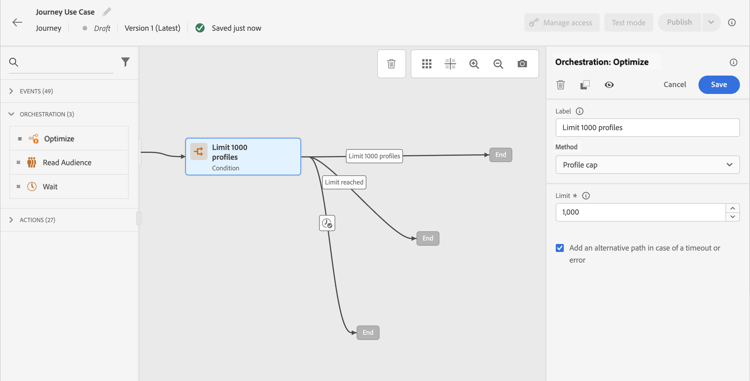
You can gradually increase this limit up to the total number of your subscribers.
-
-
Add an Email action activity to the nominal path after the Condition activity.
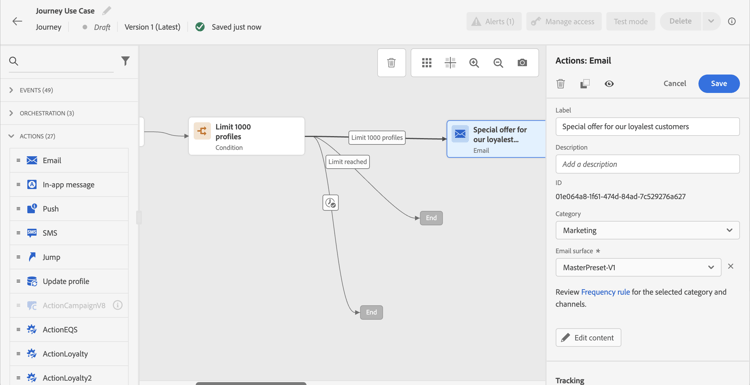
When the journey runs, the message is sent the entering profiles, up to the maximum number of profiles that you have specified. When this limit is reached, the entering profiles take the alternate path.
-
Complete the journey with the activities of your choice.
After your IP has warmed up, you can remove this condition.
This section contains structured knowledge intended to support interpretation, retrieval, and question answering related to this topic.
For complete understanding, this information should be combined with the documentation on this page. Neither source is intended to stand alone; the page describes the feature, while this section provides additional context that helps disambiguate terminology, intent, applicability, and constraints.
- TL;DR: This use case describes how to build an Adobe Journey Optimizer journey that gradually ramps up email delivery volume using a Profile cap condition to protect sender reputation during IP warming.
Intents:
- Build a journey to gradually increase email delivery volume for IP warming
- Configure a Profile cap condition to limit the number of recipients per delivery run
- Protect sender reputation when switching to a new email service provider, IP address, or domain
- Remove the volume cap condition once the IP is fully warmed up
Glossary:
- IP warming: The process of gradually increasing email send volume from a new IP address or domain to build sender reputation with mailbox providers (product-specific)
- Profile cap: A condition type in the Optimize activity that limits the maximum number of profiles that receive a message in a given journey run (product-specific)
- Optimize activity: A journey canvas activity used to apply conditions, targeting rules, or experimentation to control how profiles flow through a journey (product-specific)
Guardrails:
- A Profile cap condition must be set in the Optimize activity’s Conditions method to control delivery volume.
- Profiles that exceed the cap take the alternate path defined in the journey.
- The profile cap limit should be increased gradually over time up to the total number of subscribers.
Terminology:
- Canonical name: Ramp-up deliveries — Acronym: none — variants: IP warming, IP warmup, delivery ramp-up
- Synonyms: “IP warming” = “IP warmup” = “sender reputation building”
- Do not confuse: “Profile cap” ≠ “audience size limit” (Profile cap is a per-run delivery limit; audience size is the total number of qualified profiles)
FAQ:
- Q: Why do I need to ramp up deliveries when switching to a new IP or domain? — A new IP or domain has no sending history, so mailbox providers may block or spam-folder messages until a positive reputation is established through gradual, increasing volume.
- Q: How does the Profile cap condition control delivery volume? — It sets a maximum number of profiles that can receive the message in a single journey run; profiles beyond that limit take an alternate path instead.
- Q: When can I remove the Profile cap condition? — Once the IP is fully warmed up and your sender reputation is established, you can remove the condition from the journey.
- Q: Can I increase the cap gradually over time? — Yes; you can update the Limit field in the Profile cap condition to progressively increase the number of recipients per run up to your full subscriber count.