On this page: Learn how journey simulation lets you test with simulated users, and how the simulation experience varies depending on your journey type before you publish.
When a journey is in Simulation, you can test it with simulated users: temporary, profile-like entities that you add for testing instead of persistent test profiles in Adobe Experience Platform.
Adobe Journey Optimizer offers three ways to test and validate your journey:
-
Journey Simulation: Use the Simulation journey feature and simulated users without pre-created profiles in Adobe Experience Platform, supporting both AI-powered and manually created users.
-
Journey Test mode: Use persistent profiles flagged as test profiles in Adobe Experience Platform, reusable across sessions. Choose this approach when you need consistent, predefined data. Learn how to create test profiles.
-
Journey Dry run: Run the journey against real production audience and segmentation data without contacting real customers or updating profile information. Action nodes such as email, mobile message, and custom actions are bypassed. Learn more about Journey Dry run.
Not sure Simulation is the right method for you? Compare all three validation options.
Required permissions required-permissions
To use Simulation, assign at least one permission from the Journeys capability: Simulate journeys, Publish journeys, or Approve and Publish journeys. These permissions also let you create and manage simulated users; Simulated Users permissions are not required. Learn more
To manage simulated users without Simulation, assign Manage Simulated Users or View Simulated Users from the Simulated Users capability.
For AI in simulation (Quick simulation, AI-generated users, and Generate event values), assign Generate Content from the AI Assistant capability.
Simulation by journey type by-journey-type
The Simulation panel shows only the steps your journey needs. That depends on how profiles enter the journey. From these factors, Adobe Journey Optimizer surfaces different simulation experiences. Expand each type below to see how the run differs and which panels you use.
For details, see Simulate your journey.
The journey is triggered by a Read audience and the canvas has no unitary event activities. During simulation, the audience population is not triggered. Only simulated users enter the journey.
Simulated users selected for the simulation appear in the Test users section:

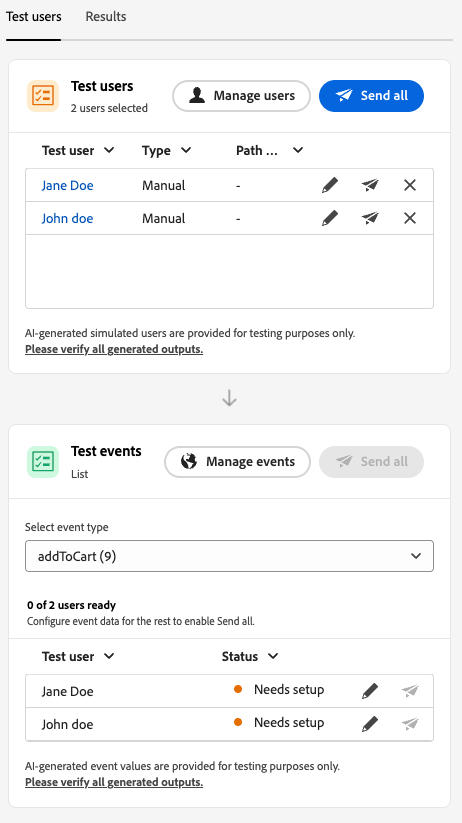
A segment-trigger journey that includes one or more unitary events along the path. You first trigger simulated users to enter the simulation and then trigger events for the users that wait at an event node.
Simulated users selected for the simulation and configured events will be visible respectively in the Test users and Test events sections. The Test events section will not be visible until a simulated user enters the journey.
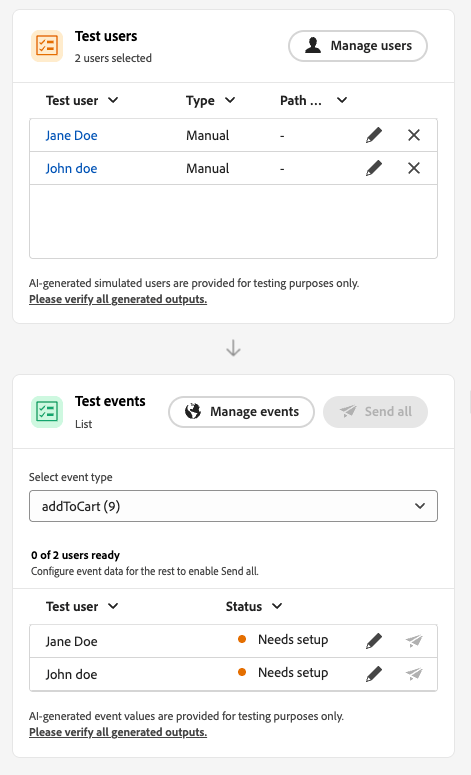
The journey starts with a unitary event, not a read audience. A simulated user does not enter the journey until that start event is fired for them.
Simulated users selected for the simulation and configured events will be visible respectively in the Test users and Test events sections. The Test users section does not include an action to trigger a simulated user into the journey. You trigger entry from Test events.
Launch Simulation launch
Switch the journey to Simulation to test with simulated users. Step-by-step tasks are detailed in Simulate your journey.
-
Click Validate in the journey header. Resolve any errors in the Alerts panel and validate again before continuing. Learn about journey validation.
-
From your journey, click Simulate and choose Simulation.

-
Wait for activation to complete. While the journey switches to Simulation, the controls in the panel are disabled and re-enable automatically once activation finishes.
Limitations limitations
In this release, Simulation may not support every activity, channel, or integration that Test mode or a live journey supports, and behavior may change as the capability matures. Use this article for supported workflows.
Refer to the drop-downs below to learn more about Simulation limitations.
Some nodes prevent Simulation from starting. Others run in simulation with the behavior described below. When a node must be removed or changed before you simulate, update the journey first.
| table 0-row-2 1-row-2 2-row-2 3-row-2 4-row-2 5-row-2 6-row-2 7-row-2 8-row-2 9-row-2 10-row-2 | |
|---|---|
| Restricted node | Notes |
| Business Events | You cannot run journeys that start with a business event in Simulation. |
| Inbound channels | You cannot run journeys that include an inbound channel node in Simulation. |
| Dataset Lookup | Simulation does not support customer dataset lookups by key. Remove or change this activity before you run a simulation. |
| Optimize activity | Optimize methods behave as follows: Targeting rule: AI evaluates the configured rule against the simulated user’s profile attributes to select the branch. Experiment (Path Experimentation): Routing is handled by Decisioning, for any split even a 50/50 split or a 10% holdout. Assignment is random and non-deterministic per simulated user, so a small batch, for example 5 users even AI-generated ones in Quick simulation, is not guaranteed to cover every treatment, they could all land on the same one by chance. This differs from Percentage split below. Percentage split: AI creates one simulated user per branch, not according to branch percentages. At runtime, live evaluation picks the branch and it may differ from the generated path. You cannot mock a branch choice. To steer users, rely on branch order on the canvas. The top branch is always chosen. Time condition: Conditions apply at runtime as in a live journey. For example, a window from 8:00 to 20:00 only lets users through while simulation runs inside that window. You cannot mock execution time. Set the condition to match the current time when you test. Date condition: Conditions apply at runtime as in a live journey. For example, a date of June 8, 2026 only lets users through when simulation runs on that date. You cannot mock execution date. Set the condition to the current date when you test. Profile cap: Caps are not enforced during simulation. AI creates one simulated user per branch. You cannot mock a branch choice. To steer users, rely on branch order on the canvas. The top branch is always chosen. |
| Timeout and error branches | AI does not generate users for activity timeout or error branches. Users only enter those paths if a real timeout or error happens during simulation. |
| Timeout branch (event activities) | Simulated users are created, but in Manual simulation AI does not decide who enters an event timeout branch. Control the path by sending or not sending the event. For example, to test a timeout branch, wait out the configured timeout and do not send the event. Quick simulation can send or withhold events automatically to cover timeout branches. |
| Reaction events | Reaction events run in simulation, but the action must happen in real life. For example, an email open reaction requires opening the proof message. You cannot mock reactions in the simulation UI. |
| External data sources | Calls run during simulation the same way as in a live journey. Downstream activities can use the response, but you cannot mock it. When a response value feeds an Optimize activity, AI cannot invent that output. It only generates inputs for the call. For example, if a call takes a profile city and returns weather, the Agent sets a city on the simulated user and the live call returns the weather. |
| Custom actions | Behavior matches external data sources. Outbound calls run for real. AI fills in inputs. Outputs come from the live response. You cannot mock responses. |
| External audience attribute enrichment | Journeys that use personalized attributes from external audience sources do not start in Simulation when this validation applies. |
The following Decisioning element are supported:
| table 0-row-2 1-row-2 2-row-2 3-row-2 4-row-2 5-row-2 6-row-2 7-row-2 | |
|---|---|
| Decisioning element | Notes |
| Offer eligibility | Supported, including eligibility based on profile attributes. |
| Eligibility rule | Supported. The rule can contain profile attributes. |
| Eligibility audience | Supported when the audience is added to the simulated user’s profile. |
| Ranking by offer priority | Supported. Profile attributes are not involved. |
| Ranking by formula | Supported. The formula can use profile attributes. |
| Ranking by AI Model - Auto | Supported. Ranking is based only on the offer and the configured dataset, profile attributes are not involved. Requires the necessary data to be present in the configured dataset. |
| Ranking by AI Model - Personalization | Supported. The audience is considered for ranking, not for eligibility. Because ranking is AI-driven, returned offers may vary between simulation runs. |
The following capabilities are not supported in Simulation.
| table 0-row-2 1-row-2 2-row-2 3-row-2 4-row-2 5-row-2 6-row-2 7-row-2 8-row-2 9-row-2 10-row-2 11-row-2 12-row-2 13-row-2 | |
|---|---|
| Capability | Notes |
| Exit criteria | Exit criteria are not applied when you run Simulation. |
| Mock custom action response | Custom actions perform a real outbound call by default. Mocking the response so no external call runs is not supported. |
| Consent policy evaluation | Consent cannot be mocked at the simulated-user level and consent policies are not evaluated during simulation. |
| Journey capping and arbitration | Not evaluated nor enforced during simulation. |
| Frequency capping (by channel or communication type) | Not evaluated nor enforced during simulation. |
| Opt-out management, suppression, and allow lists | Not evaluated nor applied during simulation. |
| Dynamic subdomain and dynamic attributes in channel configurations | Not supported. |
| Send Time Optimization (STO) | Not evaluated nor applied during simulation. |
| Sandbox tooling (copy simulated users across sandboxes) | Not supported. |
| Wave sending in journeys | Not supported. |
| Quiet hours | Not evaluated nor applied during simulation. |
| Privacy service | Simulated users are not GDPR-compliant persistent profiles. Do not include real customer data in simulated users. |
| Profile persistence | Sending a simulated user into a journey triggers a real message send through the standard delivery pipeline. If an impacted dataset, e.g. feedback events or tracking events, is profile-enabled, this can result in a persistent profile being created in Adobe Experience Platform for that simulated user, even though the run is flagged as a simulation. |
These guardrails apply to Simulation. Numeric caps are enforced in the journey interface and at runtime. Limits may change in a later release. If you run near a ceiling, verify behavior in your sandbox.
| table 0-row-3 1-row-3 2-row-3 3-row-3 4-row-3 5-row-3 6-row-3 7-row-3 8-row-3 | ||
|---|---|---|
| Guardrail | Limit | Notes |
| Maximum simulated users that can be selected and triggered in one batch (batch journeys, event-triggered flows, and audience-qualification flows) | 20 | Counted for each Send all or Trigger selected events, not a cumulative cap for the whole journey. |
| Maximum simulated users per generation request | 50 | Maximum simulated users AI generates in one request through Quick simulation or Generate with AI in Manual simulation. If the journey has more than 50 paths, AI randomly selects paths to produce those 50 simulated users. |
| Maximum unique simulated users tested in a single simulation run | 100 | Reaching 100 unique users in one run blocks Select simulated users for new simulated users. If you are at 90, you can add at most 10 more before the same block. With a supplemental ID on a Read audience journey, this limit tracks total journey runs rather than unique users. For example, re-running the same five simulated users 20 times reaches the limit. Stopping and restarting, or resetting, the simulation clears the count. |
| Maximum journeys that can run in Simulation at the same time in one sandbox | 20 | Cap is shared by every Simulation journey in that sandbox at once. |
| Maximum active simulated users in one sandbox | 2,000 | Maximum simulated users that can exist in the sandbox at one time. Adobe may adjust this limit based on customer feedback. |
| Event Pre-fill (Browser Only) | — | You can pre-fill event payload fields only in the browser-based simulation UI. Pre-filled values stay in that browser and are not synced to other browsers, devices, or sessions, so you may see different pre-fill data in each place you test. |
| AI-generated simulated user retention | 10 days | AI-generated simulated users are automatically deleted 10 days after creation. |
| Global simulated user retention | 12 months | Global simulated users are automatically deleted 12 months after creation. |
How-to video video
The video below shows how to use Quick Simulation to test customer journeys by automating key processes. It generates test profiles, orchestrates events, speeds up wait times, and validates scenarios.
This section contains structured knowledge intended to support interpretation, retrieval, and question answering related to this topic.
For complete understanding, this information should be combined with the documentation on this page. Neither source is intended to stand alone; the page describes the feature, while this section provides additional context that helps disambiguate terminology, intent, applicability, and constraints.
- TL;DR: This page introduces Simulation in Adobe Journey Optimizer, explaining how it differs from Test mode, which journey types it supports, how to launch a simulation, how Optimize activity methods and other decisioning elements behave during a simulation, and what its node-level, functional, and quantitative limitations are.
Intents:
- Understand the difference between Simulation and Test mode for validating journeys
- Launch a Simulation session for a batch or unitary journey type
- Identify which journey nodes block or restrict Simulation from running
- Determine how Optimize activity methods (Targeting rule, Experiment, Percentage split, Time condition, Date condition, Profile cap) behave during Simulation
- Determine which decisioning elements (offer eligibility, eligibility rule or audience, ranking) are supported during Simulation
- Determine which features are unsupported during Simulation (e.g., consent, frequency capping, STO)
Glossary:
- Simulated users: Temporary profile-like entities created for Simulation. Sending a simulated user triggers a real message send; if an impacted dataset, such as feedback or tracking events, is profile-enabled, a persistent profile can be created in Adobe Experience Platform (product-specific)
- Simulation: A journey feature used for testing with simulated users rather than persistent test profiles (product-specific)
- Journey Dry run: A validation method that runs a journey against real production audience and segmentation data without contacting real customers or updating profile information (product-specific)
- Experiment (Path Experimentation): An Optimize activity method whose routing is handled by Decisioning, with random assignment that is non-deterministic per simulated user (product-specific)
Guardrails:
- The journey must be validated before entering Simulation. Errors in the Alerts panel must be resolved and validation rerun before continuing.
- To use Simulation, assign at least one of: Simulate journeys, Publish journeys, or Approve and Publish journeys permissions from the Journeys capability; these permissions also allow users to create and manage simulated users without Simulated Users permissions
- Managing simulated users without Simulation requires Manage Simulated Users or View Simulated Users from the Simulated Users capability
- AI-powered simulation features (Quick simulation, AI-generated users, and Generate event values) require Generate Content from the AI Assistant capability
- Maximum 20 simulated users per Send all or Trigger selected events batch (hard limit)
- Maximum 50 simulated users per AI generation request (hard limit)
- Maximum 100 unique simulated users per single simulation run (hard limit); with a supplemental ID on a Read audience journey, this counts total journey runs rather than unique users
- Maximum 20 journeys running Simulation simultaneously in one sandbox (hard limit)
- Maximum 2,000 active simulated users in one sandbox at a time (hard limit)
- Journeys that start with a business event cannot be run in Simulation
- Consent policies, frequency capping, and quiet hours are not evaluated during Simulation; opt-out management and STO are not evaluated or applied
- Simulated users are not GDPR-compliant persistent profiles; do not include real customer data in simulated users
Terminology:
- Canonical name: Simulation
- Canonical name: Simulated users
- Canonical name: Experiment — variants: Path Experimentation
- Do not confuse: “Simulation” ≠ “Test mode” (Test mode uses persistent profiles flagged as test profiles in Adobe Experience Platform; Simulation uses temporary simulated users)
- Do not confuse: “Journey Simulation” ≠ “Journey Test mode” ≠ “Journey Dry run” (the three validation methods use different data and validation approaches)
- Do not confuse: Targeting rule ≠ Experiment (both are Optimize activity methods, but AI evaluates the configured rule for Targeting rule, whereas routing for Experiment is handled by Decisioning)
FAQ:
- Q: What permissions do I need to use Simulation? — Assign at least one of: Simulate journeys, Publish journeys, or Approve and Publish journeys from the Journeys capability. These permissions also let you create and manage simulated users; Simulated Users permissions are not required. AI features additionally require Generate Content from the AI Assistant capability.
- Q: How does Simulation differ from Test mode? — Simulation uses temporary simulated users without pre-created profiles in Adobe Experience Platform; Test mode uses persistent profiles explicitly flagged as test profiles in Adobe Experience Platform. Sending a simulated user triggers a real message send; if an impacted dataset is profile-enabled, a persistent profile can be created.
- Q: Can I simulate a journey that starts with a business event? — No. Journeys that start with a business event cannot be run in Simulation.
- Q: Are the Targeting rule and Experiment methods of the Optimize activity supported in Simulation? — Targeting rule is evaluated by AI against the simulated user’s profile attributes. For Experiment (Path Experimentation), routing is handled by Decisioning and assignment is random and non-deterministic per simulated user.
- Q: Are decisioning elements such as offer eligibility and ranking supported during Simulation? — Yes. Offer eligibility, eligibility rule, and ranking by offer priority or formula are supported. Eligibility audience is supported when the audience is added to the simulated user’s profile. AI Model - Auto requires the necessary data in the configured dataset. AI Model - Personalization considers the audience for ranking, not eligibility; returned offers may vary between simulation runs.
- Q: How many simulated users can I test in a single simulation run? — Up to 100 unique simulated users per run; with a supplemental ID on a Read audience journey, the limit counts total journey runs. Each Send all action is capped at 20 users at once.