On this page: Learn how to use the built-in Adobe Campaign Standard email, push, and SMS action activities in your journeys by relying on Campaign Standard Transactional Messaging templates.
If you have Adobe Campaign Standard, the following built-in action activities are available: Email, Push and SMS.
For each of these channels, you select an Adobe Campaign Standard Transactional Messaging template. For the built-in email, SMS and push channels, we rely on Transactional Messaging to execute message sending. It means that if you want to use a certain message template in your journeys, you must publish it in Adobe Campaign Standard. Refer to this page to learn how to use this feature.
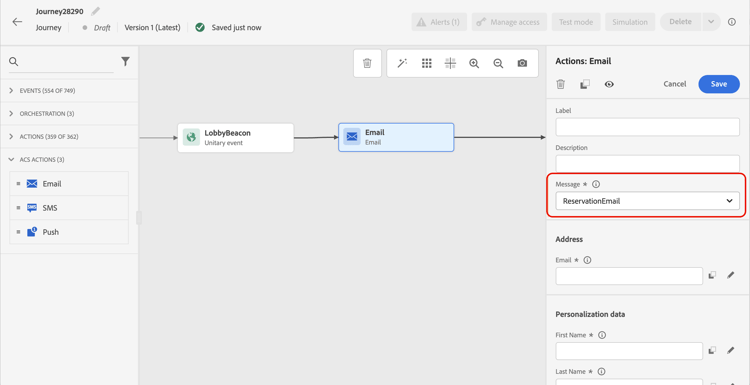
You can use an event (also known as real-time) or profile transactional messaging template.
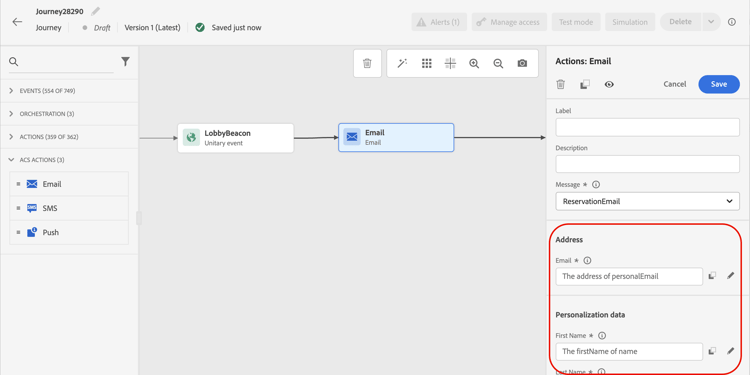
When you select a template, all the fields expected in the message payload are displayed in the activity configuration pane under Address and Personalization Data. You need to map each of these fields with the field you want to use, either from the event or from the data source. You can also use the advanced expression editor to pass a value manually, perform data manipulation on retrieved information (for example convert a string to uppercase) or use functions such as “if, then, else”. See this page.
Email and SMS section_asc_51g_nhb
For Email and SMS, the parameters are identical.
Include an Unsubscription link content block within the transactional email template.
If you are using an event-based template (rtEvent), incorporate a link in the message that passes the recipient’s email as a URL parameter and directs them to an unsubscription landing page.
Create the landing page and ensure that the recipient’s unsubscribe decision is transmitted to Adobe.
First, you need to choose a transactional messaging template.
Two categories are available: Address and Personalization Data.
You can easily define where to retrieve the Address or the Personalization Data using the interface. You can browse through events and available data source’s fields. You can also use the advanced expression editor for more advanced use cases such as using a data source that requires the passing of parameters or performing manipulations. See this page.
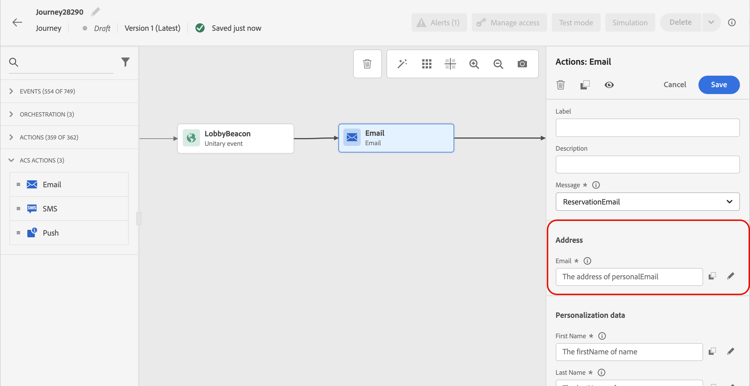
Address
These are the fields the system requires to know where to send the message. For an email template, it’s the email address. For an SMS, it’s the mobile phone number.
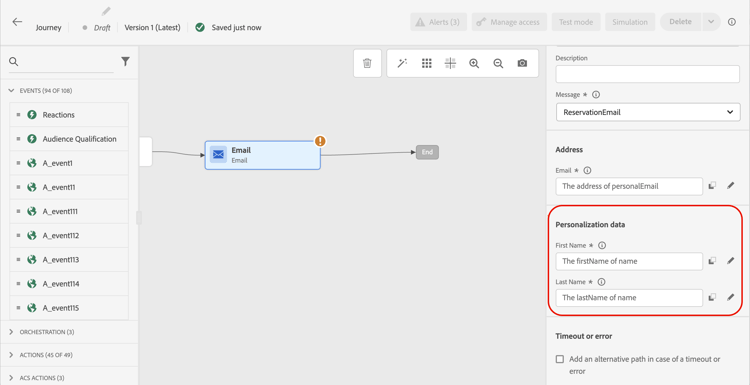
Personalization Data
These are the fields expected by the Adobe Campaign Standard message. These fields can be used to personalize the message, apply conditional formatting, or pick a specific message variant.
Push section_im3_hvf_nhb
Prior to using the push activity, your mobile app needs to be configured along with Campaign Standard to send push notifications. Use this article to take the necessary implementation steps for mobile.
First, you need to choose a mobile app from the drop-down list and a transactional message.
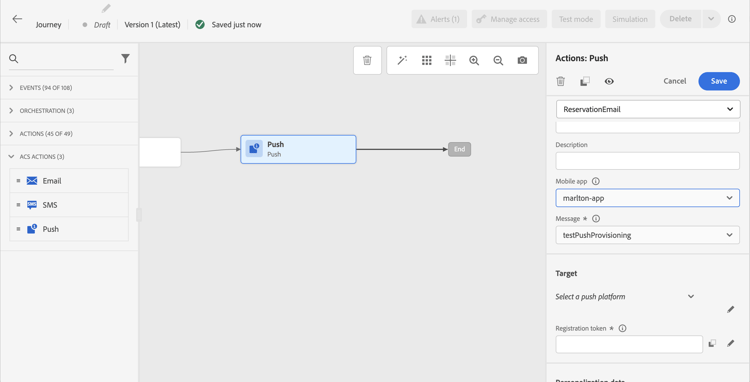
Two categories are available: Target and Personalization Data.
Target
In this section, you need to define the Push platform. The drop-down list allows you to select Apple Push Notification Server (iOS) or Firebase Cloud Messaging (Android). You can alternatively select a specific field from an event or a data source, or define an advanced expression.
You also need to define the Registration Token. The expression depends on how the token is defined in the event payload or in other Journey Optimizer information. It can be a simple field or a more complex expression in case the token is defined in a collection for instance:
@event{Event_push._experience.campaign.message.profileSnapshot.pushNotificationTokens.first().token}
Personalization Data
These are the fields expected by the transactional template used in your Adobe Campaign Standard message. These fields can be used to personalize your message, apply conditional formatting, or pick a specific message variant.
This section contains structured knowledge intended to support interpretation, retrieval, and question answering related to this topic.
For complete understanding, this information should be combined with the documentation on this page. Neither source is intended to stand alone; the page describes the feature, while this section provides additional context that helps disambiguate terminology, intent, applicability, and constraints.
- TL;DR: This page explains how to use the built-in Adobe Campaign Standard Email, SMS, and Push action activities in Journey Optimizer journeys via Campaign Transactional Messaging templates.
Intents:
- Configure Email, SMS, or Push action activities in a journey using Adobe Campaign Standard integration
- Select and map a Campaign Standard transactional messaging template to journey fields
- Map Address and Personalization Data fields from journey events or datasources to the message payload
- Handle unsubscription for event-based and profile-based transactional email templates
- Configure push notification target platform and registration token for Campaign Standard push actions
Glossary:
- Transactional Messaging: Adobe Campaign Standard capability for sending triggered, real-time messages (email, SMS, push) based on events (product-specific)
- rtEvent: Real-time event transactional message template in Adobe Campaign Standard, used for event-based messaging (product-specific)
- Profile transactional template: A Campaign Standard transactional message template that uses profile data for recipient resolution and unsubscription handling (product-specific)
- Registration Token: Device-level identifier required to target a push notification to a specific mobile app installation (product-specific)
Guardrails:
- The built-in action must be configured before use; refer to the action configuration page.
- Both the Campaign Standard transactional message and its associated event must be published for the template to be usable in Journey Optimizer.
- Collections cannot be passed in Personalization Data fields.
- For event-based (rtEvent) templates, unsubscription management must be handled manually with a condition before sending.
- For profile-based push messages, the Target fields are retrieved automatically; the Target category is only visible for event messages.
- Mobile app must be configured with Campaign Standard before the push activity can be used.
Terminology:
- Canonical name: Adobe Campaign Standard — Acronym: ACS — variants: Campaign Standard
- Synonyms: “event transactional message” = “rtEvent”; “real-time transactional message” = “rtEvent”
- Do not confuse: “profile transactional template” (unsubscription handled automatically) ≠ “event transactional template” (unsubscription must be handled manually)
FAQ:
- Q: What channels are available through the Adobe Campaign Standard integration? — Email, SMS, and Push notification channels are available as built-in action activities.
- Q: Does the transactional message need to be published in Campaign Standard before using it in Journey Optimizer? — Yes, both the transactional message and its associated event must be published; an unpublished message will not be usable even if visible in the interface.
- Q: How is unsubscription handled for profile-based email templates? — Unsubscription is automatically handled by Adobe Campaign Standard when using a profile transactional template; include an Unsubscription link content block in the template.
- Q: Can I pass a collection as personalization data? — No, collections cannot be passed in Personalization Data; the transactional message must not expect collections.
- Q: Where do I map the recipient address for an event-based email? — The Address category in the activity configuration pane is only visible for event transactional messages; for profile messages the address is retrieved automatically.