[Limited Availability]{class="badge informative"}
Use Adobe Experience Platform data in journeys datalookup
On this page: Learn how to use the Dataset lookup activity to dynamically retrieve data from Adobe Experience Platform record datasets at runtime and enrich your journeys with external data for personalization and decision-making.
The Dataset lookup activity allows you to dynamically retrieve data from Adobe Experience Platform record datasets during runtime. By leveraging this capability, you can access data that may not reside in the profile or event payload, ensuring your customer interactions are both relevant and timely.
Key Benefits:
- Real-Time personalization: Tailor customer experiences using enriched data.
- Dynamic decision-making: Use external data to drive journey logic and actions.
- Enhanced data Access: Retrieve product metadata, pricing tables, or relational data tied to specific keys.
Must-read must-read
Review these requirements before you configure dataset lookups.
Dataset enablement
The dataset must be enabled for lookup in Adobe Experience Platform. Detailed information is available in this section: Use Adobe Experience Platform data.
Limits & restrictions
- Maximum of 10 Dataset Lookup activities per journey.
- Maximum of 20 selected fields.
- Maximum of 50 keys in the lookup keys array.
- Enriched data size is limited to 10KB.
Additional performance considerations
The below recommendations are guidance to avoid delays in deliverability:
Configure the Dataset lookup activity configure
To configure the Dataset lookup activity, follow these steps:
-
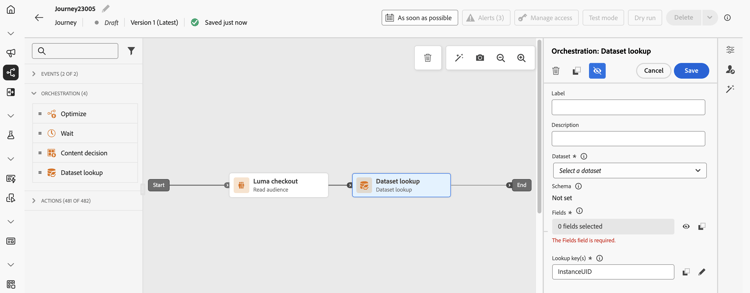
Unfold the Orchestration category and drop a Dataset lookup activity into your canvas.
-
Add a label and description.
-
In the Dataset field, select the dataset with the attributes you need.
note NOTE If the dataset you are looking for does not display in the list, make sure you have enabled it for lookup. For more details, refer to the Must read section. -
Select the specific fields you want to fetch from the dataset.
-
You can only select leaf nodes (fields at the lowest level of the schema). The field must be a primitive value (string, number, boolean, date, etc.).
-
Lists (arrays) and maps (key–value objects) cannot be selected.
accordion Example 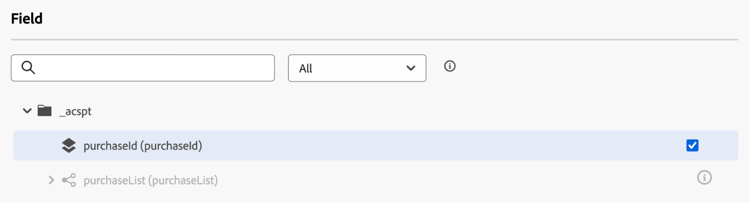
-
-
In the Lookup key(s) field, choose a joining key that exists in both the decision item attributes and the dataset. This key is used by the system to search in the selected dataset.
-
Keys can be expressions derived from the journey context, such as SKUs, email IDs, or other identifiers. Example:
@profile.emailorlist(@event{purchase_event.products.sku}). -
Only strings or lists of strings are supported.
note important IMPORTANT You must define the lookup key using Advanced mode so the Dataset lookup activity’s output is available as a context attribute downstream. If @datasetLookup{}returns a “Dataset lookup not found” error in a condition, see Dataset lookup not found error in condition activity for the cause and fix.Configure the lookup key and use its result in separate expression editors: -
Configure the key: In the Dataset lookup activity’s Lookup key(s) expression editor, switch to Advanced mode, define the key, and save the activity. This makes the lookup context available to downstream activities.
-
Use the result: In the condition’s expression editor, switch to Advanced mode and reference the lookup output, for example:
@datasetLookup{MyDatasetLookUpActivity1.entities}. ReplaceMyDatasetLookUpActivity1with the name of your Dataset lookup activity.
If the lookup output is unavailable downstream, confirm that the key is defined in Advanced mode and that the Dataset lookup activity is saved. accordion Example 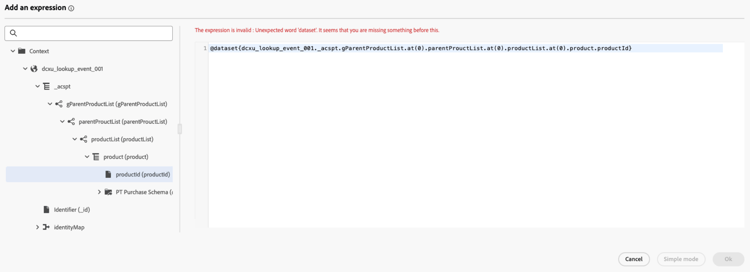
-
Use enriched data in the journey
The data retrieved by the Dataset lookup activity is stored in the Journey context as an array of objects. It is available in the journey expression editor and personalization editor, enabling conditional logic and personalized messaging based on enriched data.
-
Journey Expression Editor:
Access the Advanced mode editor and use the syntax:
@datasetLookup{MyDatasetLookUpActivity1.entities}. Learn how to work with the advanced expression editor -
Personalization Editor:
Use the syntax:
{{context.journey.datasetLookup.1482319411.entities}}.
Examples of use cases
Scenario:Send a coupon to users who spend more than $40 on household products.
Journey flow:
-
Purchase Event: Capture SKUs from the user’s cart.
-
Dataset lookup activity:
- Dataset:
products-dataset(SKU as the primary key). - Lookup Keys:
list(@event{purchase_event.products.sku}). - Fields to Return:
["SKU", "category", "price"].
- Dataset:
-
Condition activity:
-
Filter SKUs where the category is “household”.
code language-none @event{purchase_event.products.all( in(currentEventField.sku, @datasetlookup{MyDatasetLookupActivity1.entities.all(currentDatasetLookupField.category == 'household').sku} ) )}
OR
-
Aggregate the total spend on household products and compare it to the $40 threshold.
code language-none sum(@event{purchase_event.products.all( in(currentEventField.sku, @datasetlookup{MyDatasetLookUpActivity1.entities.all(currentDatasetLookupField.category == 'household').sku} ) )}.price}, ',', true ) > 40
-
-
Personalization Editor:
Use the enriched data to personalize the email content:
code language-none {% let householdTotal = 0 %} {{#each journey.datasetlookup.3709000.entities as |product|}} {%#if get(product, "category") = "household"%} {% let householdTotal = householdTotal + product.price %}{%/if%} {{/each}} "Hi, thanks for spending " + {%= householdTotal %} + " on household products. Here is your reward!"
Scenario: Identify which email account for a profile has a Loyalty Status of Platinum. In this scenario, loyalty account is associated to an email ID and loyalty data is not available in the standard profile lookup store.
Journey flow:
-
Profile Event Trigger: Capture email IDs from the profile or event context.
-
Dataset Lookup activity:
- Dataset:
loyalty-member-dataset(email as the primary key). - Lookup Keys:
@profile.email. - Fields to Return:
["email", "loyaltyTier"].
- Dataset:
-
Condition activity:
Branch the journey based on the loyalty tier:
code language-none @datasetLookup{MyDatasetLookUpActivity1.entity.loyaltyMember.loyaltyTier} == 'Platinum' -
Personalization Editor:
Use the enriched loyalty tier data to personalize outbound communication:
code language-none {{context.journey.datasetLookup.1482319411.entity.loyaltyMember.loyaltyTier}}
Troubleshooting troubleshooting
“Dataset lookup not found” error in condition activity troubleshooting-not-found
Symptom: The @datasetLookup{} syntax in a condition activity’s advanced expression editor returns a “Dataset lookup not found” error, even though the dataset lookup activity is correctly configured in the journey.
Cause: The lookup key in the dataset lookup activity was set using simple mode. When the key is not defined in advanced mode, the activity output is not exposed as a context attribute in downstream activities.
Fix: Open the dataset lookup activity, locate the Lookup key(s) field, and switch to advanced mode to redefine the key expression. Save the activity and republish the journey.
This section contains structured knowledge intended to support interpretation, retrieval, and question answering related to this topic.
For complete understanding, this information should be combined with the documentation on this page. Neither source is intended to stand alone; the page describes the feature, while this section provides additional context that helps disambiguate terminology, intent, applicability, and constraints.
- TL;DR: This page explains how to configure the Dataset lookup activity to dynamically retrieve data from Adobe Experience Platform record datasets at journey runtime for real-time personalization and conditional logic.
Intents:
- Add a Dataset lookup activity to a journey to fetch external Adobe Experience Platform record data at runtime
- Select specific dataset fields (leaf nodes / primitive values) to retrieve during lookup
- Define a lookup key in advanced mode to join journey context with dataset records
- Use enriched dataset data in the journey expression editor or personalization editor
- Troubleshoot “Dataset lookup not found” errors caused by using simple mode for the lookup key
Glossary:
- Dataset lookup activity: A journey orchestration activity that retrieves selected data from Adobe Experience Platform record datasets at runtime by matching a lookup key from the journey context to dataset records (product-specific)
- Leaf node: A field at the lowest level of a schema hierarchy that holds a primitive value (string, number, boolean, date) (product-specific)
- Lookup key: The joining expression (string or list of strings) used to match journey context data against records in the selected dataset (product-specific)
- Enriched data: Data retrieved by a Dataset lookup activity and stored transiently in the journey context for use in downstream activities (product-specific)
Guardrails:
- Maximum of 10 Dataset lookup activities per journey (hard limit).
- Maximum of 20 selected fields (hard limit).
- Maximum of 50 keys in the lookup keys array (hard limit).
- Enriched data size is limited to 10KB (hard limit).
- The dataset must be enabled for lookup in Adobe Experience Platform before it appears in the activity configuration.
- Only leaf nodes (primitive values) can be selected; arrays and maps cannot be selected.
- Only strings or lists of strings are supported as lookup keys.
- The lookup key must be defined in advanced mode; using simple mode causes the activity output to be unavailable as a context attribute downstream.
- Enriched data is transient and available only during journey runtime and in outbound activity personalization.
- To avoid delays in deliverability, up to 5 lookup activities per journey are recommended. Up to 20 attributes per lookup are also recommended.
Terminology:
- Canonical name: Dataset lookup activity
- Synonyms: “lookup key” = “joining key”
FAQ:
- Q: Why does my dataset not appear in the Dataset field dropdown? — The dataset must be enabled for lookup in Adobe Experience Platform. See the linked “Use Adobe Experience Platform data” section for details.
- Q: What should I check if lookup output is unavailable in a condition? — Confirm that the lookup key was defined in advanced mode and that the Dataset lookup activity was saved. In the condition’s separate expression editor, switch to advanced mode and reference the lookup output. If the key was defined using simple mode, redefine it in advanced mode and republish the journey.
- Q: Can I retrieve arrays or map fields from the dataset? — No, only primitive leaf node fields (string, number, boolean, date) can be selected.
- Q: How do I access enriched data in an email? — Use the personalization editor with the syntax
{{context.journey.datasetLookup.1482319411.entities}}. - Q: Is enriched data available after the journey runtime? — No, enriched data is transient and available only during journey runtime and in the personalization of outbound activities.