On this page: Learn how to import existing HTML content, either as an HTML file or a .zip folder, and convert it so you can edit and personalize it with the Email Designer.
Journey Optimizer allows you to import existing HTML content to design your emails. This content can be:
-
An HTML file with an incorporated style sheet;
-
A .zip folder including an HTML file, the style sheet (.css) and images.
note NOTE There are no constraints on the .zip file structure. However, references must be relative and fit with the tree structure of the .zip folder.
To import a file containing HTML content, follow the steps below:
-
From the Email Designer home page, select Import HTML.
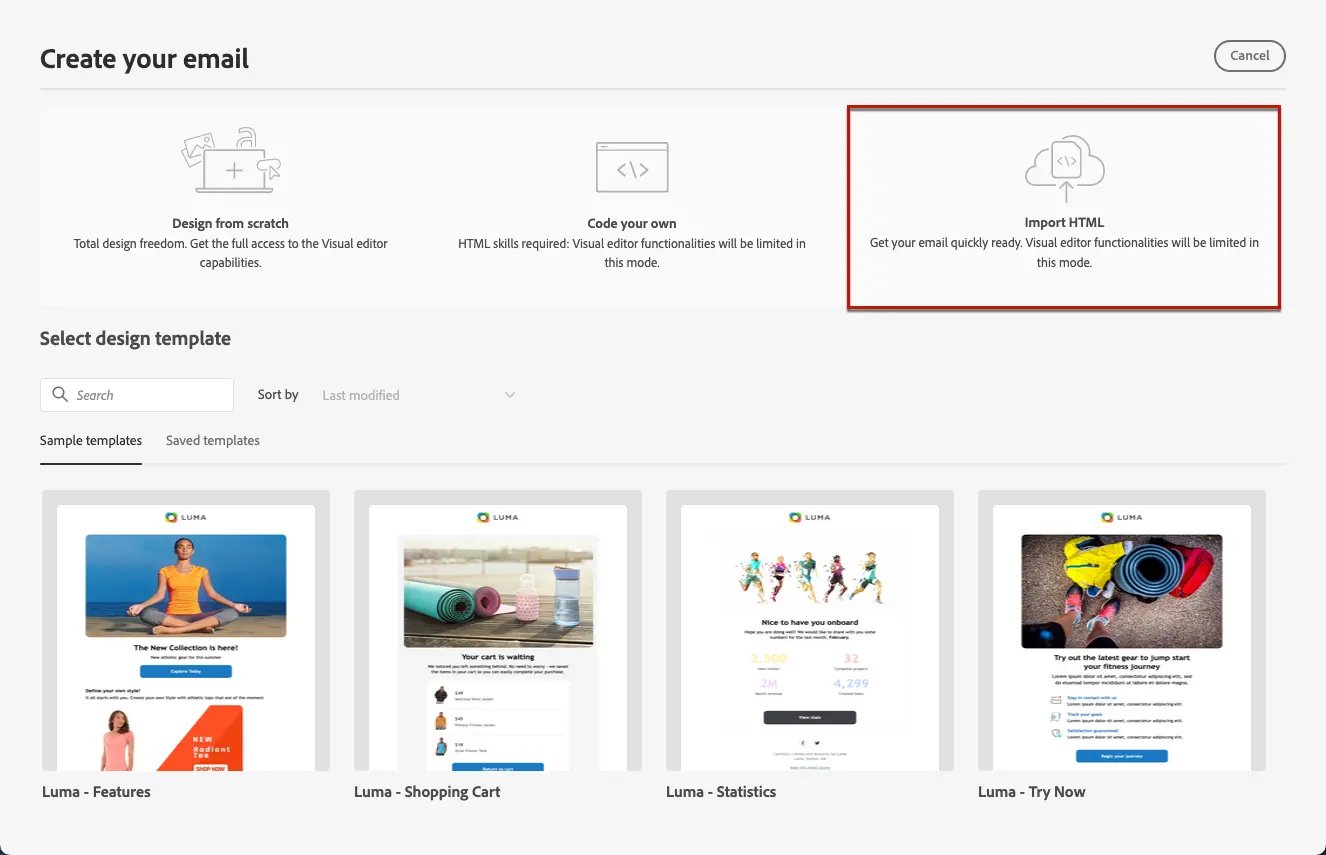
-
Drag and drop the HTML or .zip file containing your HTML content and click Import.

-
Once the HTML content is uploaded, your content will be in Compatibility mode.
In this mode, you can only personalize your text, add links, or include assets to your content.
-
To be able to leverage the Email Designer content components, access the HTML converter tab and click Convert.

note NOTE Using a <table>tag as the first layer in an HTML file can cause style loss, including background and width settings in the top layer tag. -
You can now personalize your imported file as needed with the Email Designer functionalities. Learn more
How-to video video
Learn how to import existing HTML content, tweak the design, add mirror page and unsubscribe links, and how to code your content.
This section contains structured knowledge intended to support interpretation, retrieval, and question answering related to this topic.
For complete understanding, this information should be combined with the documentation on this page. Neither source is intended to stand alone; the page describes the feature, while this section provides additional context that helps disambiguate terminology, intent, applicability, and constraints.
- TL;DR: This page explains how to import existing HTML content — as an HTML file or a .zip folder — into the Email Designer and convert it so you can edit and personalize it.
Intents:
- Import an HTML file with an incorporated style sheet
- Import a .zip folder containing an HTML file, style sheet (.css), and images
- Personalize text, add links, and include assets while in Compatibility mode
- Convert imported content to leverage the Email Designer content components
- Convert image designs (JPEG or PNG) into editable HTML using the image to HTML converter
Glossary:
- Compatibility mode: The state of imported HTML content in which you can only personalize text, add links, or include assets (product-specific)
- HTML converter: The tab where you click Convert to make imported content compatible with the Email Designer content components (product-specific)
- Image to HTML converter: A capability that automatically converts image designs (JPEG or PNG) into editable HTML email templates using AI (product-specific)
Guardrails:
- There are no constraints on the .zip file structure, but references must be relative and fit with the tree structure of the .zip folder.
- Using a
<table>tag as the first layer in an HTML file can cause style loss, including background and width settings in the top layer tag. - While in Compatibility mode, you can only personalize text, add links, or include assets; to use content components you must run the HTML converter.
Terminology:
- Canonical name: import HTML content — Acronym: n/a — variants: import email content, import existing HTML content
- Synonyms: “Convert” = “HTML converter”
- Do not confuse: “Compatibility mode” (limited editing after import) ≠ converted content (full Email Designer content components available)
FAQ:
- Q: What formats can I import? — An HTML file with an incorporated style sheet, or a .zip folder containing an HTML file, the style sheet (.css), and images.
- Q: What can I do right after importing, in Compatibility mode? — You can only personalize your text, add links, or include assets.
- Q: How do I use the Email Designer content components on imported content? — Access the HTML converter tab and click Convert.
- Q: Are there requirements for references inside a .zip folder? — Yes. References must be relative and fit with the tree structure of the .zip folder.
- Q: Can I import image designs that are not HTML? — Yes. Use the image to HTML converter to automatically convert JPEG or PNG designs into editable HTML email templates using AI.