On this page: Learn how to encrypt sensitive URL query parameters so personally identifiable information is not exposed in plain text, including how administrators create, rotate, and revoke keys in the sandbox key registry of Adobe Journey Optimizer.
Why use URL parameter encryption? why-url-parameter-encryption
Personalized tracking links and landing page URLs often include profile attributes, identifiers, tokens, or other values in the query string. Those parameters are usually visible as plain text in the email or mobile message, and they stay readable if someone copies, shares, or bookmarks the link. This can be a security and privacy risk when the values can include personally identifiable information (PII) or other sensitive data they must protect.
Journey Optimizer provides an encryption helper in the personalization editor so you can encrypt any expression value at render time (for example a profile attribute, a token, or a string you built from several fields). Encryption always requires a key from your organization’s registry.
You encrypt only the query parameters you choose, using keys that administrators manage in a sandbox-level registry, so confidential values are not left exposed in clear text when the link is shared or inspected.
How it works how-it-works
- Administrators use the key registry to create keys and manage keys in accordance with your organization’s security policies.
- Marketers insert the
Encrypthelper in the personalization editor and pass the value to protect plus an active key identifier from the registry. For syntax and options, see this section.
Example
A landing page URL might use a query parameter such as token whose value is a string token (for example a JSON payload with offer or profile identifiers). Without encryption, that string token is visible as plain text in the link. Wrapping that value with the encryption helper replaces the sensitive payload with ciphertext in the URL while leaving the rest of the link unchanged.
Create keys create-keys
Before being able to use the URL parameter encryption helper, you need to create a key. To do so, follow the steps below.
-
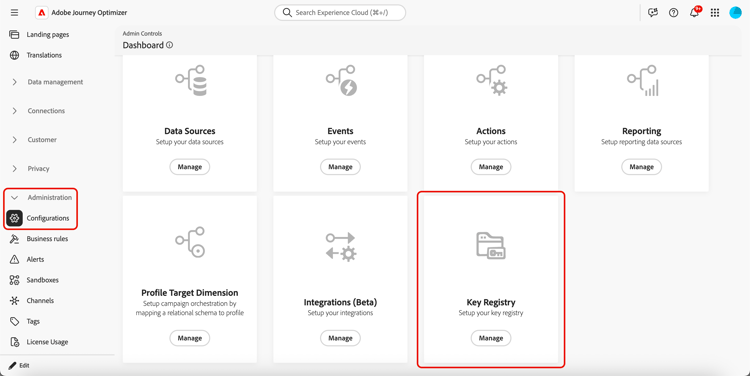
Go to Administration > Configurations.
-
Click the Manage button to open the Key registry.
-
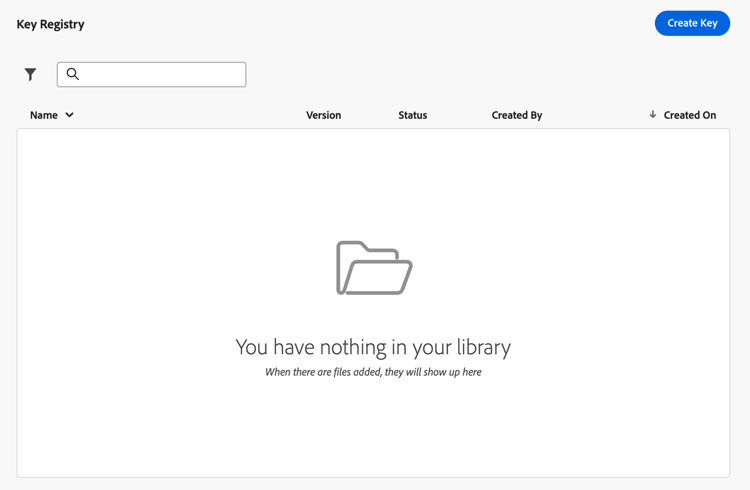
Using the dedicated button, create keys as required for your organization.
-
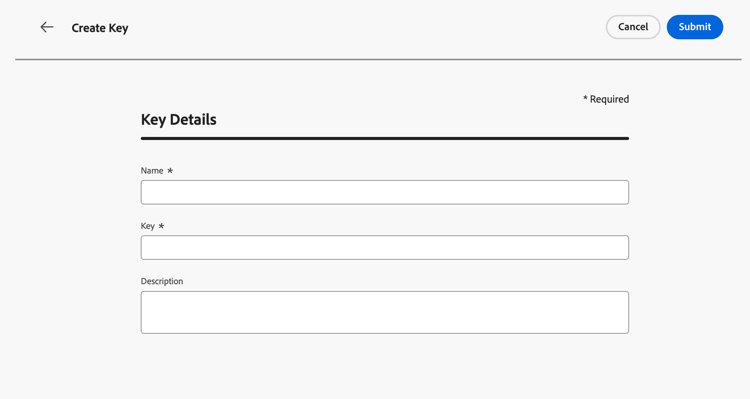
Assign them a clear label or identifier your teams can reference in the personalization editor.
-
Click Submit to confirm your changes.
Once a key is created, marketers can use the URL parameter encryption helper in the personalization editor to encrypt specific values that they place in URL query parameters.
Manage keys manage-keys
To manage keys, follow the steps below.
-
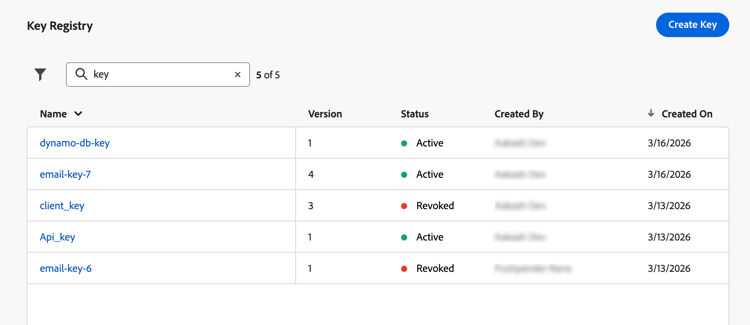
Access the Key registry. You can see all the keys created for the current sandbox in a list view.
-
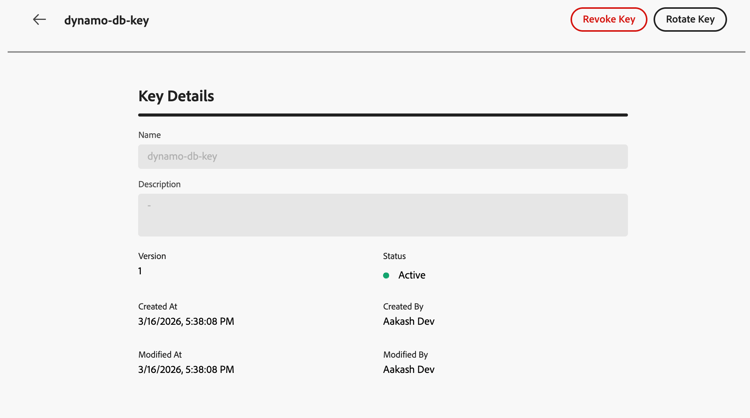
Click a key with the Active status to open the key details.
-
Click the Revoke button to permanently disable the key for new encryption.
Once a key is revoked, attempts to use it in the helper should fail at render time. Revoked entries remain visible for audit; your teams may still need the corresponding material to decrypt older payloads on your own systems.
-
Click the Rotate button to supply new key material while keeping a stable key identifier where your journeys and campaigns already reference it.
The prior material is retained in the registry with a revoked status and an appropriate reason (for example a rotation timestamp), and a new row or version reflects the active key.
note NOTE Only active keys should be selected to encrypt new values in the personalization editor. Do not use revoked keys for new content.
This section contains structured knowledge intended to support interpretation, retrieval, and question answering related to this topic.
For complete understanding, this information should be combined with the documentation on this page. Neither source is intended to stand alone; the page describes the feature, while this section provides additional context that helps disambiguate terminology, intent, applicability, and constraints.
- TL;DR: This page explains how administrators create, rotate, and revoke encryption keys in Journey Optimizer’s sandbox-level key registry, enabling marketers to encrypt sensitive URL query parameters so PII is not exposed in plain text in tracking links and landing pages.
Intents:
- Understand why URL parameter encryption is needed (sensitive data and PII visible in plain-text query strings)
- Create encryption keys in the sandbox key registry (admin task requiring specific permissions)
- Revoke a key to permanently disable it for new encryption
- Rotate a key to supply new cryptographic material while keeping the same identifier
- Use the
Encrypthelper in the personalization editor to protect specific query parameter values
Glossary:
- Key registry: A sandbox-level repository in Journey Optimizer (Administration > Configurations) where administrators create and manage encryption keys used by the URL parameter encryption helper. (product-specific)
- Encryption helper (
Encrypt): A helper function in the personalization editor that encrypts an expression value at render time, replacing PII with ciphertext in URL query parameters. (product-specific) - Revoke (key): The act of permanently disabling a key for new encryption; the key entry remains visible in the registry for audit, and older payloads may still require it for decryption on the organization’s systems.
- Rotate (key): The act of supplying new cryptographic material for a key while keeping its identifier stable, so campaigns and journeys already referencing that key do not need to be updated.
- PII (Personally Identifiable Information): Data that can identify an individual — such as profile attributes, tokens, or offer identifiers — which must be protected when included in URL query parameters.
Guardrails:
- URL parameter encryption is currently only available for the Email channel.
- Requires View Key Registry and Manage Key Registry permissions to access and manage keys.
- Decryption is the organization’s responsibility. Journey Optimizer encrypts values at render time; the website, app, or API must decrypt parameters using the same cryptographic material and processes defined by the organization.
- Only active keys should be used to encrypt new values in the personalization editor; revoked keys must not be used for new content.
- Revoked keys remain visible in the registry for audit purposes; they may still be needed by the organization’s systems to decrypt older payloads.
Terminology:
- Canonical name: URL parameter encryption — variants: URL encryption, query parameter encryption, URL parameter obfuscation
- Synonyms: “key registry” = “Key registry” (UI label in Administration > Configurations)
- Do not confuse: Revoke (permanently disables the key for new encryption; entry stays for audit) ≠ Rotate (replaces cryptographic material but keeps the same key identifier active for new encryption)
FAQ:
- Q: Who is responsible for decryption? — Decryption is the organization’s responsibility. Journey Optimizer encrypts values when the message is rendered. The website, app, or API must decrypt query parameters using the same cryptographic material and processes the organization has defined.
- Q: What is the difference between Revoke and Rotate? — Revoke permanently disables a key for new encryption while keeping the entry visible in the registry for audit (older payloads may still need the key for decryption on the organization’s systems). Rotate supplies new cryptographic material for a key while keeping the same key identifier, so campaigns and journeys referencing it continue to work without updates.
- Q: What permissions are required to manage keys? — View Key Registry and Manage Key Registry permissions.
- Q: Which channels support URL parameter encryption? — Currently only the Email channel.
- Q: Can a revoked key be used for new encryption? — No. Once a key is revoked, attempts to use it in the encryption helper should fail at render time. Do not use revoked keys for new content.