[Limited availability]{class="badge informative"}
Encrypt URL parameters url-parameter-encryption
Why use URL parameter encryption? why-url-parameter-encryption
Personalized tracking links and landing page URLs often include profile attributes, identifiers, tokens, or other values in the query string. Those parameters are usually visible as plain text in the email or SMS, and they stay readable if someone copies, shares, or bookmarks the link. This can be a security and privacy risk when the values can include personally identifiable information (PII) or other sensitive data they must protect.
Journey Optimizer provides an encryption helper in the personalization editor so you can encrypt any expression value at render time (for example a profile attribute, a token, or a string you built from several fields). Encryption always requires a key from your organization’s registry.
You encrypt only the query parameters you choose, using keys that administrators manage in a sandbox-level registry, so confidential values are not left exposed in clear text when the link is shared or inspected.
How it works how-it-works
- Administrators use the key registry to create keys and manage keys in accordance with your organization’s security policies.
- Marketers insert the
Encrypthelper in the personalization editor and pass the value to protect plus an active key identifier from the registry. For syntax and options, see this section.
Example
A landing page URL might use a query parameter such as token whose value is a string token (for example a JSON payload with offer or profile identifiers). Without encryption, that string token is visible as plain text in the link. Wrapping that value with the encryption helper replaces the sensitive payload with ciphertext in the URL while leaving the rest of the link unchanged.
Create keys create-keys
Before being able to use the URL parameter encryption helper, you need to create a key. To do so, follow the steps below.
-
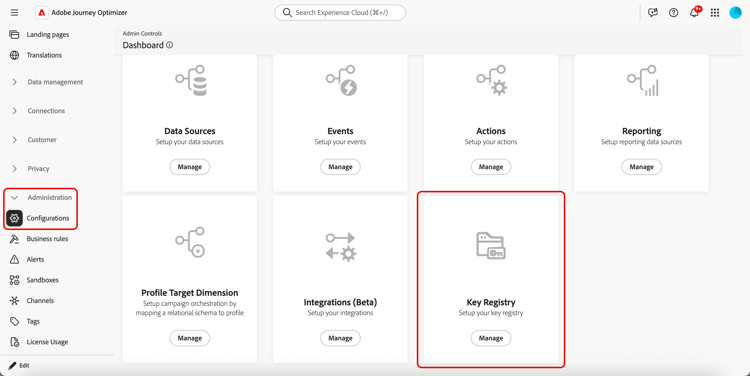
Go to Administration > Configurations.
-
Click the Manage button to open the Key registry.
-
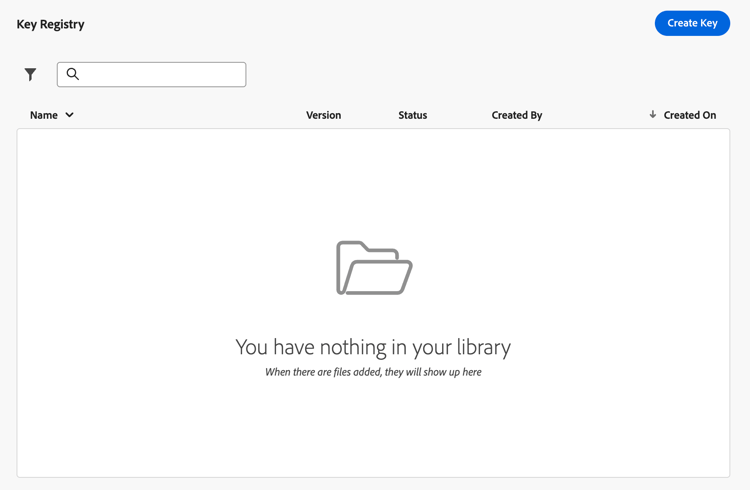
Using the dedicated button, create keys as required for your organization.
-
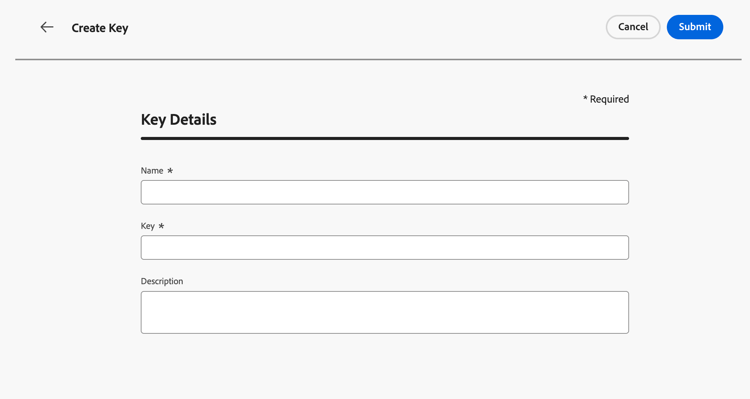
Assign them a clear label or identifier your teams can reference in the personalization editor.
-
Click Submit to confirm your changes.
Once a key is created, marketers can use the URL parameter encryption helper in the personalization editor to encrypt specific values that they place in URL query parameters.
Manage keys manage-keys
To manage keys, follow the steps below.
-
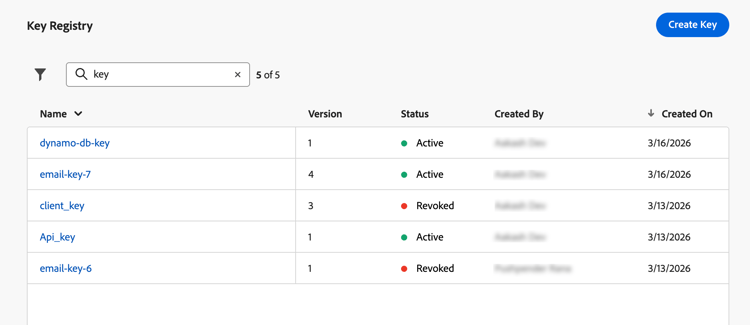
Access the Key registry. You can see all the keys created for the current sandbox in a list view.
-
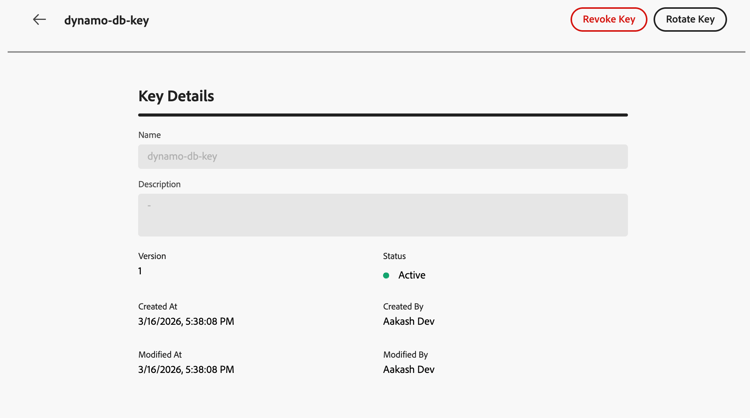
Click a key with the Active status to open the key details.
-
Click the Revoke button to permanently disable the key for new encryption.
Once a key is revoked, attempts to use it in the helper should fail at render time. Revoked entries remain visible for audit; your teams may still need the corresponding material to decrypt older payloads on your own systems.
-
Click the Rotate button to supply new key material while keeping a stable key identifier where your journeys and campaigns already reference it.
The prior material is retained in the registry with a revoked status and an appropriate reason (for example a rotation timestamp), and a new row or version reflects the active key.
note NOTE Only active keys should be selected to encrypt new values in the personalization editor. Do not use revoked keys for new content.