On this page: Learn how to use AI Assistant in Adobe Journey Optimizer to generate, fix, and explain personalization expressions from natural language in the Personalization Editor and the Email Designer.
Overview where-available
AI Assistant helps you generate new personalization from plain language, explain what existing expressions do, and fix issues in selected code, so that you spend less time on syntax and manual field discovery. You can also iterate on a selection or ask for other changes in conversation. It is available in two ways:
- Personalization Editor — wherever the editor is available across channels (subject line, body, and other fields that open it). This is the general path for AI-assisted personalization. For where and how to open the editor, see Add personalization.
- Email Designer toolbar — when you author emails in the Email Designer, select a component and use Add expression in the contextual toolbar to open the assistant in a toolbox without opening the full editor first. This entry point is not available outside email authoring. See Generate from the Email Designer.
For broader AI Assistant setup and languages, see Get started with AI Assistant. For personalization concepts, see Get started with personalization. For prompt ideas, see AI prompt best practices.
Depending on your campaign or journey context, the assistant can work with data and constructs the Personalization Editor already exposes — for example profile attributes, segment membership, helper functions, and related personalization sources.
Generate personalization expressions generate
These steps cover generating personalization expressions from scratch. To work with code already in the editor, see Edit, fix or explain existing code.
-
In your message or content, open the Personalization Editor.
-
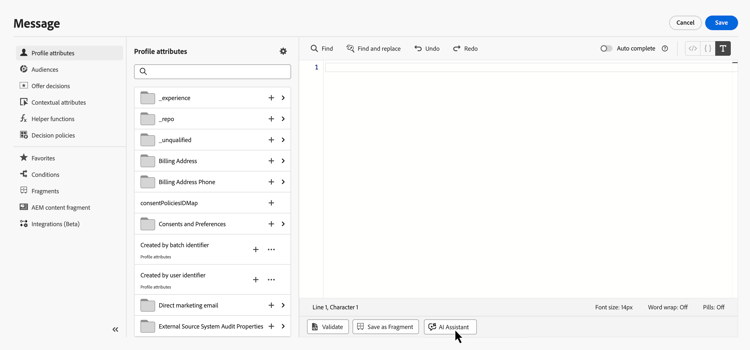
Place your cursor in the editor where you want generated personalization code to be inserted, then click the AI Assistant button.
-
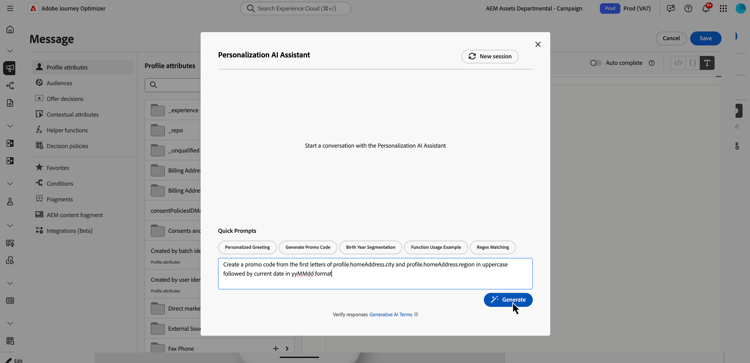
In the text field, describe the personalization expression you want in plain language — for example which profile attributes, segments, or logic you need, then click Generate.
You can also use ready-to-use prompts from the Quick Prompts section, such as personalized greeting, promo code generation, and more.
note NOTE Any unrelated prompt or question returns an out-of-scope error. Adjust your prompt and ask a relevant question about the personalization you need. -
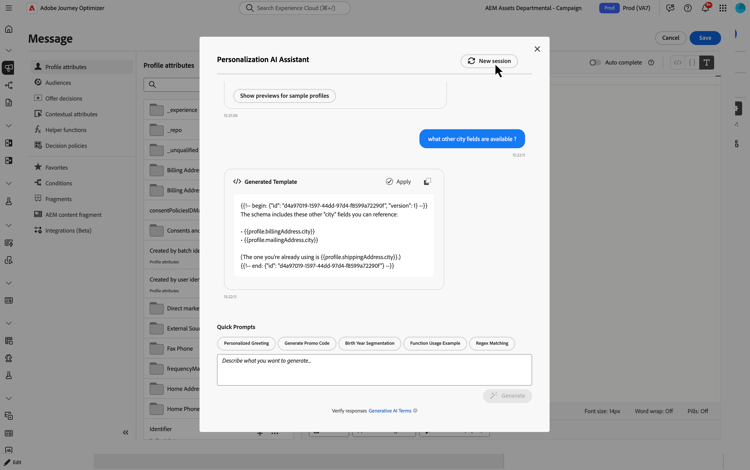
You can keep discussing with the assistant in a multi-turn conversation: it keeps context from your prompts so you can refine the same expression step by step. To start over, click the New session button.
-
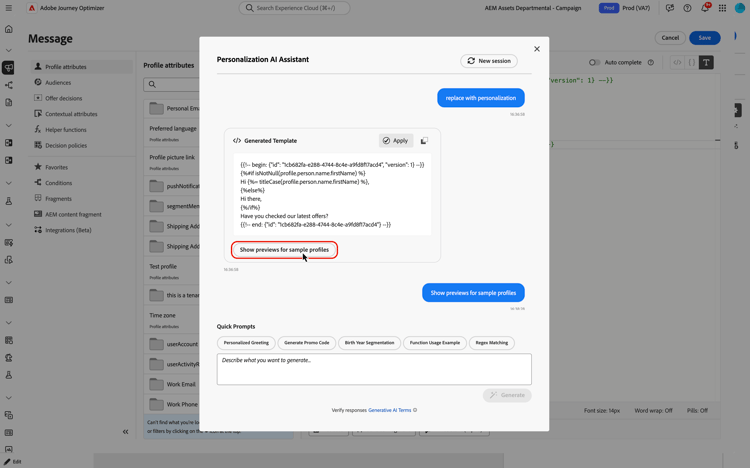
After you generate an expression, click Show previews for sample profiles to see how the expression evaluates against one synthetic sample profile and to view the associated payload as JSON. The preview is a single spot check so you can gain confidence that your code resolves as expected — it does not simulate multiple recipients, varied data, or full coverage. Sample data is not saved or stored in your organization.
If you need the sample adjusted (for example, different attributes emphasized), describe what you need in the discussion with the assistant and include the keyword preview in your prompt.
accordion Preview example 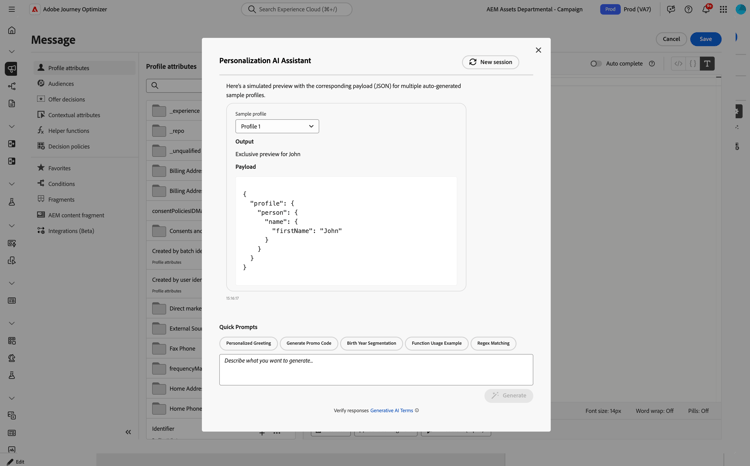
note NOTE Do not expect multiple preview rows or exhaustive scenarios here. The control is intentionally limited to one sample evaluation for a quick code check, not partial coverage across many profiles. Asking for an unrealistically large set of previews may cause the request to fail. note NOTE This control is for a quick check of your personalization code in the editor — not a full message preview of your content. For complete validation of the experience, use your usual simulation flow. Learn how to preview & test your content -
To implement the output in your personalization expression, click Apply. The assistant output is inserted at the cursor location in the personalization editor. To replace code that is already there instead, select that code in the editor first, then use Edit with AI Assistant (see Edit, fix or explain existing code).
You can also copy the output and paste it where you need it using the

Edit, fix or explain existing code edit-existing
You can select an existing personalization expression and use AI Assistant to fix personalization issues, explain what the code does, or ask for other changes.
-
Select existing personalization code in the editor.
-
Right-click the selection and choose Edit with AI Assistant so the assistant uses your selection as context.
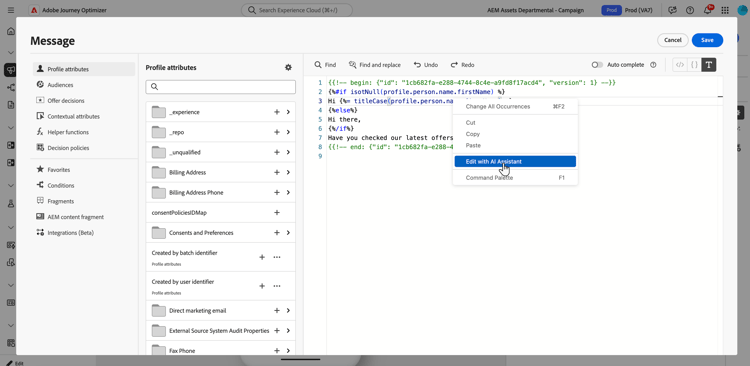
-
AI Assistant opens. In Quick Commands, click Explain or Fix, or use the text field to ask for other changes and start a conversation.
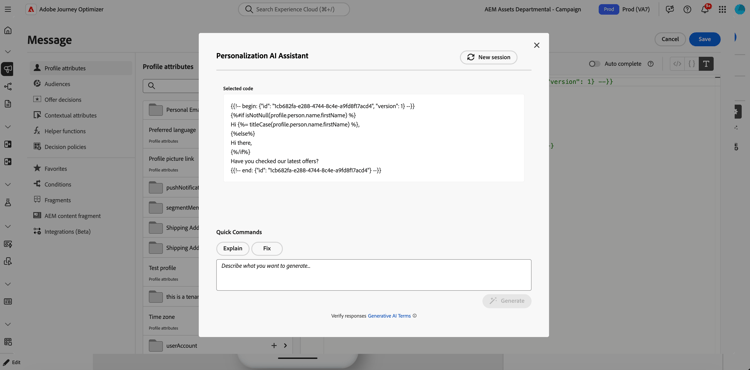
-
When you use Fix, click Show fix details in the discussion to show an explanation of the fix and a line-by-line before and after preview.
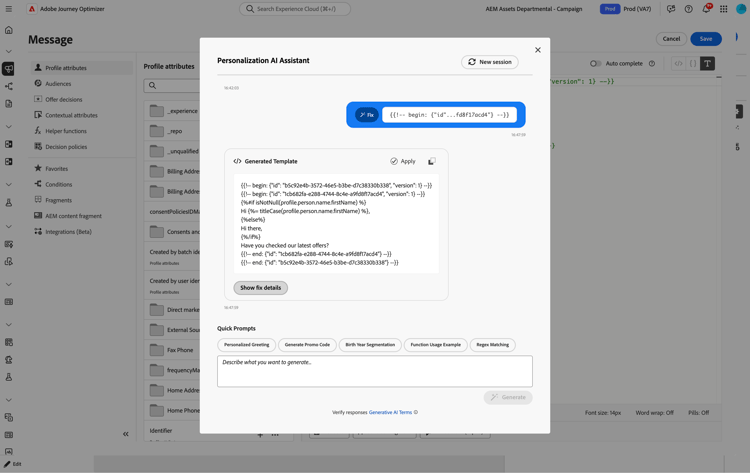
-
As when you generate a personalization expression, click Apply to implement the assistant output. It replaces the code you had selected in the personalization editor. For example, if you asked for an explanation of the code, applying will add comments in the expression that describe what it does.
Generate from the Email Designer toolbar generate-email-designer
In the Email Designer, you can use AI Assistant for personalization expressions from the contextual toolbar without opening the full Personalization Editor first.
-
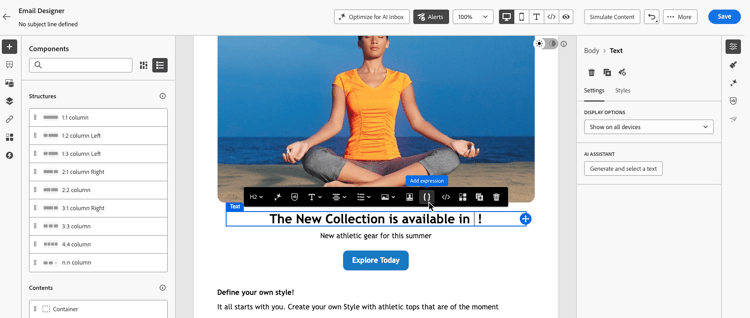
In the Email Designer, select the component you want to personalize, and click at the location where you want to insert the expression.
-
In the contextual toolbar, click Add expression.
-
A toolbox opens where you can prompt AI Assistant for personalization. Type what you need in plain language, the assistant suggests profile fields and other attributes that match your prompt so you can build the expression faster.
-
The assistant generates the expression.
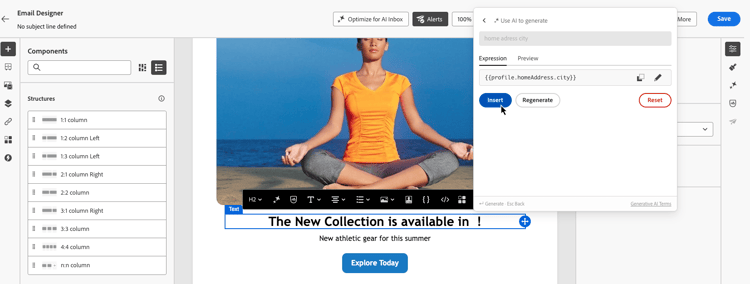
You can:
- Validate the expression output with one sample value - use the Preview tab.
- Generate another suggestion from the same prompt - use Regenerate.
- Clear the discussion and start over - use Reset.
- Refine the expression in the full editor - click the

-
When you are satisfied with the result, click Insert to add the expression to your content.