On this page: Learn how to personalize your brand guidelines by defining brand identity, writing style, and visual content rules in Adobe Journey Optimizer.
About the brand about-brand
Use the About the brand tab to establish the core identity of your brand—outlining its purpose, personality, tagline, and other defining attributes.
-
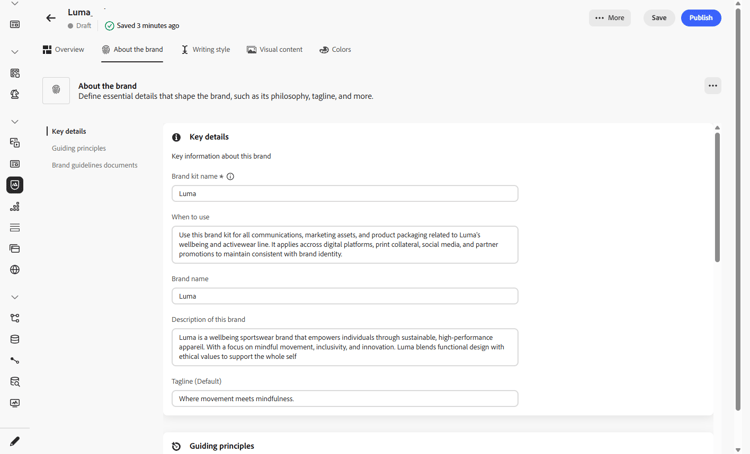
Start by filling in the foundational information for your brand in the Key details category:
-
Brand Kit Name: Enter your brand kit name.
-
When to Use: Specify scenarios or contexts where this brand kit should be applied.
-
Brand Name: Enter the official name of the brand.
-
Brand Description: Provide an overview of what this brand represents.
-
Default Tagline: Add the primary tagline associated with the brand.
-
-
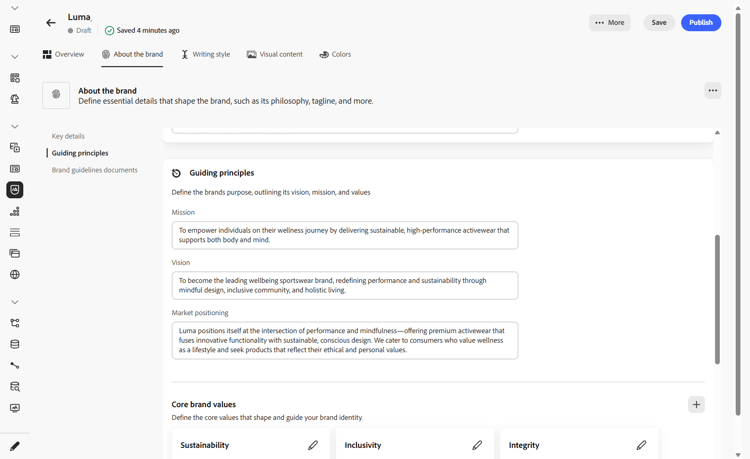
In the Guiding principles category, clarify the core direction and philosophy of your brand:
-
Mission: Detail your brand’s purpose.
-
Vision: Describe your long-term goal or desired future state.
-
Market Positioning: Explain how your brand is positioned in the market.
-
-
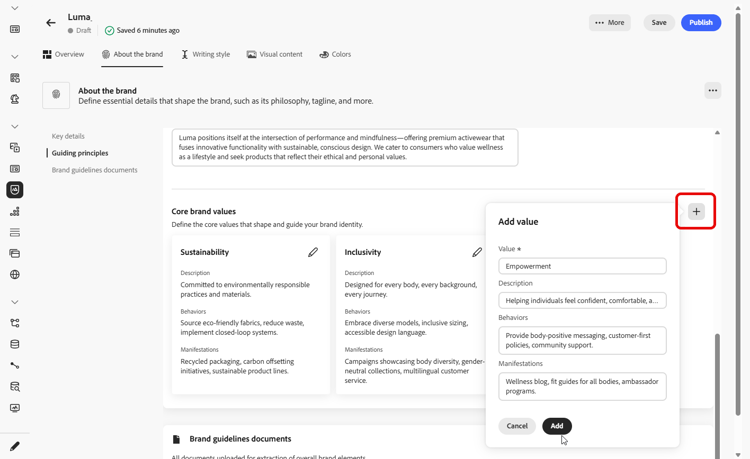
From the Core brand values category, click

-
Value: Name a core brand value.
-
Description: Explain what this value means to your brand.
-
Behaviors: Outline the actions or attitudes that reflect this value in practice.
-
Manifestations: Give examples of how this value is expressed in real-world branding.
-
-
If needed, click the

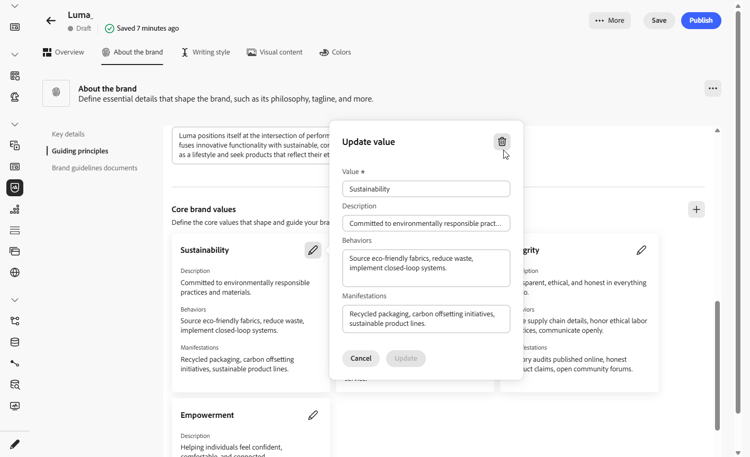
You can now further personalize your brand or publish your brand.
Writing style writing-style
The Writing style section outlines the standards for writing content, detailing how language, formatting, and structure should be used to maintain clarity, coherence, and consistency across all materials.
| table 0-row-4 1-row-4 2-row-3 3-row-3 4-row-3 5-row-4 6-row-3 7-row-3 8-row-3 9-row-3 10-row-4 11-row-3 12-row-3 6-rowspan-4 23-rowspan-5 44-rowspan-3 | |||
|---|---|---|---|
| Category | Subcategory | Guidelines Example | Exclusions Example |
| Content Creation Standards | Brand Messaging Standards | Highlight innovation and customer-first messaging. | Do not overpromise product capabilities. |
| Tagline Usage | Place the tagline beneath the logo on all digital marketing assets. | Do not modify or translate the tagline. | |
| Core Messaging | Emphasize the key benefit statement—such as improved productivity. | Do not use unrelated value propositions. | |
| Naming Standards | Use simple, descriptive names such as "ProScheduler". | Do not use complex terms or special characters. | |
| Brand Communication Style | Brand Personality Traits | Friendly and approachable. | Do not be defeatist. |
| Writing Mechanics | Keep sentences short and impactful. | Do not use excessive jargon. | |
| Situational Tone | Maintain a professional tone in crisis communications. | Do not be dismissive in support communications. | |
| Word Choice Guidelines | Use words like "innovative" and "smart". | Avoid words like "cheap" or "hack". | |
| Language Standards | Follow American English conventions. | Do not mix British and American spellings. | |
| Legal Compliance Standards | Trademark Standards | Always use the ™ or ® symbol. | Do not omit legal symbols when required. |
| Copyright Standards | Include copyright notices on marketing materials. | Do not use third-party content without permission. | |
| Disclaimer Standards | Display disclaimers legibly on digital assets. | Do not hide disclaimers in non-visible areas. |
To personalize your Writing Style:
-
From the Writing Style tab, click
-
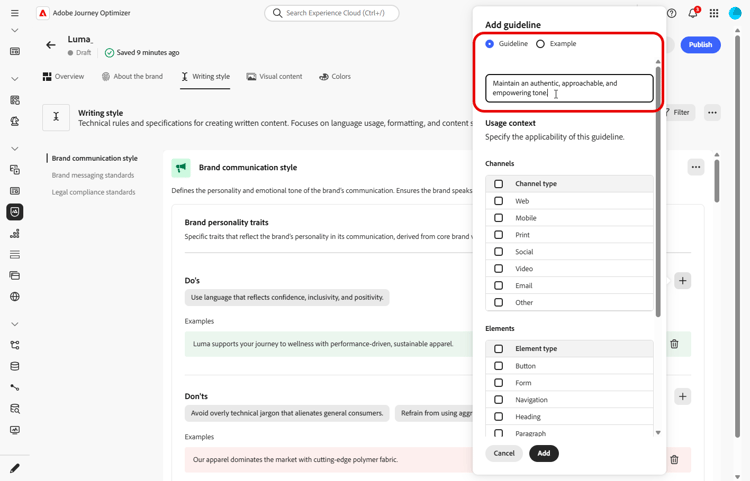
Enter your guideline, exception or exclusion. You can also include Examples to better illustrate how it should be applied.
-
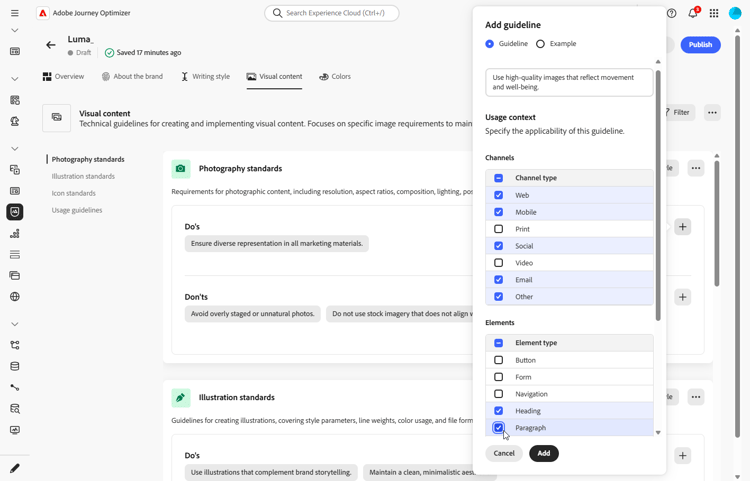
Specify the Usage context for your guideline, exception or exclusion:
-
Channel type: Choose where this guideline, exception, or exclusion should apply. For example, you may want a specific writing style to appear only in Email, Mobile, Prints, or other communication channels.
-
Element type: Specify which content element the rule applies to. This could include elements such as Headings, Buttons, Links, or other components within your content.
-
-
Once your guideline, exception, or exclusion is set up, click Add.
-
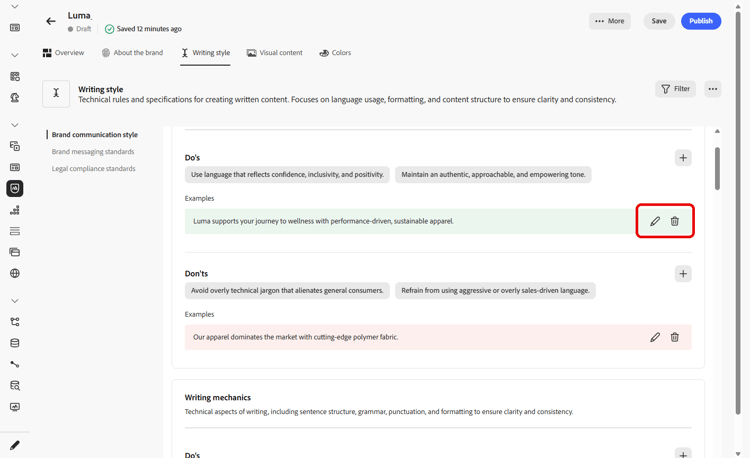
If needed, select one of your guideline or exclusion to update or delete.
-
Click the

You can now further personalize your brand or publish your brand.
Visual content visual-content
The Visual Content section defines the standards for imagery and design, detailing the specifications needed to maintain a unified and consistent brand look.
| table 0-row-3 1-row-3 2-row-3 3-row-3 4-row-3 | ||
|---|---|---|
| Category | Guidelines Example | Exclusions Example |
| Photography Standards | Use natural lighting for outdoor shots. | Avoid overly edited or pixelated images. |
| Illustration Standards | Use clean, minimalistic styles. | Avoid overly complex. |
| Icon standards | Use a consistent 24px grid system. | Do not mix icon dimensions, use inconsistent stroke weights, or deviate from grid rules. |
| Usage guidelines | Choose lifestyle images that reflect real customers using the product in professional environments. | Do not use imagery that contradicts brand tone or appears out of context. |
To personalize your Visual content:
-
From the Visual content tab, click
-
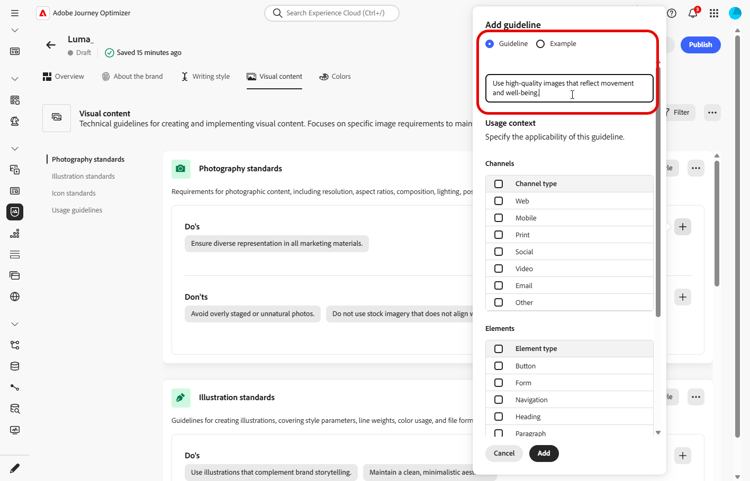
Enter your guideline, exclusion or example.
-
Specify the Usage context for your guideline or exclusion:
-
Channel type: Choose where this guideline, exception, or exclusion should apply. For example, you may want a specific writing style to appear only in Email, Mobile, Prints, or other communication channels.
-
Element type: Specify which content element the rule applies to. This could include elements such as Headings, Buttons, Links, or other components within your content.
-
-
Once your guideline, exception, or exclusion is set up, click Add.
-
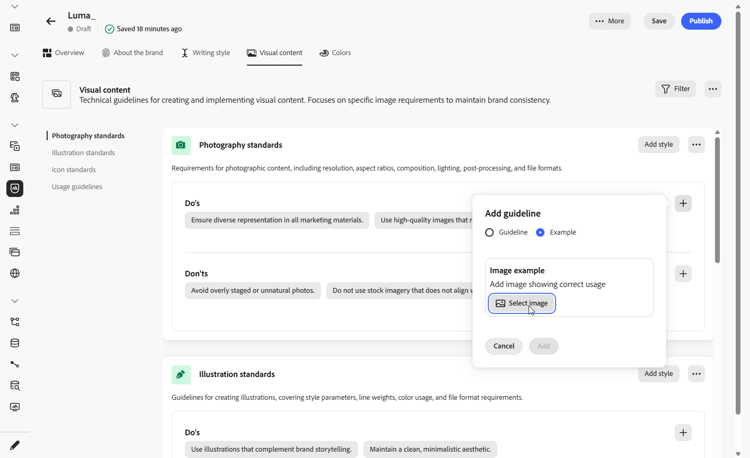
To add an image showing correct usage, select Example and click Select image. You can also add an image showing incorrect usage as an exclusion example.
-
If needed, select one of your guideline or exclusion to update or delete.
-
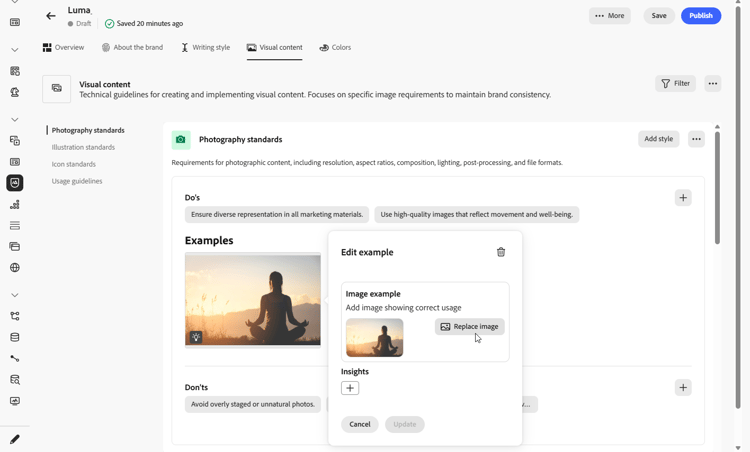
Select one your example to update it, replace the image or click the
You can now further personalize your brand or publish your brand.