On this page: Set up WhatsApp API credentials, webhooks, and a channel configuration to connect your WhatsApp Business account, so your environment is ready to send WhatsApp messages with Journey Optimizer.
Before sending your WhatsApp message, you must configure your Adobe Journey Optimizer environment and associate with your WhatsApp account. To perform this:
These steps must be performed by an Adobe Journey Optimizer System Administrator.
Create WhatsApp API credentials whatsapp-credentials
-
In the left rail, browse to Administration
>Channels and select the API Credentials menu. Click the Create new API credentials button. -
Configure your API credentials, as detailed below:
- API Token: Enter your API token. Learn more in Meta Documentation
- Business Account ID: Enter the unique number related to your business portfolio. Learn more in Meta Documentation.
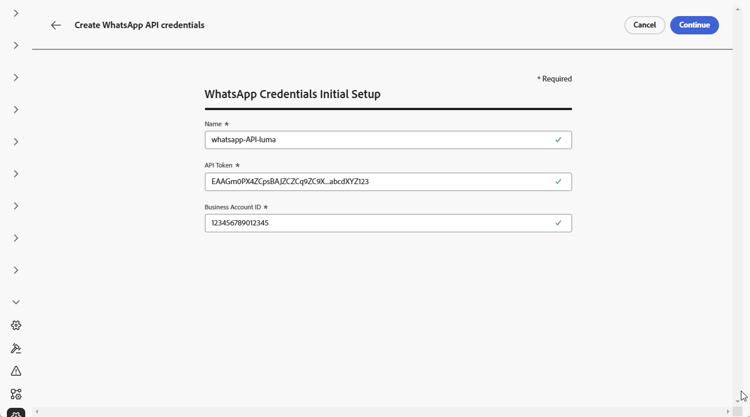
-
Click Continue.
-
Choose the WhatsApp Business Account you want to connect to your WhatsApp API credentials.
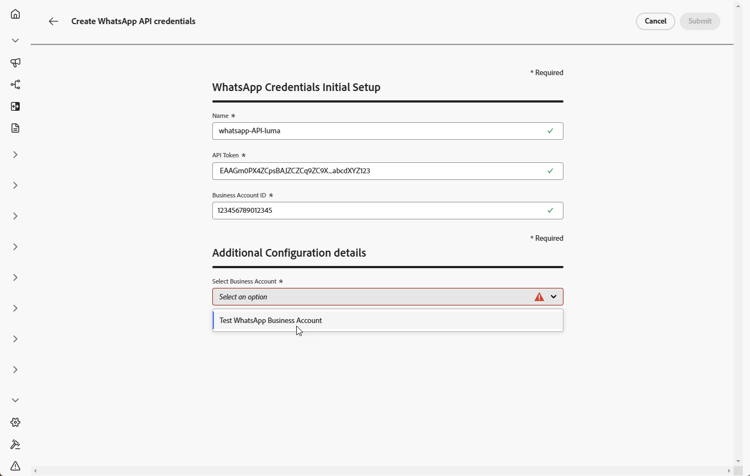
-
Select the Sender name used to send your WhatsApp messages.
-
Your phone number settings is automatically filled:
-
Quality Rating: reflects customer feedback on messages sent in the past 24 hours.
- Green: High quality
- Yellow: Medium quality
- Red: Low quality
Learn more about Quality rating
-
Throughput: indicates the rate at which your phone number can send messages.
-
-
Click Submit when you finished the configuration of your API credentials.
After creating and configuring your API credential, you now need to create your Webhook for WhatsApp messages. Learn more
Create Webhook WhatsApp-webhook
Once your WhatsApp API credentials have been successfully created, you can now configure Webhooks to:
- Capture inbound responses for managing opt-in and opt-out consent
- Receive delivery reports such as read receipts (where available) and message delivery status
- Enable tracking events for analytics and reporting in Adobe Experience Platform datasets
Webhooks act as the communication bridge between Meta’s WhatsApp Business Platform and Adobe Journey Optimizer, allowing you to receive real-time notifications about message events and user interactions.
Meta allows only one webhook, callback URL, and Verify Token per WhatsApp Business Account, shared across sandboxes, API credentials, and channel configurations using that account. Feedback events (Sent, Delivered, Read, Error, button click) are captured in every sandbox. Inbound events (replies, opt-in/opt-out/help keywords) are received only in the sandbox whose webhook is registered in Meta, regardless of where the original message was sent. We recommend registering the webhook from your production sandbox to receive inbound events there.
Webhook setup best practices whatsapp-webhook-recommendations
- Create a primary WhatsApp API credential and webhook in the production sandbox, and register its Webhook URL and Verify Token in Meta. If Meta currently uses a webhook from another sandbox, replace that registration with the production webhook’s values.
- Verify that the primary webhook receives inbound responses and delivery information before adding other sender configurations.
- Create additional WhatsApp API credentials and webhooks for each sender phone number. Subsequent webhooks in the same sandbox do not generate a new Webhook URL or Verify Token.
- Once the connection is working, keep the Meta registration and primary webhook unchanged when adding sender configurations. Production receives feedback and inbound events, Stage and Dev receive feedback only.
Create the webhook create-whatsapp-webhook
-
In the left rail, navigate to Administration
>Channels, select the WhatsApp Webhooks menu under WhatsApp settings, and click the Create Webhook button.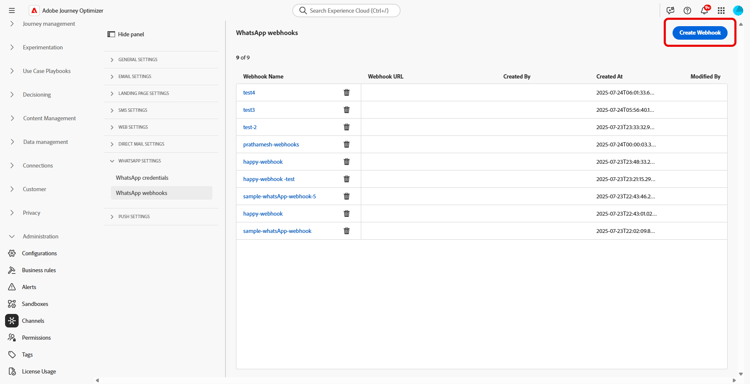
-
Enter a Name for your webhook.
-
From the Select configuration drop-down, select the API Credentials you previously created.
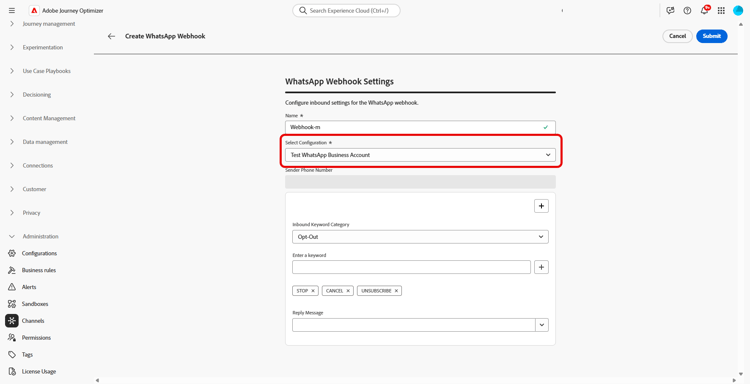
-
Choose your Inbound keyword category such as:
- Opt-in Keywords
- Opt-out Keywords
- Help Keywords
- Default - Fallback category for all inbound messages that do not match other keywords. Use this category to enable tracking events (opens, delivery reports) in Adobe Experience Platform datasets.
-
Enter your Keywords and click

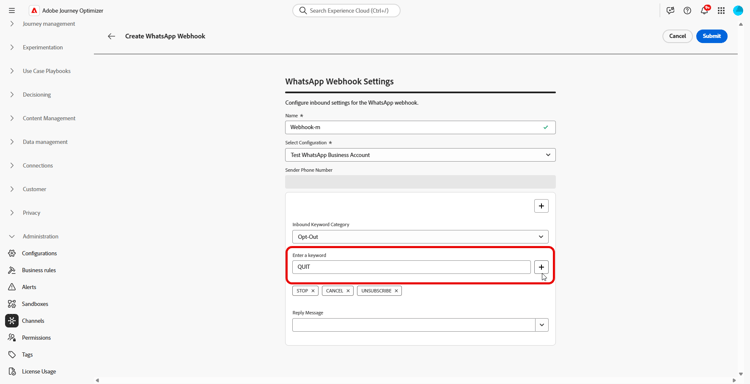
-
From the Reply Message field, enter the message sent when a configured keyword is received, or select a pre-defined option from the drop-down menu.
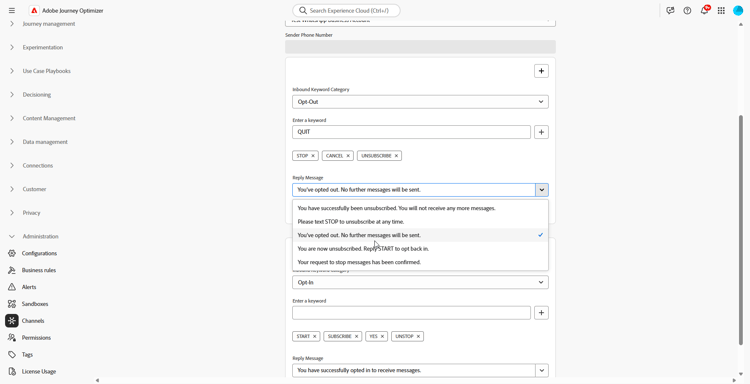
-
Click
-
Click Submit when you finished the configuration of your WhatsApp Webhook.
-
In the Webhooks menu, click the

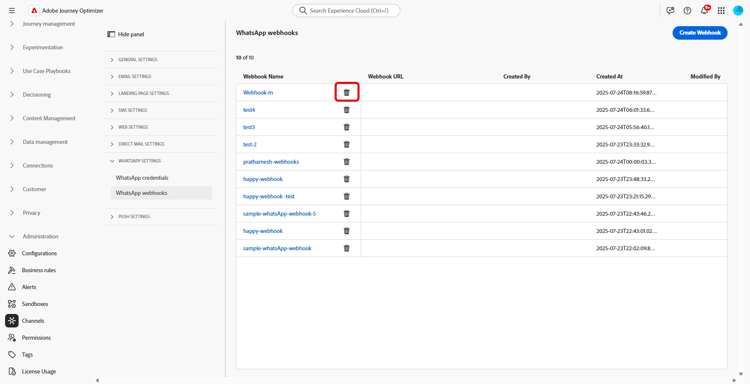
-
To access the generated webhook values, locate the webhook you submitted and click Edit.
-
Copy the Webhook URL and Verify Token from this webhook. Use both values from the same webhook in the sandbox selected to receive inbound events.
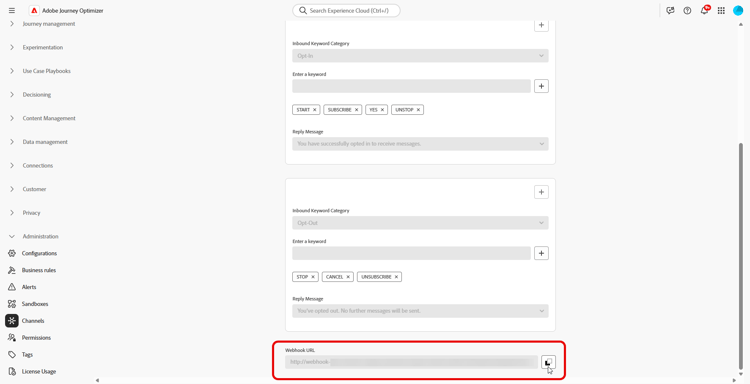
-
In Meta’s webhook configuration for the connected WhatsApp Business Account, paste the Webhook URL into Callback URL and the Verify Token into Verify Token, then complete the verification. The Verify Token is not your API Token. For Meta’s setup and subscription steps, see Meta documentation.
Now that your Webhook is configured, you can create your WhatsApp configuration.
Create WhatsApp configuration whatsapp-configuration
-
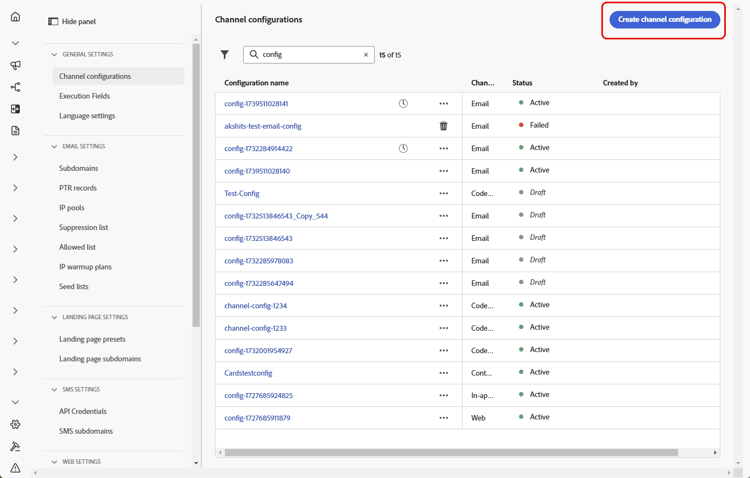
In the left rail, browse to Administration > Channels and select General settings > Channel configurations. Click the Create channel configuration button.
-
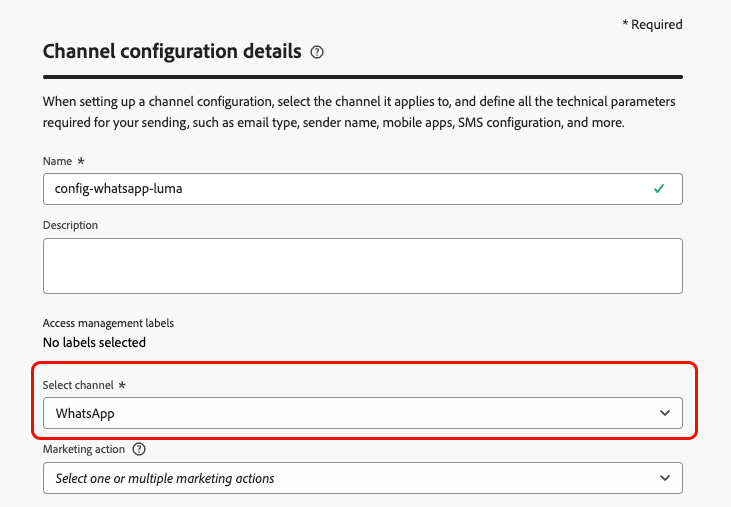
Enter a name and a description (optional) for the configuration, then select the WhatsApp channel.
note NOTE Names must begin with a letter (A-Z). It can only contain alpha-numeric characters. You can also use underscore _, dot.and hyphen-characters. -
Select WhatsApp as your channel.
-
Select Marketing action(s) to associate consent policies to the messages using this configuration. All consent policies associated with the marketing action are leveraged in order to respect the preferences of your customers. Learn more
-
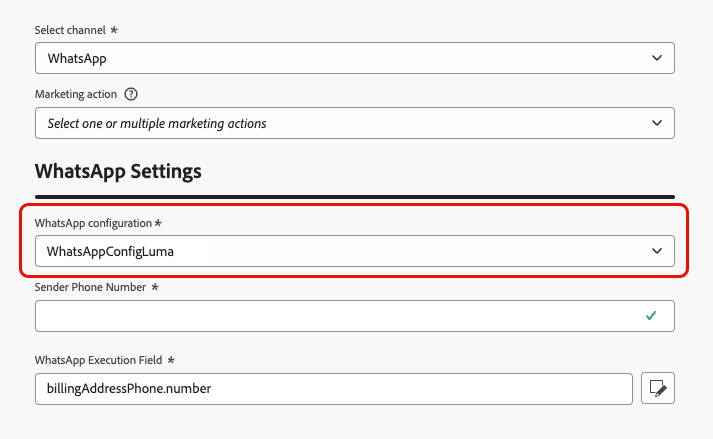
In the WhatsApp Settings section, select the previously created WhatsApp configuration.
-
Enter the Sender Phone Number you want to use for your communications. Do not include a ‘+’ sign before the number, as this can prevent the opt-out flow from working correctly.
-
Use the WhatsApp Execution Field to select amongst the profile attributes the phone number that you want to use in priority if several numbers are available in the database. Learn more
note NOTE By default, Journey Optimizer uses the phone number specified in the general settings at the sandbox level. Updating this field overrides the default value for the journeys and campaigns using this configuration. -
Once all the parameters have been configured, click Submit to confirm. You can also save the channel configuration as draft and resume its configuration later on.
-
Once the channel configuration has been created, it displays in the list with the Processing status.
note NOTE If the checks are not successful, learn more on the possible failure reasons in this section. -
Once the checks are successful, the channel configuration gets the Active status. It is ready to be used to deliver messages.
Once configured, you can leverage all out-of-the-box channel capabilities such as message authoring, personalization, link tracking, and reporting.
You are now ready to send WhatsApp messages with Journey Optimizer.
Troubleshoot WhatsApp channel setup troubleshooting
HTTP 500 errors during API credential setup
If you encounter an HTTP 500 error when configuring WhatsApp API credentials, follow these troubleshooting steps:
-
Verify entitlements: Confirm that your organization has the
cjm_whatsappentitlement provisioned. Without this entitlement, the WhatsApp channel cannot be configured. -
Validate business account fields: Ensure all mandatory fields are correctly filled:
- API Token: Must be a valid Meta access token with appropriate permissions. Learn more
- Business Account ID: Must match your Meta Business Account ID exactly. Learn more
-
Test credentials externally: Verify your credentials directly with the Meta API to confirm whether the issue is with the credentials or with Journey Optimizer credential handling.
-
Enable advanced logging: To identify internal server or authentication misconfigurations, enable advanced logs in your Journey Optimizer environment to provide detailed information about the API call failures.
-
Contact support: If the environment and entitlements are confirmed valid but the HTTP 500 error persists, contact your Adobe representative.
How-to video video
The video below shows how to set up the WhatsApp channel in Adobe Journey Optimizer.
This section contains structured knowledge intended to support interpretation, retrieval, and question answering related to this topic.
For complete understanding, this information should be combined with the documentation on this page. Neither source is intended to stand alone; the page describes the feature, while this section provides additional context that helps disambiguate terminology, intent, applicability, and constraints.
- TL;DR: This page explains how a System Administrator configures the WhatsApp channel in Journey Optimizer by creating WhatsApp API credentials, a Webhook, and a channel configuration to connect a WhatsApp Business account.
Intents:
- Create WhatsApp API credentials and connect a WhatsApp Business Account
- Create a WhatsApp Webhook to capture inbound responses, receive delivery reports, and enable tracking events
- Create a WhatsApp channel configuration and associate marketing actions and consent policies
- Set the sender phone number and WhatsApp Execution Field for a configuration
- Troubleshoot HTTP 500 errors during API credential setup
Glossary:
- API Credentials: The credential set (API Token and Business Account ID) used to connect Journey Optimizer to a WhatsApp Business Account (product-specific)
- API Token: A Meta access token from a System User in the same Business Manager as your WhatsApp assets, used to authenticate (product-specific)
- Business Account ID: Your Meta Business portfolio ID (Business Manager ID), not the WhatsApp Business Account ID (product-specific)
- Webhook: The communication bridge between Meta’s WhatsApp Business Platform and Journey Optimizer that receives real-time notifications about message events and user interactions (product-specific)
- Inbound keyword category: The classification (Opt-in, Opt-out, Help, Default) that determines which auto-response is sent based on user text (product-specific)
- WhatsApp Execution Field: The field used to select, among profile attributes, the phone number to use in priority when several numbers are available (product-specific)
- Quality Rating: A rating (Green/High, Yellow/Medium, Red/Low) reflecting customer feedback on messages sent in the past 24 hours (product-specific)
- Throughput: The rate at which your phone number can send messages (product-specific)
Guardrails:
- These steps must be performed by a Journey Optimizer System Administrator.
- Meta tokens expire after about 60 days; renew the token before it lapses.
- The API Token’s System User needs whatsapp_business_management, whatsapp_business_messaging, and business_management permissions, plus asset-level access to your WhatsApp Business Account.
- Meta allows only one webhook, callback URL, and Verify Token per WhatsApp Business Account, even across multiple sandboxes or WhatsApp credentials.
- Feedback events (Sent, Delivered, Read, Error, button click) are captured in every sandbox, but inbound events (replies, opt-in/opt-out/help keywords) are received only in the sandbox whose webhook is registered in Meta; registering the webhook from your production sandbox is recommended to receive inbound events there.
- Without specified opt-in or opt-out keywords, standard consent messages are not enabled.
- A profile must have at least one message sent from Journey Optimizer before incoming messages are captured in the dataset.
- Keywords are not case-sensitive (e.g., stop and STOP are treated the same).
- Configuration names must begin with a letter (A-Z), can only contain alpha-numeric characters, and may also use underscore, dot, and hyphen.
- Do not include a ‘+’ sign before the sender phone number, as this can prevent the opt-out flow from working correctly.
- HTTP 500 troubleshooting: the organization must have the
cjm_whatsappentitlement provisioned; without it, the WhatsApp channel cannot be configured.
Terminology:
- Canonical name: WhatsApp channel configuration — Acronym: n/a — variants: channel configuration, WhatsApp configuration
- Synonyms: “Business Account ID” = “Meta Business portfolio ID” = “Business Manager ID”
- Do not confuse: “Business Account ID” (Meta Business portfolio / Business Manager ID) ≠ “WhatsApp Business Account ID” (not entered in this field)
- Do not confuse: “API Credentials” ≠ “Webhook” ≠ “channel configuration” (three distinct setup steps)
- Do not confuse: “Processing” (status while checks run) ≠ “Active” (status once checks are successful and the configuration is ready to deliver)
FAQ:
- Q: What are the steps to configure the WhatsApp channel? — Create WhatsApp API credentials, create a WhatsApp Webhook, then create a WhatsApp channel configuration.
- Q: Who can configure the WhatsApp channel? — A Journey Optimizer System Administrator.
- Q: When do Meta tokens expire? — Meta tokens expire after about 60 days; renew the token before it lapses.
- Q: Why are my inbound events missing in some sandboxes? — Meta allows only one webhook per WhatsApp Business Account, so inbound events are received only in the sandbox whose webhook is registered in Meta; registering the webhook from your production sandbox is recommended.
- Q: What does the channel configuration status mean? — It shows Processing while checks run and becomes Active once checks are successful, meaning it is ready to deliver messages.
- Q: What can I do about an HTTP 500 error during API credential setup? — Verify that the
cjm_whatsappentitlement is provisioned, validate the API Token and Business Account ID fields, test your credentials directly with the Meta API, enable advanced logs, and contact your Adobe representative if the error persists. - Q: Why should I not add a ‘+’ before the sender phone number? — It can prevent the opt-out flow from working correctly.