Configure Web In-app Messaging support in Web SDK
In-app messages are notifications which you can send to users within your web application, guiding them to specific points of interest.
You can use these notifications for different purposes, such as promoting new features, presenting special offers, or facilitating user onboarding.
By using in-app messages, you can effectively engage with your audience and steer them towards important aspects of your application.
Prerequisites prerequisites
Web SDK tag extension version extension-version
The Web In-app messaging functionality requires the latest version of the Web SDK tag extension.
Configure a CSP for Web In-app Messaging csp
When you configure Web In-App Messaging, you must include the following directive in your CSP:
default-src blob:;
For more information about configuring a CSP, refer to Data Collection documentation.
Configure Web In-App Messaging using the Web SDK tag extension tag-extension
Refer to the Web SDK tag extension configuration page to understand where you can find the settings described below.
After you have installed the Web SDK tag extension, follow the steps below to configure the extension for Web In-app Messaging.
In the Personalization section, check the Enable personalization storage option. This option allows the Web SDK to keep track of which experiences have been seen by the user across page loads.

Web In-app Messaging supports two types of triggers:
Refer to the following sections to configure the Web SDK tag extension according to the triggers you want to use.
Configuration steps for the Send data to Experience Platform trigger send-data-platform
-
Select the tag property which contains your Web SDK extension and create a new rule with the following settings:
- Extension: Core
- Event Type: Library Loaded (Page Top)

-
Select Keep Changes to save the event configuration.
-
You now need to add an action to the rule that you created, in the Actions section, select Add.
Use the following Action settings:
- Extension: Adobe Experience Platform Web SDK
- Action Type: Send event

-
On the right side of the screen, in the Personalization section, enable the Render visual personalization decisions option.

-
On the right side of the screen, in the Decision context section, define the Key/Value pairs which you used in your campaign configuration, to qualify for the in-app message.

-
Select Keep Changes to save your configuration.
-
Next, you must add the newly created rule to the tag property library. To do this, go to Publishing Flow and select the rule that you previously created.

-
After you have added the rule to the library, select Save & Build to Development.

The configuration process is now completed and your message is ready to be shown to your users.
Configuration steps for using manual triggers manual-trigger
-
Select the tag property which contains your Web SDK extension, and create a new rule with the following settings:
- Extension: Core
- Event Type: Click
-
Set the trigger for a specific element on the page, identified by a CSS selector of your choosing.

-
You need to add an action to the rule that you created. In the Actions section, select Add and use the following Action settings:
- Extension: Adobe Experience Platform Web SDK
- Action Type: Evaluate rulesets
-
On the right side of the screen, enable the Render visual personalization decisions option.

-
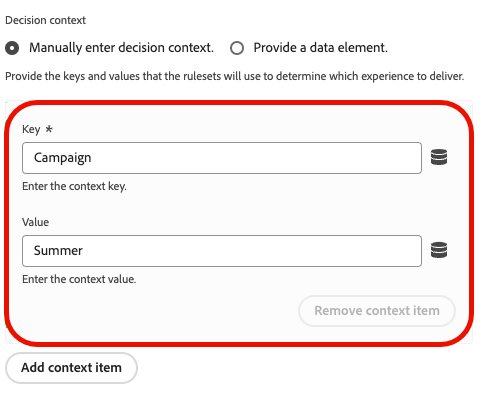
On the right side of the screen, in the Decision context section, define the Key/Value pairs which you used in your campaign configuration, to qualify for the in-app message.
-
Select Keep Changes to save your configuration.
-
Add the newly created rule to the tag property library. To do this, go to Publishing Flow and select the rule that you previously created.
-
After you have added the rule to the library, select Save & Build to Development.
The configuration process is now completed and your message is ready to be shown to your users.
Configure Web In-App Messaging using the Web SDK JavaScript library js-library
As an alternative to using the Web SDK tag extension, you can also configure Web In-App Messaging directly from the Web SDK JavaScript library.
You can display web in-app messages from Adobe Journey Optimizer in two ways.
Method 1: Automatically fetch the personalization content automatic
To have Web SDK automatically fetch the personalization content on page load, use the sendEvent command, as shown in the example below.
  alloy("sendEvent", {
      renderDecisions: true,
      personalization: {
          surfaces: ['#welcome']
      }
  });
Method 2: Manually fetch the personalization content based on user action manual
To show the personalization content only after the user performs a specific action, use the evaluateRulesets command as shown in the example below.
In this example, the personalization content is displayed when a user clicks the Buy Now button on your website.
 alloy("evaluateRulesets", {
     renderDecisions: true,
     personalization: {
         decisionContext: {
             "userAction": "buy_now"
         }
     }
 });
Configure personalization storage personalization-storage
You can choose to show in-app messages to users for a set number of times, or every time they visit a page, through the personalizationStorageEnabled configuration option.
In the Web SDK configuration set the personalizationStorageEnabled option according to your needs:
personalizationStorageEnabled: truetriggers the in-app message with the frequency you defined in your campaign.personalizationStorageEnabled: falsetriggers the in-app message on every page load.
This section contains structured knowledge intended to support interpretation, retrieval, and question answering related to this topic.
For complete understanding, this information should be combined with the documentation on this page. Neither source is intended to stand alone; the page describes the feature, while this section provides additional context that helps disambiguate terminology, intent, applicability, and constraints.
- TL;DR: This page explains how to configure Web In-app Messaging support in the Web SDK, either through the Web SDK tag extension or directly with the Web SDK JavaScript library, using either automatic (Send data to Experience Platform) or manual triggers.
Intents:
- Meet the prerequisites for Web In-app Messaging, including the Web SDK tag extension version and CSP directive
- Configure Web In-app Messaging using the Web SDK tag extension for the Send data to Experience Platform trigger
- Configure Web In-app Messaging using the Web SDK tag extension for manual triggers
- Configure Web In-app Messaging directly from the Web SDK JavaScript library
- Control message display frequency through the personalization storage option
Glossary:
- Web In-app message: A notification sent to users within your web application to guide them to specific points of interest, such as promoting features, presenting offers, or facilitating onboarding (product-specific)
- Enable personalization storage: A Web SDK tag extension option that allows the Web SDK to track which experiences have been seen by the user across page loads (product-specific)
- Send data to Experience Platform trigger: A trigger type configured with a Send event action that automatically fetches personalization content (product-specific)
- Manual trigger: A trigger type configured with an Evaluate rulesets action to show messages after a specific user action (product-specific)
- Render visual personalization decisions: A Personalization option enabled on the action so visual personalization decisions are rendered (product-specific)
- Decision context: A section where you define the Key/Value pairs used in your campaign configuration to qualify for the in-app message (product-specific)
personalizationStorageEnabled: A Web SDK configuration option controlling whether in-app messages appear with the frequency defined in your campaign or on every page load (product-specific)
Guardrails:
- The Web In-app messaging functionality requires the latest version of the Web SDK tag extension.
- When you configure Web In-App Messaging, you must include the
default-src blob:;directive in your CSP. - For the Send data to Experience Platform trigger, the rule uses Extension Core with Event Type Library Loaded (Page Top), and the action uses the Adobe Experience Platform Web SDK extension with Action Type Send event.
- For manual triggers, the rule uses Extension Core with Event Type Click (set on an element identified by a CSS selector), and the action uses Action Type Evaluate rulesets.
personalizationStorageEnabled: truetriggers the in-app message with the frequency defined in your campaign;personalizationStorageEnabled: falsetriggers the in-app message on every page load.
Terminology:
- Canonical name: Web In-app Messaging — Acronym: n/a — variants: Web In-app messaging, Web In-app message
- Synonyms: “Send data to Experience Platform trigger” = “automatic trigger (Method 1)”
- Do not confuse: “Web SDK tag extension” (configuration via tag rules and actions) ≠ “Web SDK JavaScript library” (configuration via
sendEvent/evaluateRulesetscommands) - Do not confuse: “
sendEvent” (Method 1: automatically fetch personalization content on page load) ≠ “evaluateRulesets” (Method 2: manually fetch based on user action)
FAQ:
- Q: What are the prerequisites for Web In-app Messaging? — The latest version of the Web SDK tag extension and a CSP that includes the
default-src blob:;directive. - Q: What trigger types are supported? — Sending data to Experience Platform and manually triggering the messages.
- Q: How do I configure this without the tag extension? — Use the Web SDK JavaScript library:
sendEventto automatically fetch personalization content on page load, orevaluateRulesetsto fetch it after a specific user action. - Q: How do I control how often a message is shown? — Use
personalizationStorageEnabled: set to true to trigger with the frequency defined in your campaign, or false to trigger on every page load. - Q: What does Enable personalization storage do? — It lets the Web SDK track which experiences have been seen by the user across page loads.