On this page: Learn how to add custom CSS to your email content in the Email Designer for advanced styling, how to keep your CSS valid, and how to troubleshoot styles that are not applied.
When designing your emails, you can add your own custom CSS directly within the Journey Optimizer Email Designer. This capability enables you to apply advanced and specific styling, for greater flexibility and control over the appearance of your content.
Define custom CSS define-custom-css
To add custom CSS to your email content, follow the steps below.
-
Ensure there is some content defined in the Email Designer by adding at least one component.
-
Select Body, either from the Navigation tree on the left, or on top of the right pane. The CSS styles section displays on the right.
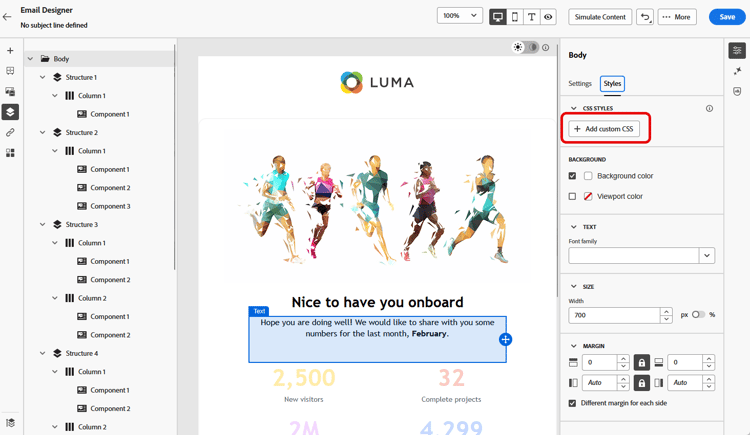
note NOTE The CSS styles section is only available when content is already present in the editor. -
Click the Add Custom CSS button.
note NOTE The Add custom CSS button is only available when Body is selected. However, you can apply custom CSS styles to all the components inside your content. -
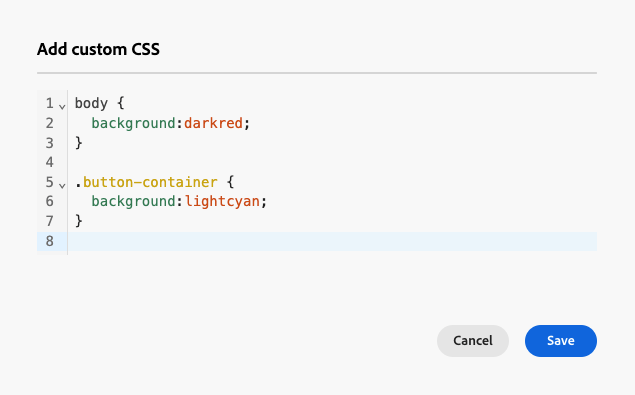
Enter your CSS code in the dedicated text area that pops up. Make sure the custom CSS is valid and follows the proper syntax. Learn more
note NOTE When using a template with locked content, you cannot add custom CSS to your content. The button label changes to View custom CSS and any custom CSS already present in the content is read-only. -
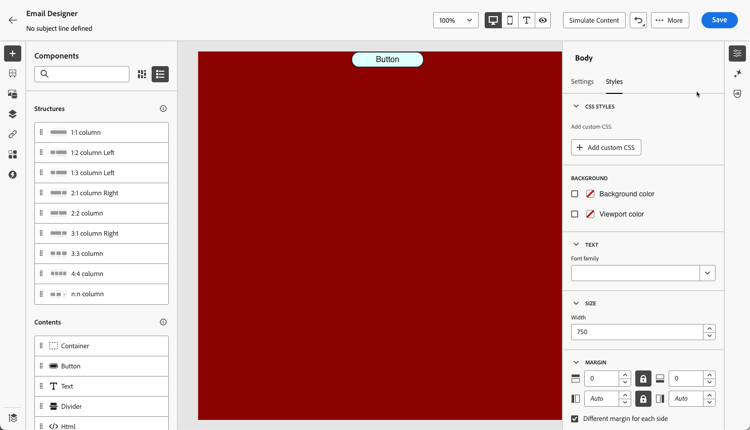
Save your custom CSS and check that your custom CSS is correctly applied to your content. If this is not the case, check the Troubleshooting section.
-
If you remove all content, the section disappears, and the previously defined custom CSS is no longer applied.
-
Add content back to the editor to make the CSS styles section reappear. The custom CSS is applied again.
Ensure using valid CSS use-valid-css
You can input any valid CSS string in the Add custom CSS text area. Properly formatted CSS is immediately applied to the content.
Below are examples of valid CSS.
| code language-css |
|---|
|
| code language-css |
|---|
|
If invalid CSS is entered, an error message is displayed, indicating that the CSS cannot be saved. Below are examples of invalid CSS.
Using <style> tags is not accepted:
| code language-html |
|---|
|
Invalid syntax such as missing braces is not accepted:
| code language-css |
|---|
|
Technical implementation implementation
Your custom CSS is added to the end of the <head> section as part of a <style> tag with the data-name="global-custom" attribute, such as in the example below. This ensures that the custom styles are applied globally to the content.
| code language-html |
|---|
|
The custom CSS is not interpreted or validated by the Email Designer’s Settings pane. It is entirely independent and can only be modified through the Add Custom CSS option.
Guardrails - Imported content
If you want to use custom CSS with content imported into the Email Designer, consider the following:
-
If importing external HTML content including CSS, unless converting that content, it will be in Compatibility mode, where the CSS styles section is not available. Learn more on importing existing content
-
If importing content created with the Email Designer including CSS applied through the Add custom CSS option, the CSS previously applied will be visible and editable from the same option.
Troubleshooting troubleshooting
If your custom CSS is not applied, consider the options below.
-
Ensure that your CSS is valid and free of syntax errors (such as missing braces, incorrect property names). Learn how
-
Ensure that your CSS is being added to the
<style>tag with thedata-name="global-custom"attribute. -
Check if the
global-customstyle tag has the attributedata-disabledset totrue. If this is the case, the custom CSS is not applied.accordion For example: code language-html <style data-name="global-custom" type="text/css" data-disabled="true"> body: { color: red; } </style> -
Ensure that your CSS is not overridden by other CSS rules, including any theme applied to your content.
-
Use your browser developer tools to inspect the content and verify that your CSS is targeting the correct selectors.
-
Consider adding
!importantto your declarations to ensure they take precedence.accordion For example: code language-css .acr-Form { background: red !important; }
-
This section contains structured knowledge intended to support interpretation, retrieval, and question answering related to this topic.
For complete understanding, this information should be combined with the documentation on this page. Neither source is intended to stand alone; the page describes the feature, while this section provides additional context that helps disambiguate terminology, intent, applicability, and constraints.
- TL;DR: This page explains how to add custom CSS to email content in the Email Designer for advanced styling, how to keep the CSS valid, how it is implemented in the HTML, and how to troubleshoot styles that are not applied.
Intents:
- Add custom CSS to email content for advanced and specific styling
- Ensure the entered CSS is valid so it is applied and can be saved
- Understand where custom CSS is injected in the generated HTML
- Troubleshoot custom CSS that is not applied
- Understand custom CSS behavior with imported content
Glossary:
- Add Custom CSS: The Email Designer option (available when Body is selected) to enter custom CSS in a dedicated text area (product-specific)
- CSS styles section: The section, shown when Body is selected and content is present, from which custom CSS is added (product-specific)
- global-custom: The
data-name="global-custom"<style>tag added to the end of the<head>where custom CSS is placed (product-specific) - Compatibility mode: The mode for imported external HTML content (unless converted) in which the CSS styles section is not available (product-specific)
Guardrails:
- The CSS styles section is only available when content is already present in the editor; the Add custom CSS button is only available when Body is selected.
- Custom CSS must be valid and follow proper syntax; invalid CSS (for example using
<style>tags, or syntax errors such as missing braces) triggers an error message and cannot be saved. - When using a template with locked content, you cannot add custom CSS; the button changes to View custom CSS and existing custom CSS is read-only.
- If you remove all content, the CSS styles section disappears and the previously defined custom CSS is no longer applied; adding content back reapplies it.
- For imported external HTML content in Compatibility mode (unless converted), the CSS styles section is not available.
- Users are responsible for the security of their custom CSS and should ensure it does not introduce vulnerabilities or break the layout.
- Custom CSS is not interpreted or validated by the Settings pane; it is independent and can only be modified through the Add Custom CSS option.
Terminology:
- Canonical name: Custom CSS — Acronym: CSS — variants: Add Custom CSS, custom CSS styles
- Synonyms: “Add custom CSS” = “Add Custom CSS” (button); becomes “View custom CSS” for locked content
- Do not confuse: “custom CSS” (
global-customstyle tag) ≠ default/system-generated CSS styles (otherdata-namestyle tags such asdefault,grid,acr-theme) - Do not confuse: “Compatibility mode” (imported external HTML, no CSS styles section) ≠ content created with the Email Designer (custom CSS visible and editable)
FAQ:
- Q: Why is the Add custom CSS button missing? — The CSS styles section requires content in the editor, and the button is only available when Body is selected.
- Q: What happens if my CSS is invalid? — An error message is displayed indicating the CSS cannot be saved;
<style>tags and syntax errors such as missing braces are not accepted. - Q: Where is my custom CSS added in the HTML? — To the end of the
<head>section as a<style data-name="global-custom">tag. - Q: My custom CSS is not applied — what should I check? — Verify the CSS is valid, that it is in the
global-customstyle tag, thatdata-disabledis not set totrue, and that it is not overridden by other rules including an applied theme; consider adding!important. - Q: Can I add custom CSS to a template with locked content? — No; the button becomes View custom CSS and any existing custom CSS is read-only.