On this page: Learn how to personalize email URLs with profile attributes, including complete or base URLs and per-link tracking parameters, while keeping links valid and trackable.
Personalized URLs help you deliver contextual experiences through your Journey Optimizer email messages, such as generating recipient-specific links or appending dynamic parameters.
They take recipients to specific pages of a website, or to a personalized microsite, depending on the profile attributes.
Personalize a URL personalize-url
To personalize a URL, follow the steps below.
-
In the Email Designer, select an element in the content and insert a link using the contextual toolbar.
note important IMPORTANT Personalization is only available for External link, Unsubscription link and Opt-Out. Make sure to select an appropriate link type. -
Select the personalization icon.

-
Use the personalization editor to add the profile attributes you want to personalize the URL with.
-
Save your changes.
Here are some examples of personalized URLs:
https://www.adobe.com/users/{{profile.person.name.lastName}}https://www.adobe.com/users?uid={{profile.person.name.firstName}}https://www.adobe.com/usera?uid={{context.journey.technicalProperties.journeyUID}}https://www.adobe.com/users?uid={{profile.person.crmid}}&token={{context.token}}
For reliable rendering and tracking, follow the best practices and guardrails below.
Personalize a complete/base URL personalize-complete-base-url
Journey Optimizer supports personalizing the entire URL or the base domain of a URL, for example:
<a href="{{profile.social.link}}" />
<a href="{{profile.social.baseUrl}}/profile" />
<a href="https://{{profile.social.baseUrl}}/profile" />
Add domains for complete/base URL personalization manage-accepted-domains
To enable complete or base URL personalization, you must first add your accepted domains to the allowed list.
This ensures that only approved domains are used in your personalized URLs and to help prevent unsafe redirects.
To manage your allowed domains, follow the steps below.
-
In Adobe Journey Optimizer, go to Administration > Channels > Email settings > Allowed list - domains.
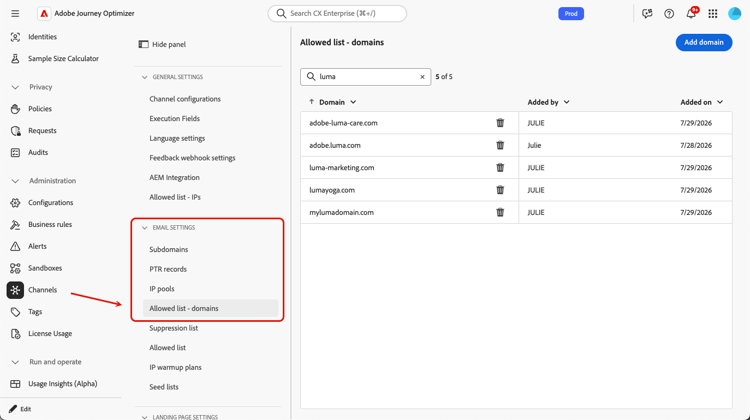
From there, you can browse all approved domains, add new ones, and delete existing ones.
-
Click the Add domain button.
-
Enter the full subdomain or root domain.
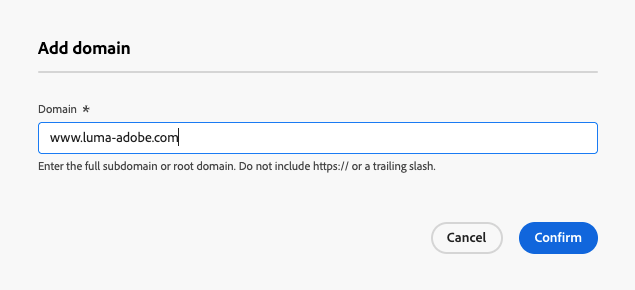
note NOTE Do not include https:// or a trailing slash as this will cause the domain to be rejected. For example, enter www.example.comorexample.com, nothttps://www.example.com/. -
Click Confirm. The domain is added to the allowed list and can now be used in complete or base URL personalization.
-
To remove a domain, click the Delete icon next to that domain.
note caution CAUTION If you remove a domain that is already in use in a personalized URL, the safety of the link cannot be guaranteed. Make sure to update any personalized URLs that reference this domain before removing it from the allowed list.
Click tracking limitation click-tracking-limitation
Dynamically generated URLs — where the entire URL or base domain resolves from a profile attribute at send time — have a known tracking limitation: Journey Optimizer cannot reliably track clicks for these links, and click data may not appear in journey or campaign reports.
This occurs because the tracking redirect is applied at design time, before the final URL is known. When the resolved value differs per recipient, the redirect chain breaks and clicks go unrecorded. Additionally, the resolved URL must start with http or https for every recipient — if it does not, tracking is silently skipped for that link.
To maintain reliable click tracking, use one of the following approaches:
-
Use a fixed base URL and append personalized parameters only (for example,
https://www.example.com/page?uid={{profile.person.crmid}}). -
Pre-generate a personalized URL per recipient, store it as a profile attribute, and reference it in your email content.
Personalize URL tracking parameters personalize-url-tracking-parameters
URL tracking is managed at the channel configuration level and applies to all URLs included in your message content. You can also personalize URL tracking parameters for an individual link in the Email Designer. This lets you append a recipient-specific parameter to a single link (for example, to pass an identifier to your web analytics tools).
To do so, insert a link, select the personalization icon, add the URL tracking parameter and select the profile attribute of your choice from the personalization editor.

Repeat the steps above for each link you want to add this tracking parameter to.
Now when the email is sent out, this parameter is automatically appended to the end of the URL. You can then capture this parameter in web analytics tools or in performance reports.
This section contains structured knowledge intended to support interpretation, retrieval, and question answering related to this topic.
For complete understanding, this information should be combined with the documentation on this page. Neither source is intended to stand alone; the page describes the feature, while this section provides additional context that helps disambiguate terminology, intent, applicability, and constraints.
- TL;DR: This page explains how to personalize email URLs with profile attributes — including complete or base URLs and per-link tracking parameters — while keeping links valid and trackable.
Intents:
- Personalize a URL with profile attributes in the Email Designer
- Personalize an entire URL or the base domain of a URL
- Add accepted domains to the allowed list to enable complete or base URL personalization
- Understand the click tracking limitation for dynamically generated URLs
- Personalize URL tracking parameters for an individual link
Glossary:
- Personalized URL: An email link generated dynamically from profile attributes to deliver contextual experiences (recipient-specific links or appended dynamic parameters) (product-specific)
- Complete/base URL personalization: Personalizing the entire URL or the base domain of a URL, which requires the domain to be on the allowed list (product-specific)
- Allowed list - domains: The list of accepted domains that may be used in complete or base URL personalization, to help prevent unsafe redirects (product-specific)
- Per-link URL tracking parameter: A recipient-specific tracking parameter appended to a single link, personalized with a profile attribute in the Email Designer (product-specific)
Guardrails:
- Personalization is only available for External link, Unsubscription link, and Opt-Out link types.
- In the personalization editor, helper functions and audiences membership are disabled for security reasons; spaces are not supported in the personalization tokens used inside URLs.
- To enable complete or base URL personalization, you must first add your accepted domains to the allowed list.
- Viewing, adding, or removing domains from the allowed list requires the Manage messages general settings and View messages general settings permissions.
- When adding a domain, do not include https:// or a trailing slash (enter
www.example.comorexample.com), or the domain is rejected. - If you remove a domain already in use in a personalized URL, the safety of the link cannot be guaranteed; update any personalized URLs referencing it first.
- Dynamically generated URLs (where the entire URL or base domain resolves from a profile attribute at send time) have a known limitation: click data may not appear in journey or campaign reports.
- The resolved URL must start with
httporhttpsfor every recipient; if it does not, tracking is silently skipped for that link.
Terminology:
- Canonical name: URL personalization — Acronym: n/a — variants: personalized URL, complete/base URL personalization
- Synonyms: “Allowed list - domains” = “allowed list of accepted domains”
- Do not confuse: “personalize a URL” (adding profile attributes to a URL) ≠ “complete/base URL personalization” (personalizing the entire URL or base domain, which requires the allowed list)
- Do not confuse: “configuration-level URL tracking” (applies to all URLs in the message) ≠ “per-link URL tracking parameter” (appended to a single link)
FAQ:
- Q: Which link types support personalization? — Only External link, Unsubscription link, and Opt-Out.
- Q: What do I need before personalizing a complete or base URL? — You must first add your accepted domains to the allowed list.
- Q: Which permissions manage the allowed domains list? — Manage messages general settings and View messages general settings.
- Q: Why might click data be missing for a personalized link? — For dynamically generated URLs, the tracking redirect is applied at design time before the final URL is known, so click data may not appear in journey or campaign reports; the resolved URL must also start with http/https or tracking is silently skipped.
- Q: How can I keep reliable click tracking with personalization? — Use a fixed base URL and append personalized parameters only, or pre-generate a personalized URL per recipient, store it as a profile attribute, and reference it in your content.
- Q: How do I verify the final personalized URL? — Send a proof and click the link in the received email; the URL should display the tracking parameter.