On this page: Learn how to use the advanced HTML editor in the Email Designer to view and edit the raw HTML source of your email content, including the guardrails to keep in mind and how to switch back to the visual view to preview and save.
The advanced HTML editor is an expert mode that lets you view and edit the raw HTML source of email content directly in the Journey Optimizer Email Designer—whether you are designing an email for a journey, a campaign, or editing an email content template.
This capability lets you insert advanced expressions—such as conditions—directly in the source. When you switch back to the visual (Desktop) view, the content is re-rendered so you can check how it looks and continue editing in either view.
Guardrails guardrails
When you use the advanced HTML editor, the following guardrails protect content compatibility and set expectations.
-
The advanced HTML editor does not validate your code. It does not check syntax errors or broken layouts. Review your content carefully before saving.
-
Future system updates may overwrite changes you make to default markup. Your changes may not persist.
-
The Adobe support team cannot troubleshoot or resolve issues caused by custom code and manual changes. Keep a backup of your content in case you need to revert.
-
You cannot simulate content in advanced HTML view. Switch to Desktop view to preview your content.
-
To ensure content compatibility, you cannot save in advanced HTML view. Switch back to Desktop view when you are ready to save your changes.
Switch to advanced HTML view switch-to-html-view
To open the advanced HTML editor and edit your HTML source, follow these steps.
-
Open the email or template you want to edit in the Email Designer—for example, create or edit an email from a journey or campaign, or open an email content template and edit its body in the Email Designer.
-
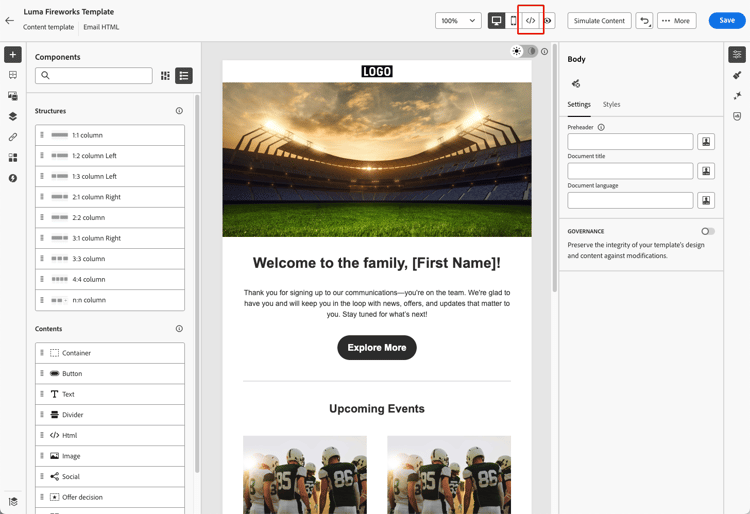
Click the HTML button in the top-right corner of the screen.
-
The first time you open the advanced HTML editor, a warning message is displayed. Review it carefully and click OK to continue. Learn more
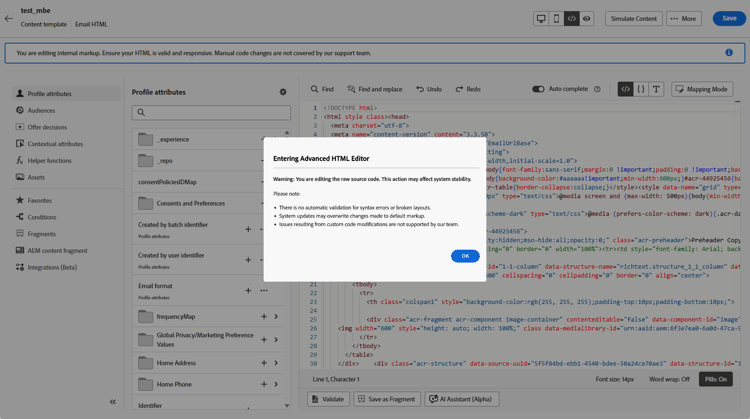
note NOTE This warning appears only the first time you open the advanced HTML editor and resets each month. -
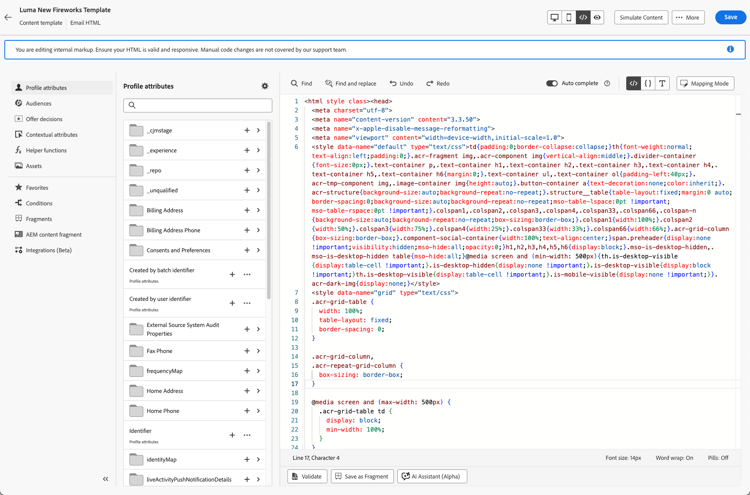
The advanced HTML editor displays.
-
Add the desired changes to your email content.
note warning WARNING Make sure to enter correct HTML and CSS code as there is no syntax validation process and no support is provided by Adobe. Learn more -
Content simulation and saving are not available in advanced HTML view for compatibility reasons. Switch back to Desktop view to preview your content and save your changes.
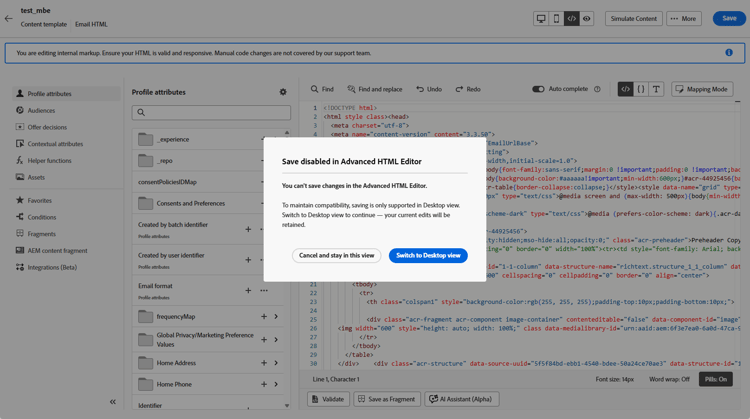
note NOTE Your edits are preserved when you switch views.
Related topics
This section contains structured knowledge intended to support interpretation, retrieval, and question answering related to this topic.
For complete understanding, this information should be combined with the documentation on this page. Neither source is intended to stand alone; the page describes the feature, while this section provides additional context that helps disambiguate terminology, intent, applicability, and constraints.
- TL;DR: This page explains how to use the advanced HTML editor (expert mode) in the Email Designer to view and edit the raw HTML source of email content, including its guardrails and how to switch back to Desktop view to preview and save.
Intents:
- View and edit the raw HTML source of email content directly in the Email Designer
- Insert advanced expressions, such as conditions, directly in the source
- Open the advanced HTML editor using the HTML button in the top-right corner
- Understand the guardrails that apply when editing HTML in expert mode
- Switch back to Desktop (visual) view to re-render, preview, and save content
Glossary:
- Advanced HTML editor: An expert mode that lets you view and edit the raw HTML source of email content directly in the Email Designer, whether designing an email for a journey or campaign or editing an email content template (product-specific)
- Desktop view: The visual view of the Email Designer where content is re-rendered so you can preview it and save your changes (product-specific)
- Code your own mode: A separate Email Designer mode in which you cannot switch back to the visual editor; once chosen, you stay in code-only editing (product-specific)
Guardrails:
- This capability is available in Limited Availability; contact your Adobe representative to gain access.
- The advanced HTML editor does not validate your code; it does not check syntax errors or broken layouts.
- Future system updates may overwrite changes you make to default markup, so your changes may not persist.
- The Adobe support team cannot troubleshoot or resolve issues caused by custom code and manual changes; keep a backup of your content in case you need to revert.
- You cannot simulate content in advanced HTML view; switch to Desktop view to preview your content.
- You cannot save in advanced HTML view; switch back to Desktop view when you are ready to save.
- The first-time warning appears only the first time you open the advanced HTML editor and resets each month.
- Your edits are preserved when you switch views.
Terminology:
- Canonical name: advanced HTML editor — Acronym: n/a — variants: expert mode, advanced HTML view, HTML view
- Synonyms: “advanced HTML view” = “HTML view”
- Do not confuse: “advanced HTML editor” (toggle between HTML view and Desktop view at any time) ≠ “Code your own mode” (code-only, cannot switch back to the visual editor)
FAQ:
- Q: Can I save while in advanced HTML view? — No. You cannot save in advanced HTML view; switch back to Desktop view to save your changes.
- Q: Can I simulate content in advanced HTML view? — No. Switch to Desktop view to preview your content.
- Q: Does the advanced HTML editor validate my code? — No. It does not check syntax errors or broken layouts, so review your content carefully before saving.
- Q: Are my edits lost when I switch views? — No. Your edits are preserved when you switch between views.
- Q: Is the advanced HTML editor the same as Code your own mode? — No. The advanced HTML editor lets you toggle between HTML view and Desktop view at any time, whereas Code your own mode keeps you in code-only editing with no way back to the visual editor.