On this page: Follow this use case to build an Orchestrated campaign that re-engages recipients with personalized email reminders about the products they saved to their wishlist.
While this example uses a Wishlist schema, the same method applies to any entity with a one-to-many relationship to Recipients such as Purchases, Subscriptions, or any custom schema in which each recipient may have multiple associated records.
Schemas needed for this use case:
- Recipients: used as the targeting dimension
- WishlistItems: with fields:
creationDate,product,Wishlistid - Product: with fields:
description,priceref,imageurl - AbandonedCarts (optional): with field:
lastmodified

This orchestrated campaign focuses on re-engaging visitors by reminding them of products saved to their Wishlist. Using Campaign Orchestration, define the audience with conditions based on Wishlist activity, helping drive visitors back to convert.
-
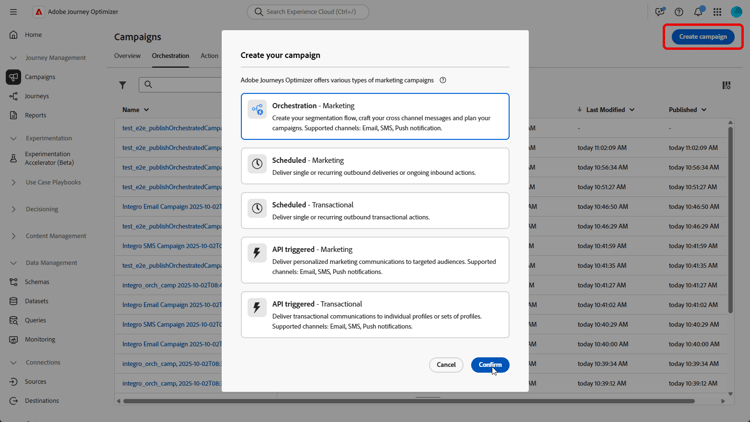
Start by creating a new campaign specifically aimed at Wishlist re-engagement. This will help focus messaging on customers who have shown purchase intent by saving items.
-
Fill in your Campaign settings.
-
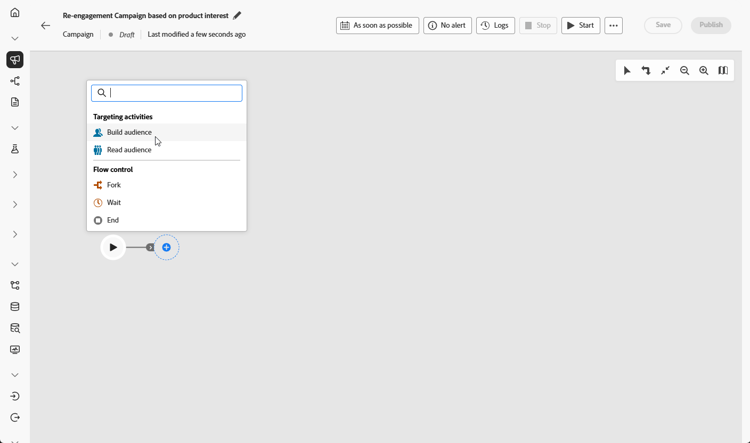
Add a Build audience activity to identify the group of customers to target based on Wishlist behavior.
-
Set a descriptive Label for this audience and choose Recipients as Targeting dimension. Then click Continue to configure the audience.
-
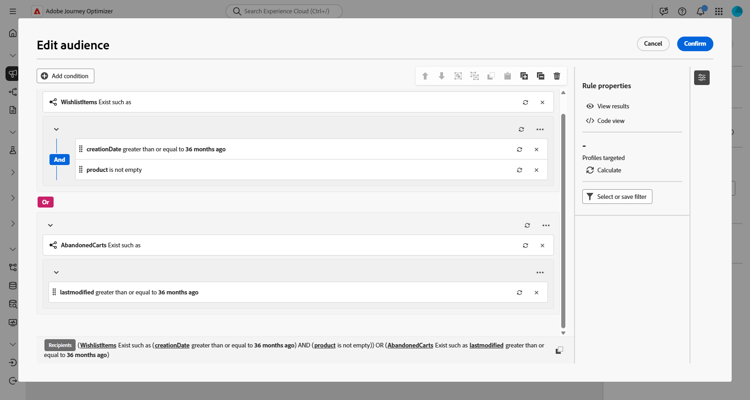
Click Add condition to refine your audience by creating the following condition:
WishlistItems Exist such as (creationDate greater than or equal to 36 months ago) AND (product is not empty
ORAbandonedCarts Exist such as lastmodified greater than or equal to 36 months agoThis audience is based on recipients who have a Wishlist, contain items with product images, or have an abandoned cart within the defined timeframe.
-
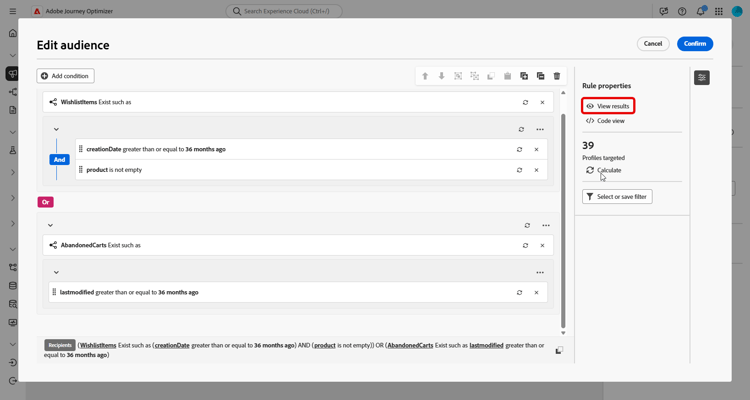
Click Calculate to see the number of profiles impacted by these conditions and View results to inspect details for each condition and confirm the audience matches your target segment.
-
Click Confirm.
-
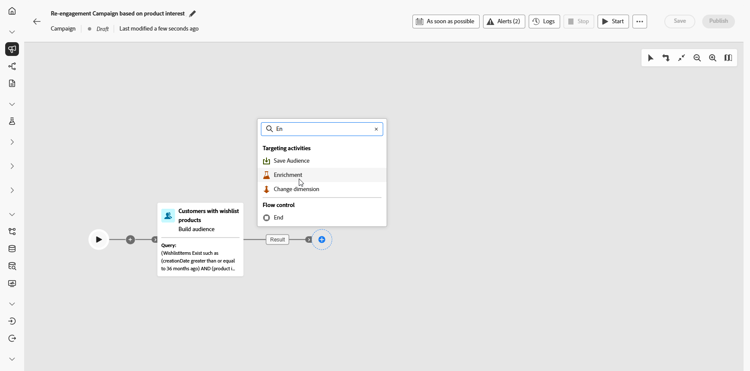
Add an Enrichment activity to personalize the campaign with Wishlist and product information.
-
Click Add enrichment data.
-
Access
Targeting dimension > Wishlistitems > Wishlistid.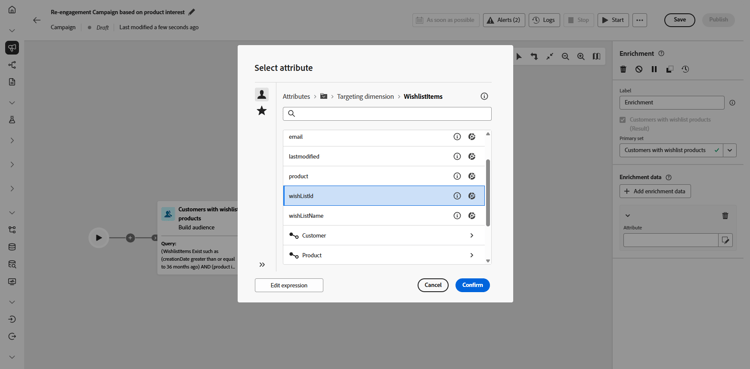
-
Select how the data is collected, in this case, Collect data to gather Wishlist details for your audience.
-
Choose the number of lines to retrieve. By default, three items per Wishlist are retrieved, but this can be adjusted depending on campaign needs to highlight more or fewer products.
-
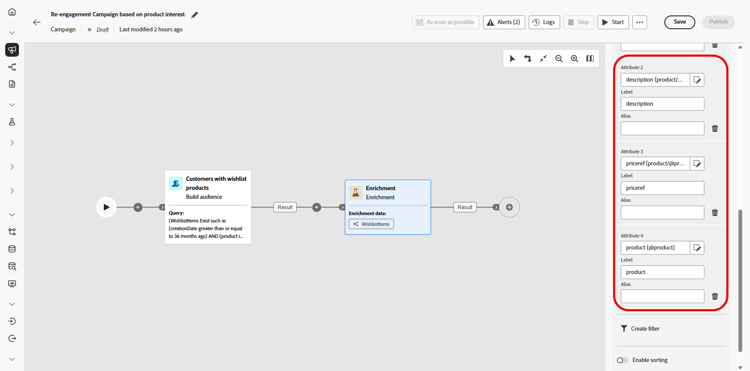
Click Add attribute to create following three attributes:
Product > descriptionProduct > pricerefProduct > imageurl
This enriches the message with detailed product information to drive conversions.
-
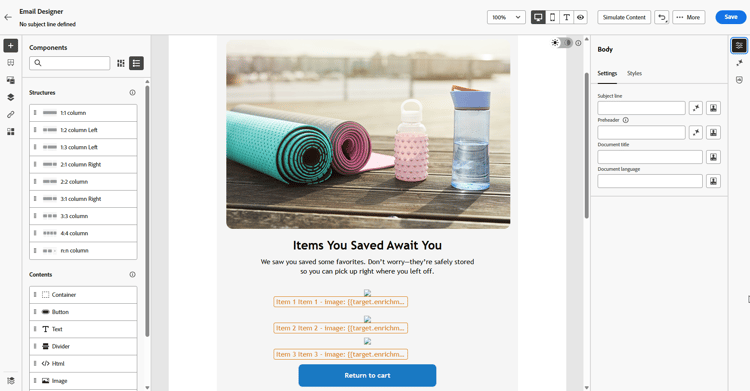
Add an email activity to create an individually personalized re-engagement message for each customer. Click Edit content to start designing your content.
➡️ Learn more on email personalization
-
After finalizing the email, save and run the campaign in draft mode by clicking Start from your orchestrated campaign.
-
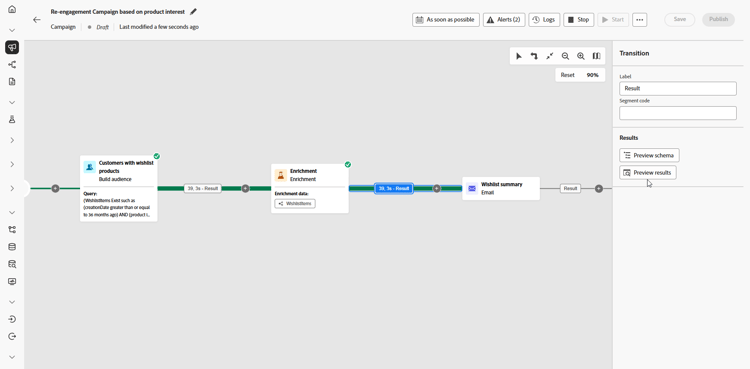
After starting draft mode, preview the audience with Wishlist details.
For deeper insights, click an output result and select Preview results.
After the campaign has run, we can explore our reports, which gives us a robust set of data and KPIs about how our campaign is performing.