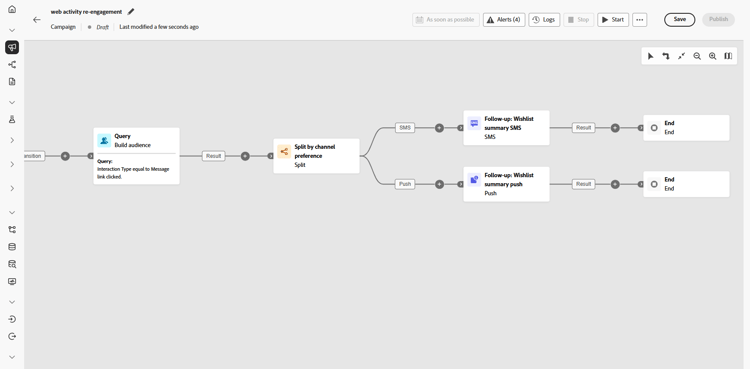
On this page: Follow an Orchestrated campaign use case that re-engages customers based on their browsing activity by reading an audience, deduplicating it, splitting it by churn risk, and sending personalized follow-up messages.
Note that this use case starts with an audience that already exists in Experience Platform, specifically, a real-time web behavior audience that collects browsing activity as it occurs. Learn more in Adobe Experience Platform
Schemas needed for this use case:
- Recipients: used as the targeting dimension, with fields:
email,churnprop - Wishlist: with fields:
description,priceref,imageurl

This campaign targets customers who have browsed the exercise equipment category. The audience is deduplicated and segmented by churn risk, how likely someone is to stop engaging or buying.
High-risk customers are gathered into a separate new audience which will later be used for a specific communication, while low and mediumrisk customers go through a multi-step journey with personalized emails and follow-ups.
-
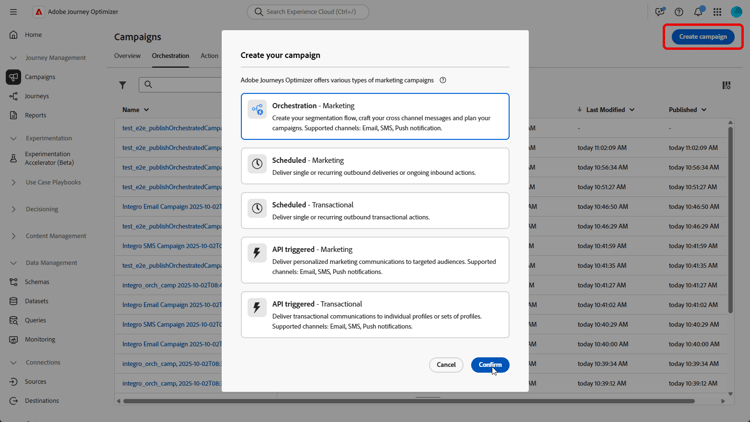
Start by setting up a new campaign specifically aimed at Wishlist re-engagement. This ensures your messaging focuses on customers who have already shown purchase intent by saving products to their wishlist.
-
Fill in your Campaign Settings such as the Campaign name, description, start and end dates, and relevant tags.
-
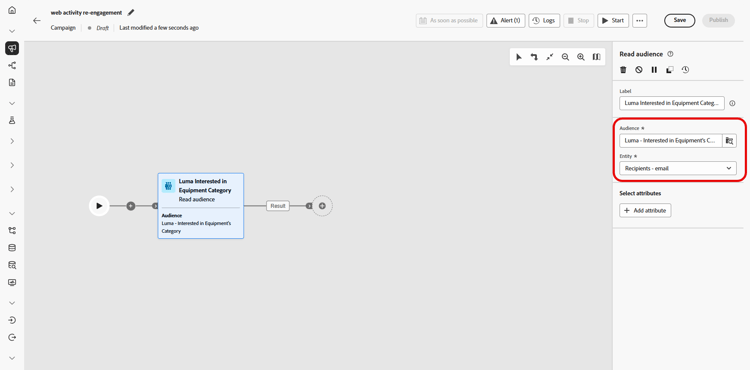
Add a Read audience activity to select a pre-defined audience from Adobe Experience Platform, here, customers who have browsed the exercise equipment category on your website.
Recipients are identified with their email addresses selected from the Entity field.
-
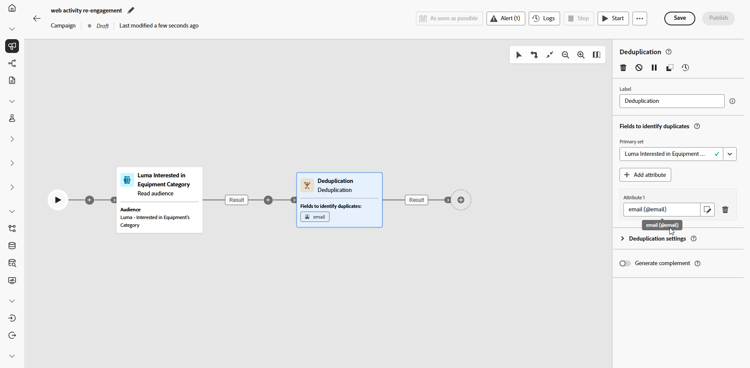
Add a Deduplication activity to remove duplicate email addresses from your audience, ensuring that each customer receives only one message.
-
Click Add attribute and select email as the attribute for deduplication.
-
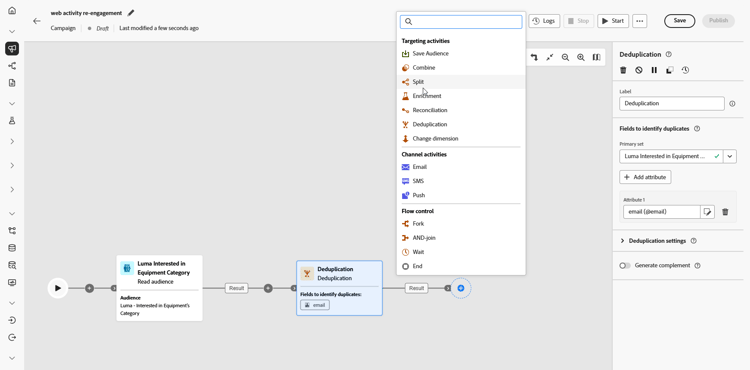
Next, add a Split activity to segment customers by their likelihood of churn, allowing you to deliver personalized experiences tailored to each customer group.
-
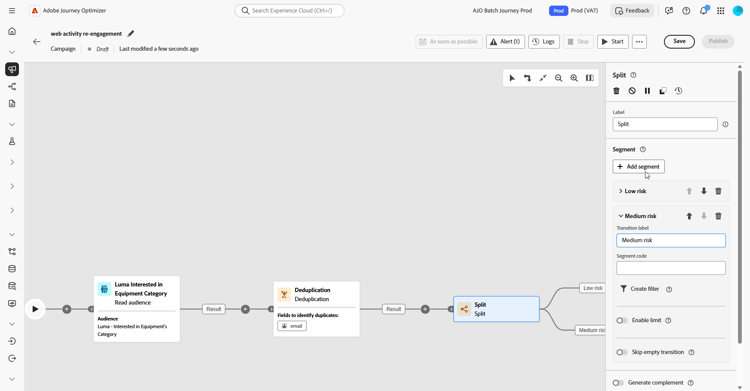
Click Add segment to create three groups:
-
Low risk
-
Medium risk
-
High risk
-
-
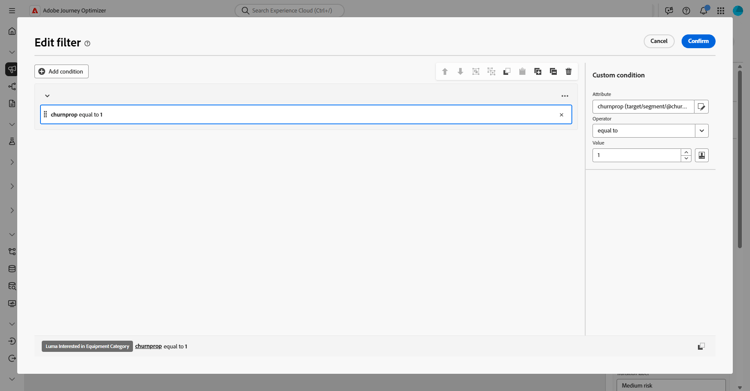
Click Create filter to define the churn probability for each group.
Use the Condition editor to set the specific values that determine each customer’s churn risk.
-
Each segment are handled differently:
-
Once your campaign is tested and ready, click Publish to make it live.
After the campaign has run, explore the reporting dashboard to review performance metrics and key insights.
High risk segments high-risk
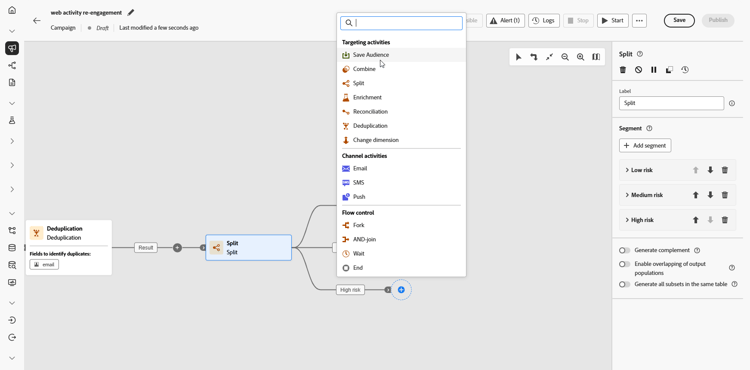
For customers identified as having a high risk of churn, create a dedicated audience segment. This audience is later used for separate, targeted communication.
-
Add a Save Audience.
-
Add a Label to your audience and choose the Profile mapping field, here recipients-email.
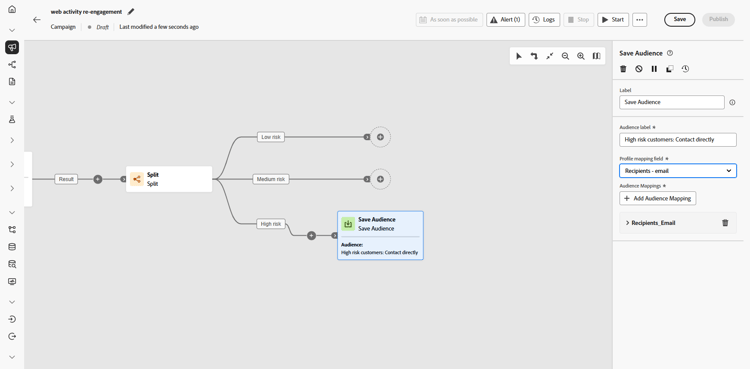
This audience is then saved in Adobe Experience Platform, where it can later be used for a specific targeted campaign.
Low/medium risk segments low-medium-risk
For customers at low and medium risk of churn, set up a multi-step campaign aimed at strengthening engagement:
-
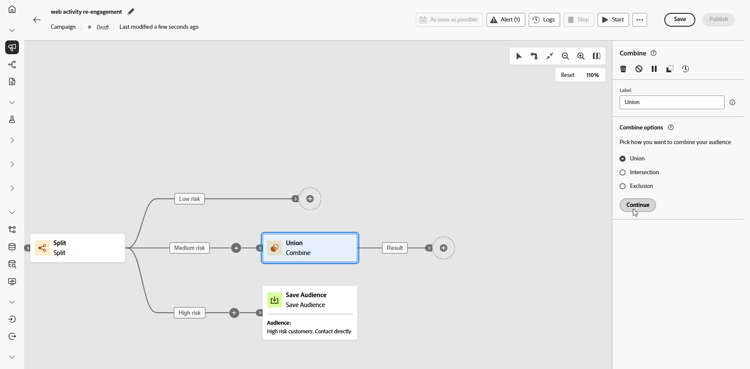
Combine both Low and Medium risks with a Union activity.
-
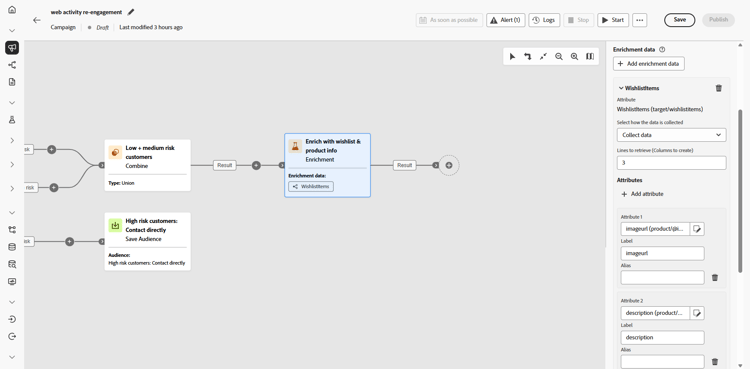
Add an Enrichment activity to personalize the campaign with Wishlist and product information.
-
Click Add attribute to create following three attributes:
Wishlist > descriptionWishlist > pricerefWishlist > imageurl
This enriches the message with detailed wishlist information.
-
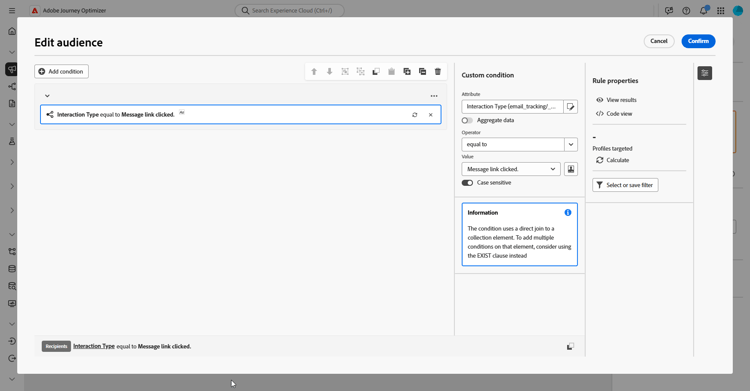
Create a new audience for retargeting based on engagement with emails.
Here we create an audience based on email click events, to retarget all of the people who interacted with a previously sent email, and more specifically, clicked on a link within that message.
-
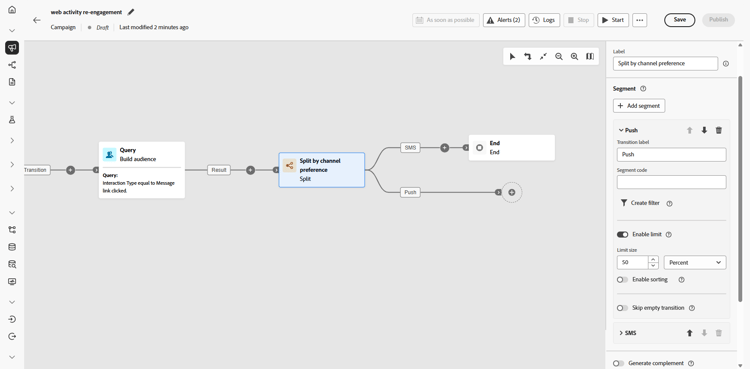
Divide engagement evenly to send a follow-up through mobile messages or push notifications to encourage conversions.
-
Create the message content for each channel including profile attributes, such as the recipient’s name, along with enrichment data like Wishlist items, to personalize each message.