On this page: Learn how to use the Reconciliation targeting activity to match external or unidentified data with existing records in the database during an Orchestrated campaign.
The Reconciliation activity is a Targeting activity which allows you to define the link between the data in Adobe Journey Optimizer and the data in a work table, for example data loaded from an external file.
The Enrichment activity lets you add additional data to your Orchestrated campaign, for example, by combining data from multiple sources or linking to a temporary resource. In contrast, the Reconciliation activity is used to match unidentified or external data with existing resources in the database.
Reconciliation requires that the related records already exist in the system. For instance, if you import a purchase file listing products, timestamps, and customer information, both the products and customers must already be present in the database to establish the link.
Configure the Reconciliation activity reconciliation-configuration
Follow these steps to configure the Reconciliation activity:
-
Add a Reconciliation activity to the canvas.
-
Choose a new targeting dimension to define who you are targeting such as recipients or subscribers.
-
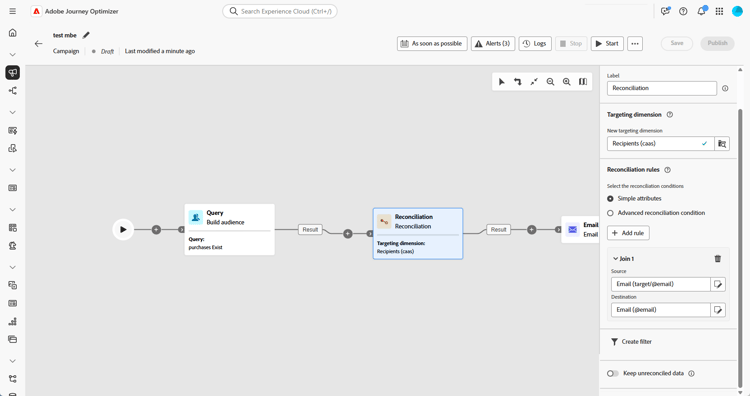
Set the field(s) to use for matching your incoming data with existing profiles.
-
To match data using basic fields, select Simple attributes.
-
Set the matching fields:
-
Source: lists the incoming data fields.
-
Destination: refers to fields in the selected targeting dimension.
A match occurs when both values are equal, for example, matching by Email to identify profiles.
-
-
To add more matching rules, click Add rule. All conditions must be met for a match to occur.
-
For more complex conditions, choose Advanced reconciliation conditions. Use the rule builder to define custom logic.
-
To filter which data to reconcile, click Create filter and define your condition in the rule builder.
-
By default, unmatched records are kept in the outbound transition and stored in the worktable. To remove these, enable the Keep unreconciled data option.
Example example-reconciliation
This example uses the Reconciliation activity in Adobe Journey Optimizer to ensure that emails are sent only to recognized customers. The data flows in through a Build audience activity that targets users with previous orders. The Reconciliation activity then matches this incoming data to existing profiles in the database using the email field.

This section contains structured knowledge intended to support interpretation, retrieval, and question answering related to this topic.
For complete understanding, this information should be combined with the documentation on this page. Neither source is intended to stand alone; the page describes the feature, while this section provides additional context that helps disambiguate terminology, intent, applicability, and constraints.
- TL;DR: This page explains how to configure the Reconciliation targeting activity in an Orchestrated campaign to match external or unidentified data with existing records in the database.
Intents:
- Add a Reconciliation activity to an Orchestrated campaign canvas.
- Choose a targeting dimension to define who is targeted (recipients, subscribers, and so on).
- Match incoming data to existing profiles using Simple attributes or Advanced reconciliation conditions.
- Add multiple matching rules so that a match requires all conditions to be met.
- Filter which data to reconcile using the rule builder.
- Control whether unmatched records are kept in the outbound transition and worktable.
Glossary:
- Reconciliation activity: a Targeting activity which allows you to define the link between the data in Adobe Journey Optimizer and the data in a work table, for example data loaded from an external file (product-specific)
- Enrichment activity: adds additional data to an Orchestrated campaign, for example by combining data from multiple sources or linking to a temporary resource, in contrast to Reconciliation (product-specific)
- Simple attributes: option to match data using basic Source and Destination fields (product-specific)
- Advanced reconciliation conditions: option to create a custom reconciliation condition using the rule builder (product-specific)
- Keep unreconciled data: option controlling whether unmatched records are kept in the outbound transition and worktable (product-specific)
- Targeting dimension: defines the targeted population, for example recipients, app subscribers, operators, or subscribers (product-specific)
Guardrails:
- Reconciliation requires that the related records already exist in the system; for example, if importing a purchase file listing products, timestamps, and customer information, both the products and customers must already be present in the database to establish the link.
- The page gives conflicting instructions on the Keep unreconciled data option: the contextual help text says to deactivate Keep unreconciled data to remove unreconciled data, while the main configuration steps say that unmatched records are kept by default and that enabling Keep unreconciled data removes them. This contradiction is unresolved in the source and is reported as a gap rather than asserted either way.
Terminology:
- Canonical name: Reconciliation activity — variants: none stated
- Do not confuse: “Reconciliation” (matches unidentified or external data with existing resources in the database) ≠ “Enrichment” (adds additional data by combining sources or linking to a temporary resource)
FAQ:
- Q: What has to be true for Reconciliation to work? — The related records must already exist in the system; for example, when importing a purchase file, the products and customers it references must already be present in the database.
- Q: How does a Simple attributes match occur? — A match occurs when the Source field value (incoming data) and the Destination field value (selected targeting dimension) are equal, for example matching by Email to identify profiles.
- Q: What happens if I add more than one matching rule? — All conditions must be met for a match to occur.
- Q: Does Reconciliation support complex matching logic? — Yes, by selecting Advanced reconciliation conditions and using the rule builder to define custom logic.
- Q: What happens to data that does not match? — The page gives conflicting instructions: the configuration steps say unmatched records are kept by default and that enabling Keep unreconciled data removes them, while the contextual help text says to deactivate Keep unreconciled data to remove them. This contradiction is unresolved in the source.
Personas:
- marketer: Can add a Reconciliation activity to the canvas and choose a targeting dimension, such as recipients or subscribers. Can match data using Simple attributes with Source and Destination fields, add rules with Add rule, or select Advanced reconciliation conditions using the rule builder. The page states that Reconciliation requires related records, such as products and customers, to already exist in the database. Where: “Configure the Reconciliation activity”.
Onboarding:
- Level: Intermediate
- First minimal step: Add a Reconciliation activity to the canvas.
- Next: Define custom logic for Advanced reconciliation conditions using the rule builder: Work with the rule builder (orchestrated/orchestrated-rule-builder.md)