Configure and launch
For administrators and mobile app developers, this section shows how to configure and launch mobile and web channels in Adobe Journey Optimizer. It covers prerequisites, permissions, and platform support, then guides you through creating app-specific configurations.
Mobile capabilities in Adobe Journey Optimizer
Understand which mobile capabilities Adobe Journey Optimizer offers for developers, marketers, and product teams, including push messaging, in‑app messaging, and content personalization.
Channel configuration
Mobile push and in-app
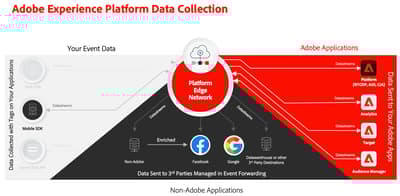
Mobile implementations in Journey Optimizer begin with the Adobe Experience Platform Mobile SDK integration in your app. SDKs are essential for data collection and interaction with Adobe Experience Platform (AEP) and its applications, such as Adobe Journey Optimizer (AJO).
What is the Mobile SDK:
The mobile SDK:
- Collects app events (screen views, taps, purchases, lifecycle events, etc.) and sends them to the Adobe Experience Platform Edge Network.
- Manages identity and consent, so Journey Optimizer can safely build and use customer profiles.
- Registers and updates push tokens, and sends push and in‑app tracking events back to Adobe Experience Platform.
- Integrates with the Journey Optimizer mobile extension so messages can be delivered, rendered, and measured end‑to‑end.
Without the Mobile SDK integrated in your app, Journey Optimizer cannot reliably:
- Deliver and track mobile push and in‑app messages.
- Render and track content cards.
- Use real‑time in‑app behavior to trigger journeys and personalize experiences.
Guided channel setup for new implementations
For new Mobile In-App and Push implementations, Guided Channel Setup is the recommended starting point. It reduces the risk of misconfigured datastreams or missing extensions and walks you through SDK validation with Assurance.
- Adobe Journey Optimizer (AJO) provisioned for your org.
- Adobe Experience Platform access with Data Collection and Journey Optimizer permissions.
- Admin rights in AJO for channel and configuration setup.
- Access to your mobile app’s source code (iOS, Android, or cross‑platform framework).
- Your app has the required OS‑level capabilities enabled (for example, push permissions, notification service extensions, background modes).
- If you are using the existing configuration option, please ensure that you are using the current Adobe Experience Platform Mobile SDK versions
For more information see Get started with guided channel setup
Manual configuration of the push channel
This following guides walk you through everything you need to manually configure and use push notifications effectively, from understanding the data flow and integrating with services like Firebase and Apple Push Notification Service (APNs) to setting up mobile apps and testing notifications.

Push notification data flow and components
Learn how to setup and understand key services and workflows involved with push notifications in Journey Optimizer.

Push notification configuration
Learn how to configure your environment to send push notifications with Journey Optimizer
Implement Adobe Experience Cloud in mobile apps tutorial
Learn how to implement the Adobe Experience Cloud mobile applications. This tutorial guides you through an implementation of Experience Cloud applications in a sample Swift or Android app.
Additional ressources

Get the Adobe Experience Platform Mobile SDK
A guide that explains how to install the Adobe Experience Platform Mobile SDK in your application.
Adobe Experience Platform Assurance overview
An overview for the Adobe Experience Platform Assurance mobile extension.
Mobile SDK readiness checklist
Before handing the app to marketers, confirm in Assurance that:
[ ] Events are flowing on the correct datastream and datasets,
[ ]Identity and consent are present on all key events,
[ ] Push tokens and interactions are tracked, and
[ ] At least one test in‑app message or content card has been displayed and recorded as an impression.
Content Cards

Configure content cards support in Mobile SDK
Learn how to integrate content cards in your mobile application using Messaging SDK.
Live activities
Live activities deliver real-time, persistent updates on the iOS Lock Screen/Dynamic Island and Android’s notification shade as an activity progresses (for example, an order being prepared or a delivery in transit).
- iOS 16.1+ for basic Live Activities, iOS 17.2+ for push-to-start support, and iOS 18+ for broadcast channel support.
- Xcode 14.0+ and Swift 5.7+.
- AEP Mobile SDK: iOS Messaging 5.11.0 or later, plus the AEPMessagingLiveActivity extension and Apple’s ActivityKit.
To configure the Mobile SDK for live activities:
- Import the AEPMessaging, AEPMessagingLiveActivity, and ActivityKit frameworks into your iOS project.
- Define your activity’s attributes in a struct conforming to
LiveActivityAttributes, with aliveActivityDataproperty (liveActivityIDfor individual users, orchannelIDfor broadcast) and aContentStatestruct for the dynamic content that updates over time. - Call
Messaging.registerLiveActivity()in your AppDelegate after SDK initialization, to enable token collection and lifecycle management. - Implement an
ActivityConfigurationto define the widget UI for the Lock Screen and Dynamic Island. - Optionally, trigger activities locally from your app’s code, in addition to starting, updating, and ending them remotely from Journey Optimizer.
- Optionally, implement
LiveActivityAssuranceDebuggableto debug live activities in Adobe Assurance.
For the full configuration reference, including Android setup, see Configure Live Activity.
Understand how to configure the WhatsApp channel:

This tutorial walks you through setting up the WhatsApp channel in Adobe Journey Optimizer to enable real-time business messaging.
SMS/MMS/RCS
Configure SMS/MMS/RCS channels with the standard providers (Twilio,Synch or Infobip) or using a custom SMS provider:
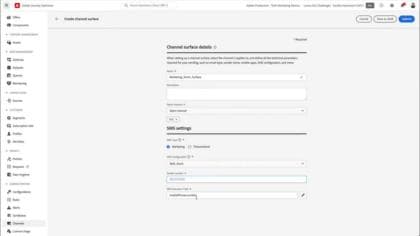
Configure SMS API credentials and channel surfaces
Learn how to connect Journey Optimizer to an SMS service provider and how to create an SMS channel surface.

Configure a custom SMS provider
Learn how to configure custom SMS providers in Journey Optimizer, set up API credentials and webhooks, manage opt-in/opt-out keywords, and launch personalized campaigns.
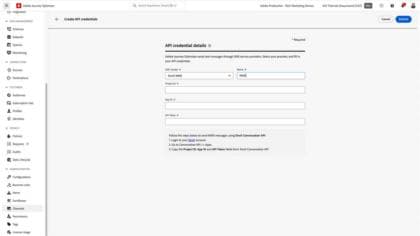
Configure MMS API credentials and channel surfaces
Learn how to connect Journey Optimizer to an MMS service provider and how to create an MMS channel surface.
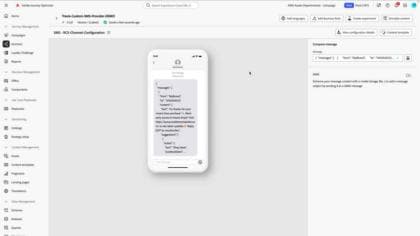
Set up RCS in Journey Optimizer
Learn how to configure and send branded, interactive RCS messages in Adobe Journey Optimizer using a custom SMS provider. This tutorial walks through setting up API credentials, webhooks, and channel configurations, then building a journey to deliver rich, personalized messaging experiences - all within the native messaging app.
Ensure compliance with privacy laws and platform guidelines.
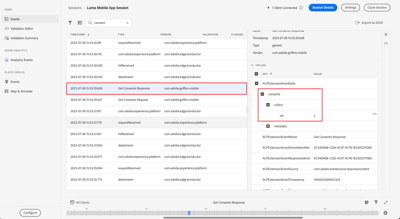
Implement consent for Platform Mobile SDK implementations
Learn how to implement consent in a mobile app.

Privacy Features in Adobe Journey Optimizer
Learn how to process privacy requests, audit user actions, manage consent, apply governance rules, and leverage advanced security options like Customer Managed Keys.
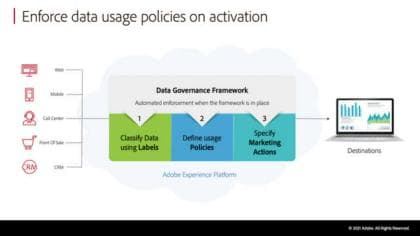
Data Governance Framework Overview
Understand the governance features in Adobe Experience Platform.
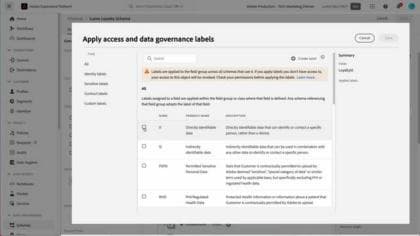

Common implementation pitfalls and how to avoid them
Most mobile issues originate in SDK or data collection configuration, not in the Journey Optimizer journeys or campaigns themselves. Use the table below to identify what’s going wrong, then expand the corresponding section for details.
Pitfalls at a glance
Detailed guidance per pitfall
Open the pitfall that matches your symptoms to see what to check and how to fix it.
What you’ll notice
- Push or in‑app activities do not reach the device.
- Guided Channel Setup or channel validation fails.
- Assurance shows missing Journey Optimizer, Edge, or Identity extensions.
What to check
-
Are you using the minimum Mobile Core and Journey Optimizer extension versions required by Guided Channel Setup?
-
In Assurance, under extensions and events:
- Do you see the expected extensions loaded?
- Are events being sent to the Edge Network and acknowledged?
How to fix
- Upgrade to the supported Mobile SDK and Journey Optimizer extension versions.
- Rebuild the app, reconnect to Assurance, and re‑run Guided Channel Setup.
What you’ll notice
- Events or push tracking batches fail in Platform datasets.
- Data ingestion errors (for example, “Updates are not supported for events”).
- Push or in‑app reports show little or no tracking.
What to check
-
Did anyone change system schemas or datasets created for Journey Optimizer tracking?
-
In your datastream:
- Are experience events mapped to an event dataset?
- Are profile attributes mapped to a profile dataset?
How to fix
- Do not edit system datasets/schemas created by AJO.
- Correct the datastream mapping (events → event dataset, profiles → profile dataset).
- Prefer Guided Channel Setup or the documented datastream steps instead of ad‑hoc changes.
What you’ll notice
- Journeys don’t trigger as expected for app users.
- Personalization doesn’t match the user’s behavior in other channels.
- Events appear in Experience Platform, but profiles look fragmented.
What to check
-
Is Identity for Edge Network implemented and sending a stable primary ID (for example, login ID)?
-
Is Consent for Edge Network implemented and updated when preferences change?
-
In Assurance:
- Do outbound events include consent values?
- Do they include ECID and your primary IDs consistently?
How to fix
- Implement or correct Identity for Edge Network in the app.
- Implement Consent for Edge Network and connect it to your app’s consent UI.
- Retest in Assurance until identity and consent appear on all relevant events.
See: Implement consent for Platform Mobile SDK implementations
What you’ll notice
- Users never receive push notifications, even though campaigns or journeys run.
- Push reports show no opens, dismisses, or interactions.
What to check
-
Does the app register the push token with the Journey Optimizer extension:
- On first install?
- After each app update?
- Whenever the OS refreshes the token?
-
When a user opens or dismisses a notification, do you see tracking events in Assurance?
How to fix
-
Add or correct the code that:
- Registers the token via the Journey Optimizer mobile extension whenever it is created or refreshed.
- Sends push interaction events (open, dismiss, custom actions) via the Mobile SDK.
-
Use Assurance to confirm registration and tracking events are firing as expected.
What you’ll notice
- In‑app messages or content cards never appear, despite active campaigns or journeys.
- Reporting shows 0 impressions.
What to check
-
Are the Journey Optimizer mobile messaging / in‑app extension and Messaging SDK installed and registered in the app?
-
In your tags configuration:
- Do you have rules that trigger requests on the correct events (for example, screen views or custom events)?
-
In Assurance:
- When those events fire, do you see in‑app or content‑card decision requests going out?
- Do you see responses coming back from the Edge Network?
How to fix
-
Install and register the required messaging extensions.
-
Add or correct rules that trigger decisions on your target events (screens, custom events).
-
For content cards, ensure you:
- Fetch cards via the Messaging SDK APIs.
- Render them in your UI.
- Track interactions back via the SDK.
See: