Configure branding domains
A branding domain in Marketo Engage is a custom subdomain (such as links.yourcompany.com) used to rewrite links and track email clicks and ensure that they reflect your brand rather than a generic domain. Each branding domain acts as a click-tracking domain to enhance deliverability and trust by matching your email and landing page links to your domain.
- It replaces generic links with your own branding in email hyperlinks.
- When an account lead clicks a link, it redirects through this custom domain to allow performance tracking while appearing legitimate to email filters.
- To support different business units or brands, you can configure additional branding domains if you have multiple brands.
Unique CNAMEs for tracking links
Email tracking links must be new and unique for the attached Marketo Engage instance. If you have existing CNAMEs for tracking links pointing to a pre-existing (production) Marketo Engage instance, they require modification before they can be reused.
You can share return-path domain branding between your production Marketo Engage instance and the attached instance, but this change is a backend change. Open a support ticket and provide your Marketo Engage prefix (Munchkin ID) and your new Journey Optimizer B2B Edition prefix (Munchkin ID) to request shared return-path domain branding.
Access branding domains in Marketo Engage
-
Go to the Admin area in your Marketo Engage instance and select Email.
-
Scroll down to the Branding Domains panel.
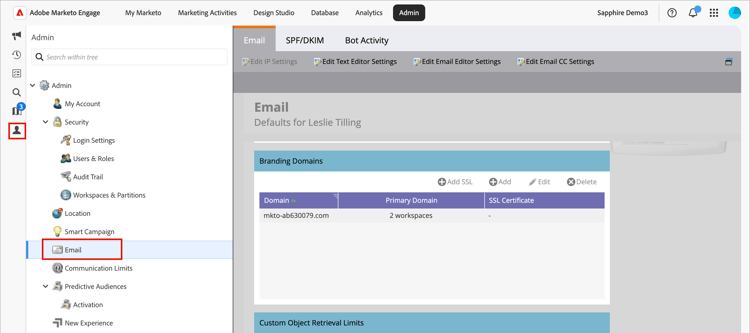
The list displays the default domain for the Marketo Engage instance.
Edit your default branding domain
The first step in working with branding domains is to edit the default branding domain defined in your Marketo Engage instance.
-
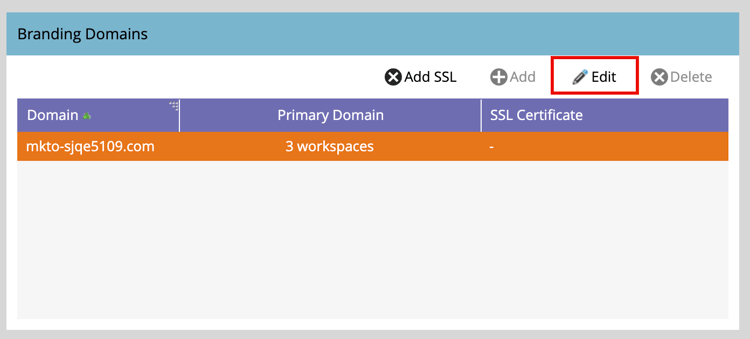
In the Branding Domains panel, select the generic domain and click Edit at the top.
-
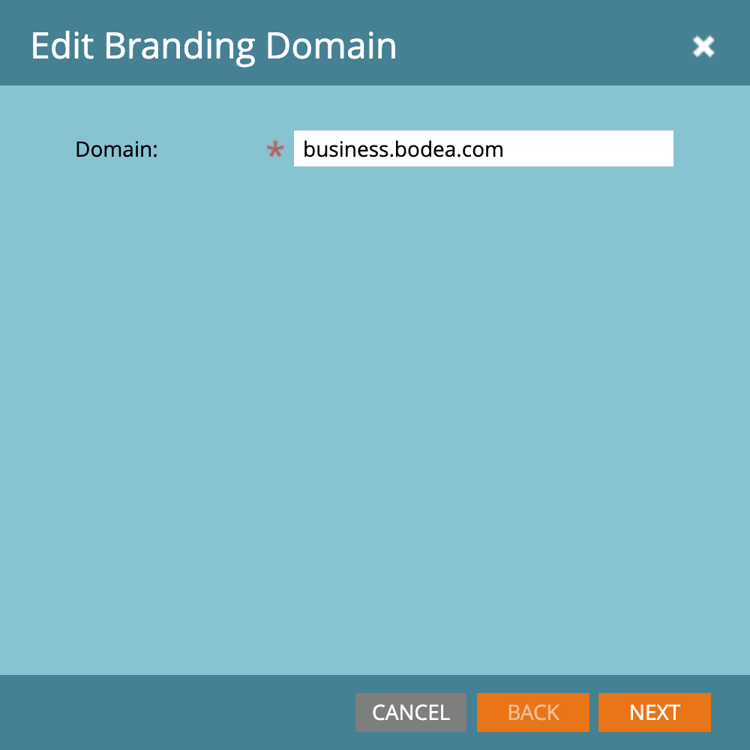
In the Edit Branding Domain dialog, enter the name of your default domain in the Domain field.
-
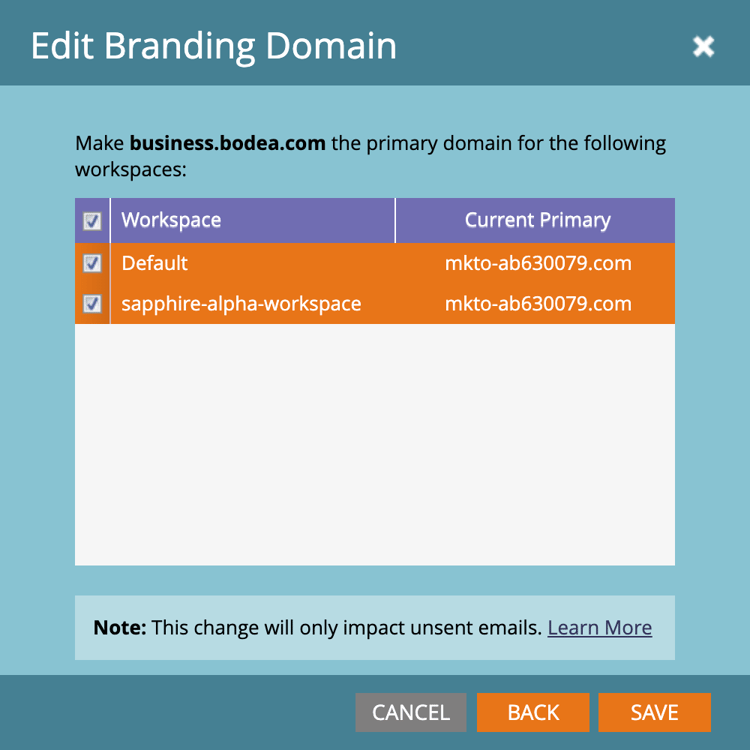
If you have multiple workspaces defined for your Marketo Engage instance, click Next.
Select each of the workspaces where you want to apply the updated primary domain.
-
Click Save.
Define an additional domain
After you edit the default domain, you can add another branding domain to support multiple brands within your Journey Optimizer B2B Edition environment, where each has its own branded tracking links. When you add a domain, you have the following options:
Make Primary Domain: Make this the primary domain for the workspace. When you select this option, all existing unsent emails are set to the default primary domain and all newly created emails automatically default to this primary domain. Marketers can choose an alternative branding domain where needed.
Generate SSL Certificate: Create a Secure Sockets Layer (SSL) with the creation of the domain. The first tracking domain initiates a one-time setup of infrastructure that may take a few hours. The system sends a notification upon completion.
To add the domain:
-
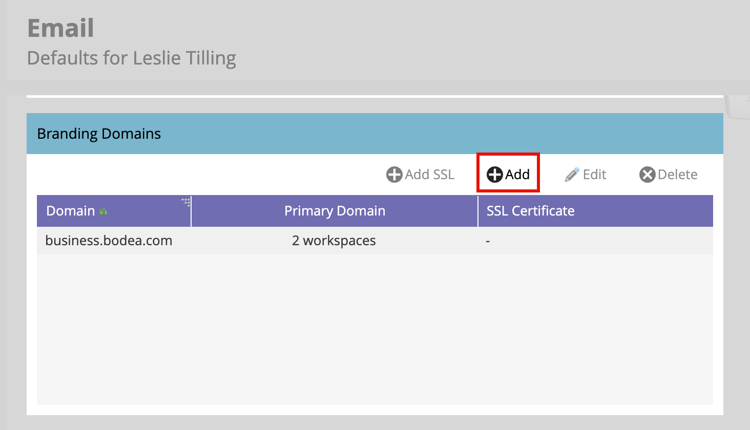
In the Branding Domains panel, click Add at the top.
-
In the New Branding Domain dialog, enter the name of the branding domain in the Domain field.
-
(Optional) Select the Generate SSL Certificate check box to automatically generate an SSL for the domain.
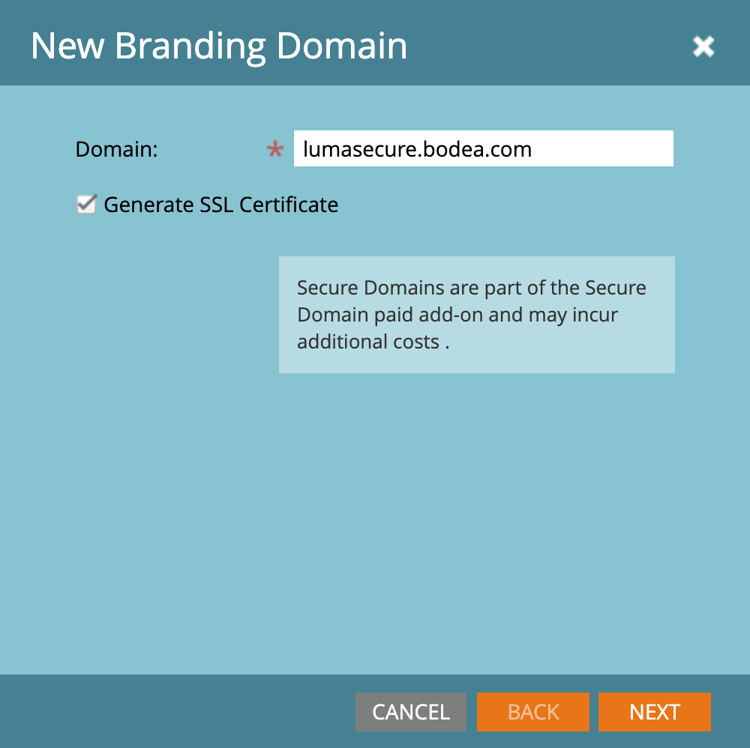
If needed and available, you can also select the Make Primary Domain check box.
note NOTE Custom SSLs: If you need a custom SSL, you can submit a support ticket. Do not use the checkbox for SSL creation. -
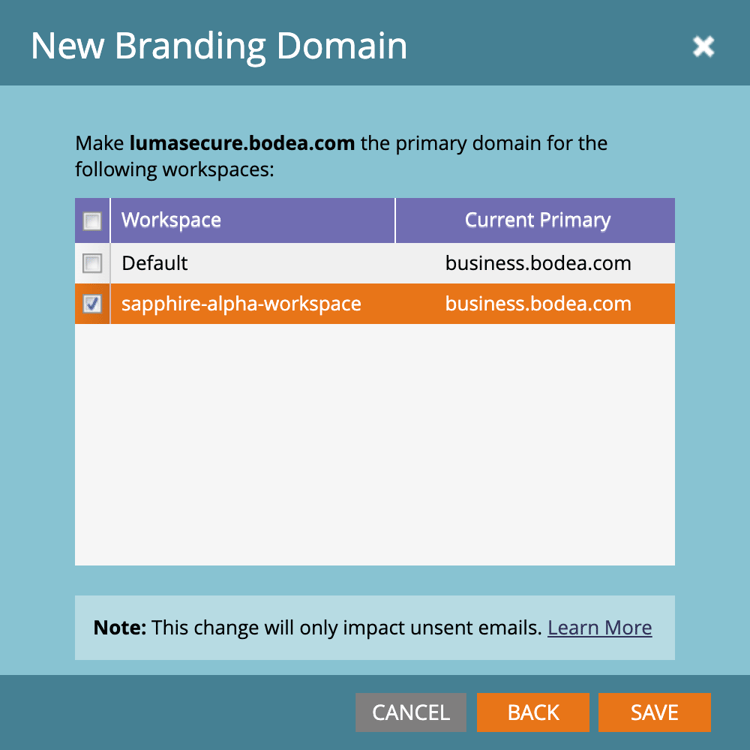
If you have multiple workspaces defined for your Marketo Engage instance, click Next.
If needed, select each of the workspaces where you want to apply the new domain as the primary domain.
-
Click Save.
Edit SSLs for existing branding domains
Follow these steps to enable SSL for your existing domains.
-
From the Admin area, select Email.
-
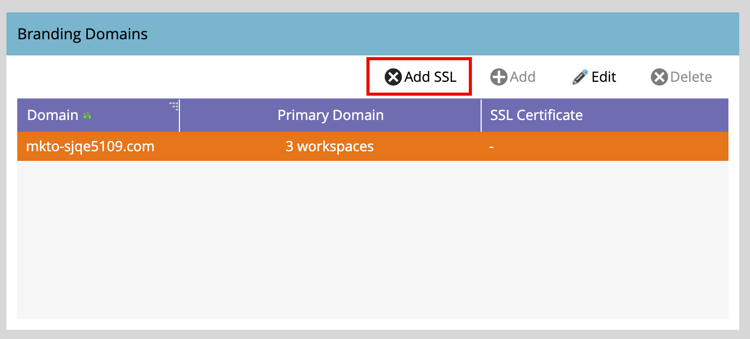
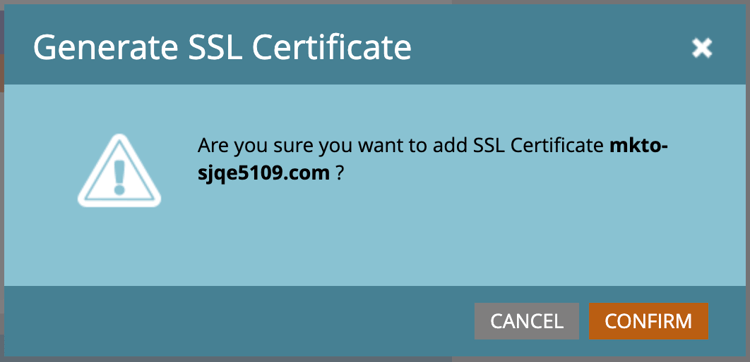
In the Branding Domains panel, select the domain row and click Add SSL.
-
In the dialog, click Confirm.
Error messages
Domain already exists.Domain is not mapped to the default domain.SSL certificates could not be issued due to unsupported CAA records. Request your IT to update your CAA records.SSL certificate has already been issued.The default domain was not found. Please contact Support for assistance.Unexpected error encountered while creating a domain. Please contact Support for assistance.Delete a branding domain
In the Branding Domains panel, select the domain and click Delete at the top.