External actions configuration
External actions allow account and person journeys in Journey Optimizer B2B Edition to connect with external systems directly from the journey canvas. When an audience reaches an external action node, the system makes an asynchronous outbound call to a configured external service, passing audience attribute data. The external service processes the data and responds using a callback, returning audience data and metadata that can be used to guide journey execution.
This feature supports two journey node types:
- External action – Calls an external service and continues along a single outgoing path. Ideal for asynchronous integrations, such as updating a CRM record or triggering a downstream notification.
- External split paths – Calls an external service and evaluates the response to route accounts or people along one of several defined paths.
Implementation overview
Setting up external actions requires coordination across three roles in sequence:
Implement the external service implement-service
The developer must create and publish a public-facing web service that complies with the Adobe Journey Optimizer B2B Edition External Actions Service Provider Interface.
After the service is live, provide the URL to the OpenAPI specification and the authentication credentials to the product administrator who is responsible for configuring the action.
Configure the action configure-action
An action must be configured and activated before marketers can use it in a journey. Actions are created in Draft state and your changes are saved automatically. It remains as a draft until you activate it.
-
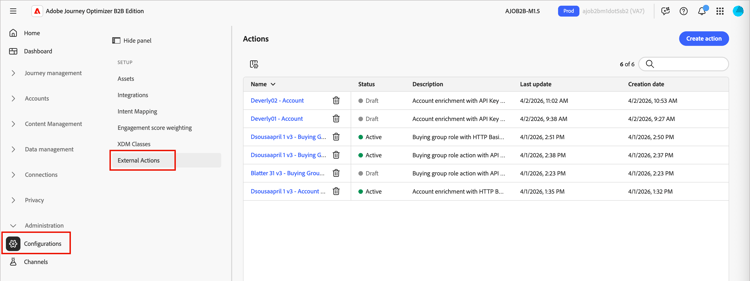
Go to Administration > Configurations.
-
Click External Actions on the intermediate panel.
-
Click Create action at the top right.
-
Enter the URL to the OpenAPI specification for your external service and click Create.
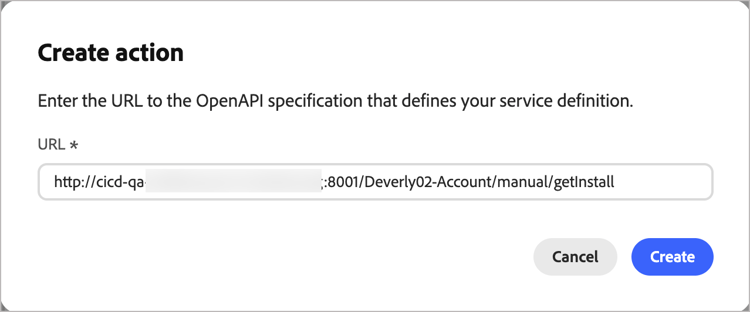
The external service must be live and reachable for this step to succeed. If there is a validation error, the dialog displays a message to describe the error and a suggestion for resolving it. For more information, see Troubleshooting.
-
When the URL resolves successfully, review the Service details.
The service details are read directly from the OpenAPI specification when the action is created. You cannot change these properties in the configuration after creation.
table 0-row-3 1-row-3 2-row-3 3-row-3 Property Description OpenAPI spec property Name Name for the action info.titleDescription Description for the action info.descriptionURL URL to the OpenAPI specification that defines the external service servers.url -
Enter the Authentication credentials for the external service (
components.securitySchemes).note NOTE The displayed credential fields depend on the authentication mechanism defined in the external service. Supported types are API Key, OAuth2, and HTTP Basic Authentication. 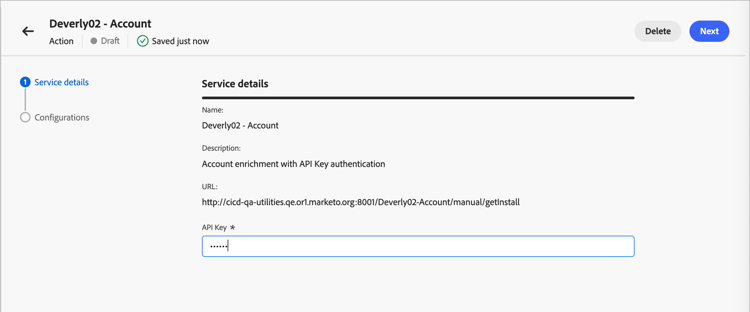
You can change the credentials as needed when the configured action is in the Draft or Active status.
-
Click Next.
-
To define how the action exchanges data with the external service, set the Configurations properties.
note NOTE Properties marked as Static are not updatable at configuration time and are based on the service definition. -
Action type (Static) – The supported journey node type:
- External action (
enableSplitPath= false) - External action split path (
enableSplitPath= true)
You cannot change the action type after creating the action configuration.
- External action (
-
Accessors (Static) – (External action split path only) The variables that the external service returns to be available as path conditions in an External split path node. (
invocationPayloadDef.accessorsMetadata) -
Journey context (Static) – The scope of audience data sent in the request (
supportedEntityType):-
Account – Sends only accounts
-
People – Sends only people
-
People in Account – Sends accounts and account-related people
-
-
Outgoing Fields – Map each field in the table to an XDM field. These fields are sent in the request body to the external service. Service definition properties:
invocationPayloadDef.accountFields,invocationPayloadDef.fields.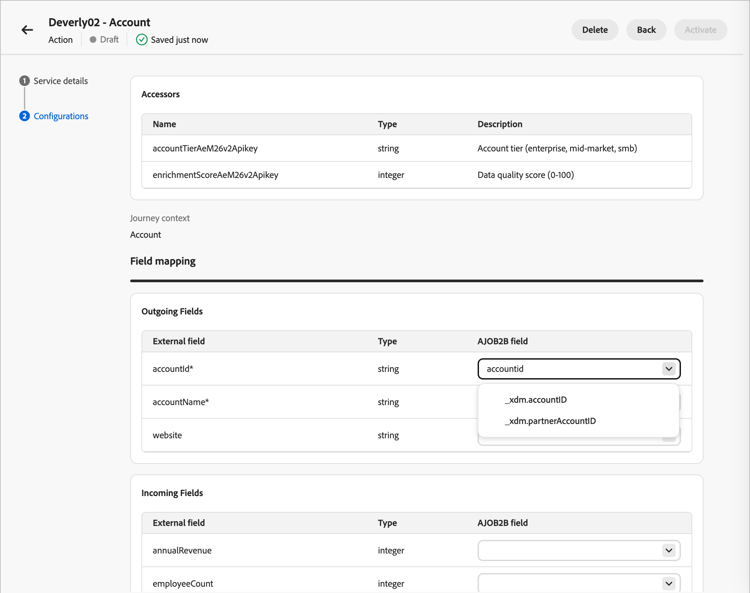
-
Incoming Fields – Map each field in the table to an updatable XDM field. These fields are populated from the external service response. Service definition properties:
callbackPayloadDef.accountFields,callbackPayloadDef.fields. Updatable after creation. -
Header parameters – Enter a value for each row to pass as an HTTP header in the request. Service definition property:
invocationPayloadDef.headers. -
Timeout – Enter the number of minutes to wait for the external service to invoke the callback before the request is considered failed. Service definition property:
timeout. -
Global attributes – Enter a value for each row to include as a static field in the request body. Service definition property:
invocationPayloadDef.globalAttributes.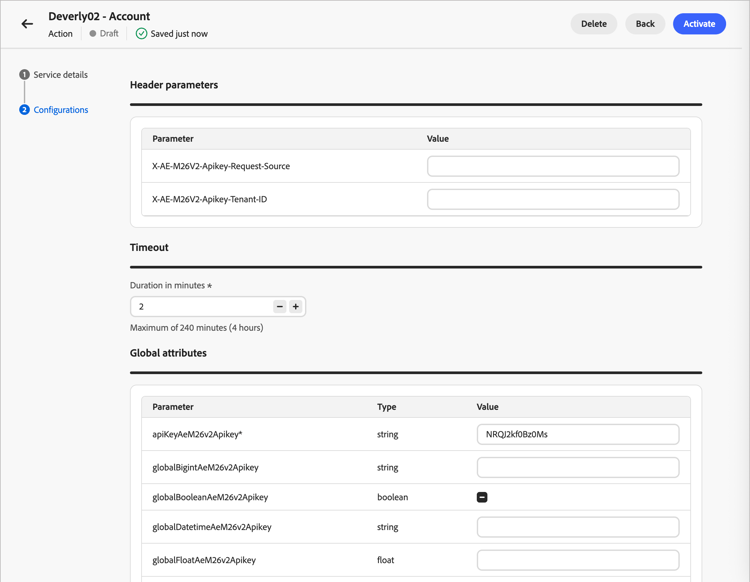
-
-
Click the Back arrow to return to the list and keep the action in a Draft state.
Or, click Activate to change the action configuration to the Active state. The configured external action must be active to make it available for use in journeys.
Troubleshooting troubleshooting
When you enter the URL to the OpenAPI specification for your external service and click Create, the system performs validation of the service. When it encounters an error, the dialog displays a message to describe the error.
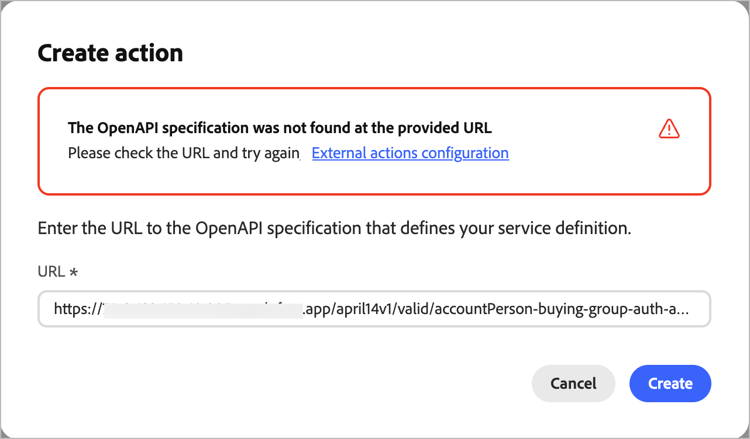
Validation error details
This URL is already used by another external actionAn action with this name already existsinfo.title in your spec matches an action that already existsinfo.title field to something unique.Duplicate operation ID found in the specificationoperationId.operationId.Field in the specification exceeds the maximum allowed lengthThe entity type value is invalidx- extension for entity type has an unrecognised valueThe provided document is not a valid OpenAPI specificationRequired OpenAPI field is missinginfo or paths).Required endpoint is missing from the specificationRequired extension field is missingx- extension field is absent from your spec.Security schemes are missing from the specificationsecuritySchemes defined under components.Multiple authentication types are not supportedThe authentication type is not supportedoauth2 or openIdConnect) is not supported.The OpenAPI version is not supportedAn unexpected error occurredAdd an external node to a journey add-journey-node
After an action is activated, marketers can add an External action or External split path node to any account or person journey. For information about how to add and use these nodes in the journey canvas, see External nodes.