Email channel configurations
Adobe Journey Optimizer B2B Edition leverages the channel functions and event tracking in Marketo Engage. Administrators should ensure that the delivery and tracking configurations are in place to enable channel delivery for Marketers. For information about the protocols needed for email delivery and tracking through Marketo Engage, see Protocols for tracking and email delivery.
Delivery settings
The default email settings are used when Marketers create an email in an account journey. To review the email delivery settings, go to Administration > Channels. Under Email in the navigation panel, select Delivery Settings.
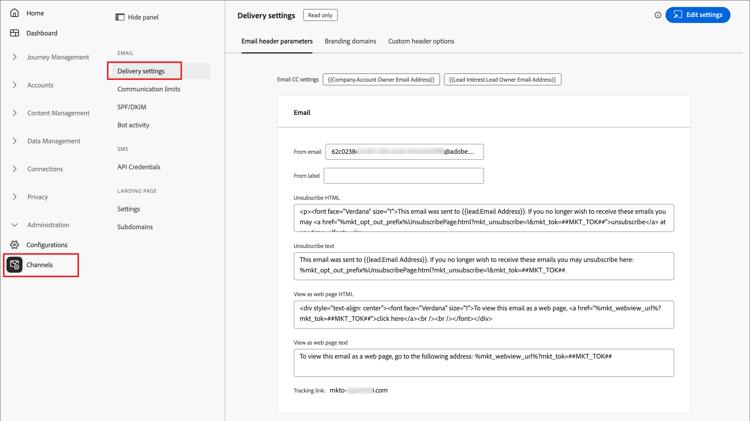
The settings are read-only in Journey Optimizer B2B Edition. Click Edit settings at the top right to access the configuration options in the connected Marketo Engage instance.
Select each of the following tabs to review the current settings.
Email header parameters email-header
The email header parameters define the default values for the following:
-
From Email - The email address listed in the From field in the email header.
-
From Label - The displayed name for the email sender address.
-
Unsubscribe HTML - The HTML (for supported email clients) that is displayed in non-operational emails to explain unsubscribe actions to the recipient. This text and links are appended to the bottom.
-
Unsubscribe Text - The plain text that is displayed in non-operational emails to explain unsubscribe actions to the recipient. This text and links are appended to the bottom.
-
View as web page HTML - The HTML (for supported email clients) used for View as Web Page, which provides a link to show an email in a browser.
-
View as web page text - The plain text used for View as Web Page, which provides a link to show an email in a browser.
Branding domains branding-domains
To review the branding domains, click the Branding domains tab.
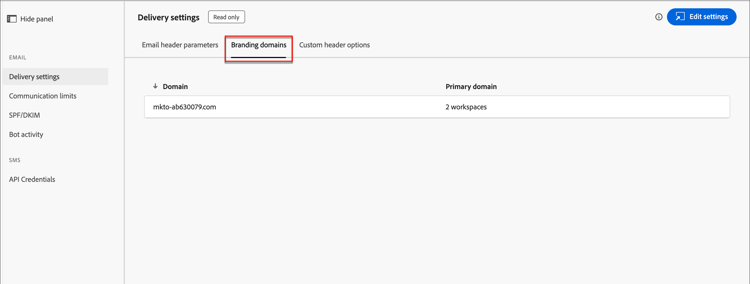
This setting defines your primary domain for one or more workspaces in the connected Marketo Engage instance. New emails use this domain as the default, but marketers can override it on a per-email basis. For more information about defining the default branding domain, refer to the Marketo Engage documentation.
Custom header options custom-header-options
To review the custom header options, click the Custom header options tab.
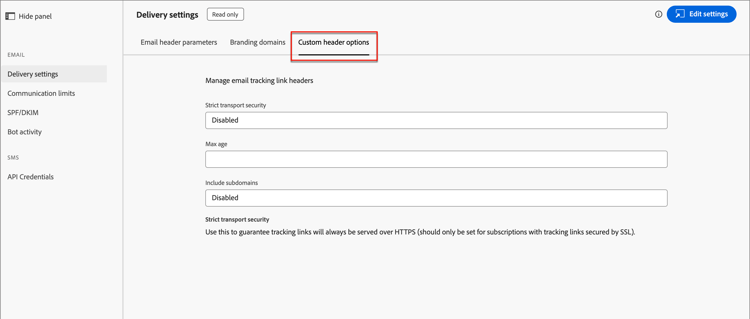
When Strict Transport Security is enabled, it guarantees that tracking links are served over HTTPS (only for subscriptions with tracking links secured by SSL).
Communication limits
Communication limits control the number of emails that a contact receives from your organization. The limits that you set are shared between Journey Optimizer B2B Edition and the connected Marketo Engage instance. Setting these limits ensures that one lead does not receive more than a maximum number of emails over a given period of time.
For example, with a defined limit of five emails per day, the system ensures that one contact does not receive a sixth email within a day by suppressing the sixth email. With shared communication limits between Journey Optimizer B2B Edition and Marketo Engage, the communication limit rules are defined in one location. The sixth email is suppressed, regardless of the send action coming from Journey Optimizer B2B Edition or Marketo Engage.
All Marketo Engage production instances have communication limits defined by default (see the Marketo Engage documentation for more information). To use shared communication limits, define the rules in Journey Optimizer B2B Edition and extend the sharing of these limits to the Marketo Munchkin codes.
To review or set the communication limit rules, go to Administration > Channels. Under Email in the navigation panel, and select Communication limits.
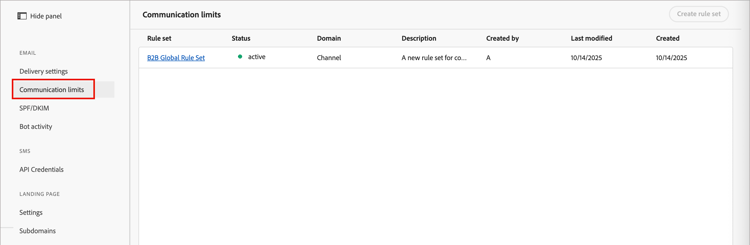
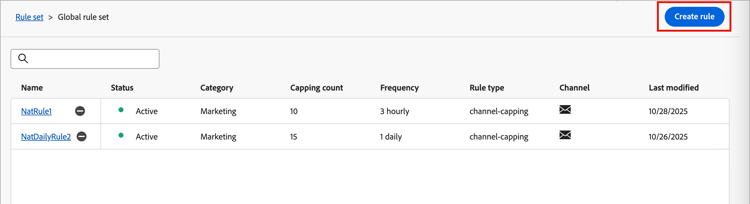
By default, there is a global rule set where you can define, activate, and deactivate multiple rules according to your requirements. Click the rule set name to display the rules list.
Create a rule
-
Click Create rule at the top right.
-
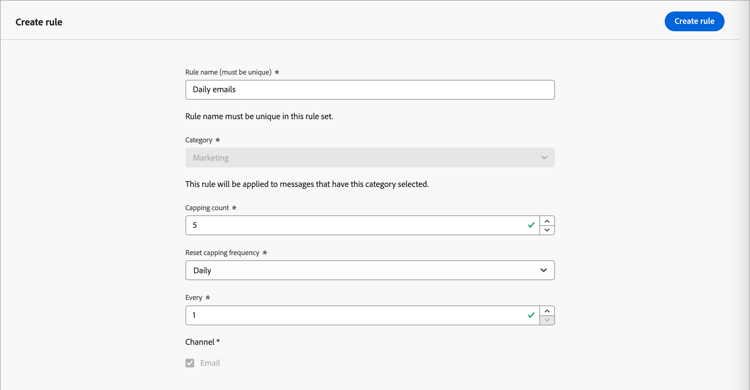
Enter the Rule name.
-
Set the Capping amount.
Enter the value, or click the Up or Down arrow at the right to increase or decreate the value.
-
Choose the Reset capping frequency value according to how you want to define the time period for the limit.
You can choose Hourly, Daily, Weekly, or Monthly.
-
Set the Every value according to how many frequency units to include in the period.
For example, if you use Daily as the frequency and you set this value to
3, the period is defined as three days. -
Click Create rule at the top right.
The new rule is in the Draft state and is not applied to the communication limits until you choose to activate it.
Manage rules
As long as a rule is in the Draft state, you can edit the definition or delete the rule. When you want the rule to be applied, you can activate it. Click the More menu (…) icon next to the draft rule name in the list and choose Activate.
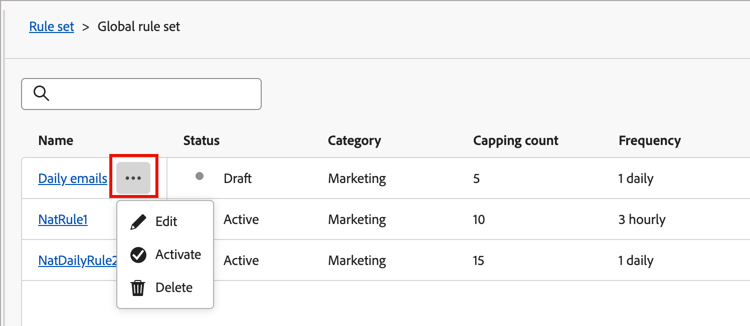
Then, click Activate in the confirmation dialog.
An active rule cannot be edited or deleted, it can only be deactivated. For an active rule that you want to remove from the applied communication limits, click the Deactivate (

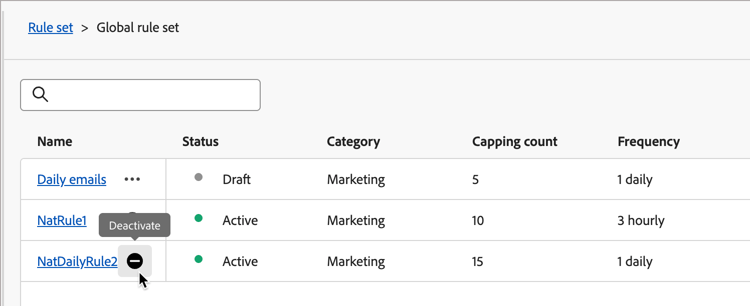
Then, click Deactivate in the confirmation dialog.
The rule is displayed with an Inactive status. It is similar to a draft rule, and you can edit, delete, or activate it when needed.
SPF/DKIM
Improve your email delivery rates by incorporating SPF (Sender Policy Framework) and DKIM (Domain Keys Identified Mail) into your DNS settings. These technologies assure your recipients that your emails are not spam. To help prevent recipients’ spam filters from rejecting emails, ensure that SPF and DKIM are set up for your domains.
To review the current settings, go to Administration > Channels. Under Email in the navigation panel, select SPF/DKIM.
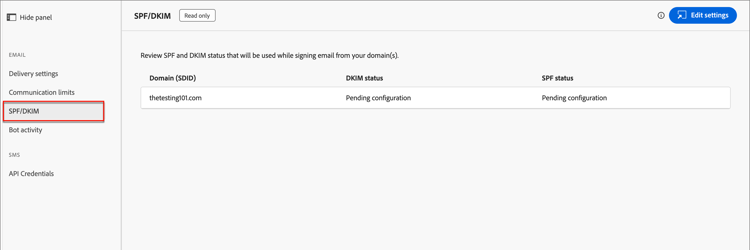
The settings are read-only in Journey Optimizer B2B Edition. Click Edit settings at the top right to access the configuration options in the connected Marketo Engage instance.
SPF setup
The network administrator should add the following line to your DNS entries:
[domain] IN TXT v=spf1 mx ip4:[corpIP] include:mktomail.com ~all
In this entry, replace [domain] with the primary domain of your website (such as company.com) and [corpIP] with the IP address of your corporate email server (such as 255.255.255.255). If you send emails from multiple domains through Marketo Engage, add this entry for each domain on a single line.
If you already have an SPF record in your DNS entry, add the following to it:
include:mktomail.com
DKIM setup
DKIM is an authentication protocol that is used by email receivers to validate the sender of the email message. It often improves the deliverability of emails to the inbox because a receiver can be confident that the message is not a forgery.
When you have the public key in your DNS record and the sending domain activated in the connected Marketo Engage instance, custom DKIM signing is used for your outgoing messages. The custom DKIM signing includes an encrypted digital signature with each email that is sent. The receivers are then able to decrypt the digital signature by looking up the public key in your sending domain’s DNS. If the key in the email corresponds with the key in the DNS record, the receiving mail server is more likely to accept the email sent through Marketo Engage.
For more information about configuring a custom DKIM signature for email delivery, refer to the Marketo Engage documentation.
Bot activity
Email bot activity can erroneously inflate your email open and click data.
Marketo Engage uses two methods for confirming bot activity:
-
Match with Interactive Advertising Bureau (IAB) list - Activities that match anything on the IAB UA/IP (User Agent/IP address) list are marked as bots.
-
Match with Proximity Pattern - When two or more activities happen at the same time (within a second), they are identified as bots. This method considers the following attributes for comparison:
- Lead ID (should be the same)
- Email asset (should be the same)
- Link click or email open
- Time difference (should be less than one second)
For email link click and email open activities, new attributes are populated with the following values:
- Activities that are identified as bots have Bot Activity as
Trueand Bot Activity Pattern as the identified pattern/method. - Activities that are identified as not being bots have Bot Activity as
Falseand Bot Activity Pattern asN/A. - Activities that happen before the attributes were introduced have Bot Activity as empty (null) and Bot Activity Pattern as empty (null)
To review the current settings, go to Administration > Channels. Under Email in the navigation panel, select Bot activity.
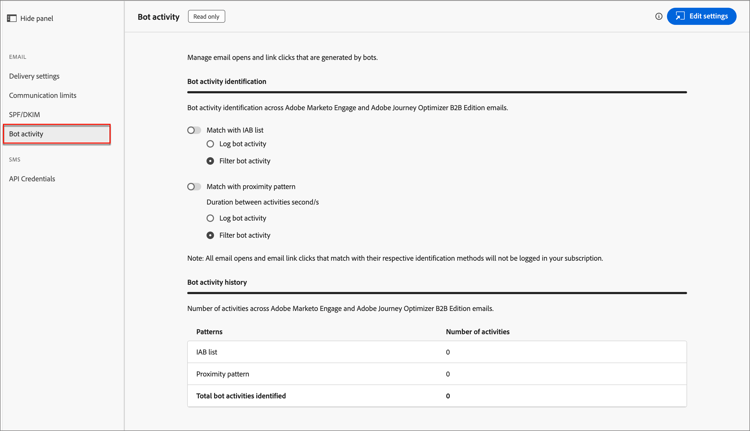
The settings are read-only in Journey Optimizer B2B Edition. Click Edit settings at the top right to access the configuration options in the connected Marketo Engage instance.
For more information about configuring the bot activity options, refer to the Marketo Engage documentation.