Usage Insights
To understand how your organization uses supported Adobe products and capabilities, use Usage Insights. Usage Insights is a Run and Operate capability that provides visibility into product usage and adoption across Real-Time CDP and Adobe Journey Optimizer.
Usage Insights focuses on product usage and adoption. It does not calculate financial return on investment or report license consumption. For information about your organization’s licensed amounts and consumption, see the license usage dashboard.
Prerequisites prerequisites
Usage Insights is available to organizations with at least one of the following products provisioned:
- Real-Time CDP Prime (B2C, B2B, or B2P)
- Real-Time CDP Ultimate (B2C, B2B, or B2P)
- Adobe Journey Optimizer B2C
To view the Usage Insights dashboard, you need the View Usage Insights access control permission. Contact your system administrator to ensure that you have the appropriate permissions and access to the sandbox where Usage Insights data is stored.
Enable and configure Usage Insights enable-and-configure
Before your organization can view usage data, a system administrator must enable Usage Insights and select a sandbox where Usage Insights data is stored.
To enable Usage Insights:
- Select Run and Operate from the left navigation, then select Usage Insights.
- Turn on Enable usage insights.
- From the AEP Sandbox dropdown, select the sandbox where you want Usage Insights data to be stored.
- Optionally, turn on Override default retention window and use Select number of months to set a custom retention period. By default, Usage Insights retains data for six months. Select Save to update your settings.
- Select Dashboard.
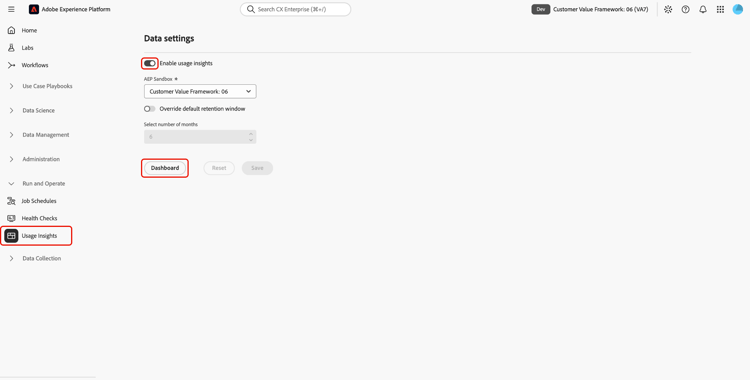
Usage Insights reports usage across your organization’s sandboxes, while the Usage Insights data is stored in the selected sandbox.
Change the data storage sandbox change-sandbox
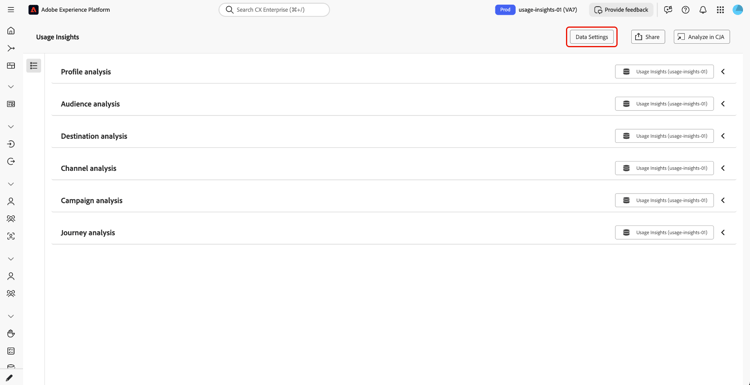
To change the sandbox where Usage Insights data is stored, select Data Settings from the Usage Insights dashboard. From the AEP Sandbox dropdown, select the new storage sandbox, make any other required changes, and select Save.
Navigate the Usage Insights dashboard navigate-dashboard
To open the Usage Insights dashboard, select Run and Operate from the Experience Platform left navigation, then select Usage Insights.
You can access the Usage Insights dashboard from any sandbox, regardless of the sandbox currently selected in Experience Platform.
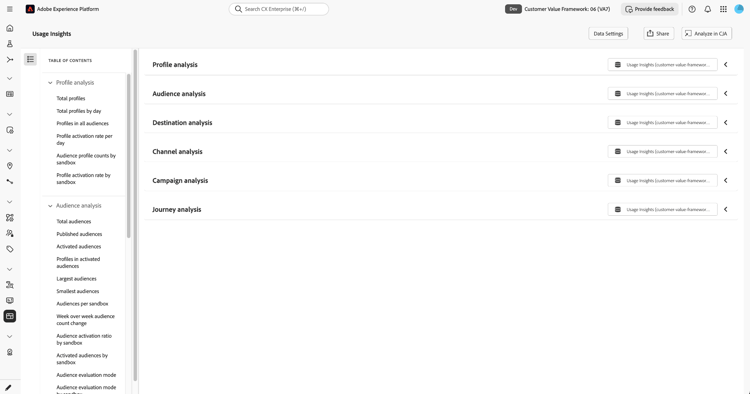
The dashboard organizes usage data into six analysis areas: Profile analysis, Audience analysis, Destination analysis, Channel analysis, Campaign analysis, and Journey analysis.
Select the Table of contents icon (

Understand data freshness and retention data-freshness-and-retention
Usage Insights collects usage data nightly. By default, the dashboard displays the most recent seven days of data and updates automatically each day. You can adjust the analysis period to view other dates within the available retention window.
You can change how long collected data is retained by using the retention settings described in Enable and configure Usage Insights.
Next steps next-steps
To learn about the charts available in each Usage Insights analysis area and how to interpret the data they provide, see the Usage analysis reference.
For related Experience Platform guidance, see: