Use custom objects with B2B CDP
B2B CDP supports custom objects with one-to-many (1:M) relationships. You can use these custom objects in segmentation and Query Service use cases. For example, you can model custom CRM objects, track product entitlements and purchases, and manage customer offers.
Create a relational schema create-relational
To start connecting your custom object using a one-to-many relationship, you’ll first need to create a relational schema to model your data.
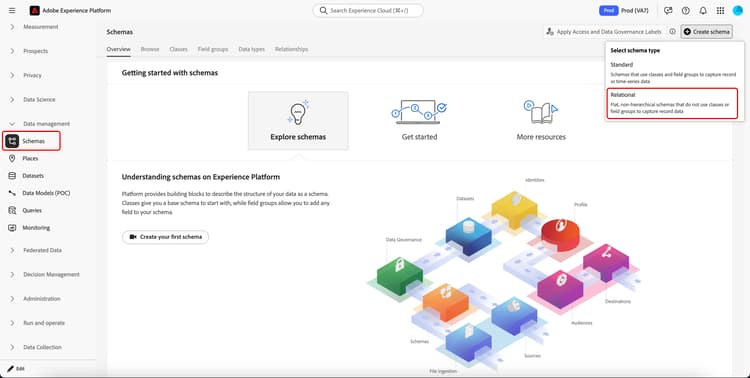
Under the Data management section, select Schemas. On the Schema overview page, select Create schema followed by Relational.
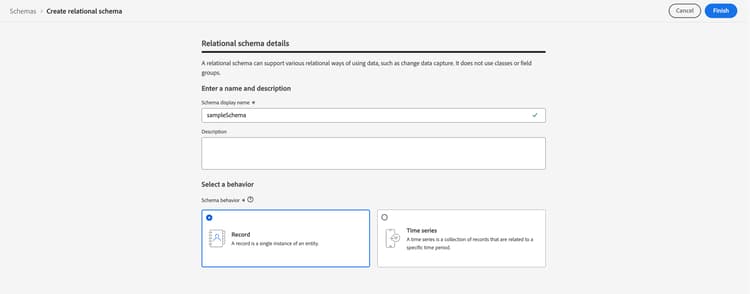
The Create relational schema page appears. You can add the details of the schema including the display name, description, and the schema behavior.
Add your fields add-fields
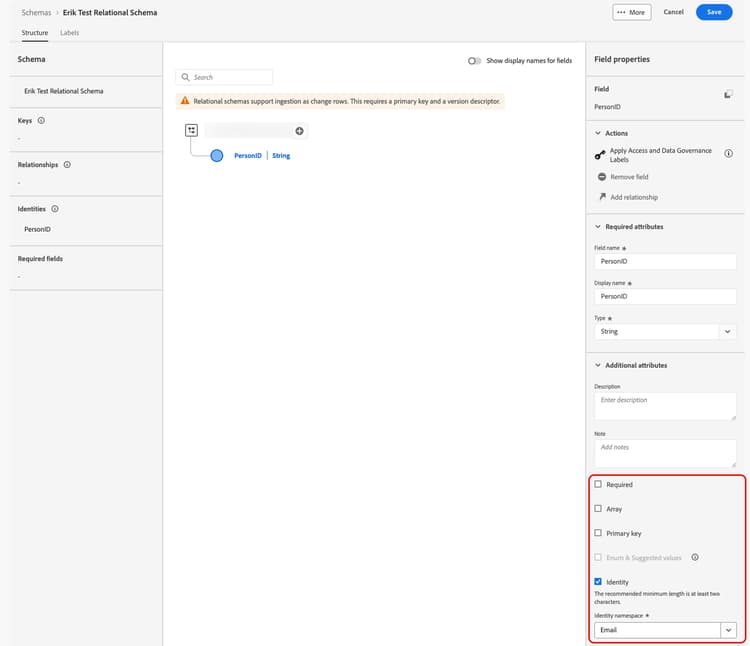
Once you created your relational schema, you can add the fields for your schema, including marking the primary key and version identifier, in the Schema Editor.
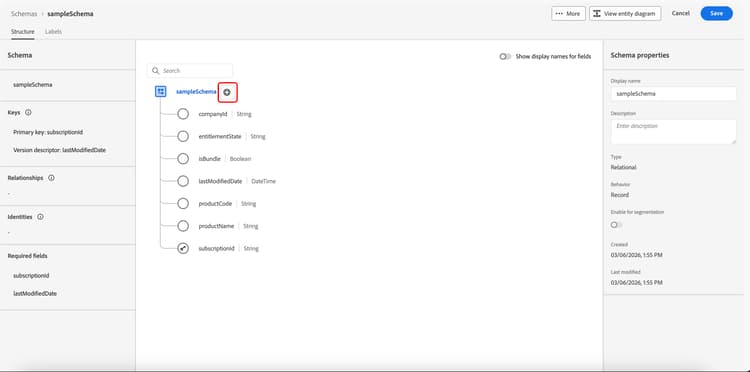
For more information on creating your relational schema, read the create a schema guide.
Create a dataset create-dataset
Once you created your schema, you’ll need to create a dataset that uses the schema to house your custom objects data.
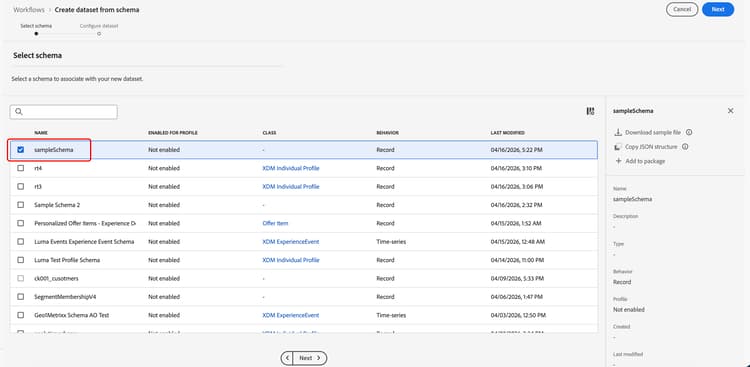
For more information on creating a dataset, read the create a dataset guide.
Enable the schema for segmentation enable-schema
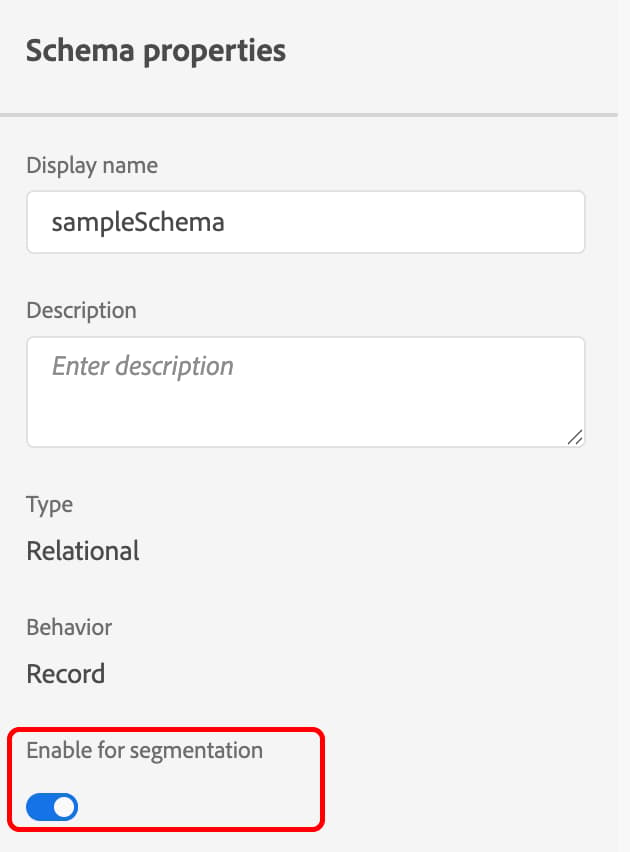
Once you’ve created your dataset, you can now enable the schema for segmentation. You must mark the schema as enabled for segmentation in order to use this schema for segmentation use cases with custom objects in B2B CDP.
Add your relationships add-relationship
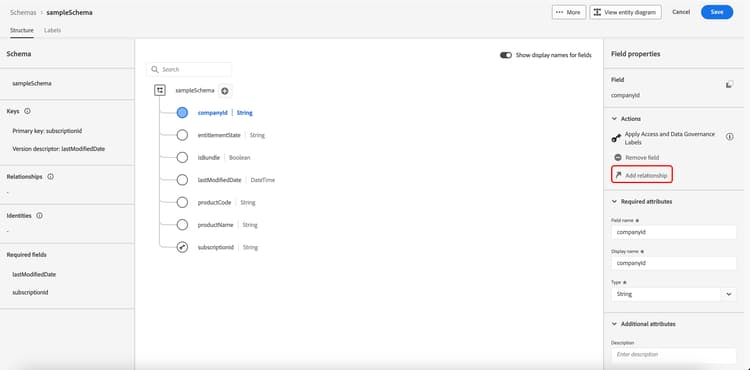
Now that you’ve enabled your schema for segmentation, you can continue creating your schema by defining the relationships for the schema’s fields. To add a relationship to the field, select Add relationship on the field you want to add the relationship to.
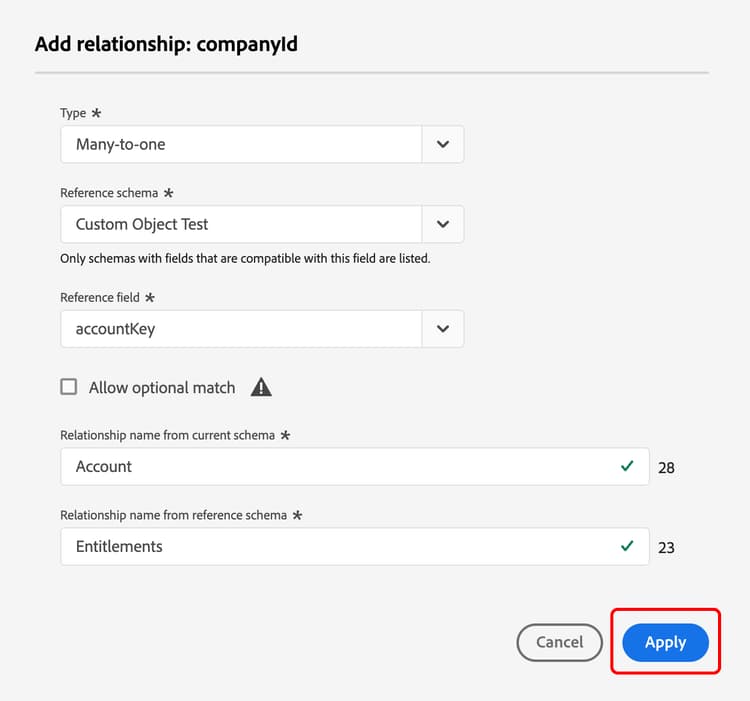
The relationship editor appears. You can now define the relationship between the field and the schemas.
Ingest data into the dataset ingest-data
_change_request_type attribute within the source, as this lets Experience Platform know that the data will be used for custom objects. If you want to insert or update data, set _change_request_type to u for upsert. If you want to delete data, set _change_request_type to d for delete.With your schema fully created, you can start ingesting data from your source into the dataset.
To get data from your source to Experience Platform, you’ll need to create a dataflow to ingest batch data from your source into the dataset. The following source providers are supported: Amazon S3, SFTP, Data Landing Zone, Marketo Connector, Salesforce CRM, Microsoft Dynamics CRM, and HTTP API connectors.
MKTO_CUST_OBJ_$(Custom object name) and includes the primaryKey and versionDescriptors by default.Your data within your source must conform to the following specifications:
- The file type is either delimited (such as a CSV or TSV) or JSON
- The file contains one row per primary key in the file
- The file’s column names match the schema’s field names
- You must enable Enable change data capture.
- You must select the dataset you previously created.
- You do not need to map the
_change_request_typefield in your dataflow. - Your ingestion frequency can be up to once every 15 minutes.
For more information on creating a dataflow, read the configure a dataflow to ingest batch data from a cloud storage source guide.
Use custom object in Audience Builder use-custom
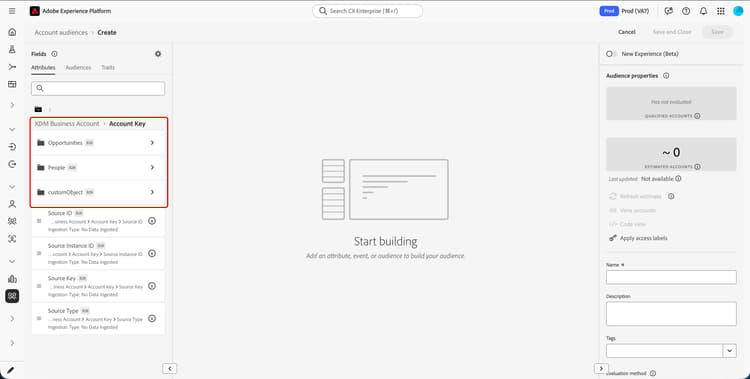
Now that your dataflow has been created, you can use the custom object data within Audience Builder. This custom object data can be used for both people audiences and account audiences.
The custom object can be found under Attributes in Audience Builder following the same relationship path that was created for your custom object schema.
Next steps next-steps
This guide explains how to add one-to-many relationship custom objects to B2B CDP as well as how to use custom object data in segmentation use cases.
To learn more about Audience Builder, read the Audience Builder guide.