Personalize customer conversations using Real-Time Customer Profile with unstructured data
In Adobe Experience Platform, you can consolidate your customer data into a unified view by combining data from multiple channels with Real-Time Customer Profile. With support for unstructured data, Experience Platform extends these capabilities, semantically letting you use conversational and other unstructured customer data as part of the profile building blocks.
Understanding Profile with unstructured data understanding
Real-Time Customer Profile currently combines structured data from multiple channels, including online, offline, CRM, and third party, consolidating this data into a unified view that offers an actionable and timestamped account of every customer interaction. However, this doesn’t cover unstructured data ingestion, meaning data from conversations, transcripts, or other multi-modal data (such as PDFs or images) are unavailable to be used with Profile.
Profile with unstructured data lets you have access to unprocessed data, which lets you better personalize conversations since the customer context will continue to be shared across multiple platforms, including Brand Concierge.
Profile with unstructured data provides the following capabilities to Experience Platform customers:
- Understand customer intent: Ingest conversations, messaging, search queries, call transcripts, surveys, and other text-based interactions to enrich the existing customer profile.
- Personalize conversations: Combine profile attributes, audience membership, and conversation history together so Brand Concierge and other customer-facing agents can deliver personalized experiences with continuity across agents, sessions, devices, and channels.
- Activate intent in real time: Extract marketer-defined signals from conversations and activate them through audiences, journeys, and personalization. These downstream activations can be used throughout Experience Platform, including Adobe Journey Optimizer and Target.
Use cases use-cases
Profile with unstructured data lets you use conversational data as an activation signal for further engagements, which allows you to more easily drive inbound personalizations and outbound activations. As a result, you can use these profiles in a variety of use cases:
- Interest-based activation: As a retail business, an authenticated shopper mentions a dietary preference in conversation. The extracted signal qualifies them for a “gluten-free” interest audience, which can be used for inbound and outbound activation such as tailored offers and journeys.
- Negative-experience suppression: As a big-box retail company, frustration is detected in a customer’s conversation. This customer is then suppressed from a promotional audience to avoid sending a tone-deaf outbound message.
- Intent-based routing and next-session personalization: As a financial service or fintech company, a customer mentions a life event (such as “married”, “moved states”, or “new job”) in a conversation. These keywords are extracted and used to personalize their next session to match the customer to an advisor who has the relevant domain expertise.
Sample flow sample-flow
Consider a company that offers financial services to clients.
In this scenario, one of your clients asks an agent about equities. Since this client is logged in, your agent knows about this user by reading their Real-Time Customer Profile.
This client then continues the conversation by stating “I’ve also been meaning to sit down and really review my retirement savings, just haven’t gotten around to scheduling it.”. By using Profile with unstructured data, Brand Concierge and Experience Platform can extract intent from these conversations, which lets you send personalized responses through the agent.
As a result, Experience Platform can make this client enter the “Financial Planning Interest” audience, and immediately personalize the agent to reply with “Let’s make sure your retirement plan is on track — book a free check-in with Alex Agent.”
Additionally, since this context is shared between all Experience Platform applications, you can continue the retirement conversation in multiple forms. For example, Adobe Journey Optimizer can automatically send the client an email with a retirement check-in invitation with Alex Agent.
Beta prerequisites prerequisites
To use Profile with unstructured data, you must meet the following prerequisites:
- Already an existing Adobe Experience Platform user
- Do not have the Healthcare Shield add-on
If you fulfill all of these prerequisites, contact Adobe Customer Care for more information on requesting enablement for Profile with unstructured data.
Requirements requirements
Before continuing Profile with unstructured data set up, you’ll need to complete the following steps:
- Enable Identity Graph Linking Rules
- Create a profile-enabled dataset
- Ingest at least one profile into this dataset
Once Profile with unstructured data has been enabled, you can start using this feature by setting up the following steps:
- Ingest unstructured data in Experience Platform
- Configure the profile context to personalize conversations
- Configure signals to extract data from unstructured data for activation
Ingest unstructured data ingest
In order to use unstructured data as part of your personalization process, you’ll first need to ingest that data into Experience Platform.
The method to ingest unstructured data differs, depending on the source of the unstructured data.
For the standard simple identity with raw text use case, you can use an ExperienceEvent schema and dataset to ingest the data in to Experience Platform. This is best used for most use cases, including importing transcripts, conversations, notes, and reviews.
Create a schema
| note important |
|---|
| IMPORTANT |
| When you create the schema and dataset, do not enable it for either Profile or Identity. |
You’ll first need to create an XDM ExperienceEvent schema for the dataset. This schema needs to include the following information:
- The
unstructuredContentfield group. For more information about the unstructured content field group, look at the XDM GitHub. - An identity to mark the known individual. This identity can either be an identity map or a field that’s marked as the identity descriptor.
To learn how to create a schema, read the create a schema guide.
Create a dataset
After you create the schema, you can create a dataset that uses this schema. To learn how to create a dataset based off of an existing schema, read the create a dataset guide.
Once you’ve created the dataset, you can make a PATCH request to the v2/dataSets endpoint while providing the ID of the newly created dataset. This lets you update the dataset for usage with Profile with unstructured data.
| accordion | ||||
|---|---|---|---|---|
| Sample patch request and response to enable the dataset for Profile with unstructured data. | ||||
A successful response returns HTTP status 200 with the ID of your newly updated dataset.
|
Ingest data
Now that the schema and dataset are set up, you can now start ingesting data into Experience Platform. You can use a standard source connector to load the data into Experience Platform, as CSV, JSON, and Parquet are all supported. When ingesting the data, put the unstructured text into the rawText field and the identity in the identity column.
You can now contact Adobe Customer Care with information such as the organization ID, sandbox information, dataset information, and method of ingestion (simple ID with raw text XDM) to complete the setup of data ingestion.
| note availability |
|---|
| AVAILABILITY |
| The WhatsApp connector is in closed beta. |
To learn how to set up the WhatsApp connector, read the WhatsApp connector guide.
When you set up the WhatsApp connector, the WhatsApp Webhook Raw Event dataset is automatically created. This dataset is automatically enabled for Profile with unstructured data with the channel info also applied.
After setting up the WhatsApp connector, contact Adobe Customer Care with information including the organization ID, sandbox information, channel (WhatsApp Business), and the mode (streaming or batch) to allowlist the connector to be used for Profile with unstructured data.
For Brand Concierge conversations, three datasets that track user prompt, agent response, and feedback are automatically created.
To enable these datasets for Profile with unstructured data, you need to make a PATCH request to the v2/dataSets endpoint while providing the ID of each of the three datasets.
| accordion | ||||
|---|---|---|---|---|
| Sample patch request and response to enable the dataset for Profile with unstructured data. | ||||
A successful response returns HTTP status 200 with the ID of your newly updated dataset.
|
Configure the profile context
After ingesting unstructured data into Experience Platform, you can configure the profile context to help personalize your conversations. You can configure this profile narrative either using Coworker or using the Experience Platform APIs.
You can begin the setup by asking “I want to create a semantic profile configuration” within Coworker.
Coworker will guide you through the steps to set up Profile with unstructured data by proceeding through the following steps:
-
Coworker will ask “What is your use case”?
-
After describing your use case, Coworker will provide a list of relevant attributes, based on the use case
-
Once you confirm the attributes look fine, Coworker will confirm the following actions. By default, Coworker will have no audience descriptions, precise profile narrative, no data governance labels, and the default person namespace.
- If you want to add the audience descriptions to the profile narrative
- The preciseness of the profile narrative
- Adding data governance labels and setting the person namespace
After going through these steps, your Profile with unstructured data context is created.
You can set up the Profile with unstructured data context by using the Experience Platform APIs.
Before continuing, read the getting started guide for links to related documentation, a guide to reading the sample API calls in this section, and important information regarding required headers that are needed to successfully make calls to any Experience Platform API.
Get categories get-categories
You’ll first need to get the categories for the Profile context. The categories are groupings of profile attributes that are available in your sandbox.
API format
| code language-http |
|---|
|
Request
The following request retrieves a list of all the available categories and their attributes within your sandbox.
| accordion | ||
|---|---|---|
| A sample request to retrieve the available categories. | ||
|
Response
A successful response returns HTTP status 200 with a list of the categories available for your organization and sandbox.
| accordion | ||||||||||||||||||||
|---|---|---|---|---|---|---|---|---|---|---|---|---|---|---|---|---|---|---|---|---|
| A sample response that contains a list of the categories and attributes that belong to your organization and sandbox | ||||||||||||||||||||
|
Create a configuration
After getting the available categories for your sandbox, you can create a configuration. The configuration contains the categories and attributes of the profile data, the audiences you want to highlight, the marketing actions, the narrative precision, as well as the namespace.
API format
| code language-http |
|---|
|
Request
The following request creates a Profile with unstructured data configuration, using the Customer Demographics category, including a specified audience, no marketing actions, fuzzy narrative precision, and email namespace.
| accordion | ||||||||||||||||||||||||||||||||||||||||||||||||||||||||||||||||||
|---|---|---|---|---|---|---|---|---|---|---|---|---|---|---|---|---|---|---|---|---|---|---|---|---|---|---|---|---|---|---|---|---|---|---|---|---|---|---|---|---|---|---|---|---|---|---|---|---|---|---|---|---|---|---|---|---|---|---|---|---|---|---|---|---|---|---|
| A sample request to create a profile configuration. | ||||||||||||||||||||||||||||||||||||||||||||||||||||||||||||||||||
|
Response
A successful response returns HTTP status 200 with a unique request ID and the details of your newly created configuration.
| accordion | ||
|---|---|---|
| A sample response that contains the newly created configuration. | ||
|
Now that the profile context has been created, you can save the configuration against Brand Concierge or any other customer-facing agent.
Profile context in Brand Concierge profile-context-brand-concierge
In Brand Concierge, select the concierge you want to apply the profile configuration to.
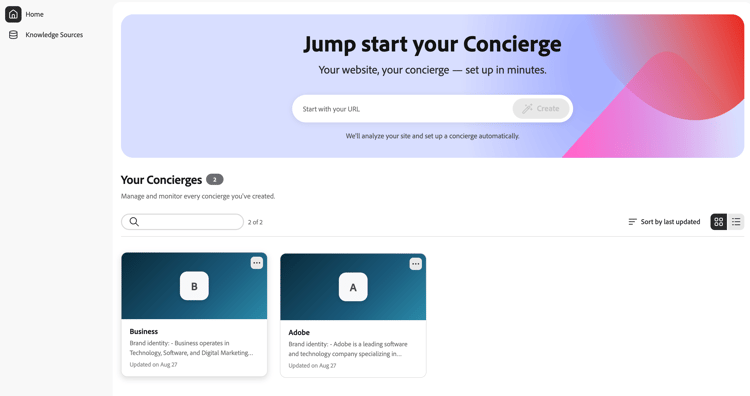
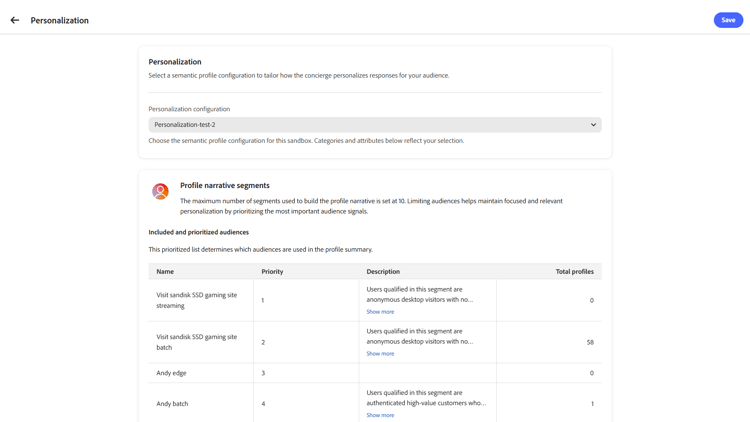
Once you’ve selected the concierge, go the Personalization tab and select the previously created configuration.
Profile context with other customer-facing agents profile-context-other
To use profile context with other customer-facing agents, you’ll need to use the Experience Platform API to look up the customer’s profile context and to retrieve the conversation history. By retrieving both of these values, your agent can properly retrieve the full and relevant context before starting a conversation.
To look up the customer’s profile context, you’ll need to make a GET request to the /semanticprofile/lookup/narrative endpoint while providing the entityIdNS, entityId, and configurationName as query parameters.
| code language-shell |
|---|
|
| table 0-row-2 1-row-2 2-row-2 3-row-2 | |
|---|---|
| Query parameter | Description |
entityIdNS |
The identity namespace. This must be a namespace that is defined in your sandbox. Possible values include Email, ECID, and CRMID. |
entityId |
The identity value within the namespace. You must URL encode reserved characters. |
configurationName |
The name of the previously created configuration. |
A successful response returns HTTP status 200 with information about the profile context.
| code language-json |
|---|
|
| table 0-row-2 1-row-2 2-row-2 | |
|---|---|
| Field | Description |
requestId |
The unique ID generated for the request. |
narrative |
The generated natural language profile summary. |
To look up a customer’s previous conversation history, you’ll need to make a POST request to the /semanticprofile/query/v1/profile endpoint, while providing the entityIdNS and entityId as query parameters.
| code language-shell |
|---|
|
| table 0-row-2 1-row-2 2-row-2 | |
|---|---|
| Query parameter | Description |
entityIdNS |
The identity namespace. This must be a namespace that is defined in your sandbox. Possible values include Email, ECID, and CRMID. |
entityId |
The identity value within the namespace. You must URL encode reserved characters. |
| Request field | Type | Description |
| ------------- | -------- | ---- | ----------- |
| conversations | Object | An object that determines you want to return information about the conversations. By leaving it as an empty object, you automatically will receive information about the interactions, metadata, and signals. |
A sample response returns HTTP status 200 with information about the conversations for the requested entity.
| code language-json |
|---|
|
After getting both the narrative and conversations, you can feed this information to your third-party AI agents. As a result, the AI agent will have information about who the customer is as well as information about what the customer discussed.
Configure signals to extract data configure-signals
Once you configure the profile context, you can now configure signals to extract data from your unstructured data.
You can begin this process by going to Coworker and asking “Let me extract signals from conversations”. Coworker then asks what type of signals you want to detect from the conversations.
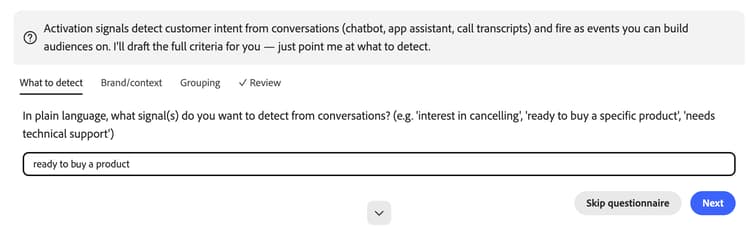
Next, Coworker asks what type of brand or business these conversations are part of.
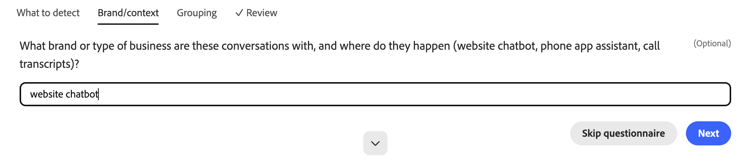
Finally, Coworker asks you if you want to create a new signal group or if you want to add to an existing signal group.
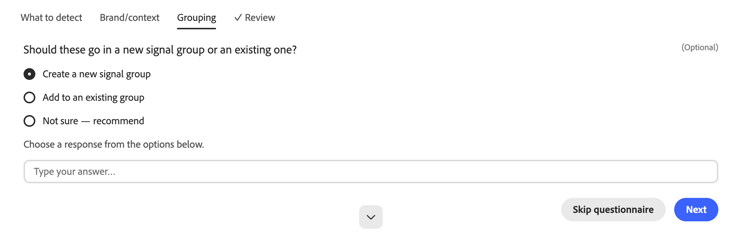
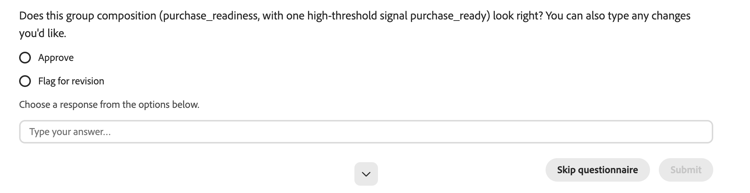
You can then confirm if the above steps look accurate, and if you want to proceed with the signal creation.
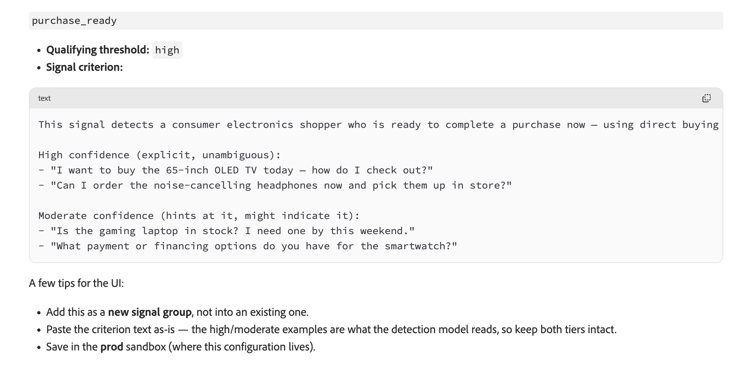
The signal creation begins. Coworker then creates a signal that automatically gets added to Experience Platform.
Frequently asked questions faq
The following section lists frequently asked questions related to profiles with unstructured data.
Are profiles with unstructured data separate from a normal customer profile?
What is the profile context/profile narrative?
The profile context (profile narrative) is the consolidated information provided to an AI agent to improve an interaction. The context can combine the following data:
- Profile attributes
- Audience membership
- Behavioral history
- Browsing activity
- Previous conversations
What is a signal?
A signal is a structured, activation-ready representation of meaning that is detected within an unstructured interaction. Examples of signals include the following:
- Product interest
- Cancellation intent
- A stated preference
- A life event
- A negative experience
- An industry
- A buyer role
Signals can either be defined by marketers or created by the system by analyzing individual signals discovered within the data.
How does a signal differ from the raw conversation?
Does Profile with unstructured data only support Brand Concierge?
What data sources can I use?
The following sources are supported:
- Brand Concierge and non-Brand Concierge conversations
- WhatsApp conversations
- Search queries
- Call-center transcripts
- Chat logs
- Surveys
- Webinar and sales-call transcripts
- Other text-based interactions