Adhese connection adhese
Overview overview
Adhese is an independent European advertising platform for publishers, retailers, and commerce media owners. With the Adhese destination, you can send audiences from Adobe Experience Platform to Adhese and use them for targeted ad delivery on Adhese-served inventory.
Audience exports are delivered as files to Adhese’s secure cloud storage. For further reading, see the Adhese documentation.
Use cases use-cases
To help you better understand how and when you should use the Adhese destination, here are sample use cases that Adobe Experience Platform customers can solve by using this destination.
Use audience segmentation for advertising campaigns use-case-1
A publisher or retailer builds first-party audiences in Adobe Experience Platform, such as frequent readers of a content category, regular buyers of selected product categories, or loyalty program members. They send these audiences to their Adhese instance so advertisers can target them with relevant campaigns on the retailer’s or publisher’s own inventory.
Prerequisites prerequisites
Before you can send audiences to Adhese, you must be onboarded as an Adhese customer. Contact your Adhese account manager or Support Adhese to set up the integration. During onboarding, Adhese provides you with:
- An Amazon S3 access key ID and secret access key, used to authenticate the connection
- The Adhese customer name to export to
- Your active Adhese region
No data is shared with other Adhese customers. Your credentials grant write access exclusively to your own folder.
Supported identities supported-identities
Adhese supports the activation of identities described in the table below. Learn more about identities.
Use the identity that you also use to identify users on your website or app, so Adhese can match the exported audience members at ad-delivery time.
Supported audiences supported-audiences
This section describes which types of audiences you can export to this destination.
This category includes all audience origins outside of audiences generated through the Segmentation Service. Read about the various audience origins. Some examples include:
- custom upload audiences imported into Experience Platform from CSV files,
- look-alike audiences,
- federated audiences,
- audiences generated in other Experience Platform apps such as Adobe Journey Optimizer,
- and more.
Supported audiences by audience data type:
Export type and frequency export-type-frequency
Refer to the table below for information about the destination export type and frequency.
Connect to the destination connect
To connect to this destination, follow the steps described in the destination configuration tutorial. In the configure destination workflow, fill in the fields listed in the two sections below.
Authenticate to destination authenticate
To authenticate to the destination, fill in the required fields and select Connect to destination.

- Access key ID: The Amazon S3 access key ID provided to you by Adhese during onboarding.
- Secret access key: The Amazon S3 secret access key provided to you by Adhese during onboarding.
Fill in destination details destination-details
To configure details for the destination, fill in the required and optional fields below. An asterisk next to a field in the UI indicates that the field is required.

- Name: A name by which you will recognize this destination in the future.
- Description: A description that will help you identify this destination in the future.
- Region: The region provided by Adhese during onboarding.
- Customer ID: Your customer ID, provided by Adhese (for example
acme-corp). This is the name of your Adhese account, used in your account URL, for examplehttps://acme-corp.adhese.orgorhttps://acme-corp.classic.adhese.eu.
Enable alerts enable-alerts
You can enable alerts to receive notifications on the status of the dataflow to your destination. Select an alert from the list to subscribe to receive notifications on the status of your dataflow. For more information on alerts, read the guide on subscribing to destinations alerts using the UI.
When you are finished providing details for your destination connection, select Next.
Activate audiences to this destination activate
- To activate data, you need the View Destinations, Activate Destinations, View Profiles, and View Segments access control permissions. Read the access control overview or contact your product administrator to obtain the required permissions.
- To export identities, you need the View Identity Graph access control permission.
Read Activate audience data to batch profile export destinations for instructions on activating audiences to this destination.
Map attributes and identities map
The Adhese destination exports identities only. No profile attributes are exported.
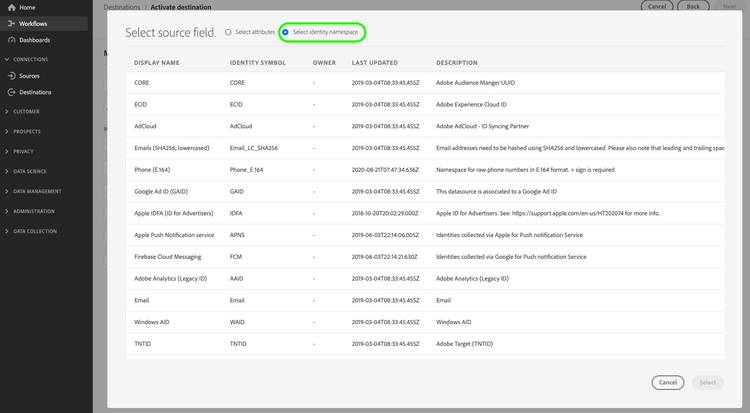
In the Mapping step of the activation workflow, select the identity namespace that you use to identify users on your website or app as the source field. The mapped identity values become the contents of the exported file. Mapping an identity is mandatory. Selecting profile attributes is not supported for this destination.

Schedule audience export schedule
In the Scheduling step, configure the export schedule for each audience. By default, audiences are exported once per day as a full export. You can also select 6-hour, 8-hour, or 12-hour increments, and incremental exports after an initial full export.
Filename configuration filename-configuration
In the filename configuration, the audience ID is appended to the filename by default. You cannot change the filename, to make sure the destination runs stable.
Exported data / Validate data export exported-data
Data is exported to Adhese as CSV files, one file per audience per export. Each file contains a single column with the identity values you mapped in the activation workflow, with the identity namespace as the column header. For example:
ECID
14575006536349286404619648085736425115
66478888669296734530114754794777368480
The filename contains the destination name and the audience ID, for example:
Adhese_ede68175-1263-4f5b-9a1a-d6c44bd1fcb2.csv
To validate the integration, activate a test audience and confirm with your Adhese contact that the file arrived and the audience appears in your Adhese account. Audiences typically become available for targeting in Adhese a few minutes after the export completes.
Data usage and governance data-usage-governance
All Adobe Experience Platform destinations are compliant with data usage policies when handling your data. For detailed information on how Adobe Experience Platform enforces data governance, read the Data Governance overview.
Additional resources additional-resources
- Adhese documentation
- Contact Adhese support: Support Adhese