Additional features in the Editor id2056B0B0YPF
There are some other useful features in the Editor that you can make use of:
Context menu functions on a file’s tab
When you open a file in the Editor, you can perform various actions from the context menu. You might view different options depending on whether you open a media file, single DITA file, or multiple files.
Media file
You get the following functions in the context menu of an opened media file’s tab:

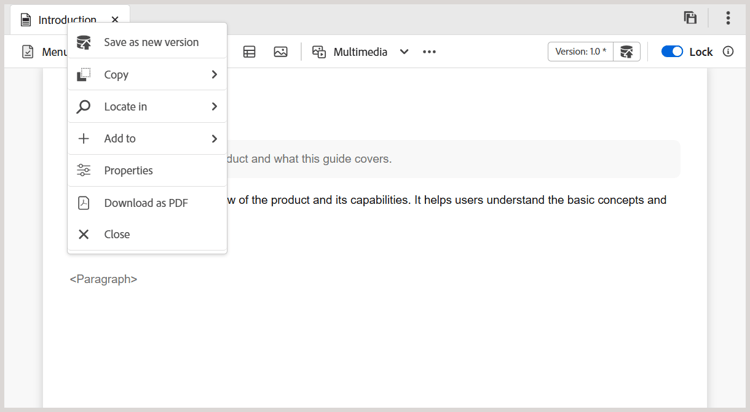
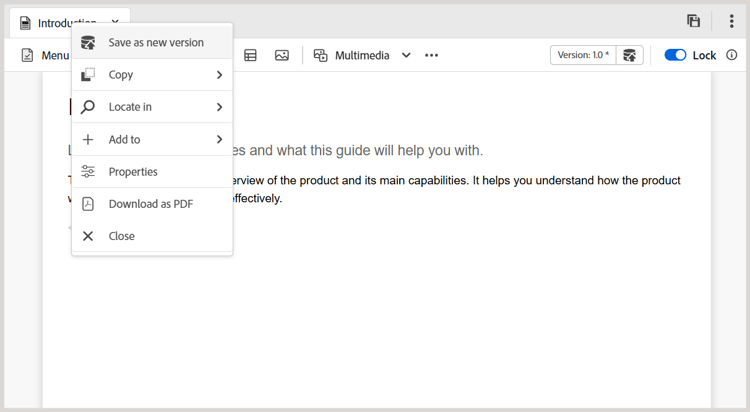
Single DITA file
You get the following functions in the context menu of an opened file’s tab:
Multiple files
When you have multiple files opened, then you get more options in the context menu:
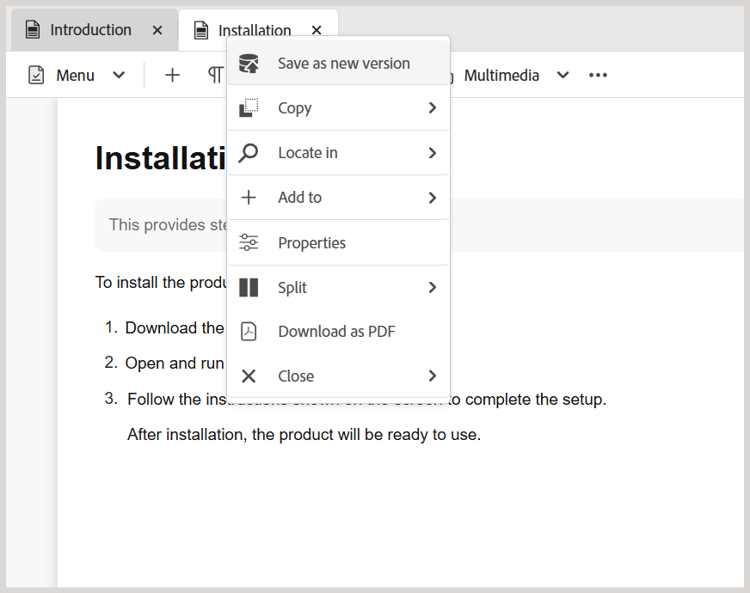
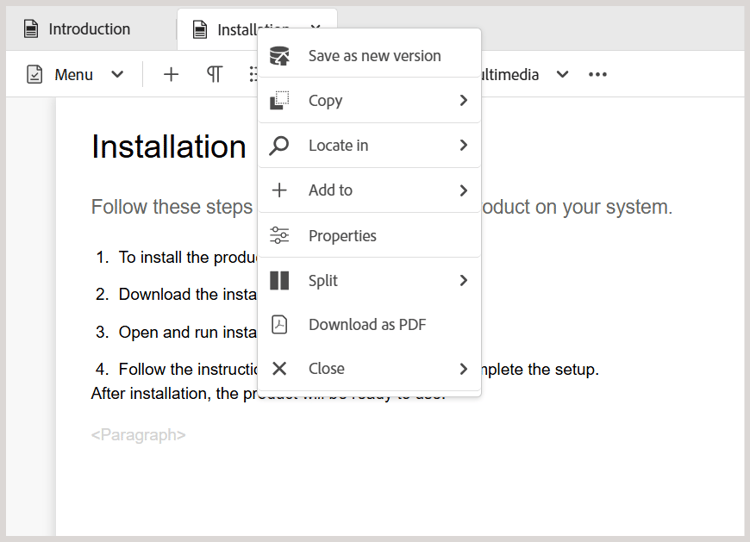
The various options in the context menu are explained below:
Save: You can choose from the following options:
-
Save: To save a file without creating a new version, select Save. Whenever you create a new topic, a version-less working copy of the topic is created in DAM. Saving your document updates the working copy of your document in DAM. Doing a simple save on this version does not create a new version of a topic. If your topic is under review, saving a topic does not give your reviewers access to your changed topic content.
-
Save All: If there are multiple documents opened in the Editor, then you also get an option to Save All opened documents.
Save As New Version
To create a new version of the file, select Save As New Version. For more details about Save and Save As New Version, view Toolbar in the Editor.
Copy: You can choose from the following options:
- Copy UUID: To copy the UUID of the currently active file to the Clipboard, select Copy > Copy UUID.
- Copy Path: To copy the complete path of the currently active file to the Clipboard, select Copy > Copy Path.
Locate In: You can choose from the following options:
-
Map: If you have opened a large DITA map and want to find the exact location of a file in the map, then select Locate In > Map. When you select the Locate in Map option, the file (from where the option is invoked) is located and highlighted in the map hierarchy. To be able to use this feature, you must open the map file in the Editor. If the Map View is hidden, then invoking this feature will display the Map View and the file is highlighted in the map hierarchy.
-
Explorer: Similar to Locate in Map, the Locate In > Explorer shows the location of the file in the Explorer (or DAM). The Explorer View is opened and the selected file is highlighted in the Explorer. If the file is within a folder, then that folder is expanded to show the selected file’s location in the Explorer.
note NOTE From 2025.11.0 release for Cloud service and from 5.2 release for On-Premise, Repository is renamed to Explorer. For On-Premise setup prior to 5.2 version, it continues to be available as Repository.
Add to: You can choose from the following options:
-
Collections: To add the selected file to collections, select Add to > Collections. For more details, view the Collections feature description in the Left panel section.
-
Reusable content: To copy the selected file to the reusable content list, select Add to > Reusable content. For more details, view the Reusable content feature description in the Left panel section.
Properties
To view the AEM properties page of the selected file, select Properties.
Split: You can choose from the following options:
Up, Down, Left, or Right
By default, the Editor allows you to view one topic at a time. There could be instances wherein you would like to view two or more topics at the same time. Splitting the editor’s screen allows you to view multiple topics at the same time. For example, if you have two topics - A and B opened in the editor. Right-clicking on topic B and choosing Split > Up divides the editor window into two parts. Topic B is displayed in the upper half and Topic A is displayed in the bottom half. Similarly, you can also split the screen horizontally by selecting Split > Left or Split > Right. You can move your documents from one screen to the other by dragging the file tab and dropping it on to the screen where you want to place it. Similarly, you can also reorder file tabs by dragging and moving them as per your preference.
Close: You can choose from the following options:
Close, Close others, or Close all
If you want to close the file from which you invoked the context menu, then select Close > Close. Use Close > Close others to close all other opened file except the currently active file. To close all open files, select the Close > Close all option from the context menu or you can also choose to close the Editor. If there are any unsaved files in your session, then you are prompted to save those files.
File close and save scenarios
When you try to close a file opened in the Editor using the Close button on the file’s tab or the Close option in the Options menu, Experience Manager Guides prompts you to save your edits and unlock a locked file.
The prompts are based on the following configurations selected by your administrator:
- Ask for unlock on close: You are given the option to unlock the file (which you have locked) when you close the editor.
- Ask for new version on close: You are given the option to save the file (which you have edited) as a new version when you close the editor.
Your file saving experience will depend on the following three scenarios, wherein you have:
- Not done any changes to the content.
- Edited the content and saved the changes.
- Edited the content but not saved the changes.
You may view the following options depending on whether the file is locked/unlocked and has saved or unsaved changes:
-
Unlock and Close: The lock on the file is released, and the file gets closed.
-
Save as a new version: This will save the changes you have made in your content and create a new version of your file. You can also add labels and comments for the newly saved version. For more information about saving a new version, view Save as new version.
-
Unlock the file: If you choose to unlock a file, it will release the lock on your file and the changes are saved in the current version of the file.
note NOTE If you deselect the option to unlock the file, you also get an option to close the file without saving the changes. For example, one of the prompts is shown in the following screenshot:

Visual cues for broken references
If your topic contains broken cross-references or content references, they are shown in red text.
Smart copy-paste
You can easily copy paste content within and across topics. The source element structure is maintained at the destination. Also, if the copied content contains content references, then even those are copied.
Remember last browsed location
The Editor provides a smart file browse dialog. The editor remembers the last used location while inserting a reference or content. The first time you invoke the file browse dialog (via Insert Reference or Insert Reuse Content), then you are taken to the location where the current document is saved. In the same session, if you try to insert another reference, then the file browse dialog automatically navigates to the location from where you inserted the last reference.
Work with Tables in the New Editor
The New Editor allows you to create, format, and organize tables directly within your content using various contextual actions. Here’s a short video on how to work with the various table editing features available in the New Editor.
The following table editing features are available in the New Editor:
Modify the table using the context menu
The context menu is displayed when you right-click inside a table cell. The following options are available based on the table type you are working with.
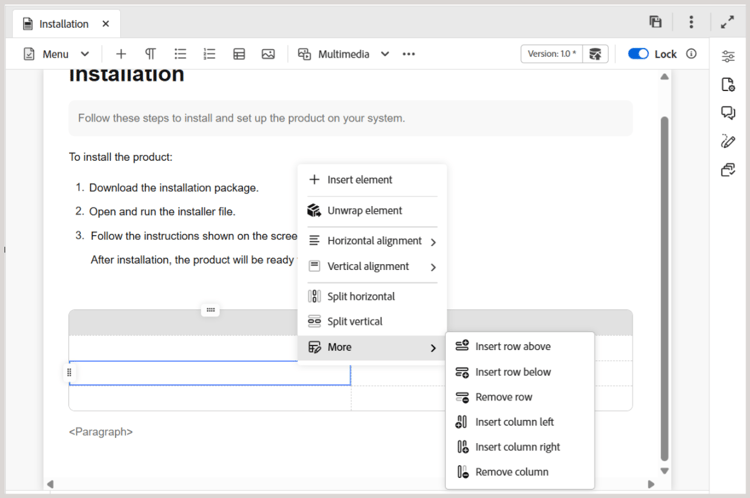
-
Insert rows, columns, or cells
-
Split cells horizontally or vertically (Not available for Simple tables)
-
Merge cells right or down (Not available for Simple tables)
-
Delete rows or columns
Set text formatting and alignment using the contexual toolbar
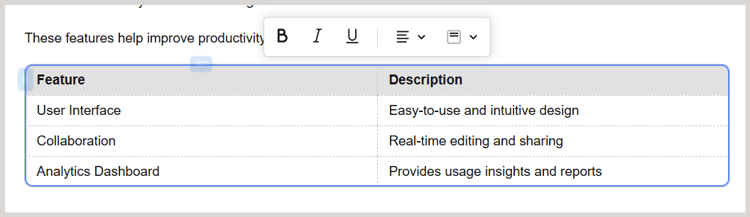
The contextual toolbar is displayed when you select content or cells inside a table. The toolbar provides options relevant to your selection.
-
Select the cell content to access the following formatting options:
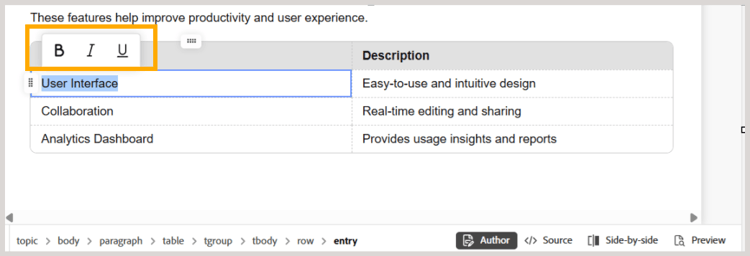
Use the Bold, Italic, or Underline options to format your text.
-
To access the contextual toolbar for a single cell, use
Ctrl+clickfor Windows andCommand+clickfor macOS.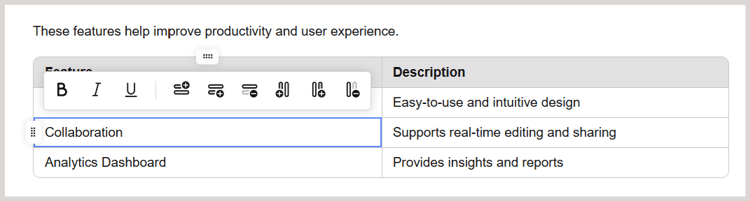
-
Similarly, you can also select multiple cells and use the contextual toolbar to apply text formatting and alignment to them at once.
Available options for single or multiple row selection:
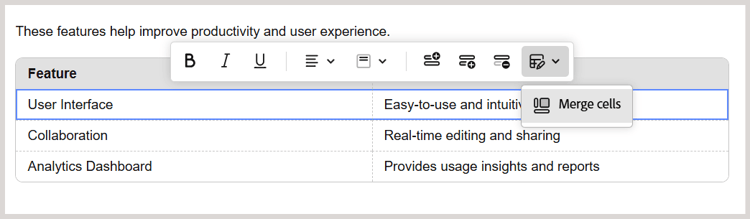
- Horizontal text alignment (Not available for Simple tables)
- Vertical text alignment (Not available for Simple tables)
- Insert row above
- Insert row below
- Remove row
- Merge cells (Not available for Simple tables)
Available options for single or multiple column selection:
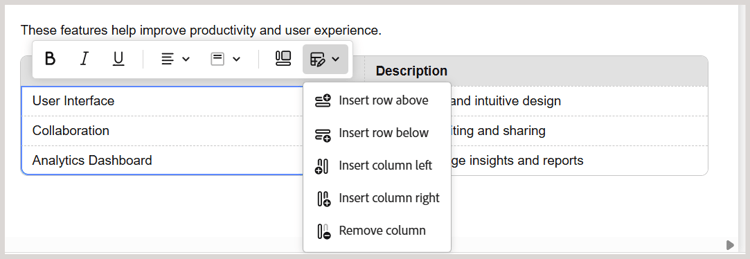
- Horizontal text alignment (Not available for Simple tables)
- Vertical text alignment (Not available for Simple tables)
- Insert row above
- Insert row below
- Remove row
- Insert column above
- Insert column below
- Remove column
- Merge cells (Not available for Simple tables)
-
Select the table to apply text formatting and alignment to the entire table.
-
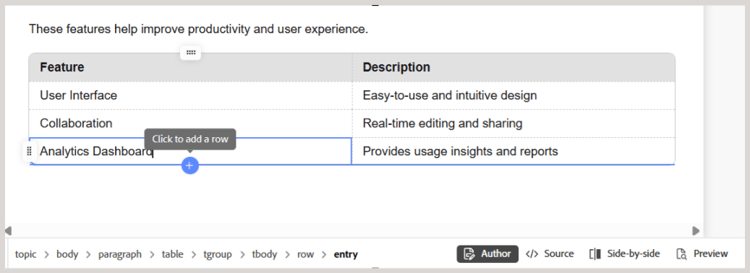
Add rows or columns using an interactive plus button
To add a new row at the end of the table, hover over the last row and select the + button. A new row is added at the bottom of the table.
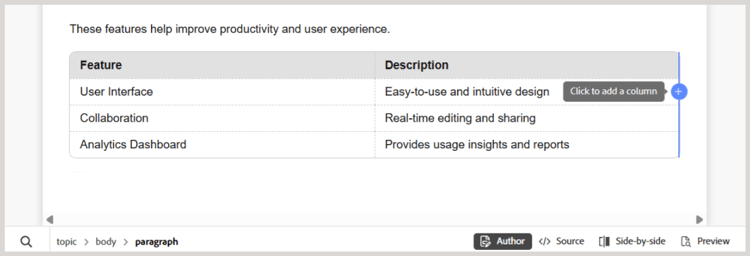
Similarly, hover over the last column and select the + button to add a new column to the rightmost side of the table.
-
Add multiple rows or columns to a table using Insert options (Not available for Simple tables)
To add multiple rows or columns to a table, first select the number of rows or columns you want to add and then select Insert row (above or below) or Insert column (left or right) options. The same number of rows or columns is added to the table based on your selection.
-
Drag and drop rows and columns (Not available for Simple tables)
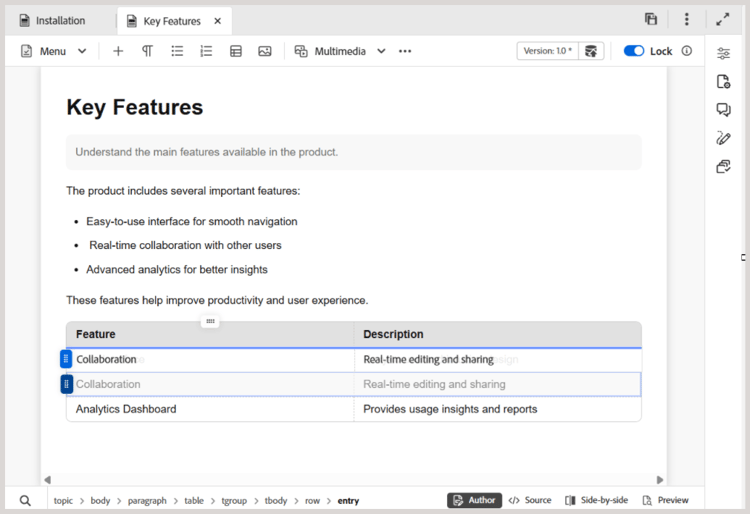
Easily move the rows and columns within the table using drag and drop. When you drag a row or column, it appears with a semi-transparent background to indicate that it is being moved. A blue line highlights the target position where the row or column will be placed upon release.
Browse files and folders in Experience Manager Guides
Experience Manager Guides provides intuitive dialogs - Select file and Select path - to help you browse and choose files or folders within the content repository efficiently.
Browsing files in Experience Manager Guides
The file path browser enables you to quickly locate and select specific files within the content repository. This feature is available for tasks such as adding a topic to a map, linking an image or cross-reference, creating reusable content, and more.
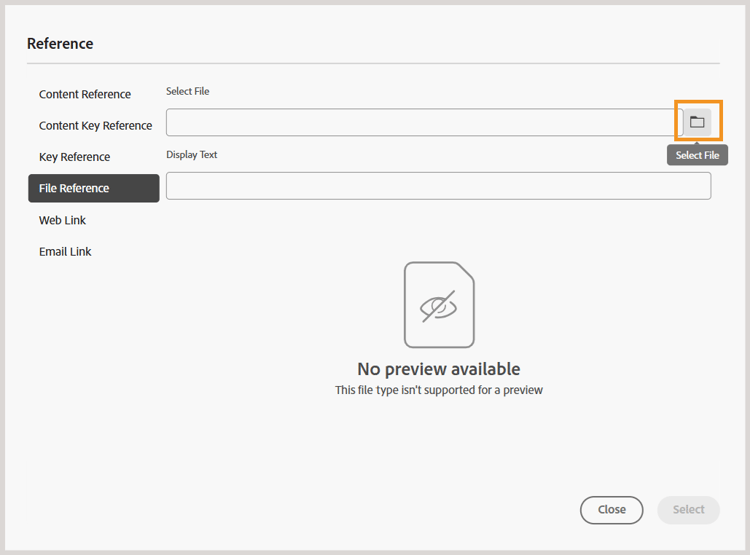
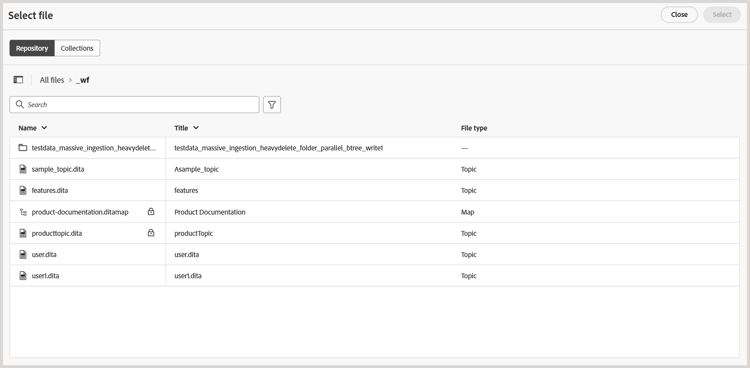
When you launch the file browser, the Select file dialog opens. This dialog includes two tabs: Repository and Collections. By default, the Repository tab is selected.
Features available in the Repository tab for file browsing
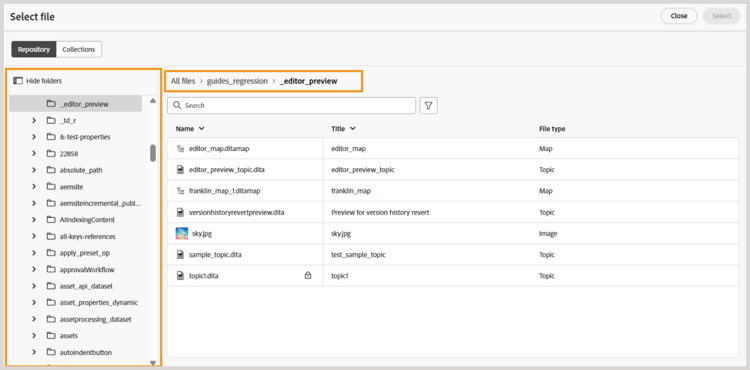
Tabular view of files and folders
The Repository tab provides you a tabular view of files and folders from the content repository, making it easier to locate the correct file path. You can also use the breadcrumbs at the top and the folder navigation panel on the left to move through folders.
Single and multiple file selection
To use a file, simply select the file and choose Select.
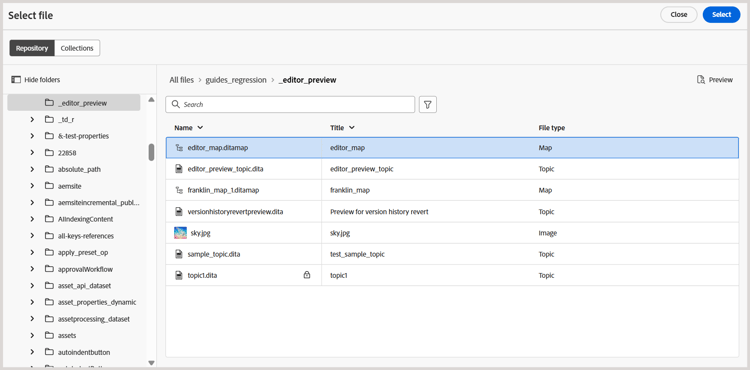
In some cases, you can also select multiple files from this path browser dialog. For example, when browsing files for Reusable content, you can select multiple files and make them part of your resuable content.
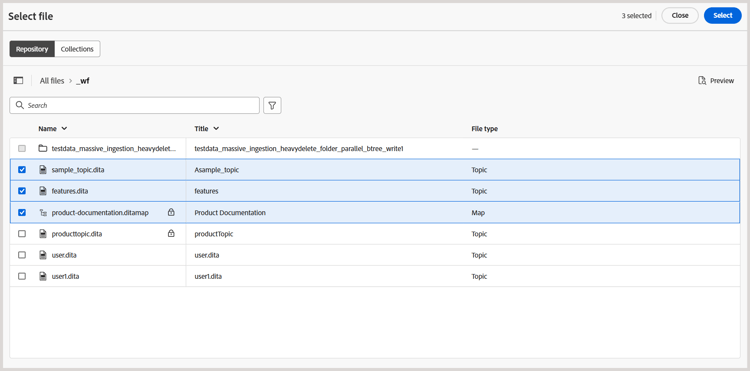
Multiple file selection is currently available for Reusable content, topic references, Schematron, Output presets (using DITAVAL), and Workfront.
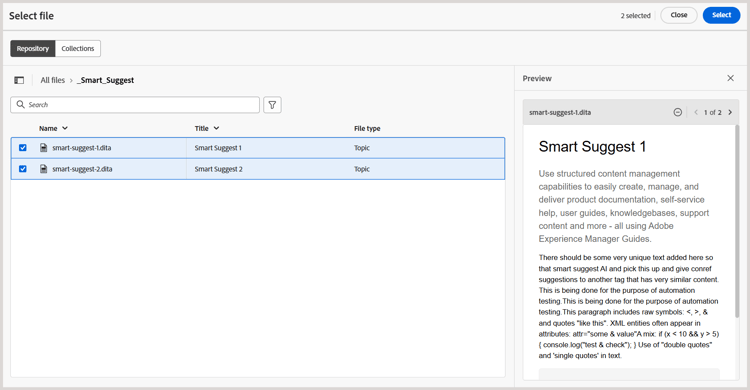
Preview selected files
You can preview the files you have selected using the Preview button, as shown below:
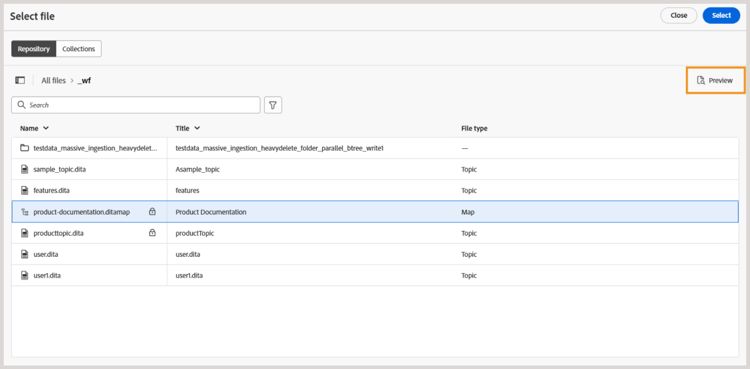
The preview of the selected file is displayed on the right.
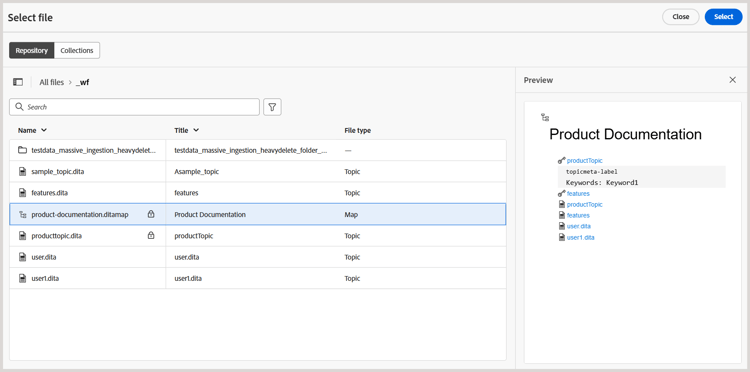
For multiple selections, a preview of all selected files is displayed in Preview panel for easy review.
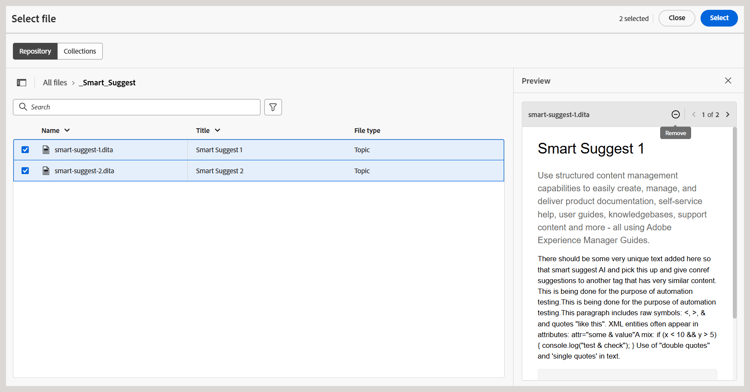
You can also use the Remove icon to deselect some files from the Preview.
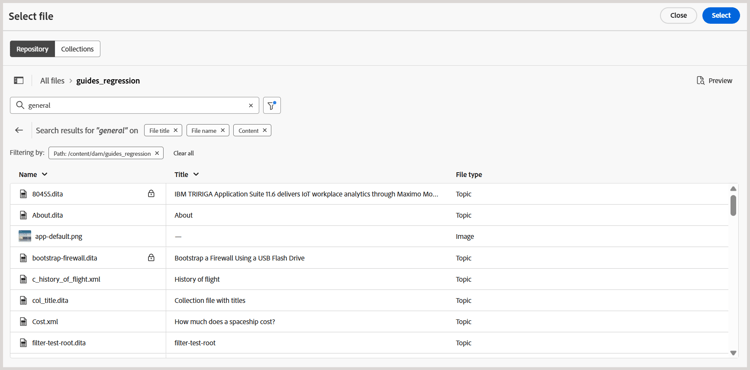
Search and filter experience
When browsing files in the Repository, you can search for files by name, title, or content within the selected path. You can use any one, two, or all three criteria for your search. If none of the criteria are selected, the results will include common to all the three criteria.
Select the Filter Search (

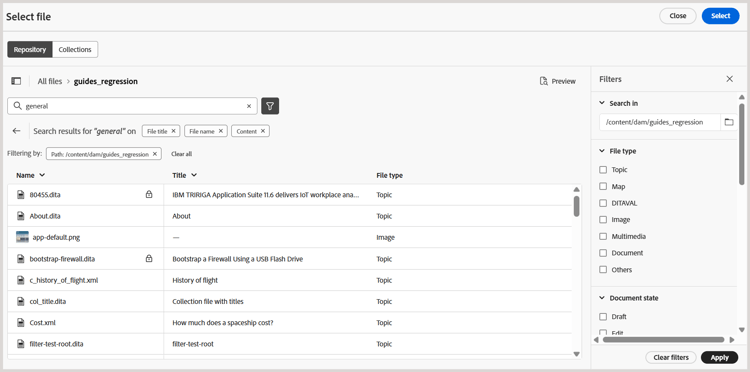
You have the following options to filter the files and to narrow down your search:
-
Search in: Select the path where you want to search the files present in the Repository.
-
File type: Filter your search based on a specific file type. Available options are: Topic, Map, DITAVAL, Image, Multimedia, Document, and Others.
note NOTE In some cases, the File type filter is pre-applied on specific file type(s) based on the task and cannot be changed. For example, when browsing for an image, the filter is set to display only image files, and when creating reusable content, it is set to show only topic and map files. You can still adjust other filters such as document state, tags, or last modified date to refine your search results. -
Document state: You can filter your search based on the current document state of the files. The available filter values are defined in the
repositoryFiltersfield of theui_config.json fileand are associated with the folder profile you are currently using.This means:
- If you are using the Global Profile, the filters values configured in the Global profile are applied.
- If you select a specific Folder profile, the filters values defined in that profile are fetched.
The default filter values available for document state are: Draft, Edit, In-Review, Approved, Reviewed, and Done. For details on customizing filter values for document states, view Configure document state filters.
-
Locked by: Displays a list of users. The list is paginated and loads asynchronously, showing a limited set of users at a time and fetching more as you scroll or navigate. This improves loading speed and overall performance, especially when working with a large number of users.
-
Last modified: Filter content based on modification date. Select a date range from the calendar or choose one of the following time frame options:
- In last week
- In last month
- In last year
-
Tags: Filter content based on tags.
-
DITA elements: Filter content based on various DITA elements.
After applying all the required filters, select Apply from the bottom-right corner of the Filters panel.
Features available in the Collections tab for file browsing
The Collections tab provides a curated view of files available in your Collections for quick access and reuse. Unlike the Repository tab, which displays the full folder hierarchy, Collections allow you to select frequently used topics, maps, and images without navigating through multiple folders.
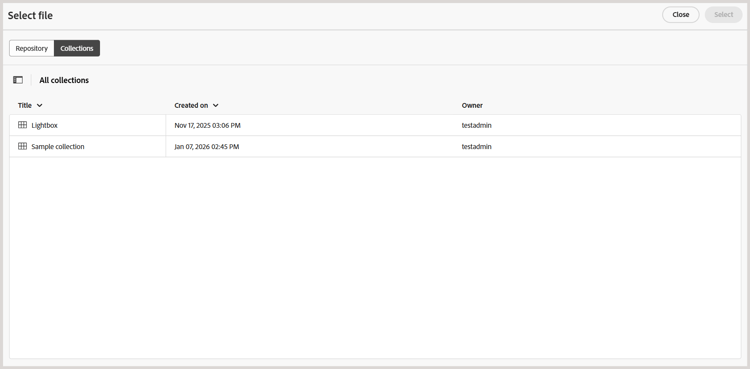
In the Collections tab, you can:
-
Use the breadcrumbs on the top and folder navigation panel on the right to easily navigate through your Collections.
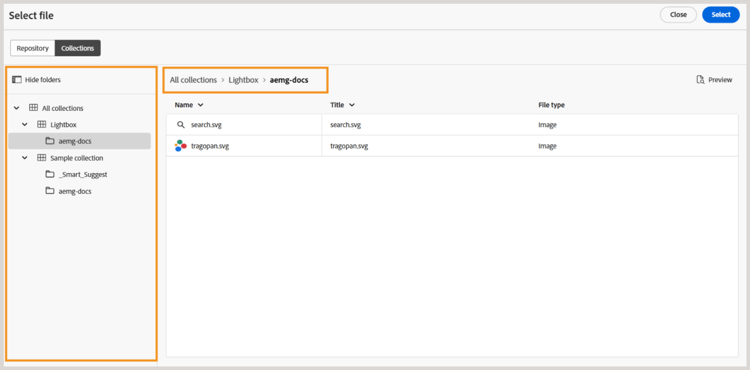
-
Select files present within a specific Collections path and preview it in the right Panel.
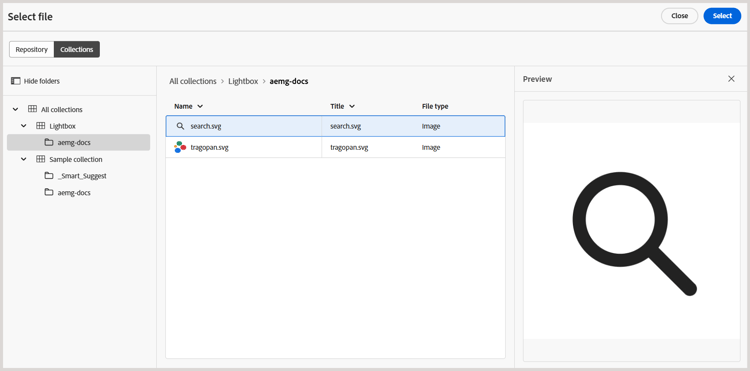
Browser folders within the Repository
Browsing folders using the Select folder dialog, focuses on selecting the correct folder path within the Repository for tasks such as creating new topics or specifying output locations for published content. It offers a clear, tree-structured view of folders, making navigation intuitive and ensuring content is placed in the right location.
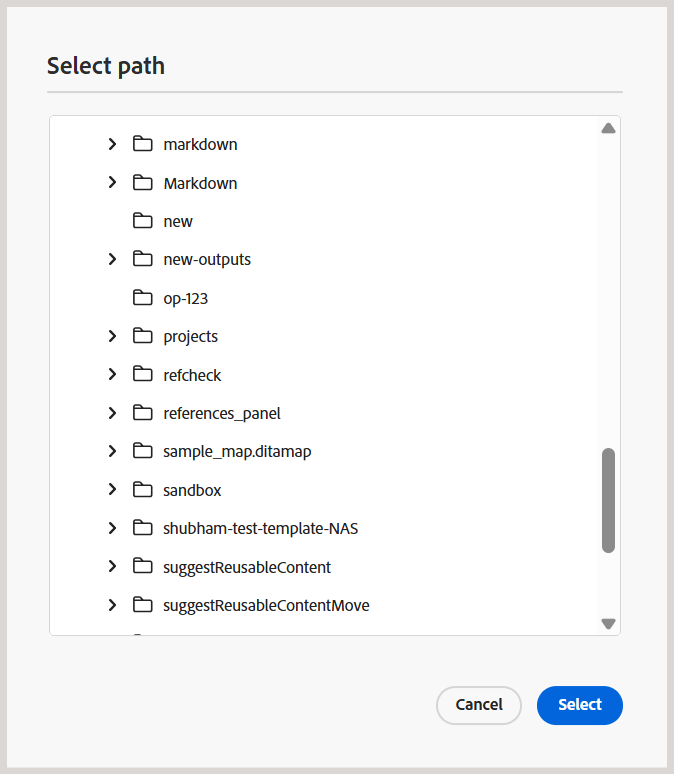
Support for article-based publishing
From the Editor, you can generate the output for one or more topics, or the entire DITA map. You need to create output presets for your DITA map and then you can easily generate the output for one or more topics. If you have updated a few topics in your map, you can also generate the output only for those topics from the Editor. For more details, view Article-based publishing.
Support for Markdown documents
The Editor allows you to use Markdown documents (.md) along with your DITA documents. You can easily author and preview a Markdown document in the Editor and also add it in your map file through DITA map editor. For more details, view Author Markdown documents from the Editor.
Support for DITA glossary term topic
The Editor support DITA glossary terms that you can insert by adding term or abbreviated-form elements.
Work with MathML equations
Insert MathML equations
Experience Manager Guides gives you an out-of-the-box support for inserting MathML equations by integration with MathType Web application. To insert a MathML equation, select the Element icon and type mathml. When you select mathml element from the list, the Insert MathML dialog is displayed:

Using the MathML equation tools, create your equation and select Insert to add it to your document. The equation is inserted with light gray background.
At any time you can update an equation by right-clicking on an existing equation and selecting Edit MathML from the context menu.
output-class associated with MathML equations, enabling configured styling such as fonts, colors, backgrounds, and other formatting to be reflected in the generated output.Validation of equations in the MathML editor
Experience Manager Guides validates MathML equations when you save a topic containing them.
When you insert an equation using the MathML editor, Experience Manager Guides highlights the equation in red if there are any syntax issues. You can correct it before inserting it. If you don’t make any changes but select Insert, it displays a warning.

If you insert the MathML equation that contains a syntax error, a validation error occurs when you try to save the topic.
Insert footnotes
Insert footnote in your content by using the fn element. In the authoring mode, the footnote value is shown inline with the content. However, when you switch you the Preview mode or publish your document, the footnote appears at the end of the topic.
Rename or replace an element
The Editor displays the element’s breadcrumb at the bottom-left of the topic. If you want to swap or replace an element with another element, then you can do so from the breadcrumb’s context menu. For example, you can swap p element with note or any other valid element at the context.
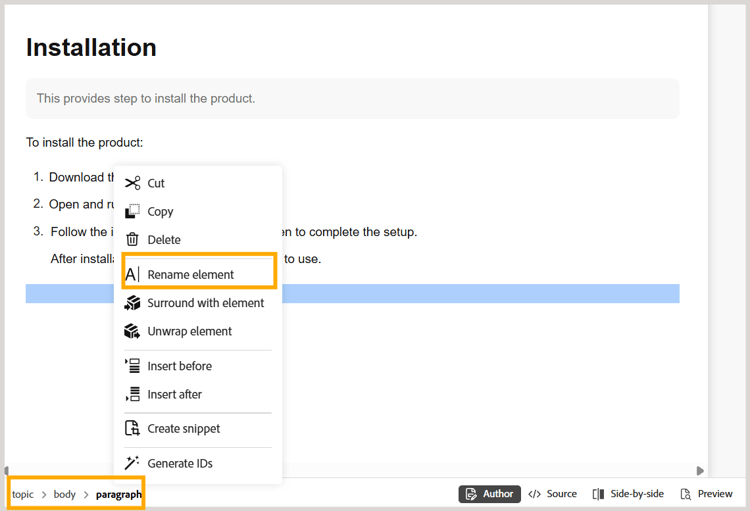
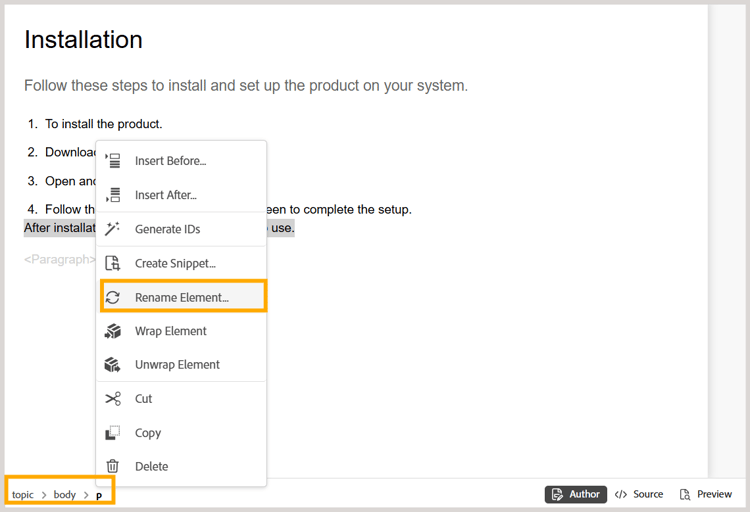
On the breadcrumb, right-click on an element’s name that you want to replace, then select Rename Element from the context menu. The Rename Element dialog displays all valid elements that are allowed at the current location. From the Rename Element dialog, select the element that you want to use. The original element is replaced with the new element.
In addition to the context menu of the breadcrumb, the Rename Element dialog can also be accessed from other locations:
-
Select the element name on the breadcrumb to select the content of the element and right-click on the selected content to bring up the context menu.
-
Enable Tags view, select the opening tag of any element and then right-click on the selected content to bring up the context menu.
-
You can access the Rename Element dialog by invoking the Options menu of an element in the Outline panel.
Wrapping and unwrapping an element
Wrap an element
-
Wrapping an element allows you to add an element tag to the selected text. You can wrap the text to any child element following DITA standards. For example, if you have text under a
noteelement, then you can wrap the text to apelement. -
The Wrap Element option is available in the context menu of the topic’s breadcrumb. To wrap an element, right-click on the element and open the context menu. Select the element from the Wrap Element dialog. The text appears in the new element.
-
You can also select the text or the element in the content and then select the Wrap Element option from the context menu.
Unwrap an element
Unwrapping an element allows you to remove the element tag from the selected text and merge it with its parent element. For example, if you have a p element within a note element, you can unwrap the p element to merge the text directly within the note element. The Unwrap Element option is available in the context menu of the topic’s breadcrumb. To unwrap an element, right-click on the element to open the context menu, then finally select Unwrap Element to remove the element and merge the element’s text with its parent element.
White space handling for DITA elements
In XML, white spaces include spaces, tabs, carriage returns, and blank lines. Experience Manager Guides converts multiple consequent white spaces into one space. This helps you preserve the WYSIWYG view of the Editor.
<pre> and <codeblock> elements.Preserving line breaks and indentation
DITA elements that contain line break and spaces are supported and rendered as per their definition in the Author, Source, or Preview modes, and also in the final published output. The following screenshot shows the content within the msgblock element wherein the line breaks and spaces (indentation) have been preserved:

Handling non-breaking spaces in Editor
-
You can insert non-breaking spaces in your document using the Symobol

-
If you copy and paste content with a non-breaking space from any external sources into the Author view, the non-breaking space is converted into a space.
However, if you copy and paste content with a non-breaking space from the Author view, it’s preserved.
Auto-generate element ID
You can automatically generate IDs for the elements in your DITA topic. These IDs are unique within a DITA topic. For example, if you generate IDs for a paragraph element, the IDs will be p_1, p2, p_3, and so on. You can select multiple elements and generate IDs for each selected element.
Do the following to automatically generate ID for one or multiple elements:
- Open the topic in the Editor.
- Select the content on which you want to assign IDs.
- Right-click and select Generate IDs from the context menu.
Alternatively you can right-click in the breadcrumb and select Generate IDs.
Identifying Duplicate IDs for elements in a map or topic within Author view
If a given topic or map contains elements with duplicate IDs, a Duplicate IDs button appears at the bottom-right corner of the Content editing area adjacent to the Editor views.
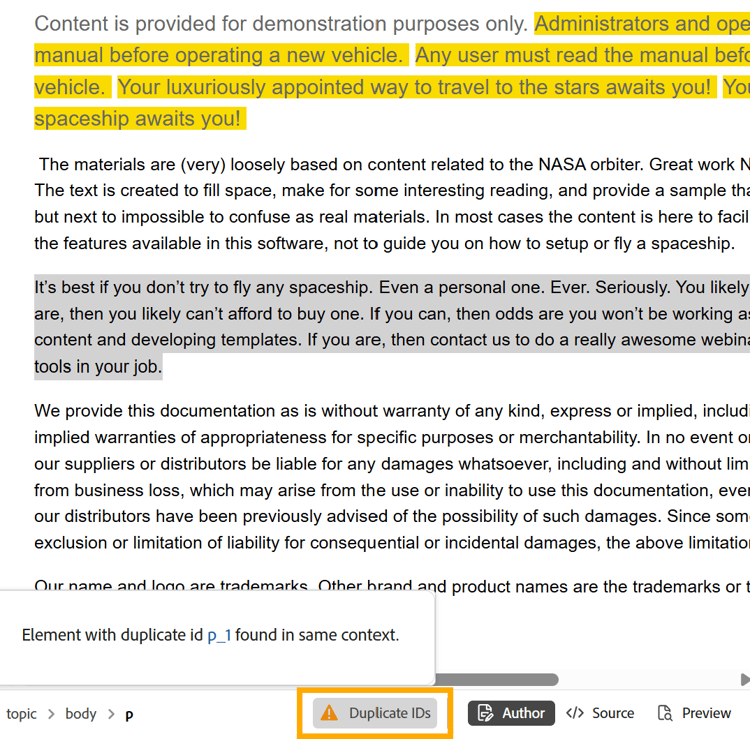
Selecting Duplicate IDs opens a popover listing all the duplicate IDs. You can select the displayed ID from the popover to navigate to the corresponding element and update it with a unique ID.
Handling large files in the Editor
The key features aimed at improving the handling of large files are mentioned as follows:
-
To enhance performance, certain functionalities like undo, redo, the outline panel, and the dirty marker are disabled. It is recommended to break topics into smaller topics for optimal experience.
-
An alert message is displayed at the top for large files, as shown in the snippet below. This alert highlights the number of elements based on the value specified in the largeFileTagCount parameter of the uiconfig.json file. By default, largeFileTagCount is set to 2500.
note NOTE This alert message applies only to the Old Editor, where it is displayed based on the configured largeFileTagCountparameter. In the New Editor, large files load seamlessly without triggering any alerts. Additionally, related functionalities that do not work in the Old Editor function normally in New Editor.

- Additionally, the tag count is displayed on the bottom bar of the interface. When you hover over this tag count value, a tooltip appears. Selecting the Learn more tab provides details about handling large files.

- The alert message is available only for DITA files and is visible across all views: Author, Source, and Layout.
Parent topic:Introduction to the Editor