What’s new in the 2026.01.0 release (February 2026)
This article covers the new and enhanced features introduced with the 2026.01.0 release of Adobe Experience Manager Guides as a Cloud Service.
For the list of issues fixed in this release, view Fixed issues in the 2026.01.0 release.
Learn about upgrade instructions for the 2026.01.0 release.
Introducing Source mode search in Find and replace
Experience Manager Guides has introduced several enhancements to the Find and replace feature available in the Left panel of the Editor interface. Along with an improved UI for better usability, this release introduces a new Use source mode toggle in the Find and replace panel.
Enabling this mode, allows you to perform global search not only on the visible content but also the underlying source content (XML structure, including elements, tags, and attribute values) for the searched string. This mode ensures a comprehensive search across the entire content.
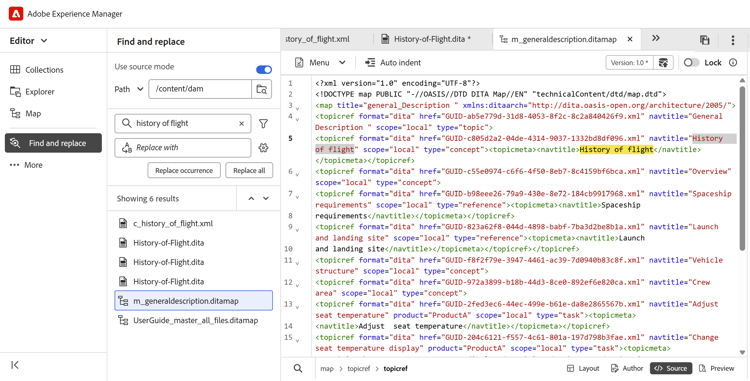
In this mode, you can apply filters to narrow your search by File type, Document state, Last modified date, and more. You also have the option to download a detailed CSV report after performing Replace all operation, which provides a snapshot of all the replace actions performed along with their success and failure status.
For more details, view Find and replace section in Left panel in Editor.
Enhanced file and folder browsing experience
This release introduces a cleaner, more intuitive interface for browsing files and folder paths in Experience Manager Guides.
When browsing files, the revamped Select file dialog now features a tabbed layout with two views - Repository for navigating the entire content repository in a tabular format, and Collections for quick access to frequently used topics, maps, and images.
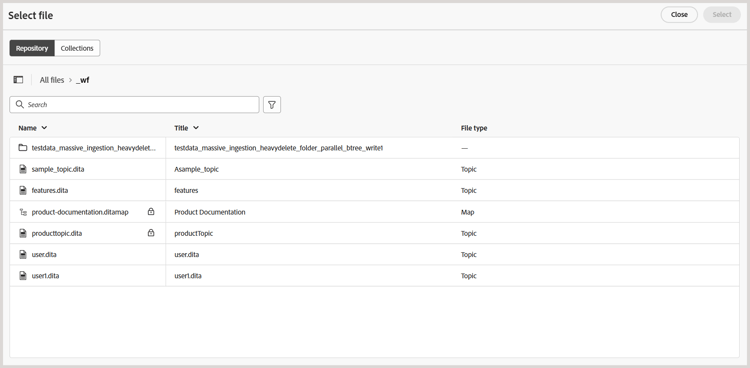
Key enhancements include:
- Tabular view of files and folders for organized navigation.
- Breadcrumbs and folder navigation panel to move easily through the folders.
- Support for multi-file selection for Reusable content, Topic references, Schematron, Output presets (using DITAVAL), and Workfront.
- Preview selected files for easy review; for multiple selections, preview all files and remove any from the Preview panel as needed.
- Search and filtering options to narrow down results by name, title, file type, document state, and tags.
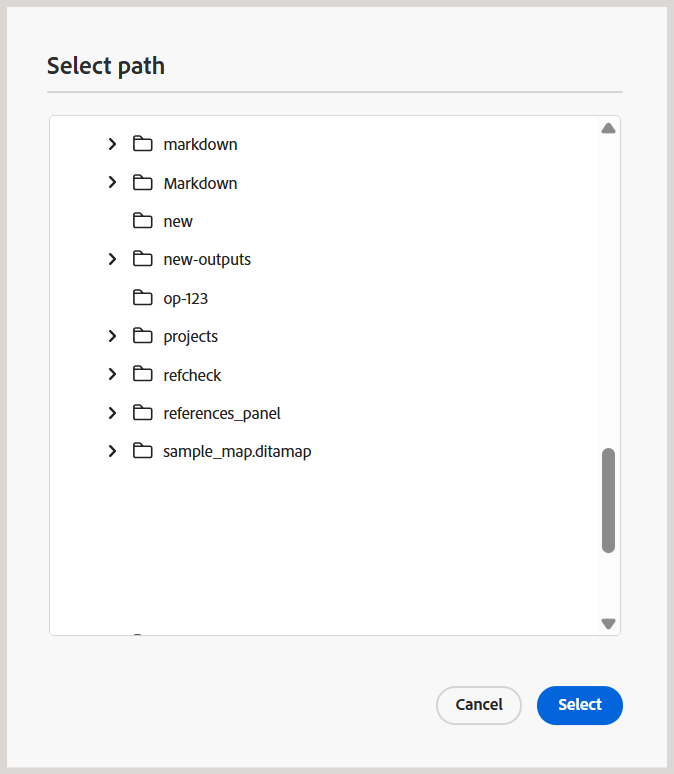
The Select path dialog also features an improved tree-structured view for folder navigation, ensuring a more organized and efficient way to select paths across the content repository.
For more details, view Browsing files and folders in Experience Manager Guides section in Other features in the Editor.
Repository Search and filter enhancements
Support for Document state filter
Now, filter your Repository search results based on the current document state of the files. With the new Document state filter, you can narrow down your search using the available filter values defined in the ui_config.json file within your Folder profile.
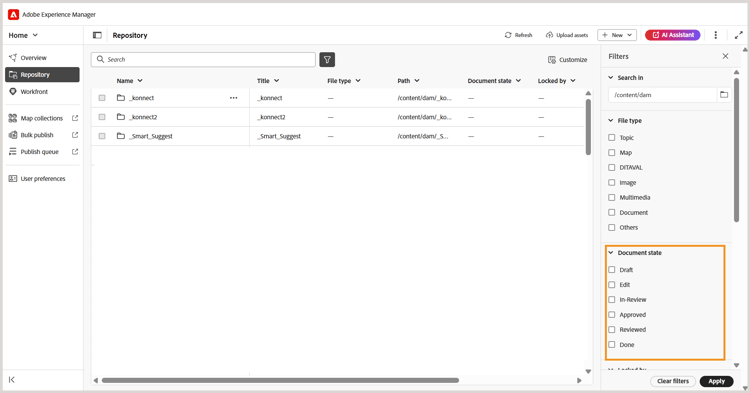
The default filter values available for Document state are: Draft, Edit, In-Review, Approved, Reviewed, and Done. For details on customizing the default document state filters values, view Configure document state filters.
ui_config.json ensure to take a back up of those before upgrading. After the update, review and adjust your settings to align with the changes introduced in the latest version.Thumbnail icon for multimedia
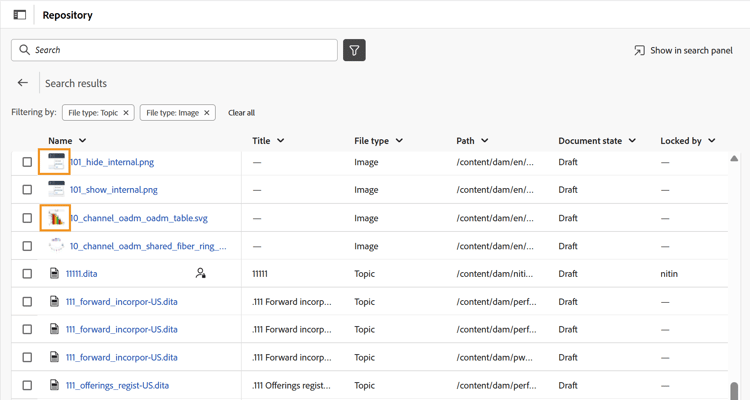
All multimedia files are now displayed with thumbnail icons, making it easier to visually identify and locate images within the Repository. This enhancement also applies when searching for files in the Search panel, helping you quickly distinguish multimedia assets from other file types.
Editor enhancements
The following Editor enhancements have been made as part of this release:
Refresh topics or map in the Preview mode
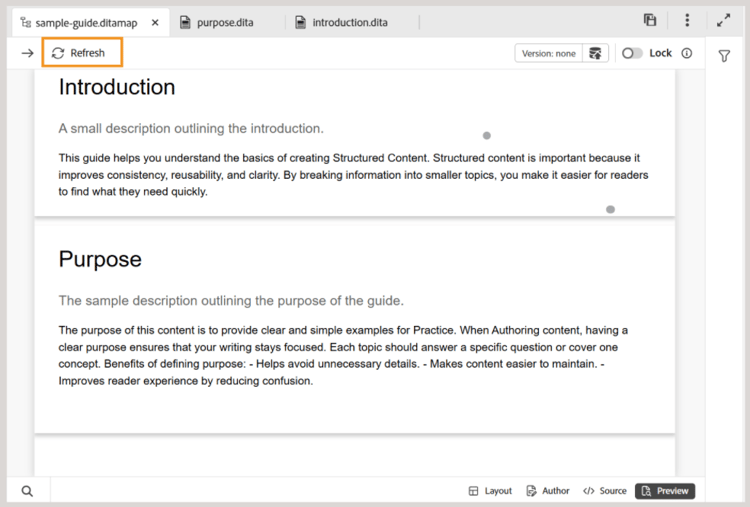
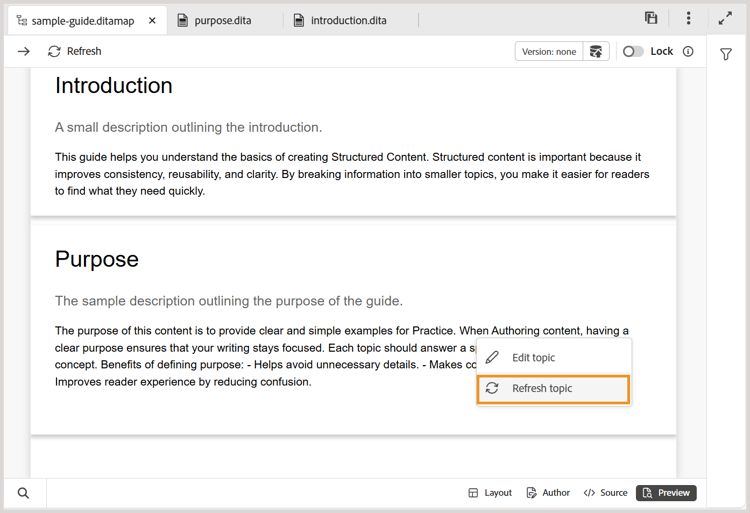
Introducing the new Refresh functionality for maps that are already opened in the Preview mode. With this new feature, you can easily refresh the content of the entire map or individual topics present within it.
-
To refresh the entire map (including all topics), a new Refresh button is introduced on the top-left corner of the Editor.
-
To refresh the content of individual topics, a new Refresh topic option is introduced in the context menu.
For more details, view Map editor features.
Working copy indicator for metadata changes
Any changes to the metadata fields available under File properties will now trigger the working copy indicator. A document version is marked as dirty (*) whenever you add, delete, or modify any default or custom metadata fields. This enhancement ensures that all metadata changes are accurately tracked, providing greater visibility and control over document versions.
Word count for topics and maps
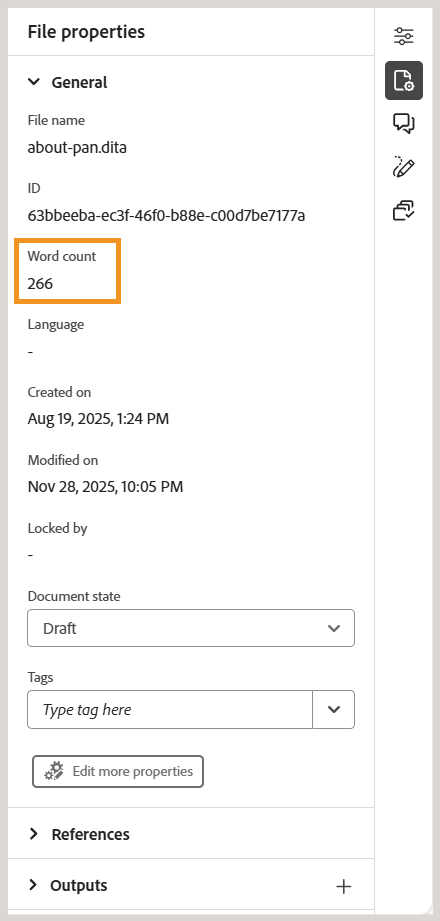
You can now track the word count present within a map or topic file. The new Word count field in the Right panel would display the total number of words present within a topic (or map), where words separated by spaces are counted as individual words. It refreshes automatically each time you save changes. For cross-references, only the display text is included, while keys are excluded.
For details, view Right panel in Editor.
Metadata properties no longer editable for Read-only files
With this release, when the Disable edit without locking the file setting is enabled, File properties can no longer be edited if a file is in Read-only mode.
This restriction applies across all entry points where properties can be modified, including:
- The Right panel of the Editor interface
- The Properties option in the file context menu
- The Metadata Report of a map
- The Assets UI
If a file is Read-only, you must first check out the file before making any changes to its properties. This change enforces stricter permission controls and ensures that property updates follow the same checkout and locking rules as content edits.
Review enhancements
Add or remove topics from an on-going Review task
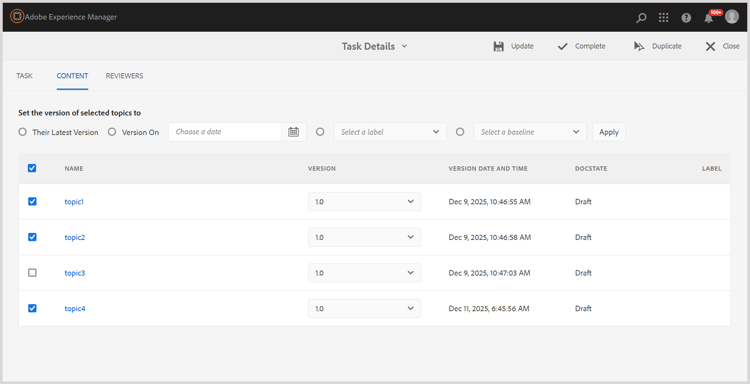
Now, you can add new topics to an ongoing review task (if they were not previously sent for review) or remove topics from an ongoing review task without affecting the review workflow.
On the Task Details page, you can simply select or unselect topics to modify the topic list. Reviewers are notified (via AEM and email) about any changes to their assigned topics through AEM and Email notifications. For more details, view Send topics for review.
Translation enhancements
Indicator for unversioned assets sent for translation
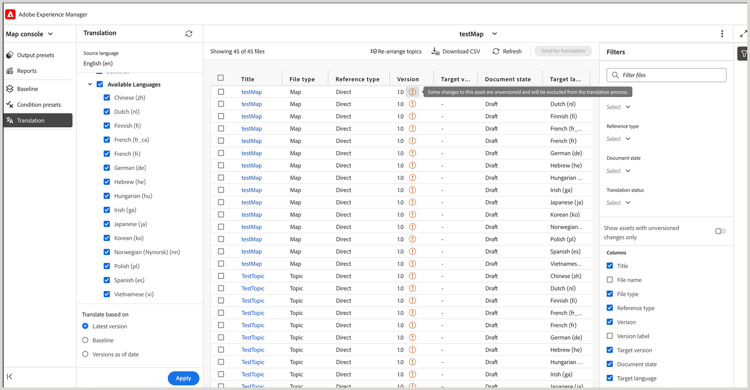
When managing translations, it’s important to ensure that all content is versioned before sending it for processing. To help with this, Experience Manager Guides now provides a clear indicator for topics that have saved changes but are not yet versioned.
If a file contains unversioned changes (not saved as a new version in your map), an info icon appears next to the file, indicating that updates exist. To quickly focus on these files, enable the Show assets with unversioned changes only option in the Filters panel.
For more details, view Translate documents from the Map Console.
Publishing enhancements
Custom image renditions for specific output presets
You can now configure different image renditions for individual output presets under the same output type by using the outputName attribute in renditionmapping.xml. This enhancement gives you greater flexibility when publishing content that requires varying image resolutions for different scenarios. For example, you might want a high-resolution image for your main HTML5 output while using a smaller thumbnail for a lightweight preset.
For more details, view Handle image rendition in output generation.
Download logs for generated output
When generating output through the Assets UI, a new Download logs button is now available that allows you to download log to your local device for easier access and review.
Language variables for cross references in Native PDF Output
When publishing Native PDF output, you can use language variables to translate static cross-reference text like See in chapter or See on page. The variable uses the language defined in the topic through the xml:lang attribute.
For details on configuring Native PDF output preset and cross-reference settings, view Native PDF output preset.
Support for element-level component mapping in New AEM Sites (using composite component mapping) publishing
Experience Manager Guides now supports element‑level component mapping in the AEM Sites output (using composite component mapping), giving teams precise control over how DITA elements render using componentmapping.json. By mapping topicref, titles, images, tables, and more to appropriate AEM Core Components, you get a cleaner structure instead of everything defaulting to the Text component. This results in better performance and unlocks richer, more modern Sites experiences.
For more details, view Component mapping in AEM Sites.
Asset processing enhancements
This release introduces the following enhancements to asset processing:
- Run asset processing at both folder and individual file levels
- Filter assets by choosing specific asset types such as topics, maps, Markdown, HTML/CSS, DITAVAL, or other supported files, to process only the files you need.
- Apply date based filters to limit processing scope for a specified timeframe.
- Reprocess assets directly using the new option (Reprocess assets) available in the context menu of files and folders within Repository view and Explorer panel.
For more details on processing assets, view Process assets.
API enhancements
The following API enhancements have been made as part of this release:
- New APIs are introduced to create new translation project and track their status. These APIs help automate the translation process, reducing manual effort and improving efficiency. For details, view Create translation project.
- Enhanced asset processing APIs with improved filtering ability for files and folders. For details, view Process assets.