Content AI Search Component content-ai-search-component
The Content AI Search component provides your site visitors with an generative AI-powered search.
Usage usage
The Content AI Search component lets visitors search a Content Source directly from a page, and optionally see a generative AI-produced summary of the results. It combines a standard full-text/semantic search box with a toggle-able Show AI-generated summary panel powered by AEM Content AI.
The edit dialog allows the content author to define the content scope of hte search, search behavior, and generative settings. There is no design dialog as there are no settings available at the template level.
Version and Compatibility version-and-compatibility
The current version of the Content AI Search Component is v2, which was introduced with release 2.33.0 of the Core Components in October 2026, and is described in this document.
The following table details all supported versions of the component, the AEM versions with which the versions of the component is compatible, and links to documentation for previous versions.
*Support for the Content AI Search Component on AEM 6.5 and 6.5 LTS is limited to Adobe Managed Services (AMS).
For more information about Core Component versions and releases, see the document Core Components Versions.
Sample Component Output sample-component-output
To experience the Content AI Search Component as well as see examples of its configuration options as well as HTML and JSON output, visit the Component Library.
Technical Details technical-details
The latest technical documentation about the Content AI Search Component can be found on GitHub.
Further details about developing Core Components can be found in the Core Components developer documentation.
Edit Dialog edit-dialog
The edit dialog allows the content author to define the content scope of hte search, search behavior, and generative settings. There is no design dialog as there are no settings available at the template level.
Content Scope Tab content-scope

-
ID - This option allows to control the unique identifier of the component in the HTML and in the Data Layer.
- If left blank, a unique ID is automatically generated for you and can be found by inspecting the resulting page.
- If an ID is specified, it is the responsibility of the author to make sure that it is unique.
- Changing the ID can have an impact on CSS, JS and Data Layer tracking.
-
Content Source Type - This field defines the type of content source. Selecting a type populates the Content Source drop-down with matching sources.
- ACQUISITION - The default value used for public, anonymous-access sources indexed via a crawl/acquisition pipeline
- AEM_AUTHOR - A Content-AI-side source whose content was ingested from an AEM author instance
- AEM_PUBLISH -A Content-AI-side source whose content was ingested from an AEM publish instance
- CUSTOM - A source registered outside AEM’s own ingestion pipelines
-
Content Sources - This defines the Content Source this component searches.
- Available entries match Content Sources that already exist and are Available and also match the type set in Content Source Type
- Please see the document Set up and manage your Content AI Sources for details.
Search Behavior Tab search-behavior

-
Results Layout - This option defines how the search results are displayed to the visitor.
- Cards - This option displays the results in a grid format.
- List - This option displays the results in a list format.
-
Results Size - Defines the number of results fetched per search request.
- The default value is
12. - Visitors can load more results when additional matches are available.
- The default value is
-
Placeholder Text - This is the text shown in the empty search input field before the visitor enters a search query.
Generative Search Tab generative-search
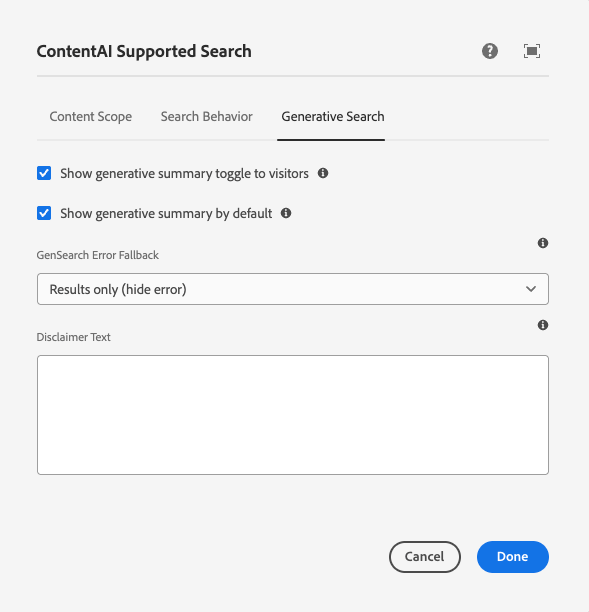
-
Show generative summary toggle to visitors - When unchecked, visitors can not change whether the AI summary is shown.
- The default value is enabled.
-
Show generative summary by default - This option controls the default state of the visitor-facing toggle for the AI-generated summary.
- The default value is enabled.
-
GenSearch Error Fallback - Defines how the search should behave or error.
- Results only (hide error) - If there is an error, show only the results that were returned, not the error and no retry button. This is the default value.
- Show error with retry - If there is an error, show the error with a retry button.
- Show error message only - If there is an error, show only the error message, no results.