[AEM Forms]{class="badge positive" title="Applies to AEM Forms)."}
Invoke AEM Forms Communications APIs using OAuth Server-to-Server Authentication
This guide provides instructions for configuring and invoking AEM Forms Communications Synchronous APIs that are accessed through the Adobe Developer Console using OAuth Server-to-Server authentication.
Prerequisites
To set up an environment for running and testing AEM Forms Communications APIs, ensure that you have the following:
Update AEM as a Cloud Service environment
- AEM Release 2024.10.18459.20241031T210302Z or later
- Update Product Profiles if the environment created before November 2024
Access and permissions
Make sure you have the required access rights and permissions before you start configuring the Communications APIs.
User and role permissions
- Developer role assigned in the Adobe Admin Console
- Permission to create projects in the Adobe Developer Console
Git Repository Access
- Access to Cloud Manager Git Repository
- Git credentials for cloning and pushing changes
Generate Access Token using Adobe Developer Console (ADC)
- Generate access token through the Adobe Developer Console using OAuth Server-to-Server authentication.
- Retrieve Client ID from the Adobe Developer Console
Development Tools
- Node.js for running sample applications
- Latest version of Git
- Access to Terminal/Command line
- Text editor or IDE for editing configuration files (VS Code, IntelliJ, etc.)
- Postman or similar tool for API testing
Configure AEM Forms Communications Synchronous APIs
AEM Forms Communication APIs are accessed through the Adobe Developer Console using OAuth server-to-server authentication.
Follow the steps explain how to configure the Forms Communication synchronous APIs to generate PDF using the template and XDP file:
Step 1: Access AEM Cloud Service Environment and AEM Forms Endpoint
Access your AEM Cloud Service environment details to obtain the URLs and identifiers needed for API configuration.
1.1 Log into Adobe Cloud Manager
- Navigate to my.cloudmanager.adobe.com
- Log in with your Adobe ID
1.2 Navigate to the Program Overview
Select your program from the list. You are redirected to the Program Overview page
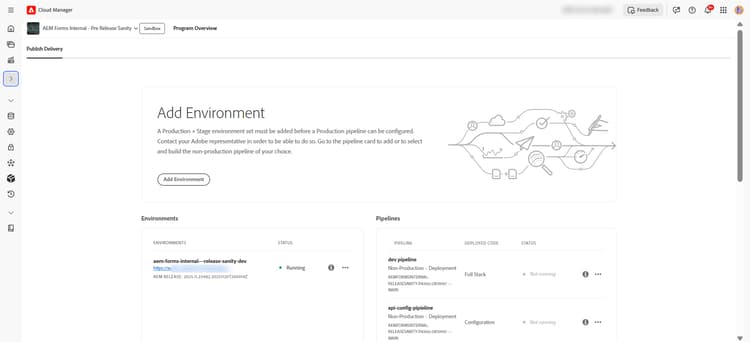
1.3 Access and View AEM Cloud Service Environment
You can view or access the AEM Cloud Service Environment details using either of the two options:
-
On the Program Overview page
-
Click “Environments” in the left side menu. You can see a list of all environments
-
Click the specific environment name to view details
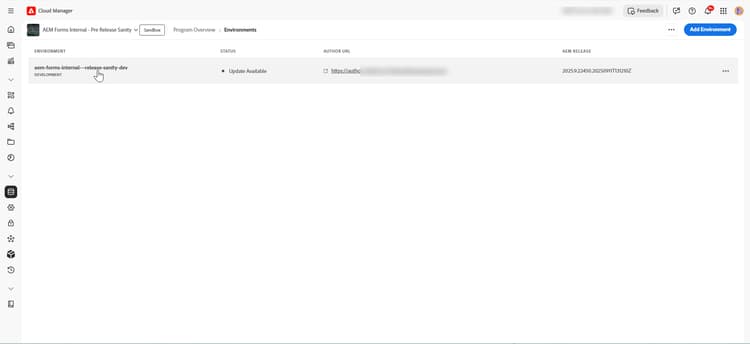
-
On the Program Overview page
-
Locate the Environments section
-
Click “Show All” to view all environments
-
Click the ellipsis menu (…) next to the environment
-
Select “View Details”
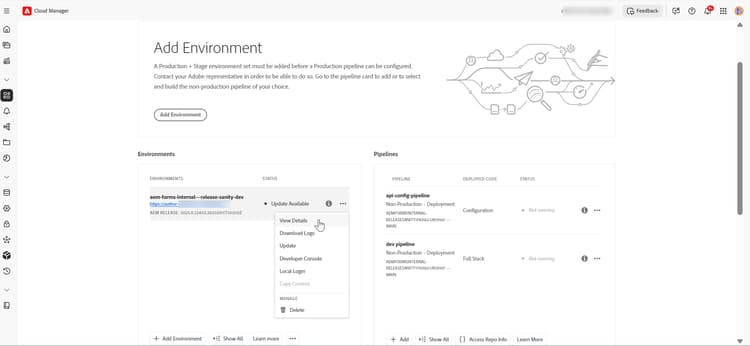
1.4. Find Your AEM Forms Endpoint
From the Environment details page, note your AEM URL instance.
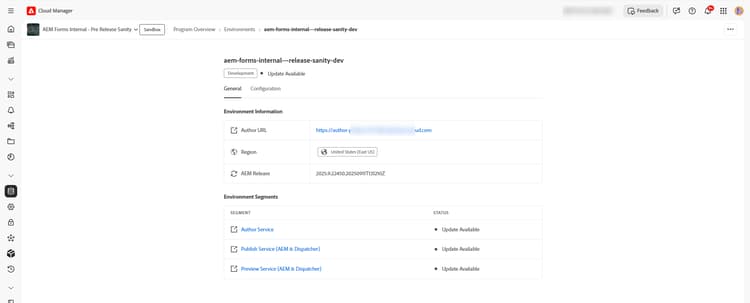
Step 2: Clone Git Repository
Clone the Cloud Manager Git Repository to manage your API configuration files.
2.1 Locate the Repository Section
-
On the Program Overview page, click the Repositories tab
-
Locate the repository name and click on the ellipsis menu (…)
-
Copy the repository URL
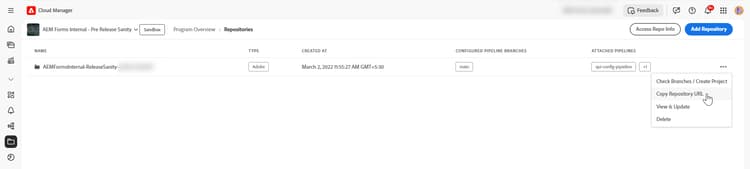
https://git.cloudmanager.adobe.com/<org>/<program>/2.2 Clone Using Git Command
-
Open the command prompt or terminal
-
Run the
git clonecommand to clone the Git repository.code language-bash git clone [repository-url]
For example, to clone your Git Repository, execute the following command:
https://git.cloudmanager.adobe.com/formsinternal01/AEMFormsInternal-ReleaseSanity-pXXX-ukYYYY/
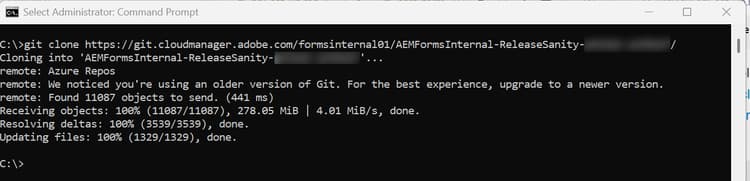
To learn more on how to integrate Adobe Cloud Manager and Adobe Cloud Manager, see Git Integration Documentation.
Step 3: Adobe Developer Console Project Setup
3.1 Access Adobe Developer Console
- Navigate to Adobe Developer Console
- Log in with your Adobe ID
- Create New Project or navigate to your existing project
-
From the Quick Start section, click Create new project
-
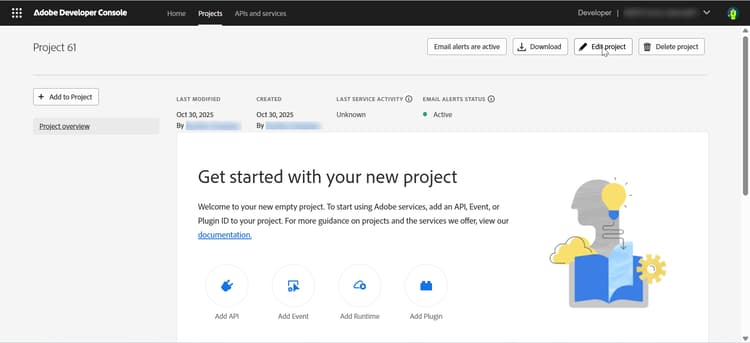
A new project is created with a default name
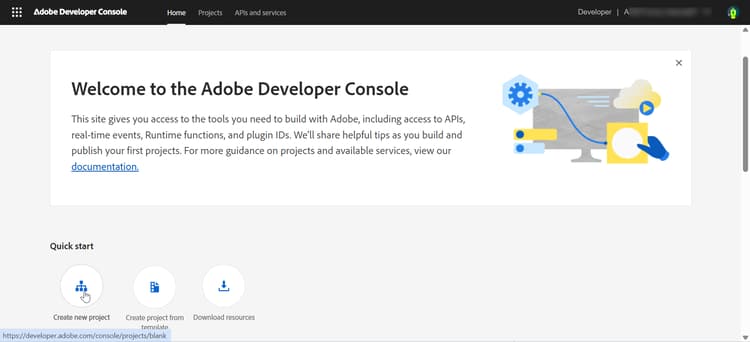
-
Click Edit project in the top right corner
-
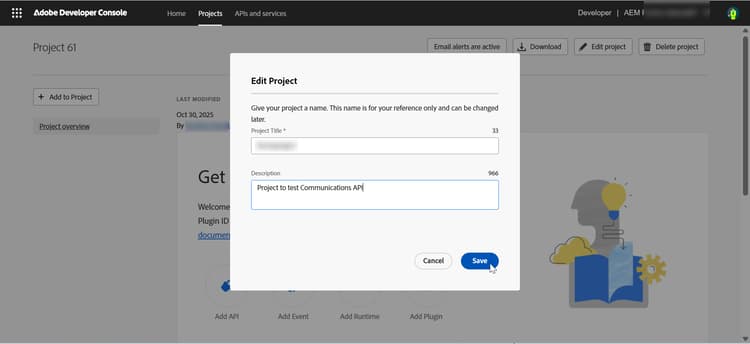
Provide a meaningful name (e.g., “formsproject”)
-
Click Save
-
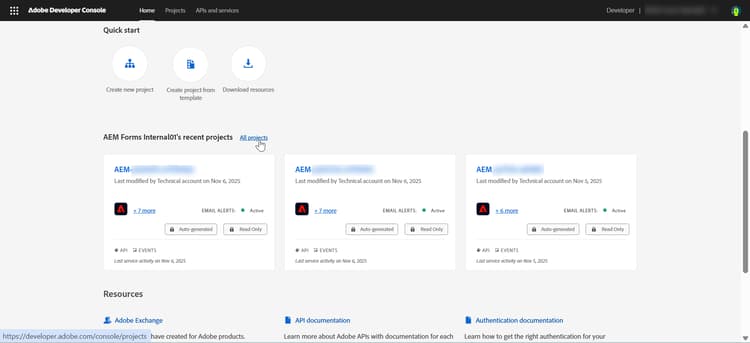
Click All Projects from the Adobe Developer Console
-
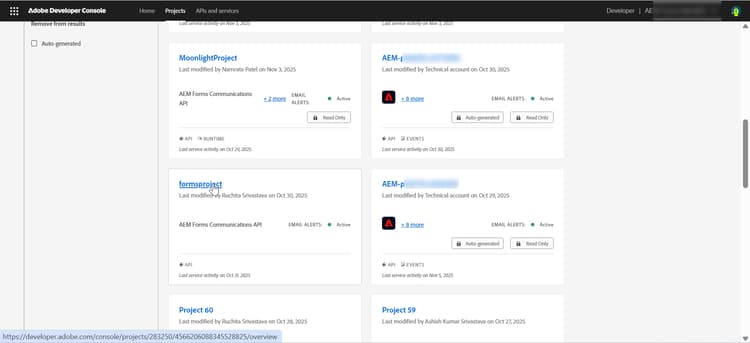
Locate your project and click to open it.
3.2 Add Forms Communication APIs
-
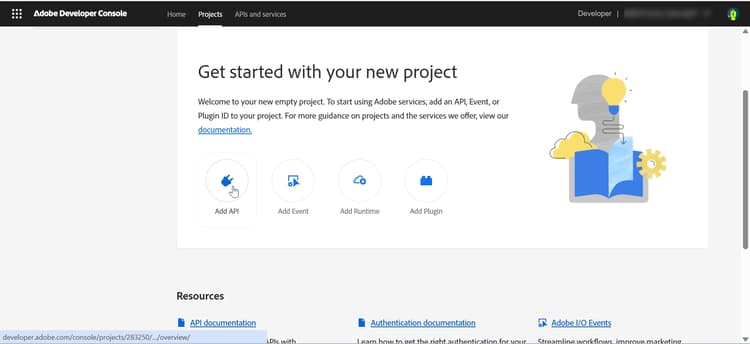
Click Add API
-
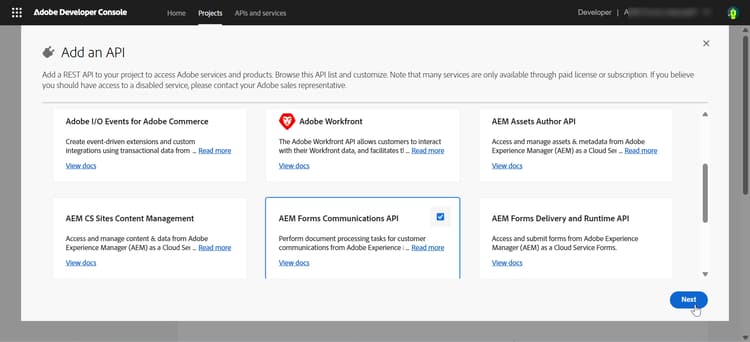
In the Add API dialog, filter by Experience Cloud
-
Select “Forms Communication APIs”
-
Click Next
-
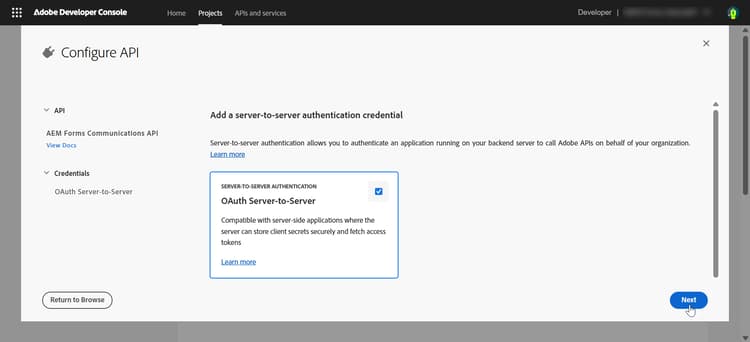
Select OAuth Server-to-Server authentication method
-
Click Next
3.3 Add Product Profile
-
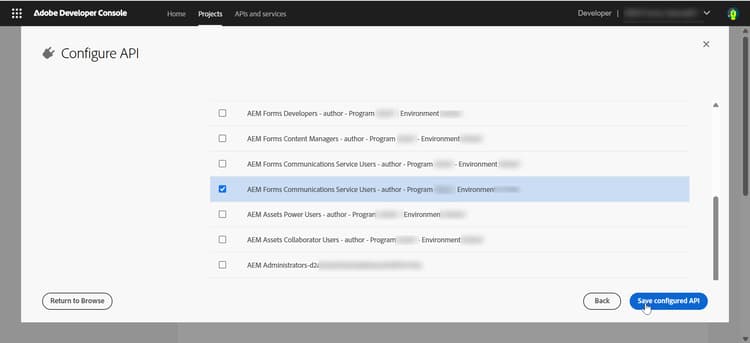
Select the Product Profile that matches your AEM instance URL (
https://Service Type -Environment Type-Program XXX-Environment XXX.adobeaemcloud.com). -
Click Save configured API. The API and Product Profile are added to your project
-
View the Credential details section
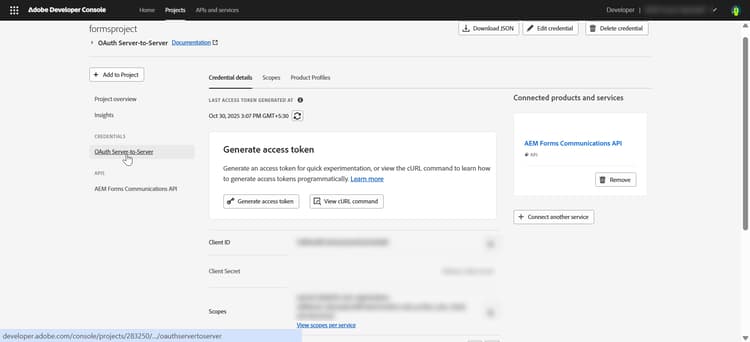
Record API Credentials
    API Credentials:
    ================
    Client ID: <your_client_id>
    Client Secret: <your_client_secret>
    Technical Account ID: <tech_account_id>
    Organization ID: <org_id>
    Scopes: AdobeID,openid,read_organizations
3.4 Generate the Access
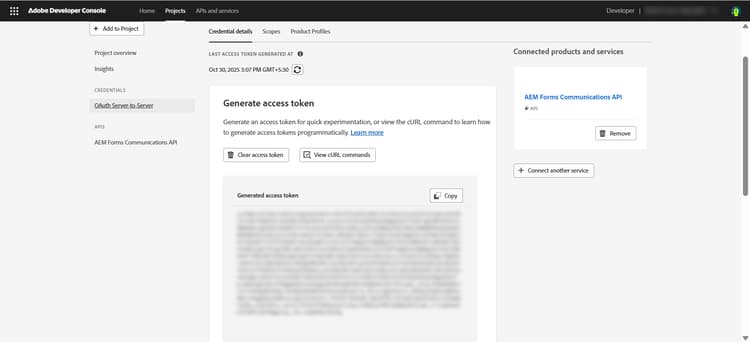
Generate access tokens manually in Adobe Developer Console:
-
Click the “Generate access token” button in your project’s API section
-
Copy the generated access token
| note |
|---|
| NOTE |
| Access token is valid for only for 24 hours |
Generate tokens programmatically using Adobe IMS API:
Required Credentials:
- Client ID
- Client Secret
- Scopes (typically:
openid, AdobeID, read_organizations, additional_info.projectedProductContext, read_pc.dma_aem_cloud, aem.document)
Token Endpoint:
| code language-none |
|---|
|
Sample Request (curl):
| code language-bash |
|---|
|
Response:
| code language-json |
|---|
|
You can now use the generated access token to make API call for development, stage, or production environments.
Step 4: Register Client ID with AEM Environment
To enable your ADC Project’s Client ID to communicate with the AEM instance, you must register it using a YAML configuration file and deploy it via a Config Pipeline.
4.1 Locate or Create Config Directory
-
Navigate to the cloned AEM Project repository and locate the
configfolder -
If it doesn’t exist, create it at the project root level:
code language-bash mkdir config -
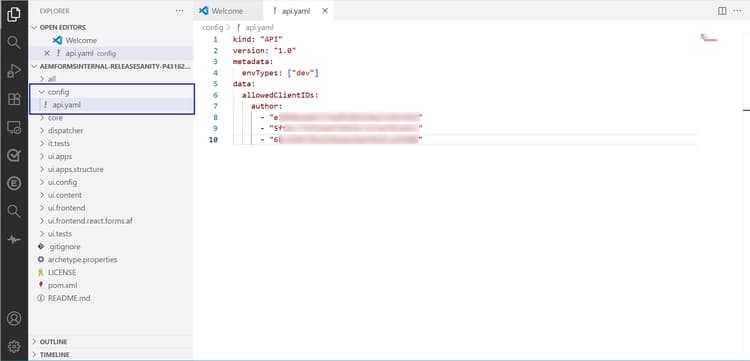
Create a new file named
api.yamlin theconfigdirectory:code language-bash touch config/api.yaml -
Add the following code in the
api.yamlfile:code language-yaml kind: "API" version: "1" metadata: envTypes: ["dev"] # or ["prod", "stage"] for production environments data: allowedClientIDs: author: - "<your_client_id>" publish: - "<your_client_id>" preview: - "<your_client_id>"
The following explains the configuration parameters:
-
kind: Always set to
"API"(identifies this as an API configuration) -
version: API version, typically
"1"or"1.0" -
envTypes: Array of environment types where this config applies
["dev"]- Development environments only["stage"]- Staging environments only["prod"]- Production environments only
-
allowedClientIDs: Client IDs allowed to access your AEM instance
- author: Client IDs for author tier
- publish: Client IDs for publish tier
- preview: Client IDs for preview tier
4.2 Commit and Push Changes
-
Navigate to root folder of your clonned repository and execute the below commands:
code language-bash git add config/api.yaml git commit -m "Whitelist client id for api invocation" git push origin <your-branch>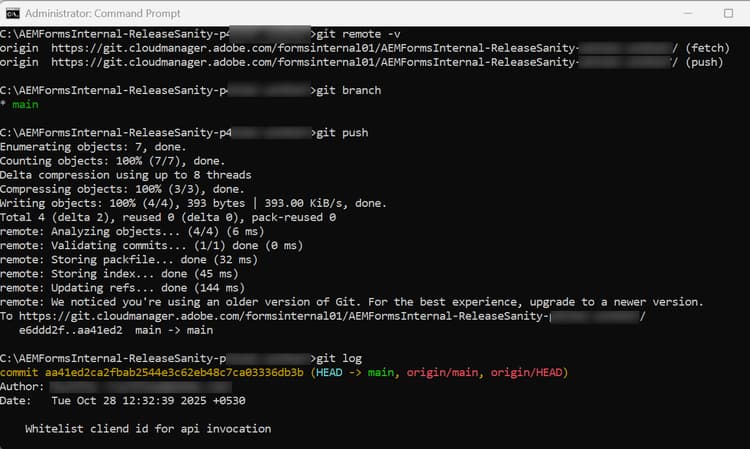
Step 5: Setup Config Pipeline
5.1 Log into Adobe Cloud Manager
- Navigate to my.cloudmanager.adobe.com
- Log in with your Adobe ID
5.1 Locate the Pipelines Card
-
Locate the Pipelines card on the Program Overview page
-
Click “Add” button

5.2 Select Pipeline Type
-
For Development Environments: Select “Add Non-Production Pipeline”. Non-production pipelines are for dev and stage environments
-
For Production Environments: Select “Add Production Pipeline”. Production pipelines require additional approvals
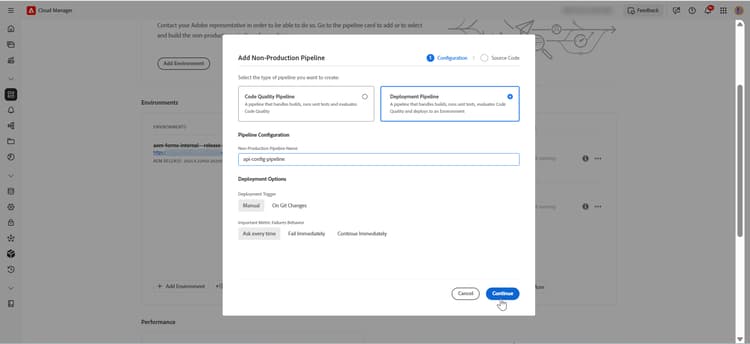
1. Configure Pipeline - Configuration Tab
In the Configuration tab:
a. Pipeline Type
- Select “Deployment Pipeline”
b. Pipeline Name
- Provide a descriptive name, For example, name the pipeline as
api-config-pipieline
c. Deployment Trigger
- Manual: Deploy only when manually triggered (recommended for initial setup)
- On Git Changes: Auto-deploy when changes are pushed to the branch
d. Important Metric Failures Behavior
- Ask every time: Prompt for action on failures (default)
- Fail Immediately: Automatically fail pipeline on metric failures
- Continue Immediately: Continue despite failures
e. Click “Continue” to proceed to the Source Code tab
2. Configure Pipeline - Source Code Tab
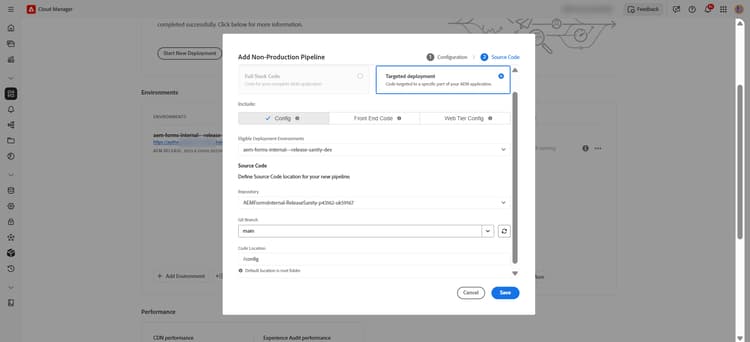
In the Source Code tab:
a. Deployment Type
- Select “Targeted deployment”
b. Deployment Options
- Select “Config” (deploy configuration files only). It tells Cloud Manager this is a config deployment.
c. Select Eligible Deployment Environment
- Choose the environment where you want to deploy the config. In this case, it is a
devenvironment.
d. Define Source Code Details
- Repository: Select the repository containing your
api.yamlfile. For example, select theAEMFormsInternal-ReleaseSanity-pXXXXX-ukYYYYYrepository. - Git Branch: Select your branch. For example, in this case our code is deployed at the
mainbranch. - Code Location: Enter the path to
configdirectory. As theapi.yamlis inconfigfolder at root, so enter/config
e. Click “Save” to create the pipeline
Step 6: Deploy Configuration
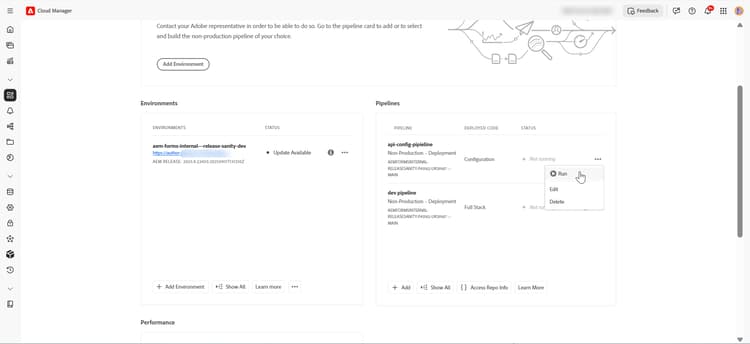
Now that the pipeline is created, deploy your api.yaml configuration
6.1 From the Pipelines Overview
- On the Program Overview page, locate the Pipelines card
- Navigate to your newly created config pipeline in the list. For example, look for the pipeline name you created (e.g., “api-config-pipeline”). You can see pipeline details including status and last run.
6.2 Start the Deployment**
- Click the “Build” button (or play icon ▶) next to your pipeline
- Confirm the deployment if prompted and the pipeline execution begins
6.3 Verify Successful Deployment
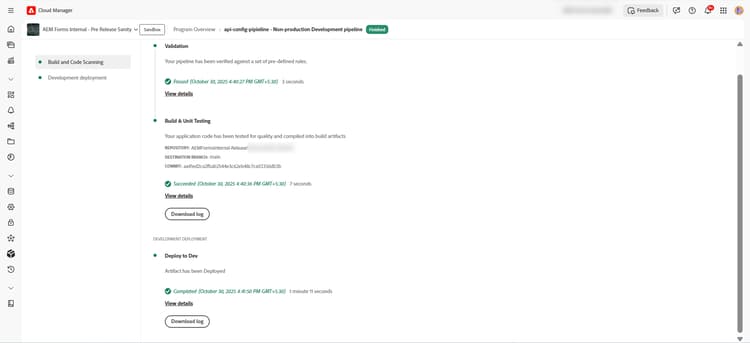
-
Wait for the pipeline to complete.
-
If it succeeds, the status changes to “Success” (green checkmark ✓).
-
If it fails, the status changes to “Fail” (red cross ✗). Click Download logs to view the error details.
-
Now, you can start testing the Forms Communications APIs. For testing purposes, you can use the Postman, curl, or any other REST client to invoke the APIs.
Step 7: API Specifications and Testing
Now that your environment is configured, you can start testing the AEM Forms Communication APIs either using Swagger UI or programmatically by developing NodeJS application.
Swagger UI provides an interactive interface for testing APIs without writing code.Use the Try it feature to invoke and test the generate PDF Forms Communication API.
-
Navigate to Forms Communication API Reference and open the Forms Communication API documentation in your browser.
-
Expand the Document Generation section and select Generates a fillable PDF form from an XDP or PDF template, optionally with data merging.
-
In the right pane, click Try it.
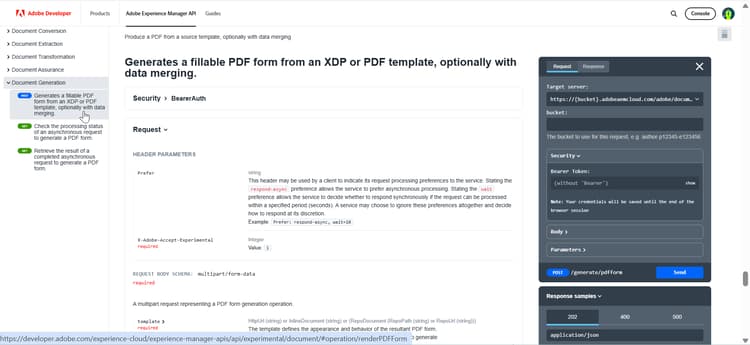
-
Enter the following values:
table 0-row-3 1-row-3 2-row-3 3-row-3 4-row-3 5-row-3 Section Parameter Value bucket AEM instance AEM instance name without the Adobe domain name ( .adobeaemcloud.com) For example, usepXXXXX-eYYYYYas bucket.Security Bearer Token Use the access token from the Adobe Developer Console Project’s OAuth Server-to-Server credential Body template Upload an XDP to generate the PDF form. For example, you can use this XDP to generate a PDF. Body data An optional XML file containing the data to be merged with the template to generate a pre-filled PDF form. For example, you can use this XML to generate a PDF. Parameters X-Adobe-Accept-Experimental 1 -
Click Send to invoke the API
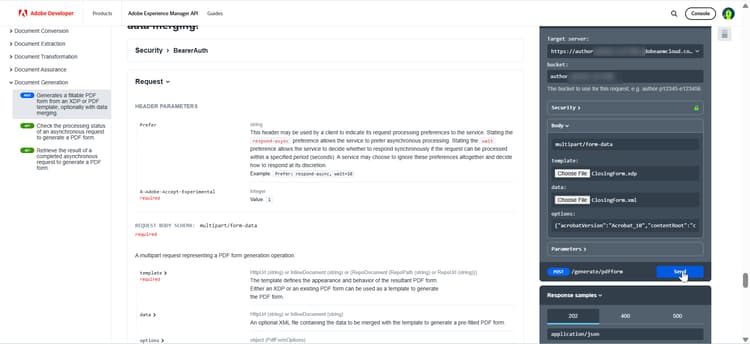
-
Check the response in the Response tab:
- If the response code is
200, it means the PDF is created successfully. - If the response code is
400, it means the request parameters are invalid or malformed. - If the response code is
500, it means there is an internal server error. - If the response code is
403, it means there is an authorization error.
In this case, the response code is
200, it means that the PDF is generated successfully: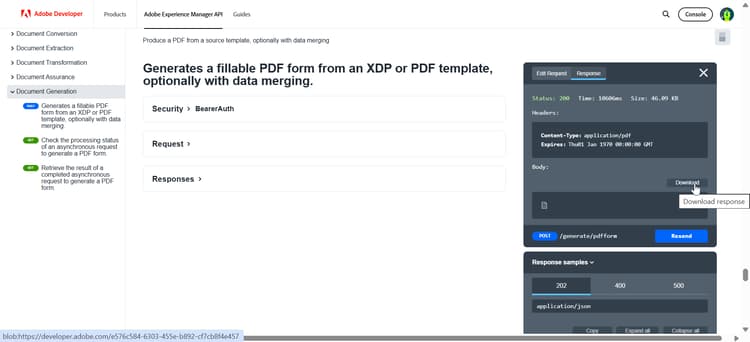
Now, you can download the created PDF using the Download button and view it in PDF viewer:
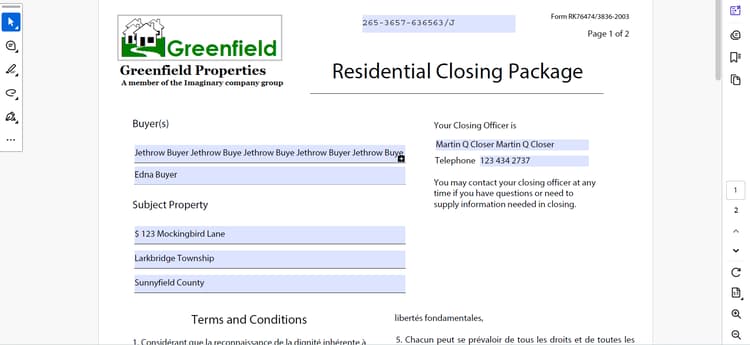
note NOTE For testing purposes, you can also use the Postman, curl, or any other REST client to invoke the AEM APIs. - If the response code is
Develop a Node.js application to generate a fillable PDF form from an XDP template and an XML data file using the Document Services API
Prerequisites
- Node.js installed on your system
- Active AEM as a Cloud Service instance
- Bearer token for API authentication from Adobe Developer Console
- Sample XDP File: ClosingForm.xdp
- Sample XML File: ClosingForm.xml
To develop the Node.js application, follow the step-by-step-development:
Step 1: Create a New Node.js Project
Open the cmd/terminal and execute the below commands:
| code language-bash |
|---|
|
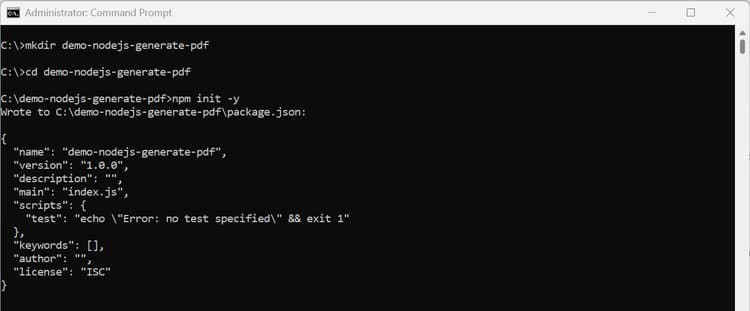
Step 2: Install Required Dependencies
Install the node-fetch, dotenv, and form-data libraries to make HTTP requests, read environment variables, and handle form data respectively.
| code language-bash |
|---|
|
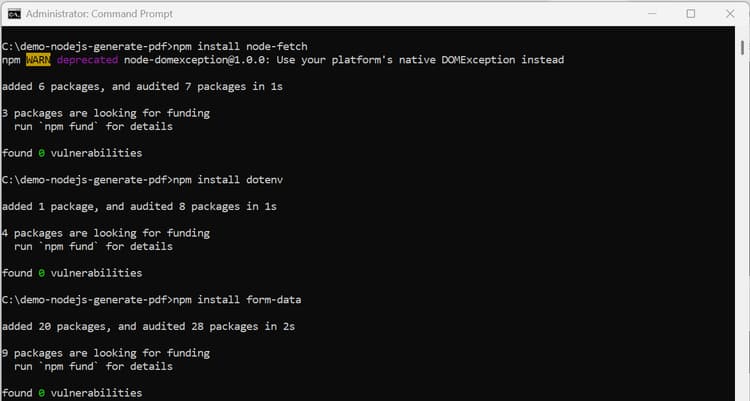
Step 3: Update package.json
-
Open the cmd/terminal and run the command:
code language-bash code .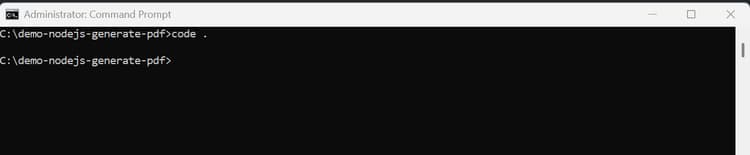
It opens the project in the code editor.
-
Update the
package.jsonfile to add thetypetomodule.code language-bash { "name": "demo-nodejs-generate-pdf", "version": "1.0.0", "type": "module", "main": "index.js", }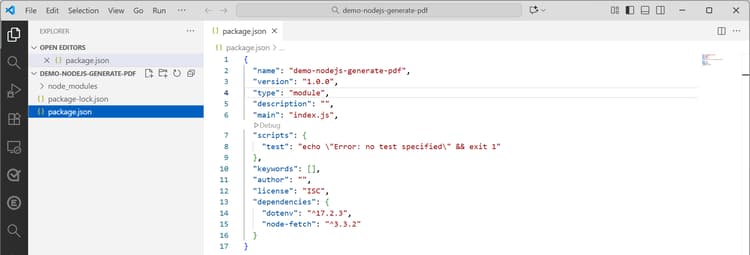
Step 4: Create a .env File
-
Create .env file at the root level of an project
-
Add the following configuration and replace the placeholders with the actual values from the ADC Project’s OAuth Server-to-Server credential.
code language-bash CLIENT_ID=<ADC Project OAuth Server-to-Server credential ClientID> CLIENT_SECRET=<ADC Project OAuth Server-to-Server credential Client Secret> SCOPES=<ADC Project OAuth Server-to-Server credential Scopes>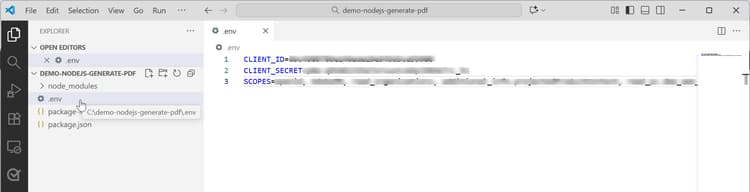
note NOTE You can copy the CLIENT_ID,CLIENT_SECRETandSCOPESfrom the Adobe Developer Console project.
Step 5: Create src/index.js
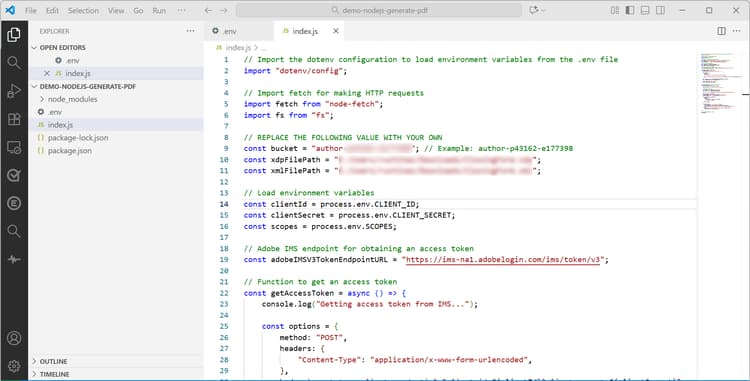
- Create
index.jsfile at the Project’s root level - Add the following code, and replace the placeholders with the actual values:
| code language-javascript |
|---|
|
Step 6: Run the Application
| code language-bash |
|---|
|
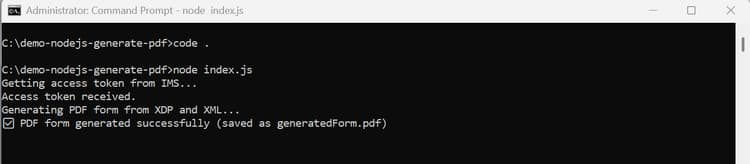
The PDF is created in the demo-nodejs-generate-pdf folder. Navigate to the folder to find the generated file named generatedForm.pdf.
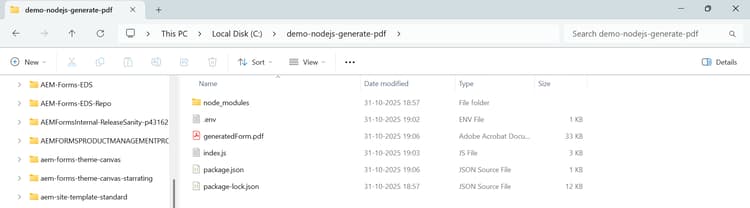
You can open the generated PDF to view it.

Troubleshooting
Common Issues and Possible Causes
Issue 1: 403 Forbidden Error
Symptoms:
- API requests return
403 Forbidden - Error message: Unauthorized Access
Possible Cause:
- Client ID not registered in the AEM instance’s
api.yamlconfiguration
Issue 2: 401 Unauthorized Error
Symptoms:
- API requests return
401 Unauthorized - Error message: Invalid or expired token
Possible Causes:
- Access token expired (valid for 24 hours only)
- Incorrect or mismatched Client ID and Client Secret
Issue 3: 404 Not Found Error
Symptoms:
- API requests return
404 Not Found - Error message: Resource not found or API endpoint not found
Possible Cause:
- Incorrect bucket parameter (does not match AEM instance identifier)
Issue 4: Pipeline Deployment Fails
Symptoms:
- Config Pipeline execution fails
- Deployment logs show errors related to
api.yaml
Possible Causes:
- Invalid YAML syntax (indentation, quoting, or array format issues)
api.yamlplaced in incorrect directory- Malformed or incorrect Client ID in the configuration
- Invalid Client Secret
Issue 5: Forms Communication APIs fail to execute
Symptoms:
- API requests return errors indicating unsupported or unavailable features.
- PDF generation using XDP and XML does not work.
- Pipeline deployment completes successfully, but runtime API calls fail.
Possible Cause:
The AEM environment is running a version released before Forms Communication APIs were introduced or supported.
To update the AEM environment refer to the Update AEM instance section.
Update AEM instance
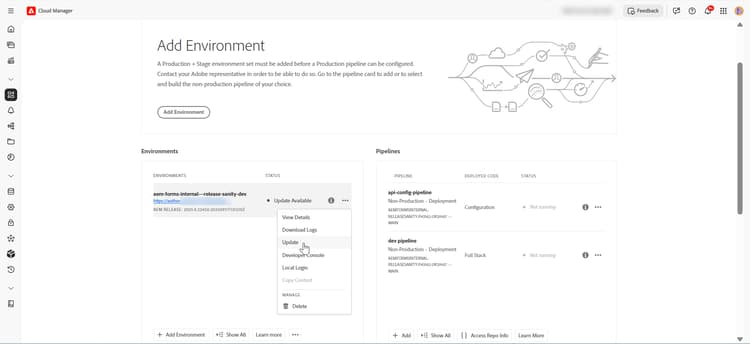
To update the AEM instance to locate Environment Details:
-
Select the
ellipsis(…) icon next to the environment name and click Update -
Click the Submit button and run the suggested Fullstack Pipeline.