[AEM Forms]{class="badge positive" title="Applies to AEM Forms)."}
OAuth Server-to-Server Authentication
OAuth Server-to-Server Authentication allows secure, token-based access to AEM Forms Communications APIs without requiring user interaction. OAuth server-to-server authentication is supported by Adobe Developer Console.
Prerequisites
Before you begin, make sure the following prerequisites are met:
- Ensure that you have access to the Adobe Developer Console specific to the environment you use.
- Assign the System Administrator or Developer role in the Adobe Admin Console to enable access to the Adobe Developer Console.
How to Generate an Access Token Using OAuth Server-to-Server Authentication?
Follow the steps below to generate an access token from the Adobe Developer console, and make your first API call through OAuth Server-to-Server Authentication.
1. Adobe Developer Console Project Setup
-
Navigate to Adobe Developer Console
-
Log in with your Adobe ID
-
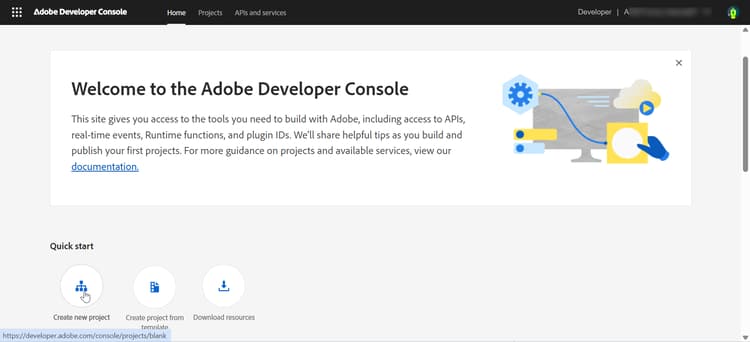
Create New Project or navigate to your existing project
-
From the Quick Start section, click Create new project
-
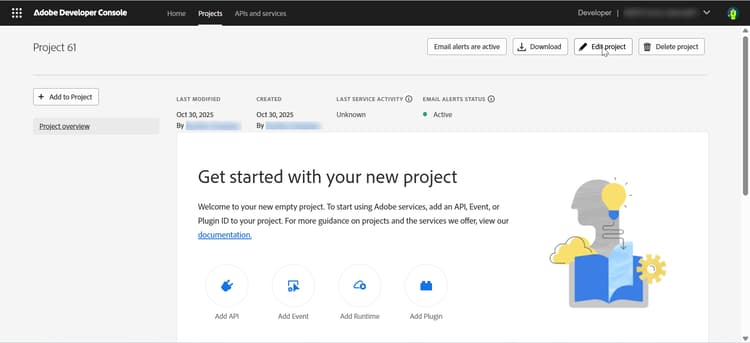
A new project is created with a default name
-
Click Edit project in the top right corner
-
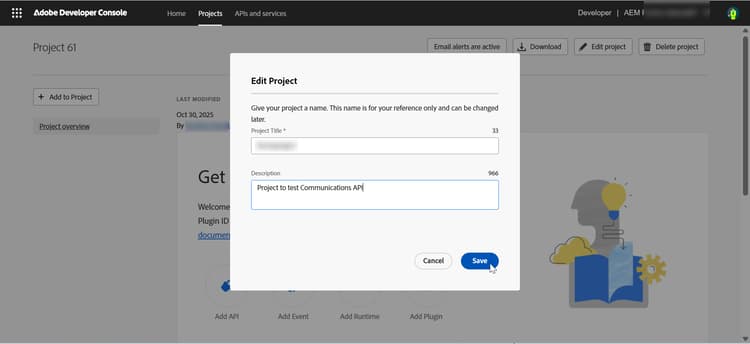
Provide a meaningful name (e.g., “formsproject”)
-
Click Save
-
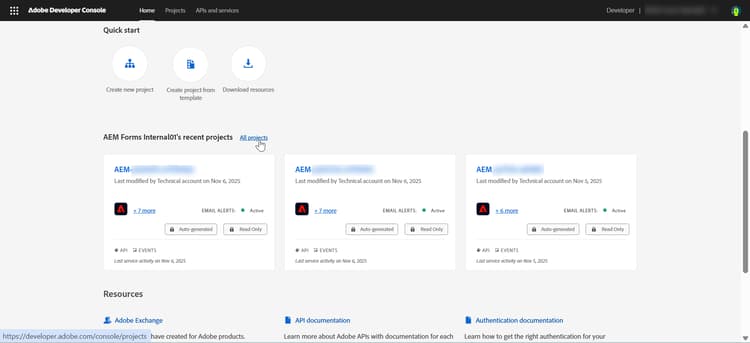
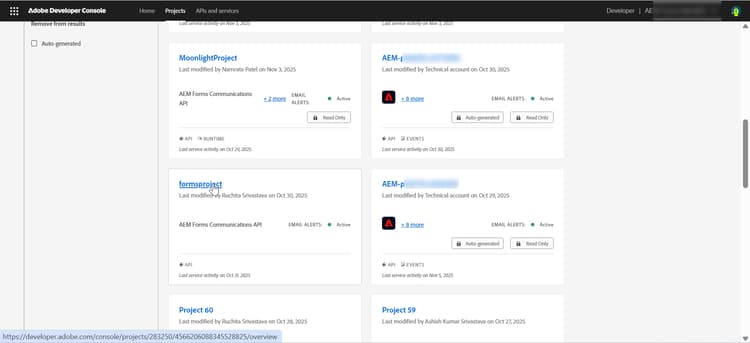
Click All Projects from the Adobe Developer Console
-
Locate your project and click to open it.
2. Add Forms APIs
Add Forms APIs based on what you want to do:
- AEM Forms Communications APIs: use when you need to generate, convert, assemble, or secure documents (PDF and related formats).
- Adaptive Forms Runtime APIs – use when you need to render, submit, or process Adaptive Forms at runtime.
-
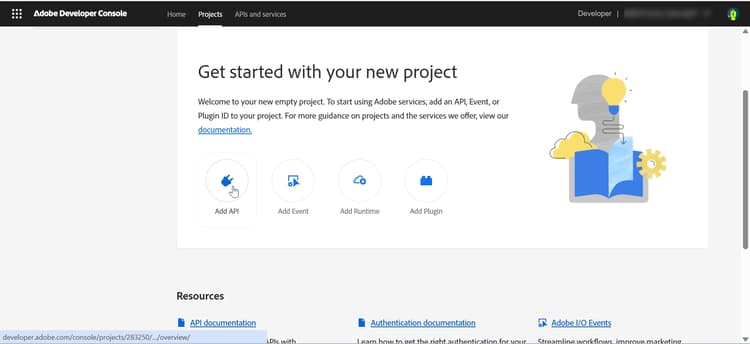
Click Add API
-
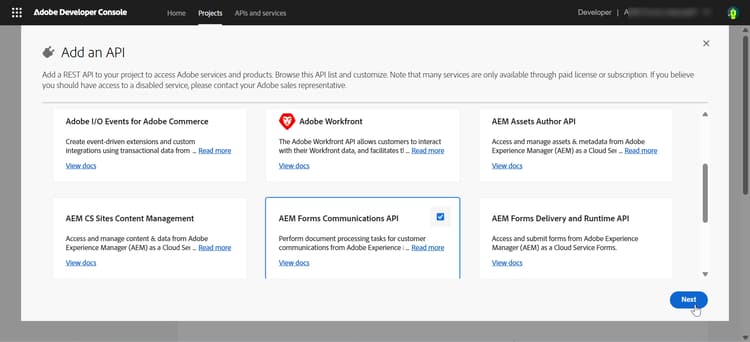
Select Forms Communication APIs
-
In the Add API dialog, filter by Experience Cloud
-
Select “Forms Communication APIs”
-
Click Next
-
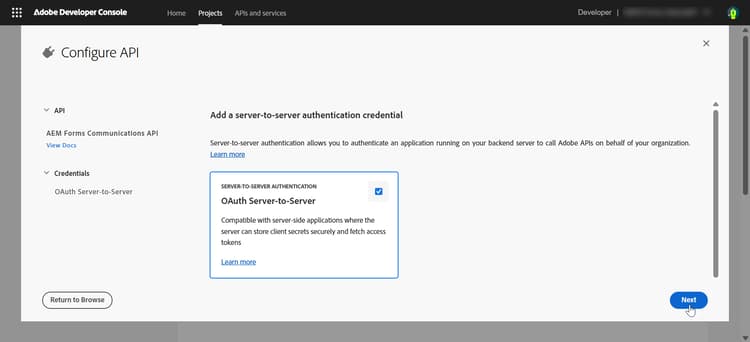
Select OAuth Server-to-Server authentication method
-
-
Click Add API
-
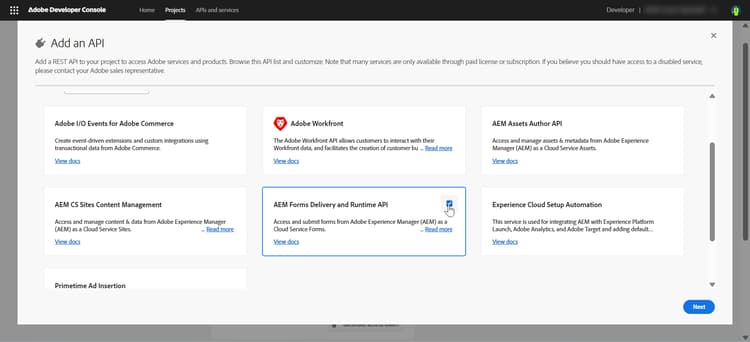
Select AEM Forms Delivery and Runtime API
-
In the Add API dialog, filter by Experience Cloud
-
Select “AEM Forms Delivery and Runtime API”
-
Click Next
-
Select OAuth Server-to-Server authentication method.
-
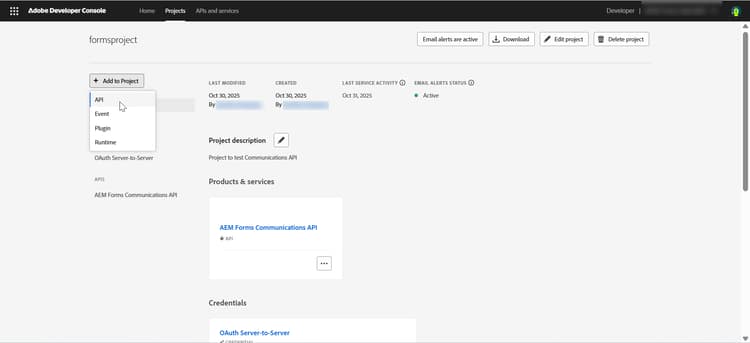
You can also add the API and authentication method to your existing project by clicking Add to Project > API
3. Add Product Profile
Product profile provides permissions (or authorization) for credentials to access the AEM resources.
-
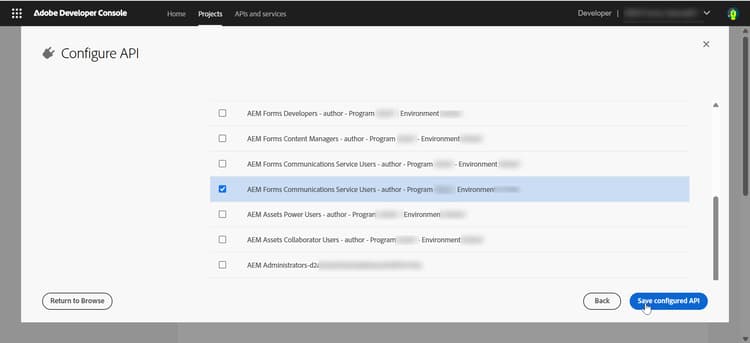
Select the Product Profile that matches your AEM instance URL (
https://Service Type -Environment Type-Program XXX-Environment XXX.adobeaemcloud.com).-
Service Type – specifies services or permissions associated with the AEM instance
-
Environment Type – specifies whether the envrionment is for Author or Publish service
-
Program XXX – identifies the Cloud Manager program ID
-
Environment XXX – identifies the specific environment ID within that program
note NOTE Product profiles are tied to a specific AEM instance (program + environment). Always choose the profile that matches your instance URL. -
-
Click Save configured API. The API and Product Profile are added to your project
4. Generate and Save Credentials
-
Navigate to your project in Adobe Developer Console
-
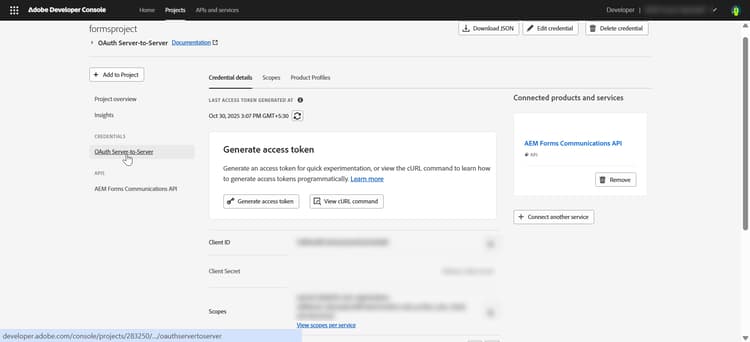
Click OAuth Server-to-Server credential
-
View the Credential details section
Record API Credentials
    API Credentials:
    ================
    Client ID: <your_client_id>
    Client Secret: <your_client_secret>
    Technical Account ID: <tech_account_id>
    Organization ID: <org_id>
    Scopes: AdobeID,openid,read_organizations
5. Access Token Generation
Generate the Access token either manually or programmatically:
Generate access tokens manually in Adobe Developer Console:
-
Navigate to your Project
- In Adobe Developer Console, open your project
- Click OAuth Server-to-Server
-
Generate Access Token
- Click the “Generate access token” button in your project’s API section
- Copy the generated access token
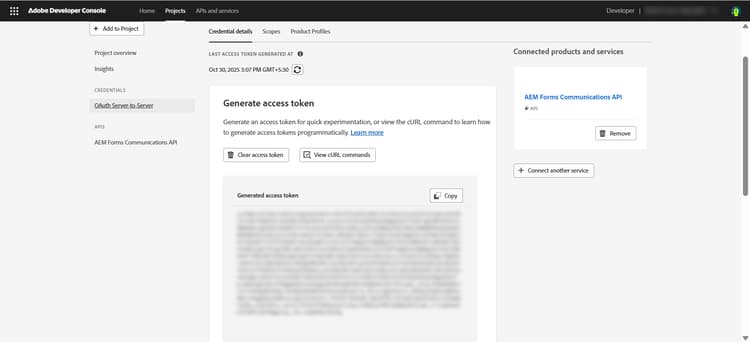
note NOTE Access token is valid for only for 24 hours
Generate tokens programmatically using Adobe IMS API:
Required Credentials:
- Client ID
- Client Secret
- Scopes (typically:
openid, AdobeID, read_organizations, additional_info.projectedProductContext, read_pc.dma_aem_cloud, aem.document)
Token Endpoint:
| code language-none |
|---|
|
Sample Request (curl):
| code language-bash |
|---|
|
Response:
| code language-json |
|---|
|
You can now use the generated access token to make API call for development, stage, or production environments.
Best practices: Managing credentials for Development, Staging, and Production
-
Always use separate credentials for Development, Staging, and Production.
-
Map each credential to the correct AEM environment URL.
-
Store secrets securely and never commit them to source control.
-
Track access token validity, as tokens are valid for 24 hours only.
Next Steps
To learn how to set up environment for Synchronous Forms Communication APIs, see AEM Forms as a Cloud Service Communications Synchronous Processing.
Related Articles
Learn how to set environment for Synchronous (On-Demand) and Asynchronous (Batch) Forms Communications APIs:
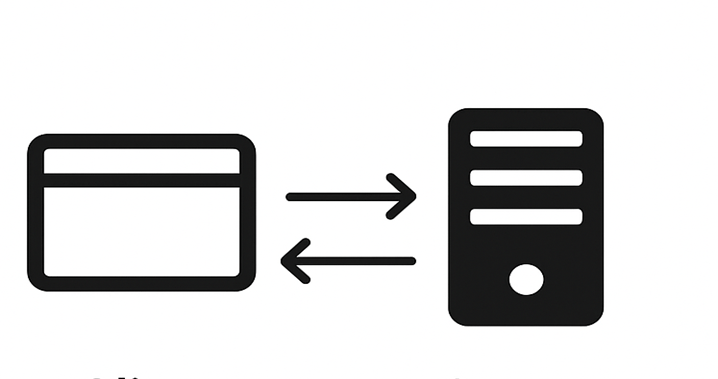
AEM Forms Communications APIs - Synchronous
Learn how to set up environment for Synchronous (on-demand) Forms Communications APIs that generate or process documents instantly.
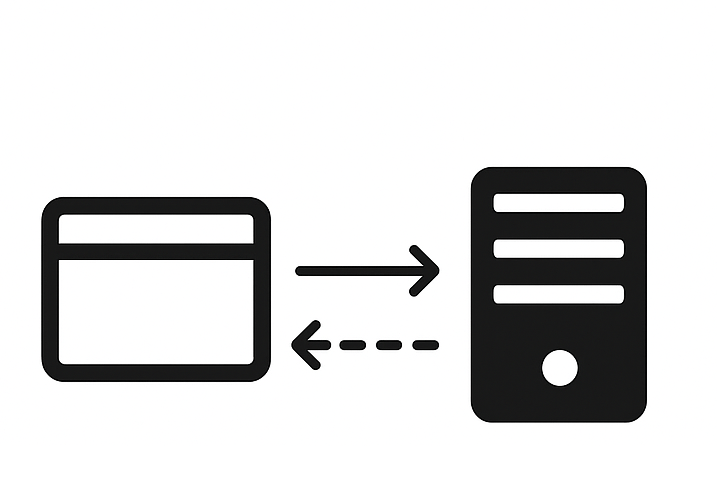
AEM Forms Communications APIs - Asynchronous (Batch)
Learn how to set up environment for Asynchronous (Batch) Forms Communications APIs that generate or process multiple documents in a scheduled manner.