[AEM Forms]{class="badge positive" title="Applies to AEM Forms."}
Move a Component to the Master Page
The master page in an Interactive Communication defines elements that repeat across every page, headers, footers, watermarks, page numbers, and any other content that must appear consistently throughout the document. Components that live on individual design pages, by contrast, appear only on those specific pages.
If you design a component on a regular page and later decide it belongs on every page, you can move it directly to the master page from the canvas without having to delete and recreate it. The component is placed at the same visual position it occupied on the design page.
Move a component to the master page
A common use case is moving repeating header elements — such as a bank logo and bank address — from a design page to the master page so they appear on every page of the interactive communication.
-
Open the interactive communication in the Interactive Communication Editor.
-
On the Design tab, navigate to the design page that contains the components you want to move.
-
Right-click the component on the canvas.
For example, right-click the bank address text block.
-
In the context menu, select Move to, then choose Master page.
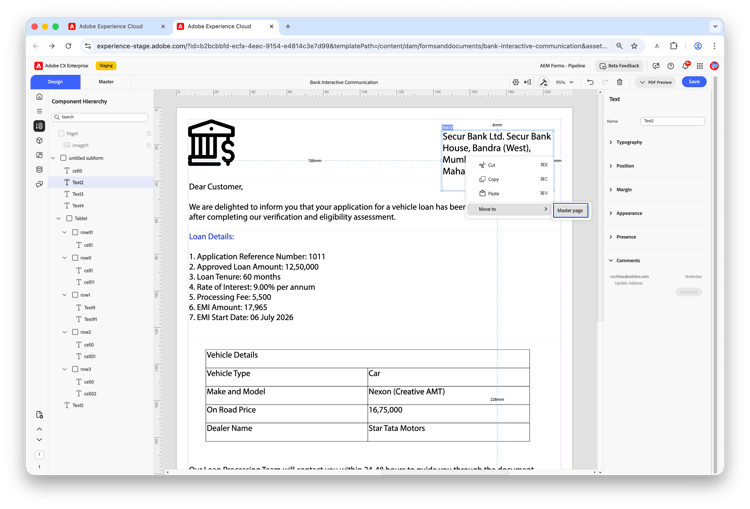
The component is removed from the design page and added to the master page at the same visual position. It now appears on every page that uses that master page.
-
Repeat steps 3 and 4 for each component you want on the master page.
For example, after moving the bank address, repeat the same steps to move the bank logo.
-
Select the Master tab to verify that the bank logo and bank address appear in the expected positions.
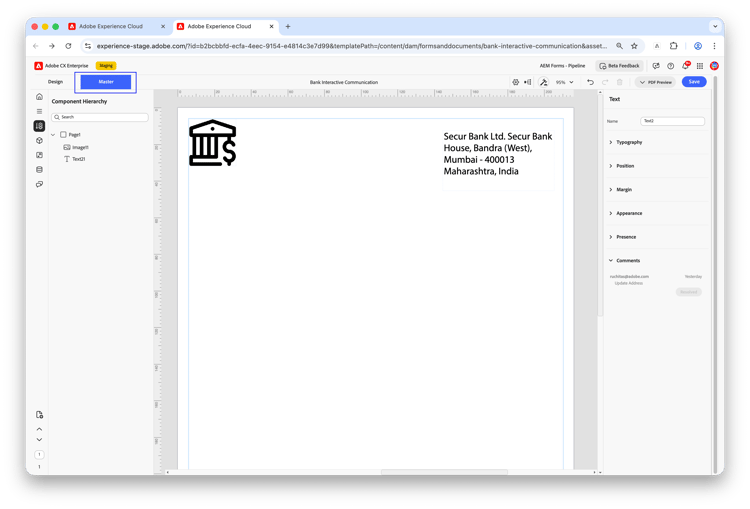
Eligible components
Not all component types can be moved to the master page. The following types are not eligible for this action:
Components with a content lock or layout lock applied are also ineligible. Remove the lock before moving, or plan the component’s placement on the master page when designing the template. See Template Lock in Interactive Communication Editor.
Frequently asked questions
What is the difference between placing a component on the master page versus copying it to every design page?
A component on the master page is managed in one place — any edit you make there automatically applies to every page that uses that master page. Copies on individual design pages must be updated separately, which makes maintenance error-prone and time-consuming.
Can I move a component back from the master page to a design page?
There is no direct “move back” action. To return a component to a specific design page, add a new instance of that component type to the design page and delete it from the master page.
Why is my component’s right-click menu not showing Move to > Master page?
The component type may not be eligible (see the eligibility table above), or the component may have a content lock or layout lock applied. Check both conditions and remove any lock before trying again. Move each eligible component separately — for example, move the bank logo and bank address one at a time.