[AEM Forms]{class="badge positive" title="Applies to AEM Forms)."}
Template Lock in Interactive Communication Editor
1. Introduction
The Template Lock feature in the Interactive Communication (IC) Editor allows template authors to restrict modifications to specific elements of a communication template. This ensures design consistency, protects critical content, and enforces governance across teams that reuse templates to create personalized communications.
When applied, locked components appear visually distinct and cannot be modified by downstream authors or contributors, depending on the lock type set. This feature helps maintain brand standards, data integrity, and layout uniformity across all derived communications.
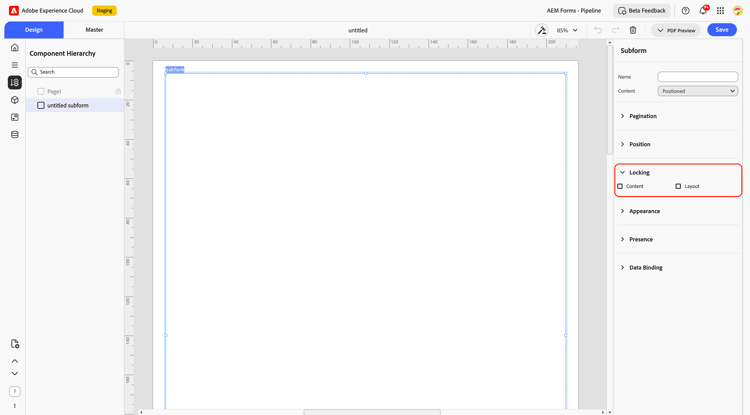
2. Lock Types
Template authors can apply Content and Layout Locks, individually or together to control content and layout changes in Interactive Communication templates:
2.1 Content Lock
A Content Lock restricts any modification to the content or properties of the selected element. This type of lock ensures that essential data, text, or design properties remain unchanged, even when reused across multiple communications.
When applied, authors cannot modify:
-
Text content or captions
-
Appearance settings (font, color, background, borders, etc.)
-
Data binding configurations
-
Constituent elements within a container component (such as subforms)
2.2 Layout Lock
A Layout Lock restricts changes related to the position and size of an element. This ensures that visual alignment and design hierarchy remain consistent with brand or document standards.
When applied, authors cannot:
-
Move the element to a new position on the page
-
Resize the element’s width or height
3. How to Use Template Lock in Interactive Communication Editor
Follow the below steps to apply Content or Layout Locks in your Interactive Communication (IC) template:
-
Open Your Template
Open or create a Template, follow the guide Create an Interactive Communication Template -
Select the Component
Click the component (text box, image, or subform) you want to restrict. -
Access Lock Options
In the Properties panel, go to the Locking section. -
Apply Locks
-
Content Lock: Prevents text, style, and data edits.
-
Layout Lock: Restricts movement and resizing.
-
You can enable both for full protection.
-
-
Save and Verify
Save the template and create a new IC based on it to confirm that locked elements cannot be modified.
4. Best Practices
-
Lock critical Components early: Apply locks to headers, footers, legal disclaimers, and logos to preserve compliance and brand identity.
-
Use content locks for accuracy: Protect fields bound to core data models or regulatory text.
-
Use layout locks for consistency: Prevent misalignment or visual distortion in frequently reused templates.
-
Communicate lock usage: Ensure downstream users are aware of which sections are intentionally restricted to avoid confusion.
-
Locks prevent moving to the master page: If you apply a content lock or layout lock to a component, you cannot use Move to Master Page on it. Remove the lock first, or plan the component’s placement on the master page when designing the template.