Forms-centric workflow on OSGi forms-centric-workflow-on-osgi

Enterprises collect data from hundreds and thousands of forms, various back-end systems, and online or offline data sources. They also have a dynamic set of users to take decisions on the data, which involves iterative review and approval processes.
Along with review and approval workflows for internal and external audiences, large organizations and businesses have repetitive tasks. For example, converting a PDF document to another format. When done manually, these tasks take up much time and resources. Enterprises also have legal requirements to digitally sign a document and archive form data for later use in pre-defined formats.
Introduction to Forms-centric workflow on OSGi introduction-to-forms-centric-workflow-on-osgi
You can use AEM Workflows to rapidly build Adaptive Forms-based workflows. These workflows can be used for review and approvals, business process flows, to start document services, integrate with Adobe Sign signature workflow, and similar operations. For example, credit card application processing, employee leave approval workflows, saving a form as a PDF document. Moreover, these workflows can be used within an organization or across network firewall.
With Forms-centric workflow on OSGi, you can rapidly build and deploy workflows for various tasks on the OSGi stack, without having to install the full-fledged Process Management capability on JEE stack. The development and management of workflows uses the familiar AEM Workflow and AEM Inbox capabilities. Workflows form the basis of automating real-world business processes that span multiple software systems, networks, departments, and even organizations.
Once set up, these workflows can be triggered manually to complete a defined process or run programmatically when users submit a form.
Forms-centric workflow on OSGi extends AEM Inbox and provides extra components (steps) for AEM Workflow editor to add support for AEM Forms-centric workflows.
All AEM Forms workflow steps support the use of variables. Variables enable workflow steps to hold and pass metadata across steps at runtime. You can create different types of variables for storing different types of data. You can also create variable collections (array) for storing multiple instances of related, same-typed data. Typically, you use a variable or a collection of variables when you need to make a decision based on the value that it holds or to store information that you need later in a process. For more information on using variables in these Forms-centric workflow components (steps), see Forms-centric workflow on OSGi - Step Reference. For information on creating and managing variables, see Variables in AEM workflows.
The following diagram depicts end-to-end procedure to create, run, and monitor a Forms-centric workflow on OSGi.

Applicability and use cases
Insurance
Does AEM Forms support insurance approval workflows?
Yes. AEM Forms supports workflow-based reviews and approvals, enabling adjuster review, manager approval, and rework loops as part of insurance processes.
Does AEM Forms support maker–checker processes for insurance?
Yes. AEM Forms workflows can be configured to support maker–checker patterns, ensuring segregation of duties between data entry and approval roles.
Can AEM Forms track the status of insurance claims or applications?
Yes. AEM Forms workflows allow insurers to track form submission and processing status across different stages of the business process.
Does AEM Forms support underwriting workflows?
Yes, with workflows and integrations. AEM Forms supports workflow-driven processes and backend integrations that allow application data to flow into underwriting and decisioning systems.
Does AEM Forms support audit trails for insurance processes?
Yes. AEM Forms supports auditability through workflow history, access controls, and system logs, which help insurers meet internal and external audit needs.
Before you start before-you-start
- A workflow is a representation of a real-world business process. Keep your real-world business process and list of the participants of the business process ready. Also, keep the collateral (Adaptive Forms, PDF Documents, and more) ready before start creating a workflow.
- A workflow can have multiple stages. These stages are displayed in the AEM Inbox and help report progress of the workflow. Divide your business process into logical stages.
- You can configure the assign task step of AEM Workflows to send email notifications to the users or assignees. So, enable email notifications.
- A workflow can also use Adobe sign for digital signatures. If you plan to use Adobe Sign in a workflow, the configure Adobe Sign for AEM Forms before using it in a workflow.
Create a workflow model create-a-workflow-model
A workflow model consists of logic and flow of a business process. It is made up of a series of the steps. These steps are AEM components. You can extend workflow steps with parameters and scripts to provide more functionality and control, as required. AEM Forms provides a few steps in addition to AEM steps available out of the box. For a detailed list of AEM and AEM Forms steps, see AEM Workflow Step Reference and Forms-centric workflow on OSGi - Step Reference.
AEM provides an intuitive user interface to create a workflow model using the provided workflow steps. For step-by-step instructions to create a workflow model, see Creating Workflow Models. The following example provides step-by-step instructions to create a workflow model for an approval and review workflow:
Create a model for an approval and review workflow create-a-model-for-an-approval-and-review-workflow
Approval and review workflow are for the tasks which require human intervention to make decisions. The following example creates a workflow model for a mortgage loan application to be filled by a front-office banking agent. Once the application is filled, it is sent for approval. Later on, the approved application is sent to the applicant for electronic signatures using Adobe Sign.
The example is available as a package attached below. Import and install the example using the package manager. You can also perform the following steps to manually create the workflow model for the application:
The example creates a workflow model a mortgage application to be filled by a front-office banking agent. Once filled the application is sent for approval. Later on, the approved application is sent to the customer for electronic signatures using Adobe Sign. You can import and install the example using the package manager.
-
Open the Workflow Models console. The default URL is
https://[server]:[port]/libs/cq/workflow/admin/console/content/models.html/etc/workflow/models -
Select Create, then Create Model. The Add Workflow Model dialog appears.
-
Enter the Title and Name (optional). For example, a mortgage application. Select Done.
-
Select the created workflow model and select Edit. Now, you can add workflow steps to build business logic. When you first create a workflow model, it contains:
- The steps: Flow Start and Flow End. These steps represent the beginning and end of the workflow. These steps are required and cannot be edited or removed.
- An example Participant step named Step 1. This step is configured to assign a work item to the admin user. Remove this step.
-
Enable email notifications. You can configure Forms-centric workflow on OSGi to send email notifications to the users or assignees. Perform the following configurations to enable email notifications:
- Go to AEM configuration manager at
https://[server]:[port]/system/console/configMgr. - Open the Day CQ Mail Service configuration. Specify a value for the SMTP server host name, SMTP server port, and “From” address fields. Click Save.
- Open the Day CQ Link Externalizer configuration. In the Domains field, specify the actual hostname/IP address and port number for local, author, and publish instances. Click Save.
- Go to AEM configuration manager at
-
Create workflow stages. A workflow can have multiple stages. These stages are displayed in the AEM Inbox and report progress of the workflow.
To define a stage, select the

-
Drag-and-drop the Assign Task steps browser to the workflow model. Make it the first step of the model.
The assign task component assigns the task, created by workflow, to a user or group. Along with assigning the task, you can use the component to specify an Adaptive Form or a non-interactive PDF for the task. The Adaptive Form is required to accept input from users and non-interactive PDF or a read-only Adaptive Form is used for review only workflows.
You can also use the step to control the behavior of the task. For example, creating an automatic Document of Record, assign the task to a specific user or group, the path of the submitted data, the path of data to be pre-populated, and default actions. For detailed information about the options of the assign task step, see Forms-centric workflow on OSGi - Step Reference document.
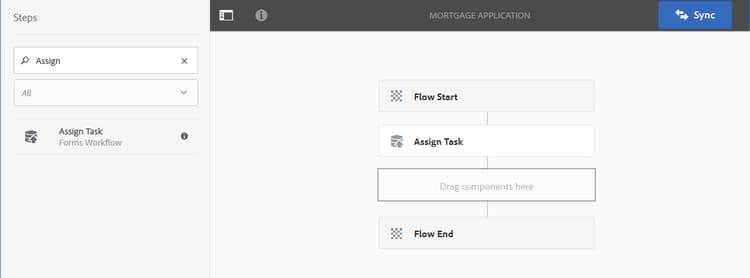
For the mortgage application example, configure the assign task step to use a Read-only Adaptive Form and display PDF Document once the task is complete. Also, select to user group allowed to approve the loan request. On the Actions tab, disable the Submit option. Create an actionTaken variable of String data type and specify the variable as the Route Variable. For example, actionTaken. Also, add the Approve and Reject routes. The routes are displayed as separate actions (buttons) in AEM Inbox. The workflow selects a branch based on the action (button) a user taps.
You can import the example package, available for download in the starting of the section, for the complete set of values of all the fields of the assign task step configured for example, mortgage application.
-
Drag-and-drop the OR Split component from step browser to the workflow model. The OR Split creates a split in the workflow, after which only one branch is active. This step enables you to introduce conditional processing paths into your workflow. You add workflow steps to each branch as required.
You can define routing expression for a branch using a rule definition, ECMA script, or an external script.
Use the expression editor to create routing expressions for Branch 1 and Branch 2. These routing expressions help choose a branch based on the user action in AEM Inbox.
Routing expression for Branch 1
When a user taps Approve in AEM Inbox, Branch 1 is activated.

Routing expression for Branch 2
When a user taps Reject in AEM Inbox, Branch 2 is activated.
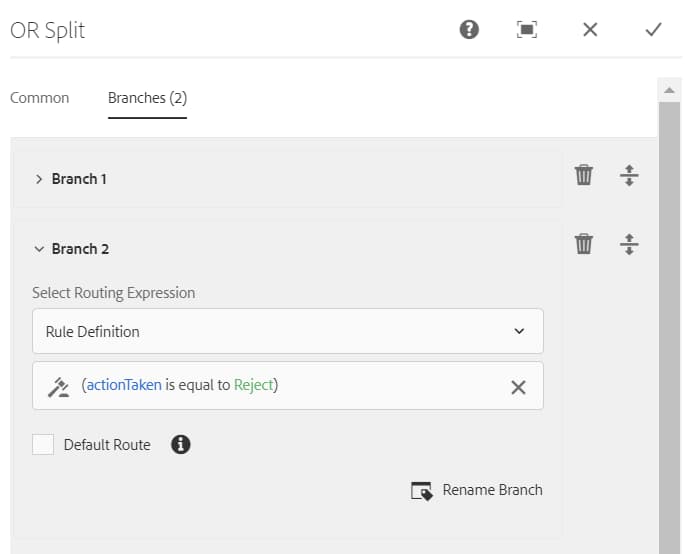
For information on creating routing expressions using variables, see Variables in AEM Forms workflows.
-
Add other workflow steps to build the business logic.
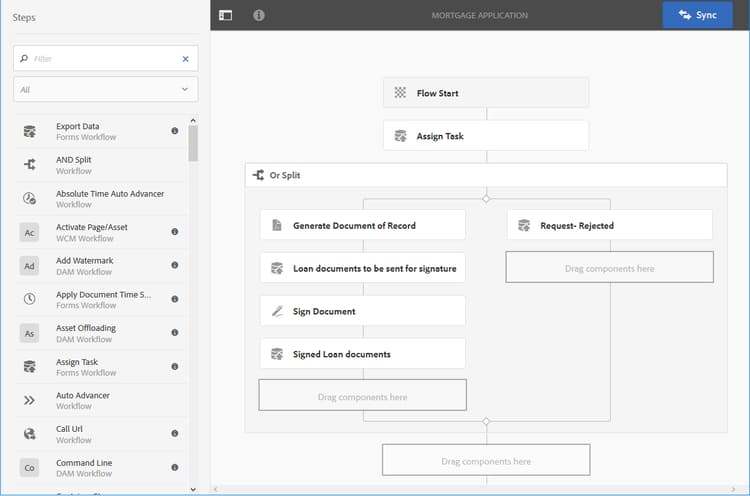
For the mortgage example, add a generate Document of Record, two assign task steps, and a sign document step to Branch 1 of the model, as displayed in the image below. One assign task step is to display and send to be signed loan documents to the applicant and another assign task component is to display signed documents. Also, add an assign task component to branch 2. It is activated, when a user taps Reject in AEM Inbox.
For the complete set of values of all the fields of the assign task steps, Document of Record step, and sign document step configured for example, mortgage application, import the example package, available for download in the starting of this section.
The workflow model is ready. You can launch the workflow through various methods. For details, see Launch a Forms-centric workflow on OSGi.
Create a Forms-centric Workflow Application create-a-forms-centric-workflow-application
The application is the Adaptive Form associated with the workflow. When an application is submitted through Inbox, it launches the associated workflow. To make a Forms workflow available as an application in AEM Inbox and AEM Forms App, do the following to create a workflow application:
- On your AEM author instance, go to

- In the Create Workflow Application window, provide inputs for the following fields, and taps Create. A new application is created and is listed in the Workflow Applications screen.
Launch a Forms-centric workflow on OSGi launch
You can launch or trigger a Forms-centric workflow by:
Submitting an application from AEM Inbox inbox
The workflow application you created is available as an application in Inbox. Users who are members of workflow-users group can fill and submit the application that triggers the associated workflow.
Submitting an Adaptive Form af
You can configure the Submit Actions of an Adaptive Form to start a workflow on submission of the Adaptive Form. Adaptive Forms provides the Invoke an AEM Workflow Submit Action to start a workflow on submission of an Adaptive Form. For detailed information about the Submit Action, see Configuring the Submit Action. To submit an Adaptive Form through the AEM Forms app, enable Sync With AEM Forms App in the Adaptive Form properties.
Purge workflow instances purge-workflow-instances
Minimizing the number of workflow instances increases the performance of the workflow engine, so you can regularly purge completed or running workflow instances from the repository. For detailed information see, Regular Purging of Workflow Instances purging of workflow instances