Getting Started with the Experience Modernization Agent getting-started
Learn the first steps to get started using the Experience Modernization Agent and the Experience Modernization Console.
Prepare an Edge Delivery GitHub Repository prepare-repo
-
Select an Edge Delivery Services repository for use with the Experience Modernization Console.
- This can be an existing Edge Delivery Services project or you can create a new one following the developer tutorial using the boilerplate repository.
-
Ensure that the AEM Code Connector is installed in the repository.
- This allows the console to inspect your code.
-
Ensure that the AEM Code Sync GitHub app is installed in the repository.
- This allows Edge Delivery Services to sync your code.
- If your repo is based the on the tutorial, this step is already complete.
Open the Experience Modernization Console open-console
- Navigate to
aemcoder.adobe.io. - Log in with your Adobe ID.
Demo Mode demo-mode
The console launches in demo mode when you first sign in. This mode allows you to explore an existing site where you can try out migrating additional pages. A banner at the bottom the screen indicates that you are in demo mode.

Connect Your Site connect-repo
When ready to begin working on your own site you can exit demo mode by connecting to your own project.
- Click Switch site in the demo mode banner.
- This will prompt you to authorize the AEM Code Connector app using your GitHub credentials. Click Authorize AEM Code Connector.
- Back in the console, specify the Preview URL of the site. The preview URL can be obtained by previewing any document in the site, or by constructing it from branch, site-name and org. The system will retrieve the associated Github Project automatically. Alternatively, you can search through your authorized GitHub projects to find a site.

- Click Checkout to workspace once the site has been verified.
- When prompted to Replace existing workspace, click Replace workspace.
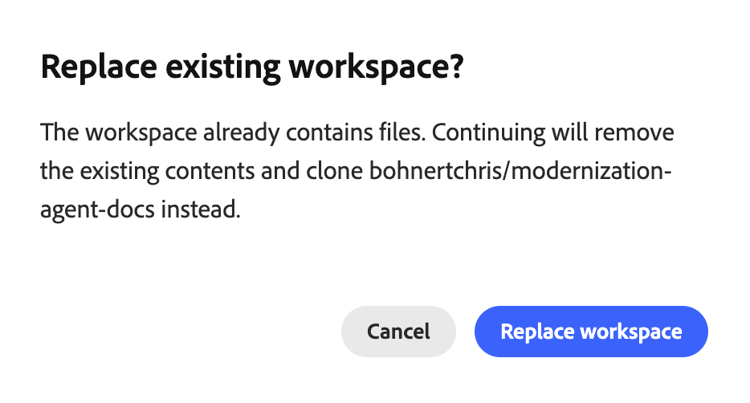
Your GitHub project and site is now connected to the console.
If demo mode has been exited but a new project has not been connected, subsequent visits to Experience Modernization agent will force a site to be connected first.

Console Home console-home
When you visit aemcoder the Home Page will appear until a chat conversation has been started. The home page allows you to get started chatting by either typing your first prompt or by selecting one of the suggested prompts.

Start Prompting start-prompting
Now that your console can access your code, you are ready to start prompting.
-
To get started you can import the content of a site:
- “Migrate the page
https://wknd-trendsetters.site.”
- “Migrate the page
-
This imports the content of the site.
- The console observes separation of concerns and handles content and presentation separately.
- The initial import of a site’s content may take several minutes.
- The console presents you with ongoing feedback as it begins its work, including an overview of its planned steps.

-
Once the site is imported, the Workspace panel shows the pages. Select a page to preview it in the right panel.

-
Now that you have content, you can prompt to import the styles from the same source.
- “Import the general styles from
https://wknd-trendsetters.site.”
- “Import the general styles from
-
As with the initial content import, the import may take several minutes and the console provides feedback as it processes your request and imports the styles. Once the task is complete, click Refresh preview in the right panel to view the styled content.

Now you have both the content and styles imported into the console.
Upload Content upload-content
To upload your content to Document Authoring:
-
Make sure you are in a Content view and then click the Upload content button on the top-right.
- By default you are in Content view when entering the console.
- Your view is indicated by the selected View Picker item in the workspace area of the console.
-
The Upload content dialog opens with the destination org and repo pre-filled from your project settings.
- If an
fstab.yamlis not present in your connected repository, you will need to manually enter your Organization and Repository… - If you used the boilerplate, an
fstab.yamlis provided.
- If an
-
Select the files you want to upload and click Upload.
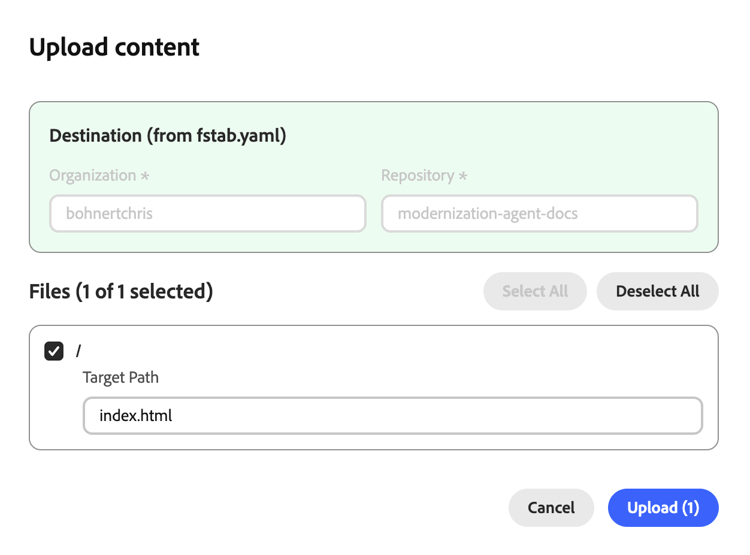
-
The console indicates upload process by disabling the Upload button.
-
Once complete, a notification appears at the bottom of the console.
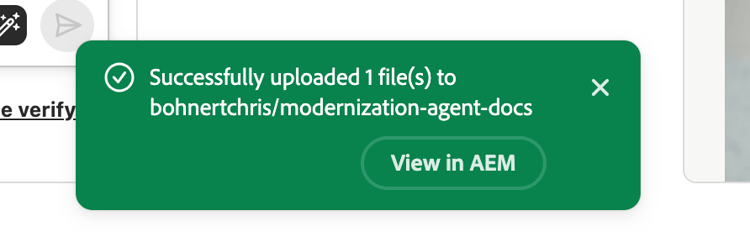
To access the uploaded content in Document Authoring, optionally click View in AEM in the notification when the upload completes, or navigate to https://da.live/#/{organization}/{repository}.
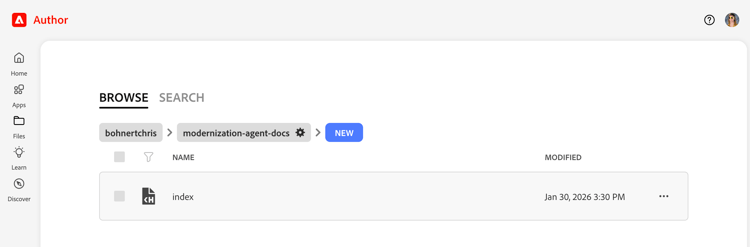
Your imported content is now in Document Authoring.
Push Code Changes push-code-changes
Once you are satisfied with the changes you have made to your code, you can push them to your GitHub repository.
- Switch to Changes view (branch icon in the view picker).

- In the list of files changed, if some files show up as untracked, click their
+button to stage them. - Click Push button on the top-right.
- In the Push changes dialog, choose to push changes to a new PR (default) or the current branch and click Confirm to push.
- When in doubt, you can push to the current branch to keep things simple.
- Once complete, a notification appears at the bottom of the console.
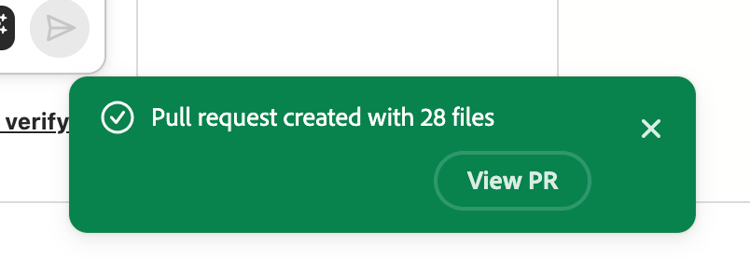
If you wish to directly access the pushed changes in GitHub, click View PR in the notification when the push completes.
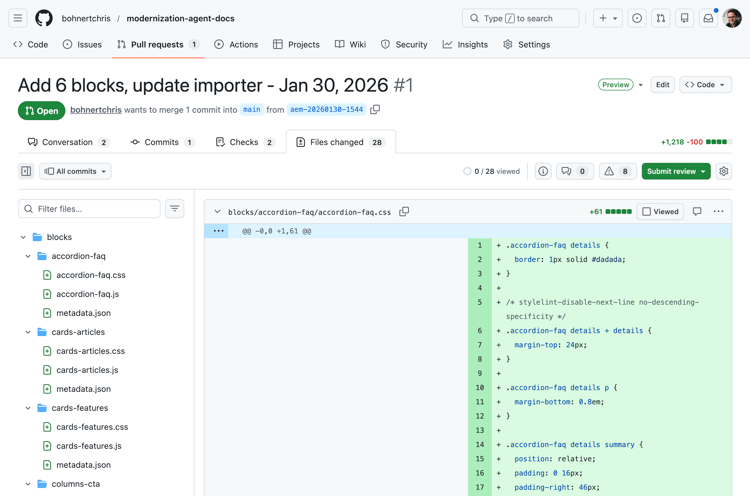
Your code is now in GitHub.
Preview Site preview-site
To view the changes in the preview environment:
-
Go back to Document Authoring.
- It may still be open in a browser tab you opened after clicking View in AEM after uploading the content.
- Or navigate to
https://da.live/#/{organization}/{repository}
-
Open one of the pages that you previously uploaded to AEM.
-
Click the paper plane icon (top right) and select Preview.
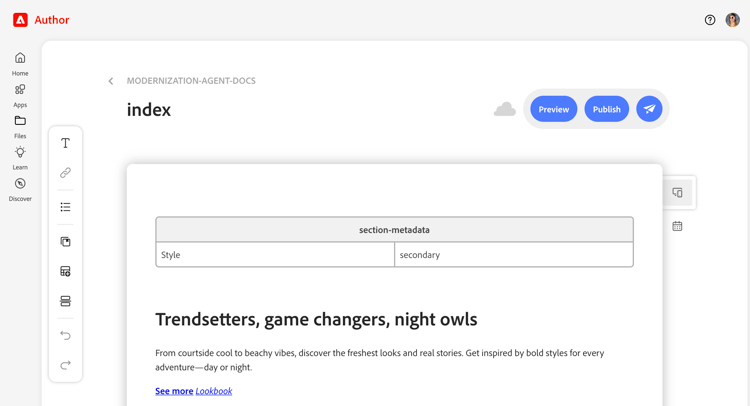
Congratulations! Your migrated content and styles are now live on the AEM preview environment.

If you pushed your code to a branch other than main, the preview opened from Document Authoring will not show the styles. Change to the branch by updating the URL of the preview and you can see your styles.
Troubleshooting troubleshooting
Allowlist IP Addresses allowlist-ip-addresses
If your site is behind a firewall or access restrictions, you can allowlist the following IP addresses so that the backend services can scrape your site:
34.228.136.11254.90.51.393.224.194.242
Additional Resources additional-resources
The following documents may be useful as you continue to explore the Experience Modernization agent and its console.
- Experience Modernization Console - Details on the console, it’s views, options, and capabilities
- Prompting Guide for Experience Modernization Agent - Ideas on how to prompt the agent and what its skills can do
- Edge Delivery Services developer tutorial - Useful if you are new to AEM and Edge Delivery Services projects
- Document Authoring - Useful if you are new to Document Authoring for content management