Getting Started with the Experience Modernization Agent for AEM Authoring Projects getting-started-aem-authoring
For AEM authoring projects using the Universal Editor, preparation of the Experience Modernization Agent differs from the standard Edge Delivery flow. This document covers those setup differences. Once the steps below are complete, follow the main Getting Started with the Experience Modernization Agent guide.
Create Your Edge Delivery Services Project Repo create-repo
- Use the
aem-block-collection-xwalkrepository as your template (not the standard Edge Delivery Services boilerplate). - Verify that
fstab.yamlpoints to your AEM host, git owner, and git repo, and commit any changes tomainbefore connecting the GitHub apps.- See Configure content source for instructions.
- Follow the Universal Editor tutorial to set up your repo.
- Stop when you are asked to create a site in AEM.
- Delete
paths.jsonand commit this change tomain. - Add the AEM Code Connector app to your repo.
- This allows the console to inspect your code.
Create a New Site in AEM create-site
-
In the AEM Sites console, select Create > Site from template.
-
Select the AEM Site with Edge Delivery Services Template.
- Don’t see it listed? Install the template.
-
Keep the name of the site (not the title) as provided.
- The site name is used as the unique identifier.
- The title can be changed for display.
-
Click Create.
- You are redirected to the Sites page.
- Refresh the page if the new site does not appear immediately.
Continue with the Standard Getting Started Steps continue
Once the above steps are complete, you can continue with the standard getting started guide to begin migrating your content.

Follow these steps from the standard guide.
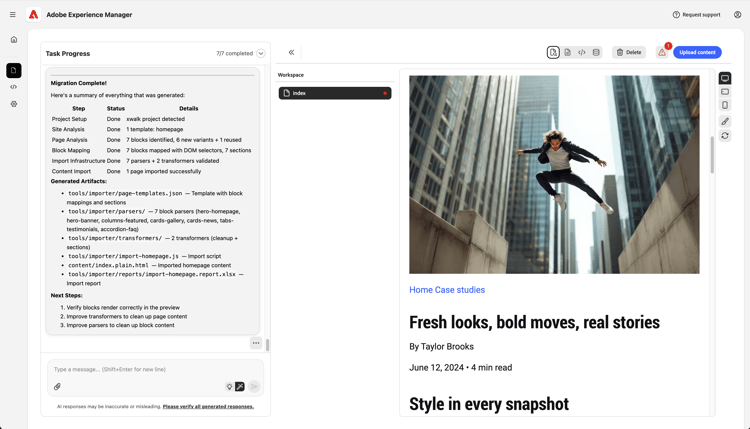
Once you complete those steps to migrate the content, continue with the following steps.
Validate Content validate-content
Validate the content of the selected page in the preview of the content panel. Any errors will be displayed by clicking the Errors button.
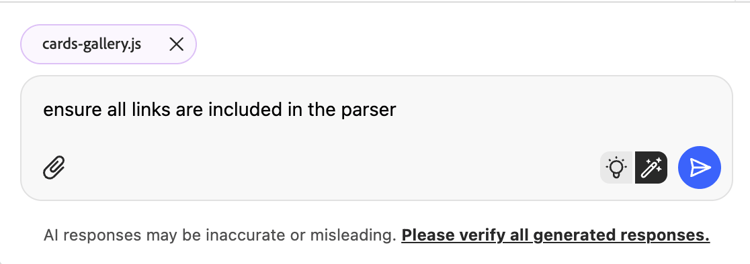
Continue your chat conversation with the agent to fix the errors. Use the Add to chat feature to target fixes to specific elements of the page, parser files, or transformer files.
Upload Content upload-content
To upload your content to AEM:
-
Make sure you are in a Content view and click the Upload content button on the top-right.
-
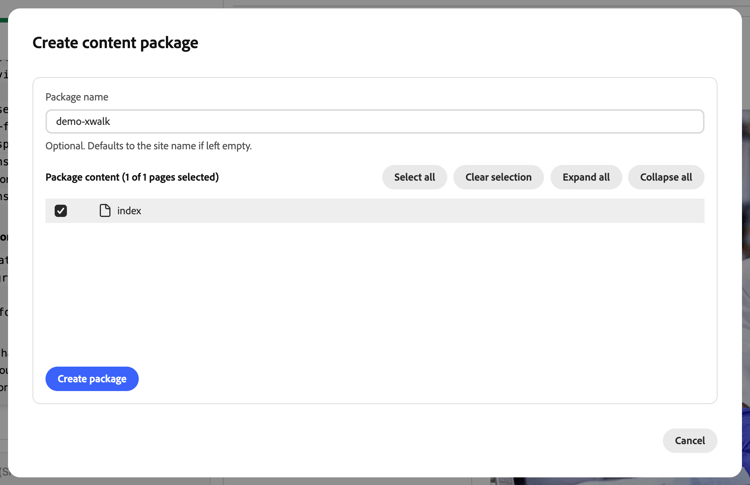
In the Create content package dialog, choose the pages to include in the package.
- Optionally enter a Package name (defaults to the site name if left empty).
- Use Select all, Clear selection, Expand all, or Collapse all to manage the list.
-
Click Create package.
-
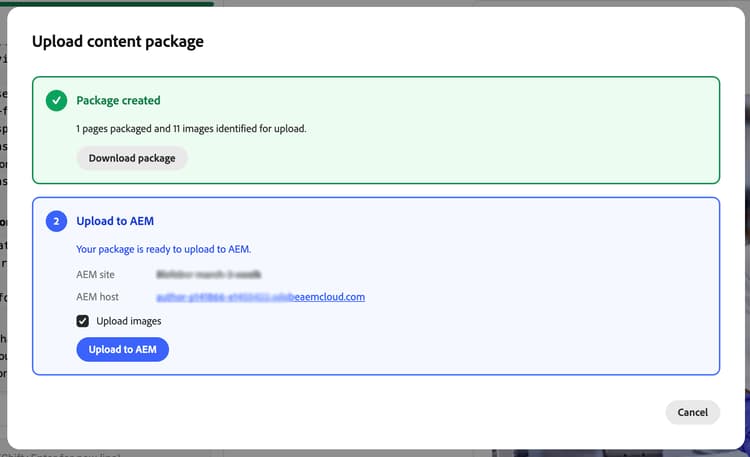
After the package is created, the Upload content package dialog shows that the package is ready.
- You can Download package to save it locally, or proceed to upload.
- Under Upload to AEM, confirm the AEM site and AEM host (pre-filled from your project settings).
- Optionally leave Upload images checked to include images.
- Click Upload to AEM.
-
The dialog shows upload progress as pages and assets are sent to AEM. When the upload finishes, a success message and the upload log are displayed. Click Close to dismiss the dialog.
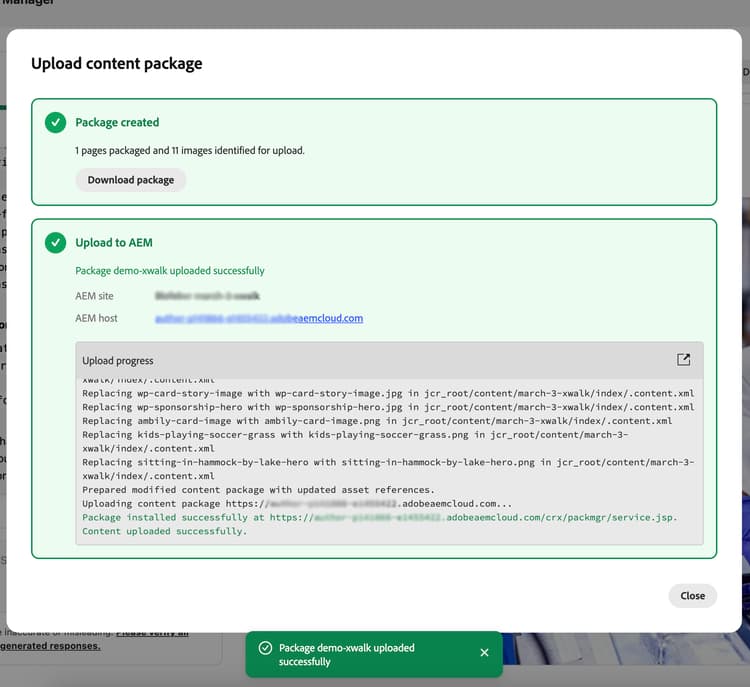
Your imported content is now in AEM. Continue with Push Code Changes in the main getting started guide.
Additional Resources additional-resources
- Getting Started with the Experience Modernization Agent - Full workflow including console, prompting, upload, and preview
- Experience Modernization Console - Console reference
- Universal Editor tutorial - Set up an AEM authoring and Universal Editor project
aem-block-collection-xwalk- Template repository for AEM authoring and Universal Editor projects