Manage synchronization to Commerce Optimizer
After you set up the Adobe Commerce Optimizer Connector, most catalog updates sync automatically through scheduled cron jobs. For details on how automated synchronization works, see Connector sync pipeline. Use the tools in this topic to verify that data reaches Adobe Commerce Optimizer and to manually resync feeds when needed.
Verify that the data sync is working verify-that-the-data-sync-is-working
Confirm that data exported successfully from the Commerce Admin and that the data was successfully delivered to Commerce Optimizer. Start with export in the Commerce Admin, then confirm delivery in Commerce Optimizer.
-
Check sync status in the Commerce Admin:
Go to System > Data Transfer > Data Feed Sync Status.
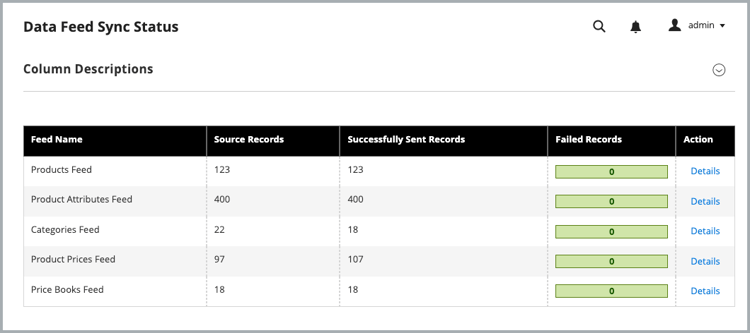
When the sync is running, the feed data shows successfully sent records. Select a feed to view details or troubleshoot sync issues.
-
Confirm data was delivered to Commerce Optimizer:
From the Commerce Optimizer menu, select Data Sync.
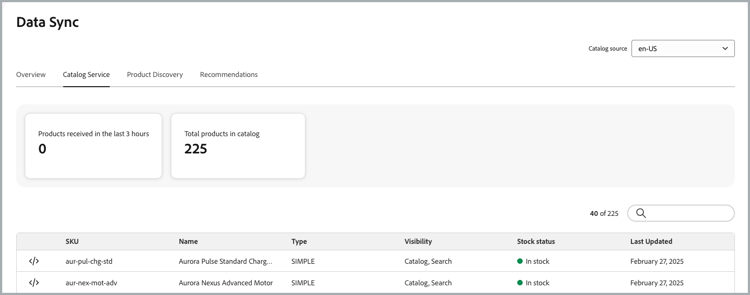
Verify that the expected products, prices, and attributes appear.
When sync is working as expected:
- Data Feed Sync Status shows successfully sent records for connector feeds, with no unresolved item-level errors.
- Data Sync in Commerce Optimizer lists the expected catalog sources, products, prices, and attributes.
Manually resync data manually-resync-data
When partial sync and automatic retry do not resolve synchronization issues, you can manually resync catalog data. The option you choose depends on where the problem originates and how much control you need.
saas:resync from the Adobe Commerce instance for connector feeds. See Sync feeds using the Commerce CLI and Supported feeds.