Commerce Admin in Adobe Unified Experience
The Commerce Admin for Adobe Commerce as a Cloud Service opens in Adobe Unified Experience when you select an instance name in Commerce Cloud Manager.
The Adobe Unified Experience interface provides the shared top navigation used across Adobe products, an updated left navigation, and refreshed Admin page styling.
You can switch between organizations, products, and Commerce instances, and access help, notifications, and account preferences from the top navigation. Your existing Commerce role permissions continue to determine which Admin menu items you can access.
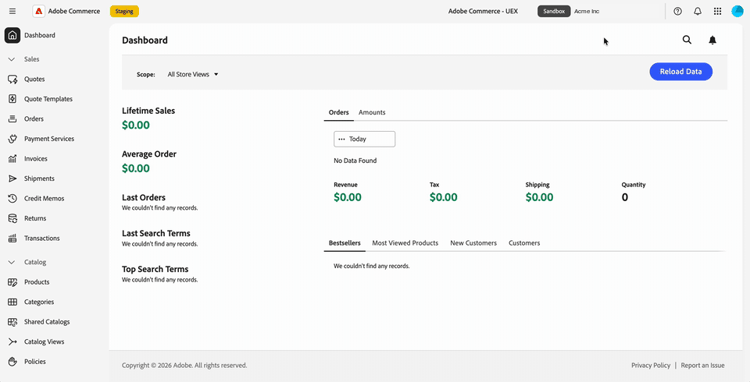
Open the Commerce Admin
After you sign in to Adobe Experience Cloud, open Commerce Cloud Manager. Then, select an instance to open the Admin in Unified Experience.
The sign-in flow lets you move between Commerce instances without signing in separately to each instance.
You can move between Adobe products and Commerce instances without further sign-in prompts.
For the access procedure, see Access an instance in the Adobe Commerce as a Cloud Service Guide.
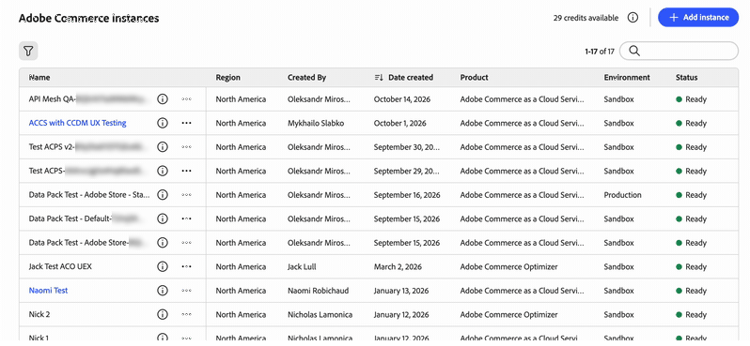
Choose an Admin interface classic-ui
For the initial release of the Commerce Admin in Unified Experience, Adobe Commerce as a Cloud Service supports two Commerce Admin experiences, Adobe Unified Experience and the Classic UI.
By default, when you select a Commerce instance in Commerce Cloud Manager, the Commerce Admin opens in Adobe Unified Experience. To switch back to the Classic UI, use an existing bookmark or find the URL for the Classic UI. See Open Classic UI.
The links for the Unified Experience and Classic UI are available in the instance details panel in Commerce Cloud Manager.
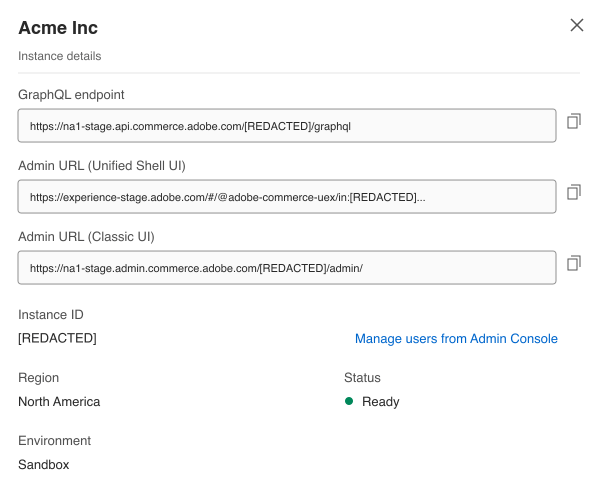
Illustration based on the instance-list screenshot and the updated instance-details design. The URLs shown use staging hosts.
URL formats
https://<experience-cloud-host>/#/@<organization>/in:<instance-id>/commerce/cloud-service/adminhttps://<commerce-admin-host>/<instance-id>/admin/Unified Experience identifies the organization after @ and the instance after in:. Classic UI places the instance ID directly after the hostname.
For example, these staging URLs open the same instance:
- Unified Experience:
https://experience-stage.adobe.com/#/@adobe-commerce-uex/in:<instance-id>/commerce/cloud-service/admin - Classic UI:
https://na1-stage.admin.commerce.adobe.com/<instance-id>/admin/
These staging hostnames are not production URLs. Always use your instance links from Commerce Cloud Manager rather than constructing URLs.
Open Classic UI
To open the Classic UI:
- Use an existing Classic Admin bookmark or URL. These URLs only open the Classic UI and do not redirect to Unified Experience.
- Select Admin URL (Classic UI) in the Commerce Cloud Manager instance details.
There is no interface switch inside the Admin. Use Commerce Cloud Manager or a saved Admin URL to return to the classic interface if you need it.
Identify your organization and instance
Before you make changes, check the organization and instance that you are working in:
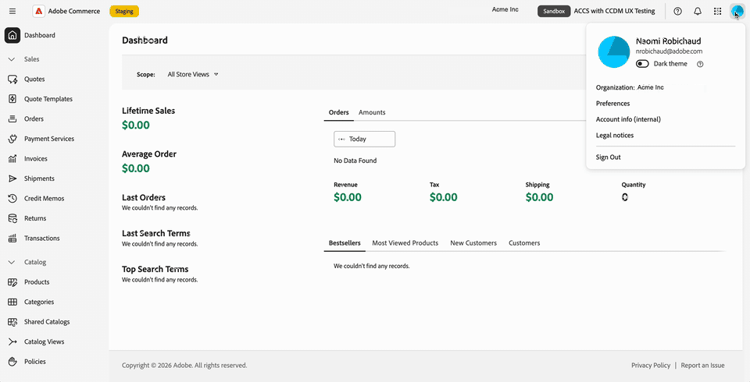
- The account menu shows your current organization.
- The instance switcher in the top navigation shows the instance name and a Production or Sandbox badge.
Use the environment badge to distinguish a production instance from a sandbox when you switch between instances.
Switch organizations, products, and instances
The top navigation provides separate controls for switching your working context.
Switch organizations
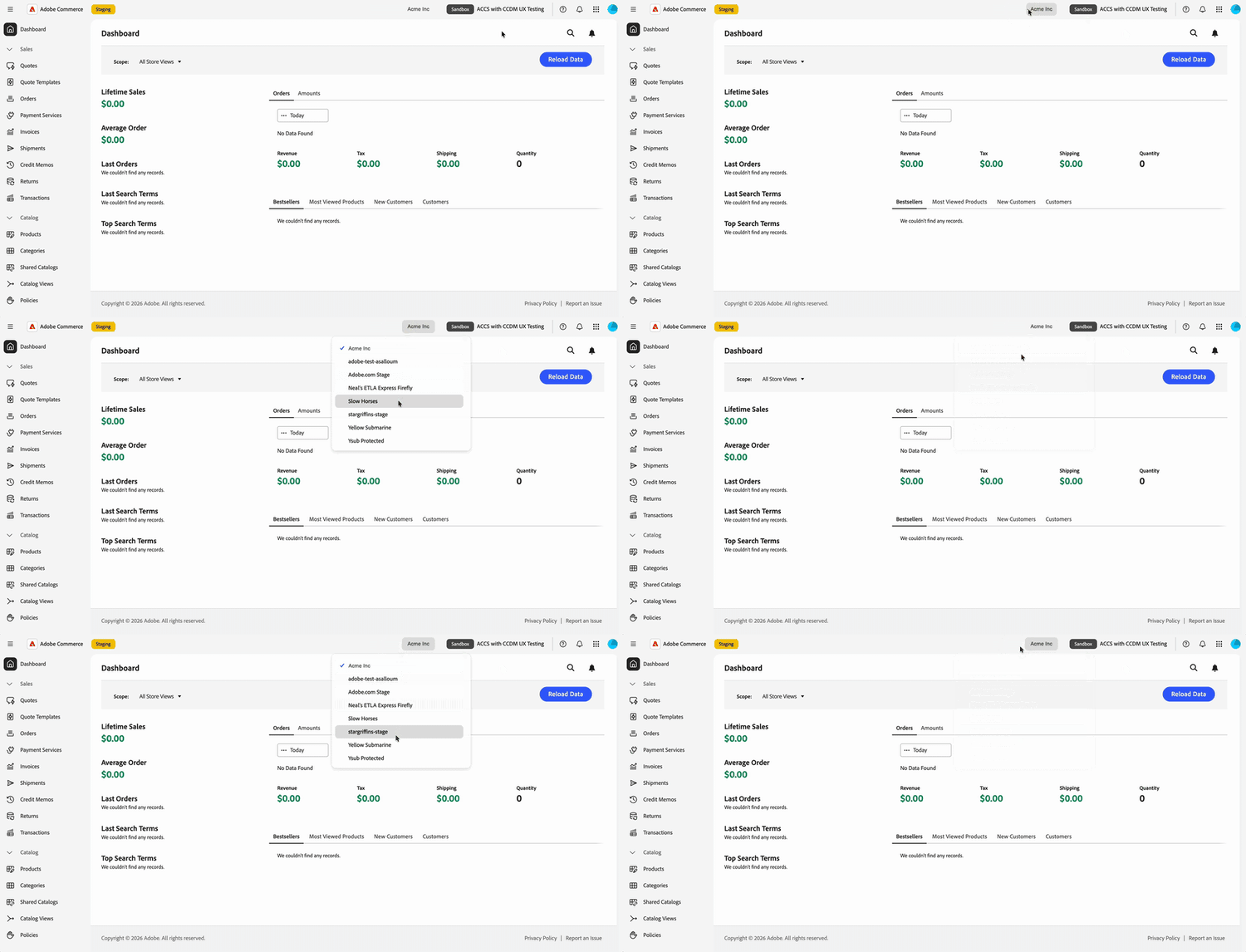
Use the organization switcher in the top navigation to move between the organizations that you have access to.
-
In the top navigation, select the organization name.
-
Select an organization from the list.
The list shows the organizations that you have access to. A check mark identifies the organization that you are working in.
The account menu also shows which organization you are working in. Select your profile picture (

The instances that you can open belong to the organization that you are working in. To change instances, see Switch Commerce instances.
Switch products
Use the product switcher (

- Admin Console: Open Adobe Admin Console from the product switcher to manage users and their access (Administer > Users). You do not need to remember the URL. Adobe Admin Console is separate from the Commerce Admin, where you manage your store.
- Adobe Exchange: Find third-party extensions, plugins, scripts, and enterprise integrations across Adobe Creative Cloud, Adobe Experience Cloud, and Adobe Document Cloud.
- Other products: Open products such as Coworker.
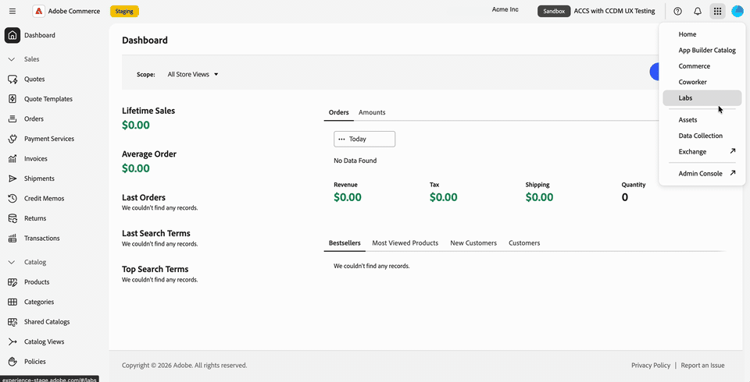
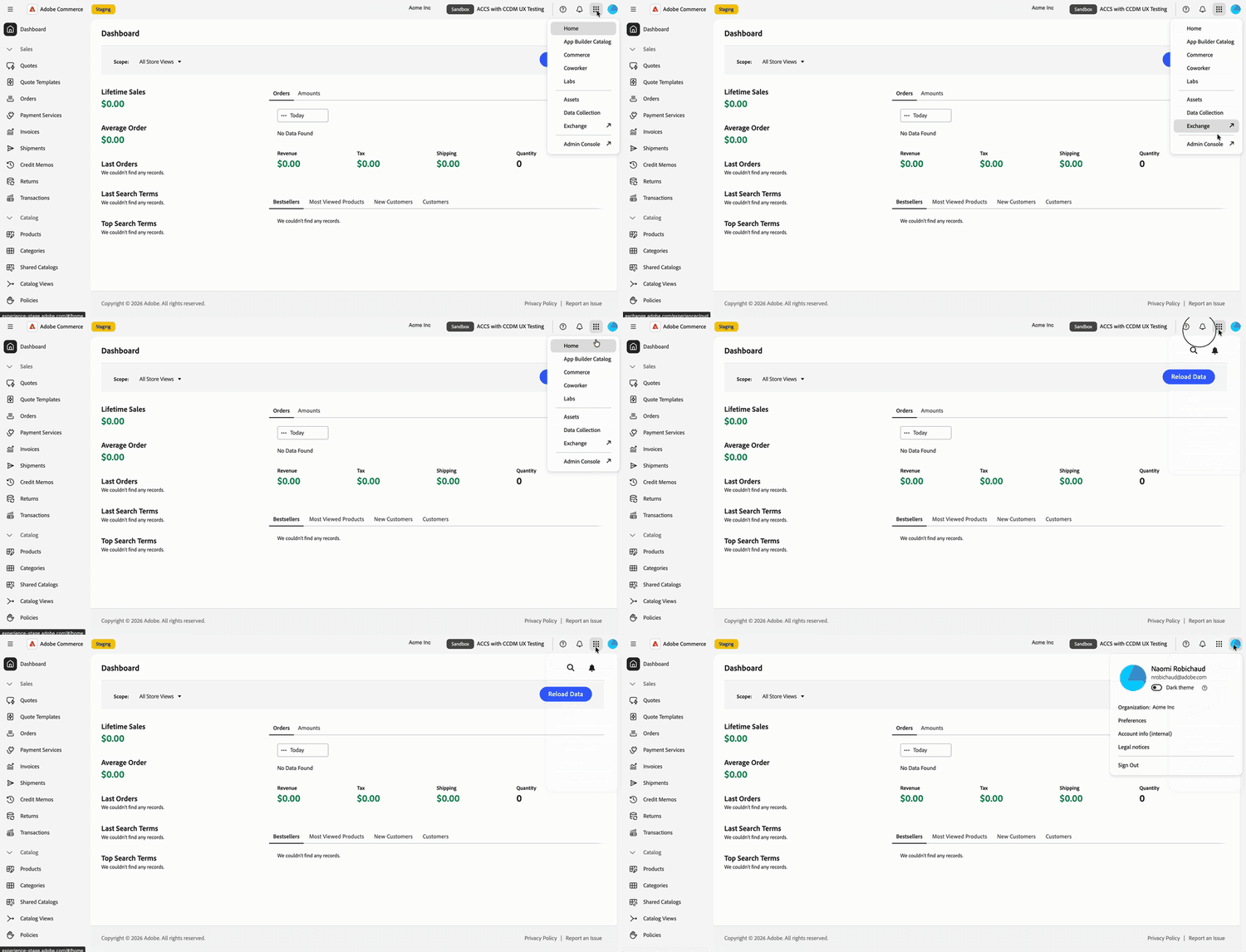
For Adobe Commerce as a Cloud Service user and role management, see User management.
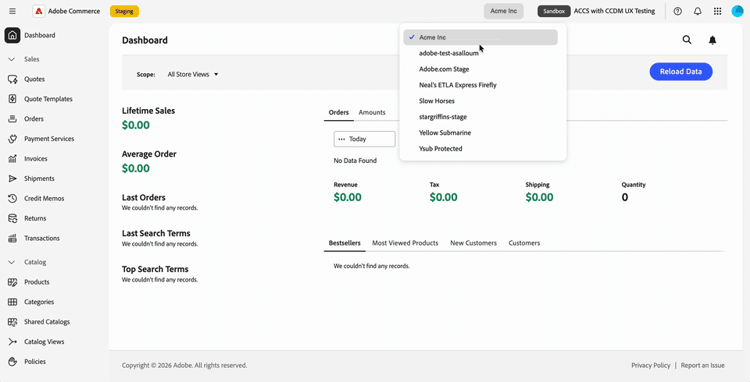
Switch Commerce instances
The top navigation includes an instance switcher button. It always shows the Production or Sandbox badge and the name of the instance that you are in.
-
In the top navigation, select the instance switcher that displays your current instance name and environment badge.
-
Select an instance from the list.
The list contains the Adobe Commerce as a Cloud Service instances that you can access in the current organization. You do not need to return to Commerce Cloud Manager to switch instances, so you can move back and forth between instances.
-
Check the instance name and environment badge before continuing your work.
The instance is part of the page URL, so you can bookmark or share a link that opens a specific instance. If you open the Admin without an instance in the link, it loads the last instance that you used.
Use the left navigation
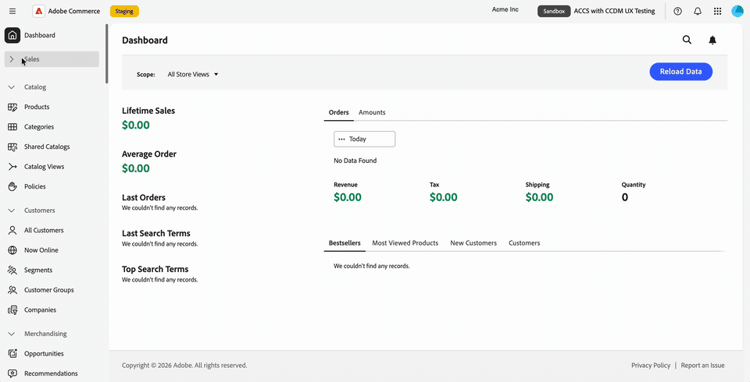
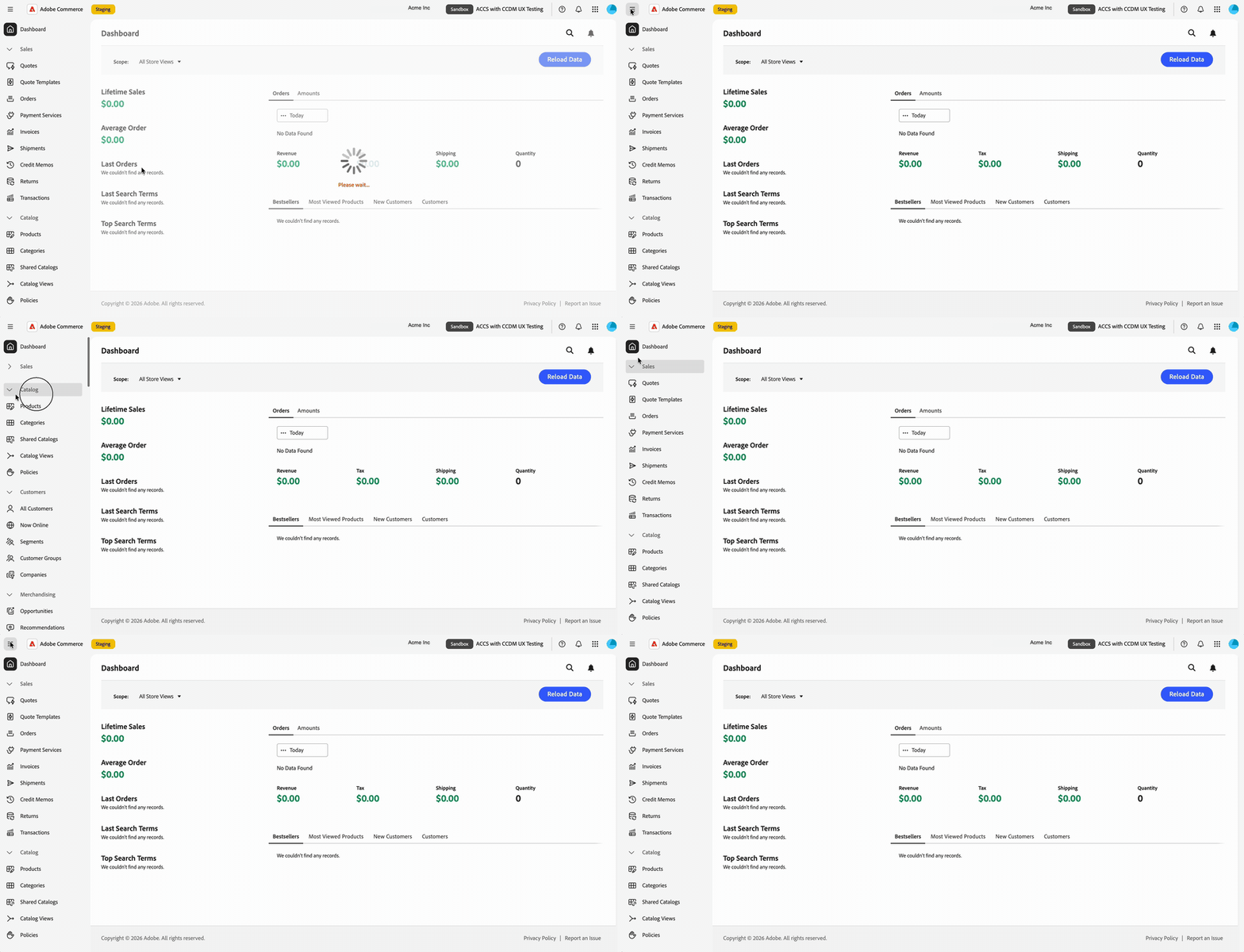
The Commerce Admin menu appears in the left navigation of Adobe Unified Experience. Expand or collapse menu sections to find the tools that you need, or type to jump to a menu item.
The menu is specific to the instance that you are working in. When you switch instances, the left navigation updates to match.
Your existing role permissions carry over. You see only the menu items that your role allows.
Continue to use the Admin Guide for tasks such as managing products, orders, customers, and configuration. Admin pages have refreshed styling, so their appearance can differ from screenshots of Classic UI in this guide.
Get help and provide feedback
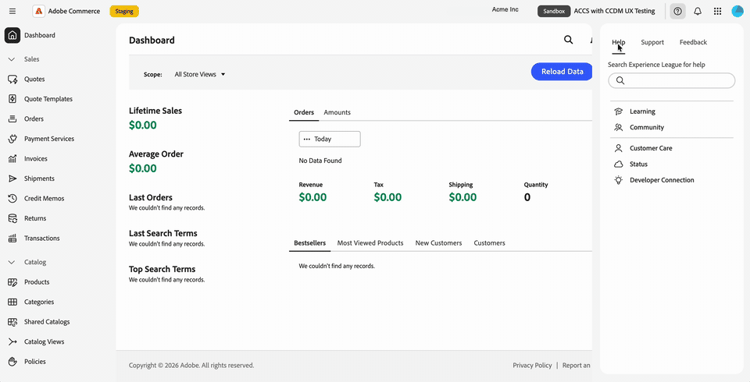
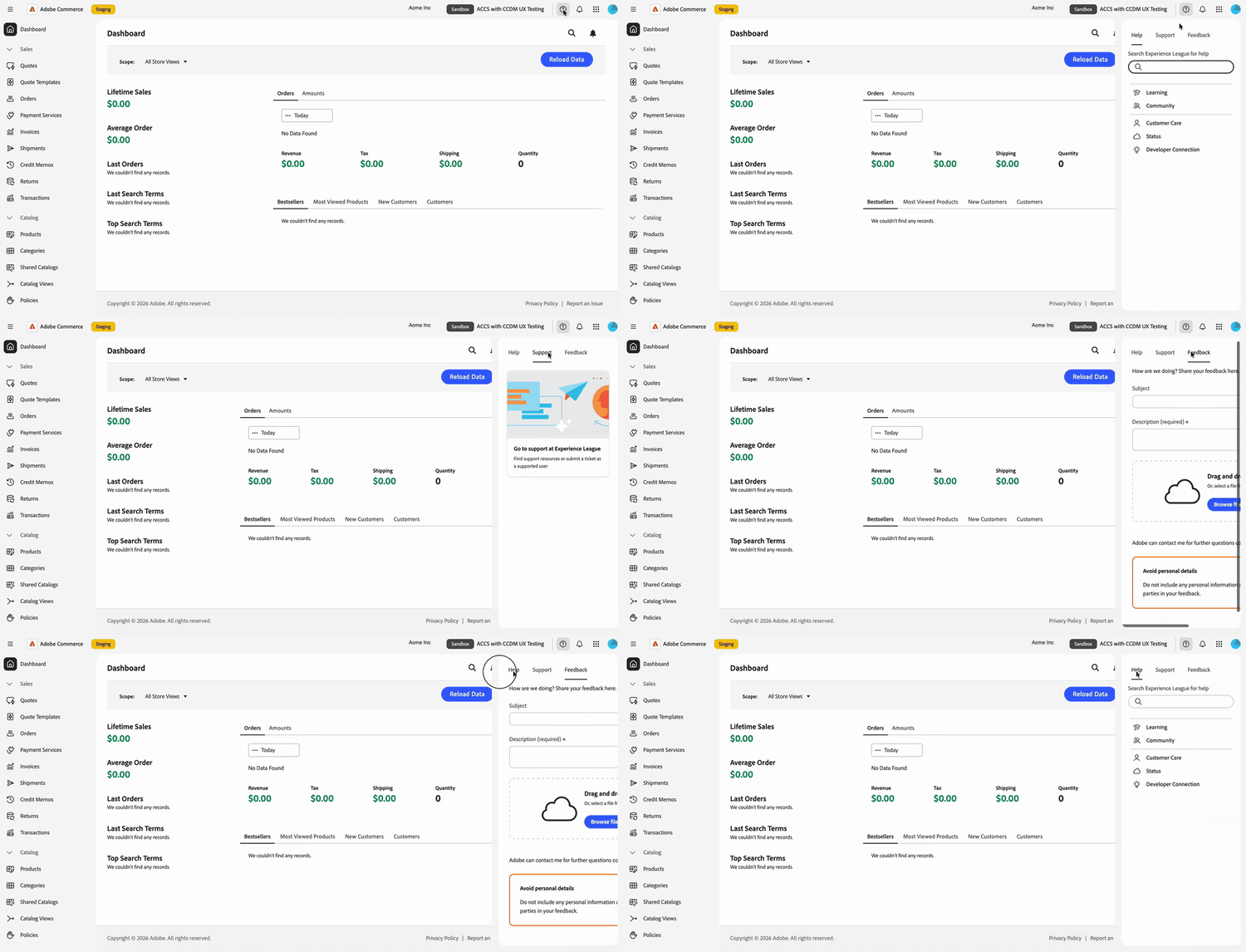
To access resources without leaving your Commerce Admin, open the help panel using the help icon (

- Help: Search Adobe Experience League for documentation directly from the panel.
- Support: Access community forums and other learning resources, and find your support tickets on Adobe Experience League.
- Feedback: Submit feedback to Adobe from the same panel.
Help, support, and feedback are available in context. You stay in your Commerce Admin and do not lose your place.
View notifications view-notifications
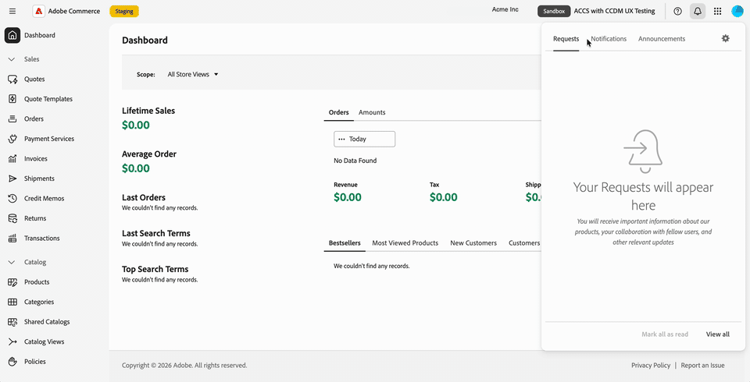
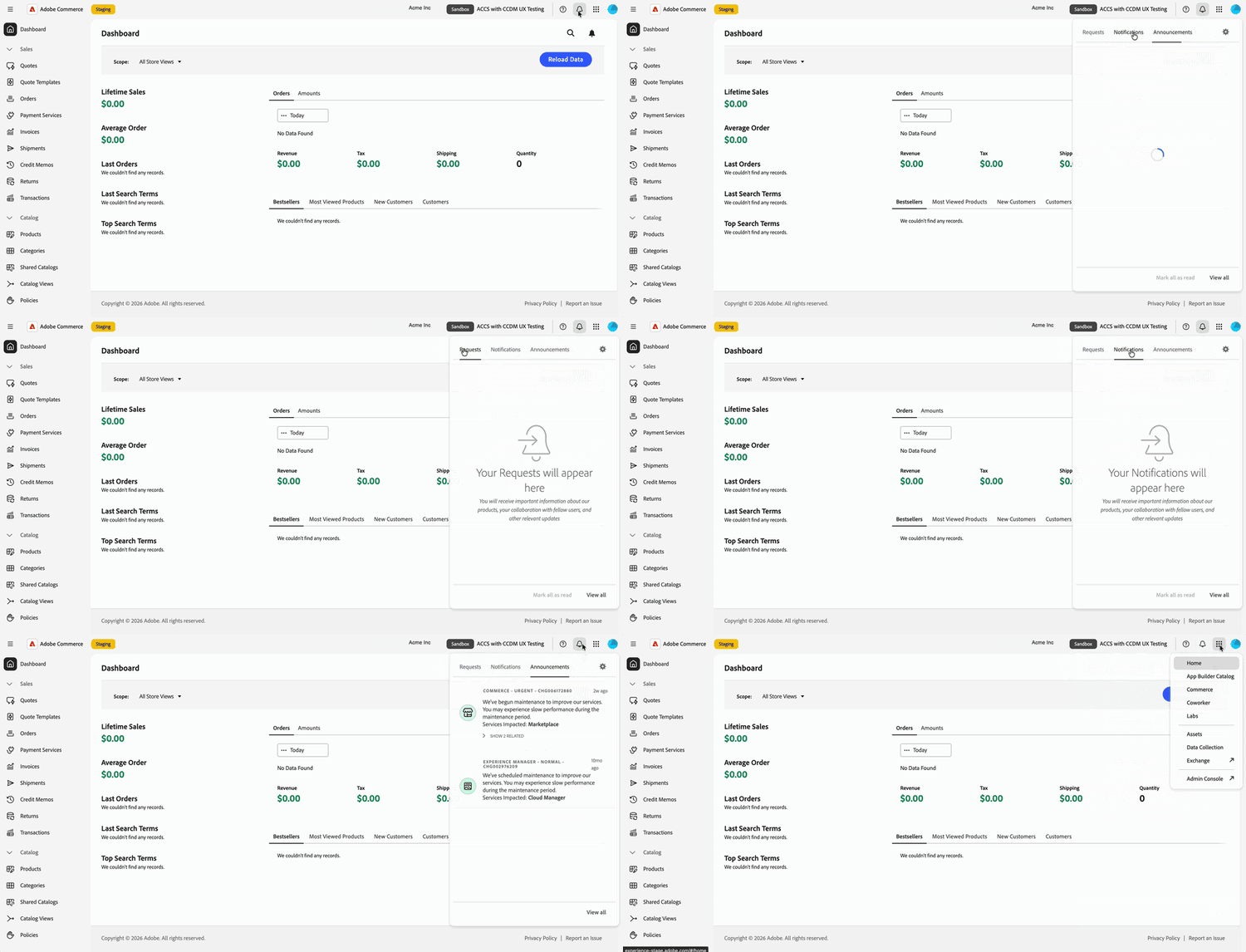
To view notifications, requests, and product announcements in context, open the notifications panel using the bell icon (

The panel brings your Requests, Notifications, and Announcements together in one place. You do not need to leave the Commerce Admin to see any of them.
Use the bell icon in the Unified Experience top navigation for this panel, rather than the notification control within the Commerce page header. For instructions about Commerce Admin inbox messages, see Message inbox.
Manage account preferences
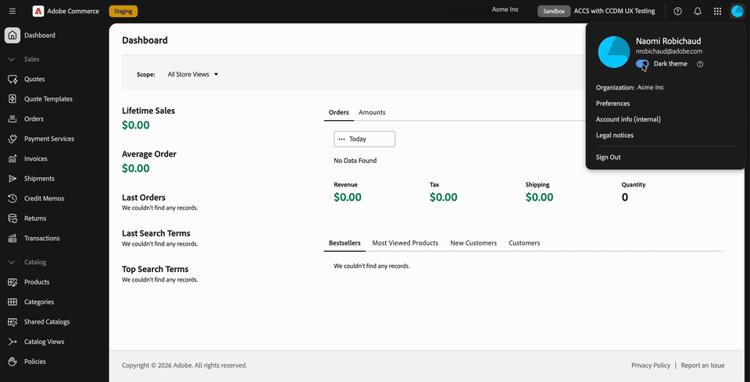
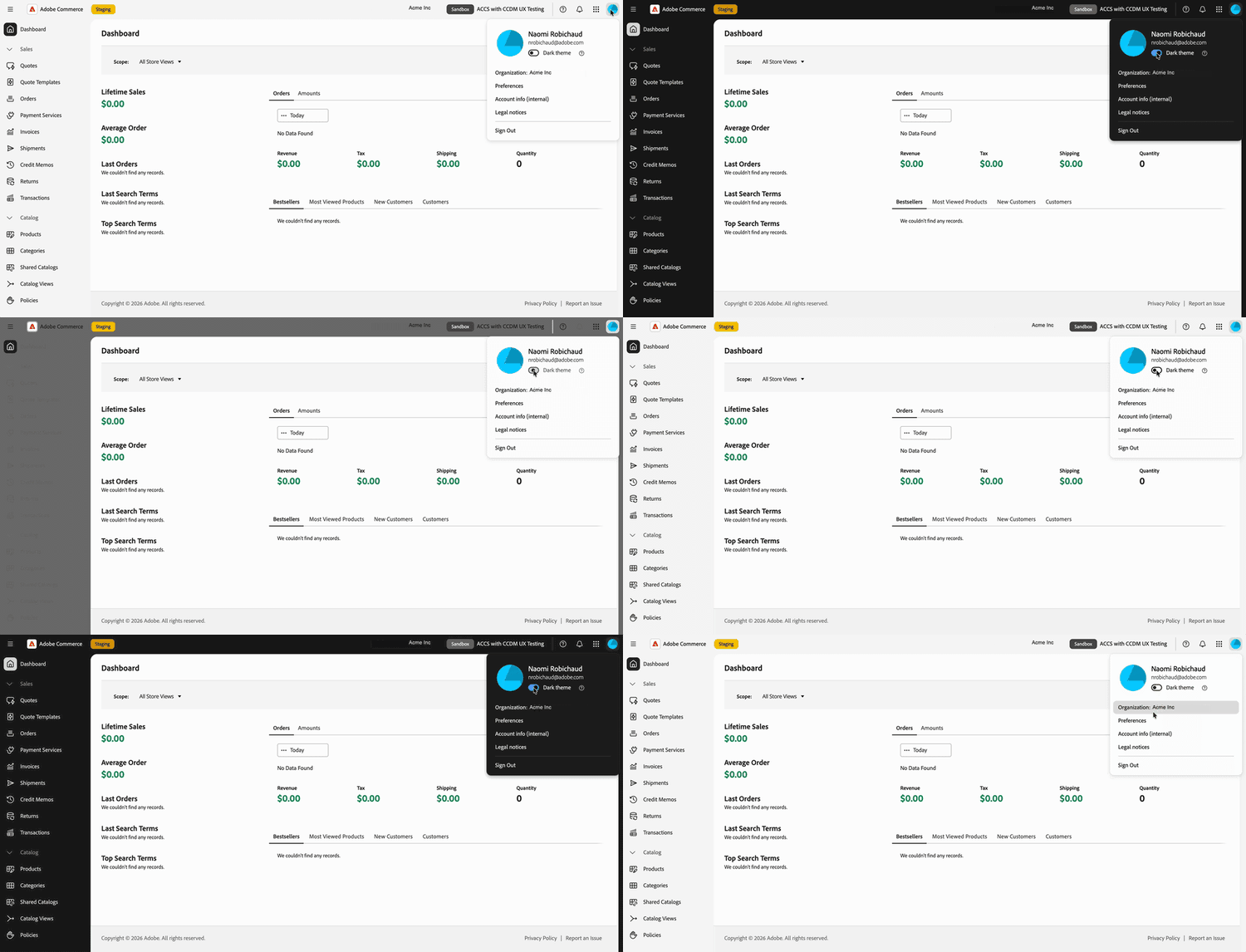
Select your profile picture (
- View the organization that you are working in.
- Turn on dark mode with the Dark theme toggle.
- Open your user preferences.
Updated page styling
Pages in the Commerce Admin have a refreshed look that matches Adobe Unified Experience. More restyling is planned for later releases.