User and Identity Management
To allow users to access the Admin in Adobe Commerce as a Cloud Service, add them as users in your organization and ensure they have access to the Cloud Service product in the Adobe Admin Console.
This process requires an IMS organization with access to Adobe Commerce as a Cloud Service. Only a System Admin or Product Admin for the organization can perform these processes.
Understanding roles
The following roles are available for Adobe Commerce as a Cloud Service. To view or edit these roles, in the Commerce Admin navigate to System > Permissions > User Roles.
-
Users - Users have Admin access to the Commerce Admin but cannot manage product-level access in the Admin Console. Users can also use credits to create instances in the Commerce Cloud Manager.
note NOTE All Commerce users, including developers and admins, must also have the User role assigned to them. It is required for basic Commerce permissions. note tip TIP If you want to restrict access to the Commerce Admin by IP address, refer to Limit product access by IP addresses. -
Developers—Developers have user permissions and are added to the Commerce instance as a developer user. They can use the Admin UI SDK, configure events, and create webhooks.
-
Admins - There are different types of admin roles:
- System admins - The system admin has access to all products and product profiles in the organization through the Admin Console.
- Product admins - Product admins can manage users, roles, and permissions for the product in the Adobe Admin Console and manage users in the Commerce Admin.
- Product profile admins - Product profile admins do not have access to the Adobe Commerce Admin, but can manage users for the product in the Adobe Admin Console.
- Support admins - Support admins can create and manage support tickets.
For detailed information on the permissions granted to each role inside Adobe Commerce, see role resources.
Add a product admin
-
Navigate to https://adminconsole.adobe.com and sign in with your Adobe ID.
-
Select your organization.
-
Select the Users tab.
-
Select the Administrators tab.
-
Click Add Admin.
-
Enter the username or email address of the users you want to add as admins and click Next.
-
Select the Product profile administrator role.
-
Click + to add products.
-
Select the existing Commerce instance to add the admin to. Commerce instances use the following format:
Adobe Commerce - <instance-name> - ACCS - <environment-type> - <tenant-id>. -
Select the product profile.
-
Click Apply.
-
Click Save.
-
Navigate to https://adminconsole.adobe.com and sign in with your Adobe ID.
-
Select your organization.
-
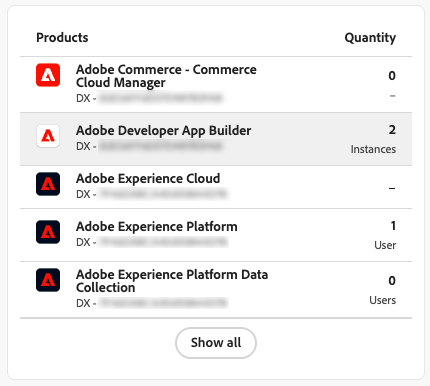
On the Products tab, under Products and Services, select the Adobe Commerce — Commerce Cloud Manager product.
-
Select the Admins tab.
-
Click Add Admin.
-
Enter the username or email address of the users you want to add as admins and click Save.
Add users
The following instructions provide information on how to add users to the Commerce Cloud Manager and the Commerce Admin. The Commerce Cloud Manager interface allows you to create and manage your Commerce Instances. This process is required for all users, including developers and admins.
There are two different ways to add product admin users to Adobe Commerce as a Cloud Service based on when your organization was provisioned. In early access organizations, each user who is assigned the product admin role has permission to manage all instances in the organization. In General Availability (GA) organizations provisioned after October 13, 2025, you can assign a user as the product admin for specific instances. When the product admin user logs in, they can see only the instances they have permission to manage.
-
Navigate to https://adminconsole.adobe.com and sign in with your Adobe ID.
-
Select your organization.
-
Select the Products tab.
-
Select the Adobe Commerce product.
-
Select the Commerce Cloud Manager product if you want to add the user to the cloud manager interface, where they can create and manage Commerce instances, or select the existing Commerce instance to add the user to. Commerce instances use the following format:
Adobe Commerce - <instance-name> - ACCS - <environment-type> - <tenant-id>. -
Select the Users tab and click Add Users.
-
Enter the username or email address of the users you want to add and click Save.
-
Select the desired product profile.
-
Click Apply.
-
Click Save.
-
Navigate to https://adminconsole.adobe.com and sign in with your Adobe ID.
-
Select your organization.
-
On the Products tab, under Products and Services, select the Adobe Commerce — Commerce Cloud Manager product.
-
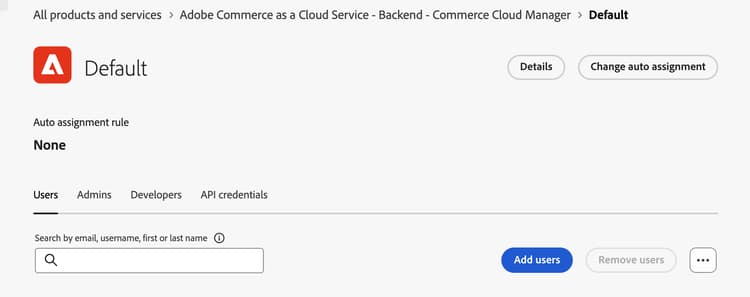
Click the Default — Cloud Manager product profile.
-
Select the Users tab and click Add Users.
-
Enter the username or email address of the users you want to add and click Save.
Add developers and product profile admins
To add developers and product profile admins, repeat the add users process, but select the Developers or Admins tab instead of the Users tab.
Role resources
The following list describes the resources that default roles have permission to access inside the Adobe Commerce Admin. To edit the default permissions for each role, navigate to System > Permissions > User Roles in the Commerce Admin.
Users
- Catalog
- Inventory
- Products
- Read Product Price
- Products
- Inventory
Developers
-
Catalog
- Inventory
- Products
- Read Product Price
- Products
- Inventory
-
System
- Data Transfer
- Import History
- Data Transfer
-
Adobe IO Events Configuration
- Configuration Check
- Create Event Provider
- Configuration Update
- Synchronize Events
- Get Event Provider List
-
Eventing Framework
- Event List
- Test Eventing Connection
- Subscribe to an event
- Unsubscribe from an event
- Event Status
- API to get event subscriptions
- View Event Subscriptions admin UI
- Create Event Subscriptions admin UI
- Request New Event admin UI
-
Webhooks
-
Webhooks Digital Signature
- Webhooks Digital Signature Settings
- Webhooks Digital Signature Generate Keys
-
Webhooks Management
- Webhooks Grid
- Webhooks Edit
- Test Webhooks
- API subscribe to webhook
- API unsubscribe from webhook
- Webhooks List
- Request New Webhook
- Webhooks Logs
- Get list of Webhooks
-
Admins
Admins have access to all permissions.
Add a user to AEM Assets or Product Visuals
The following setup is required for Adobe Experience Manager Assets and Product Visuals powered by AEM Assets users.
If your account has access to Adobe Experience Manager as a Cloud Service and you want to allow a user to access the advanced features of AEM Assets along with Adobe Commerce as a Cloud Service, complete the following process:
-
Navigate to https://adminconsole.adobe.com and sign in with your Adobe ID.
-
Select your organization.
-
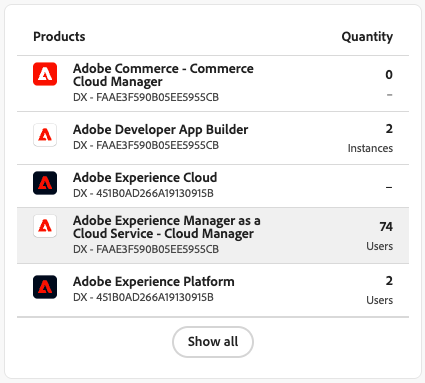
On the Products tab, under Products and Services, select the Adobe Experience Manager as a Cloud Service product.
-
Select the Users tab.
-
Click Add User.
-
Enter the username or email address of the users you want to add.
-
Click Add Product.
-
Select the following product profiles, which are necessary to integrate AEM Assets with Commerce:
- Business Owner - Required to create and manage programs.
- Deployment Manager - Required to deploy code from your repositories to AEM.
If you are adding a developer who does not need access to the Cloud Manager or Experience Manager interfaces, you can instead assign them the developer role.
note NOTE For more information on how these permissions effect your access to AEM Assets, refer to Cloud Manager Product Profiles. For the Asset Selector and auto-populated configuration fields (Program ID, Environment ID, Domain mapping) in the Commerce Admin, users also need the AEM Assets DM OpenAPI Users — delivery product profile. See User permissions and IMS for details.
-
Click Apply.
-
Click Save.
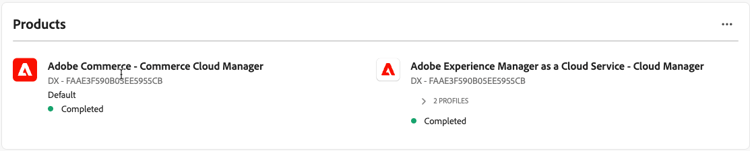
To confirm the user has access, click the user’s name to open their profile page. In the Products section, Completed displays under the Adobe Experience Manager as a Cloud Service product. It takes a few seconds after adding the user to see the status updated on their profile. Refresh the page to see the updated status.
Access the Experience Manager interface
After adding a user to AEM Assets, they can access the Experience Manager interface by navigating to https://experience.adobe.com/{target=“_blank”}.
-
In the Quick Access section, click Experience Manager or click View All if you do not see Experience Manager. Then click Cloud Manager or navigate directly to https://my.cloudmanager.adobe.com{target=“_blank”}.
-
From the Cloud Manager page, click Add Program to get started.
-
After creating the environment, return to the Admin Console and select Adobe Experience Manager as a Cloud Service.
-
You should now see new product profiles. Select the one that contains
- author -. For example,<environment-name> - author - <program-id> - <environment-id>.
Identity management and single sign-on configuration
Adobe Commerce identity management and authentication is managed by the Adobe Identity Management System (IMS) through the Adobe Admin Console.
For information about identity configuration options including Adobe ID, Enterprise ID, and Federated ID, and instructions for configuring Single Sign-On (SSO) for secure access to Adobe apps, see Set up identity and Single Sign-On in the Enterprise Admin Console documentation.