Configure the AEM Assets project to support Commerce metadata
When you use AEM Assets as a Digital Asset Management system (DAM) for Commerce, installing the assets-commerce package allows you to manage images and videos for Commerce products from the AEM authoring environment.
Complete the following steps to configure the AEM Assets project with the required package code and metadata to manage Commerce assets from the AEM authoring environment:
AEM Commerce assets-commerce package contents
Adobe provides an AEM Commerce package code assets-commerce to add Commerce namespace and Metadata Schema resources to the Experience Manager Assets as a Cloud Service environment configuration.
This package code adds the following resources to the AEM Assets authoring environment:
-
A custom namespace,
Commerceto identify Commerce-related properties.-
A custom metadata type
commerce:isCommercewith the labelEligible for Commerceto tag Commerce assets associated with an Adobe Commerce project. -
A custom metadata type
commerce:skusand a corresponding UI component to add a Product Data property. Product Data includes the metadata properties to associate a Commerce asset with product SKUs.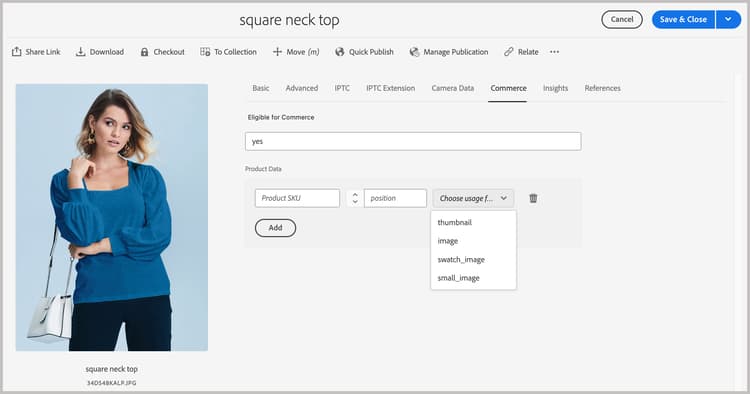
-
A custom metadata type
commerce:rolesandcommerce:positionsattributes to show how the asset is visualized in Commerce. -
Alternative text multifield (Alt texts) metadata so editors can enter alternative text keyed by Commerce store view code. This does not change how product images are assigned or scoped in the catalog. See Alt text in AEM Assets metadata.
-
-
A metadata schema form with a Commerce tab that includes the
Eligible for CommerceandProduct Datafields for tagging Commerce assets. The form also provides options to show or hide therolesandpositionfields from the AEM Assets UI.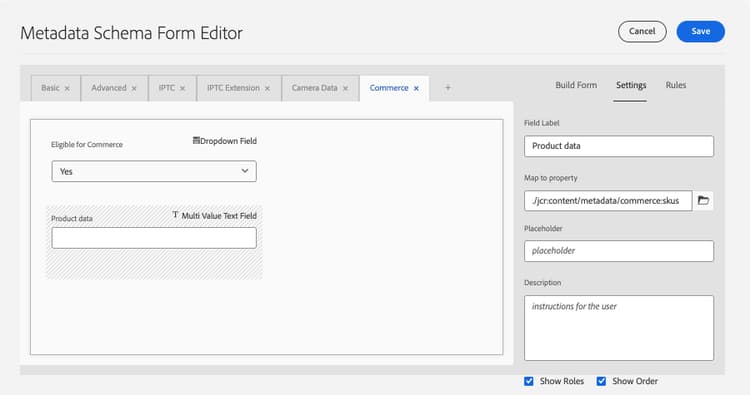
-
A sample tagged and approved Commerce asset
equipment_6.jpgto support initial asset synchronization. Only approved Commerce assets can be synchronized from AEM Assets to Adobe Commerce.

Alt text in AEM Assets metadata
The Alt texts multifield is available in the AEM Assets asset metadata editor on the Commerce tab when you edit an eligible image.
The multifield contains one row per Commerce store view. Each row has two inputs:
-
Store View Code — The store view identifier (for example
defaultoren_US). -
Alt Text — Alternative text for that store view, limited to 255 characters.
Select Add to add more rows for additional store views. To remove a row, select the Delete icon on that row to remove it.

When you save, client-side validation blocks submission if any row has an empty Store View Code or if two rows use the same store view code (case-insensitive).
Alternative text entries are persisted in JCR asset metadata as two index-aligned String[] properties:
commerce:altTextStoreViews: Store view code for each row.commerce:altTextValues: Matching alt text at the same index as each entry incommerce:altTextStoreViews.
When these assets synchronize to Adobe Commerce, per-store view alt text is written to the product media gallery for the matching store view codes. The underlying image mapping is unchanged.
Prerequisites
You need the following resources and permissions to deploy the assets-commerce package code to the AEM Assets as a Cloud Service AEM environment:
-
Access to the AEM Assets Cloud Manager Program and environments with the Program and Deployment Manager roles.
-
A local AEM development environment and familiarity with the AEM local development process.
-
Understand AEM project structure and how to deploy custom content packages using Cloud Manager.
-
The IMS Org ID for your Commerce instance. Both your Commerce instance and AEM Assets Authoring environment must be in the same IMS organization.
-
To enable Dynamic Media with OpenAPI capabilities:
[SaaS only]{class="badge positive" title="Applies to Adobe Commerce as a Cloud Service and Adobe Commerce Optimizer projects only (Adobe-managed SaaS infrastructure)."} Dynamic Media with OpenAPI capabilities is self-service for Product Visuals powered by AEM Assets.
-
Navigate to your Cloud Manager.
-
Select the desired environment.
-
Enable Dynamic Media with OpenAPI capabilities.
If the Dynamic Media with OpenAPI capabilities button is not active, open a support ticket.
[PaaS only]{class="badge informative" title="Applies to Adobe Commerce on Cloud projects only (Adobe-managed PaaS infrastructure)."} On AEM as a Cloud Service, submit an Adobe support ticket with the following information:
-
Title: Enable Dynamic Media OpenAPI to fully integrate Adobe Commerce with AEM Assets
-
Content of the support ticket:
- AEM Program ID
- Adobe Commerce URL
- AEM Environment ID
- IMS Org ID
-
Once you submit the support ticket, Adobe enables Dynamic Media with OpenAPI capabilities on your Cloud Services environment and share the details, such as IMS Client ID, for you to proceed with the integration.
Step 1: Install the assets-commerce package
-
Navigate to the AEM Cloud Manager, select a program, and create production and staging environments that you want to integrate with Adobe Commerce.
-
Configure a deployment pipeline, or verify that your pipeline can deploy changes to the selected environment.
-
Clone the Adobe managed git repository for the selected program.
-
From GitHub, download the package code from the AEM Assets Commerce repository.
-
From your local AEM development environment, manually copy the downloaded code into the existing Adobe managed repository.
-
In all
filter.xmlandpom.xml filesfor your project, replace all occurrences of<my-app>with your app name.note NOTE Alternatively, you can install the custom code into your AEM Assets project configuration as a Maven package. -
Commit the changes and push your local development branch to the Cloud Manager Git repository.
-
From AEM Cloud Manager, update the AEM environment by using the pipeline to deploy your code.
-
Go to any asset and edit its properties to validate the changes:
-
The default Metadata Schema includes the Commerce tab.
-
Product SKUs and the
Eligible for Commercefields are visible.
-
Commerce tab is not visible in properties
If the Commerce tab does not appear in properties, you must manually create one in the metadata schema editor.
-
Navigate to the metadata schema editor.
-
Click Edit to modify the default metadata schema form.
-
Create a Commerce tab, and select it.
-
Drag and drop the Product component into the Commerce tab, and map it to the property
commerce:skus. -
Select the checkbox for show roles and show order.
-
Drag and drop a checkbox component into the Commerce tab, and map it to the property
commerce:isCommerce. Define Yes and No as the options.
If you encounter any other issues, create a support ticket or contact your AEM Assets Integration sales representative for help.
Step 2: Optional. Configure a metadata profile
In the AEM Assets author environment, set default values for Commerce asset metadata by creating a metadata profile. Then, apply the new profile to AEM Asset folders to automatically use these defaults. This configuration streamlines asset processing by reducing manual steps.
When you configure the metadata profile, you only have to configure the following components:
-
Add a Commerce tab. This tab enables Commerce specific configuration settings added by the template.
-
Add the
Eligible for Commercefield to the Commerce tab.
The Product Data UI component is added automatically based on the template.
Define the metadata profile
-
Log in to the Adobe Experience Manager author environment.
-
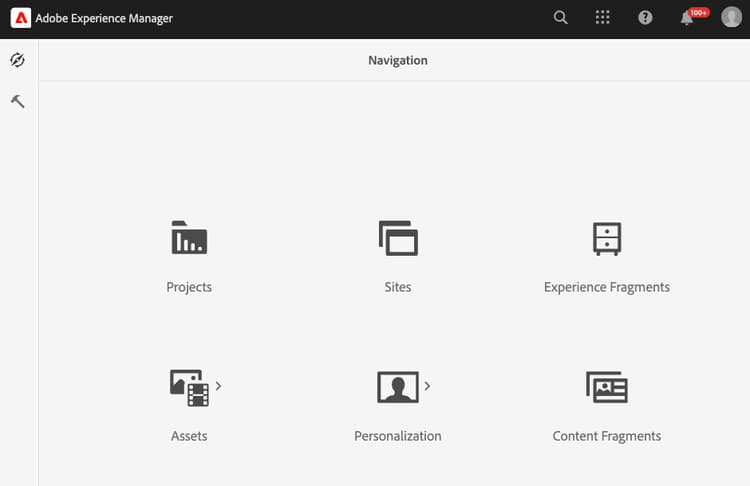
From the Adobe Experience Manager workspace, go to the Author Content Administration workspace for AEM Assets by clicking the Adobe Experience Manager icon.
-
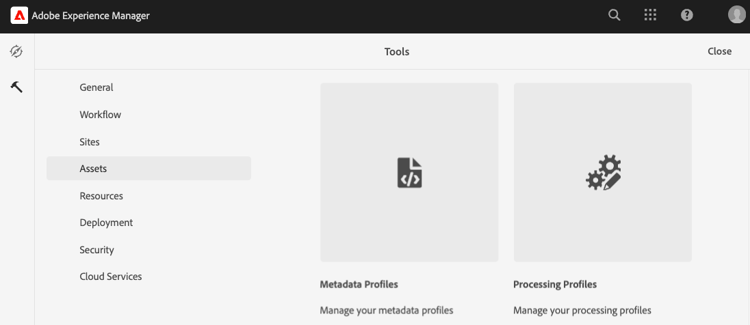
Open the Administrator tools by selecting the hammer icon.
-
Open the profile configuration page by clicking Metadata Profiles.
-
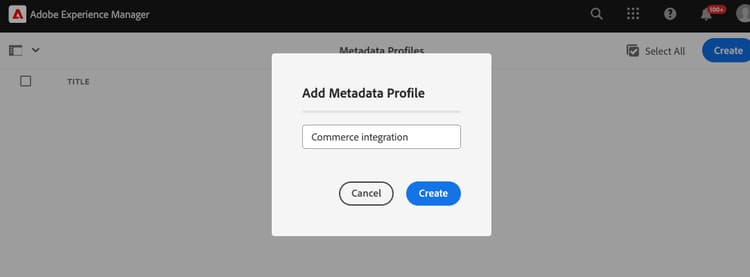
Create a metadata profile for the Commerce integration.
-
Add a tab for Commerce metadata.
-
On the left, click Settings.
-
Click + in the tab section, and then specify the Tab Name,
Commerce.
-
-
Add the
Eligible for Commercefield to the form.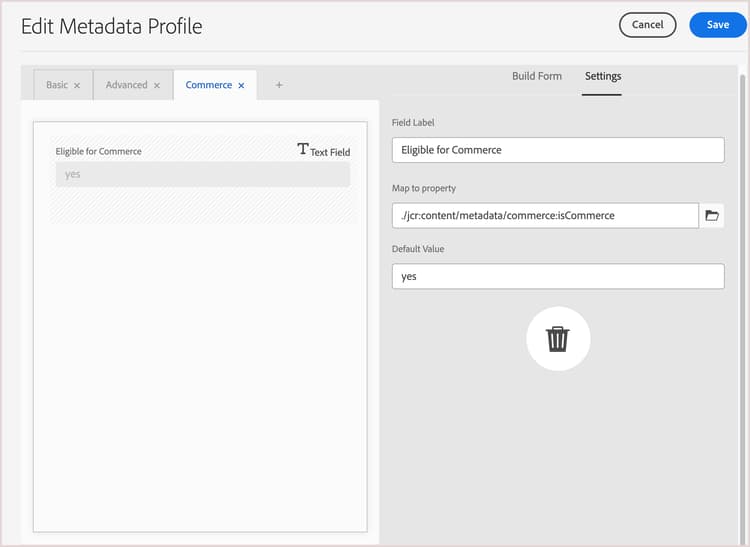
-
Click Build form.
-
Drag the
Single Line textfield to the form. -
Add the
Eligible for Commercetext for the label by clicking Field Label. -
On the Settings tab, add the label text to Field Label.
-
Set the placeholder text to
yes. -
In the Map to Property field, copy and paste the following value
code language-terminal ./jcr:content/metadata/commerce:isCommerce
-
-
Optional. To automatically synchronize approved Commerce assets as they are uploaded to the AEM Assets environment, set the default value for the Review Status field on the
Basictab toapproved. -
Save the update.
Apply the metadata profile to the Commerce assets source folder
-
From the Metadata Profiles page, select the Commerce integration profile.
-
From the action menu, select Apply Metadata Profiles to Folders.
-
Select the folder containing Commerce assets.
Create a Commerce folder if it does not exist.
-
Click Apply.
Next steps
-
[PaaS only]{class="badge informative" title="Applies to Adobe Commerce on Cloud projects only (Adobe-managed PaaS infrastructure)."} Install Adobe Commerce packages.
-
[SaaS only]{class="badge positive" title="Applies to Adobe Commerce as a Cloud Service and Adobe Commerce Optimizer projects only (Adobe-managed SaaS infrastructure)."} Configure the integration from the Commerce Admin.