Add an editable list to the offer schema offer-editable-list
When you extend the nms:offer schema with a custom collection link, such as a set of segments linked to an offer, you can expose it as an editable list directly in the offer’s Custom options section. Instead of managing the related records through a separate screen, the collection is rendered as a list in the offer detail, and you can create new related records inline through a dedicated dialog.
Add a collection link field add-field
-
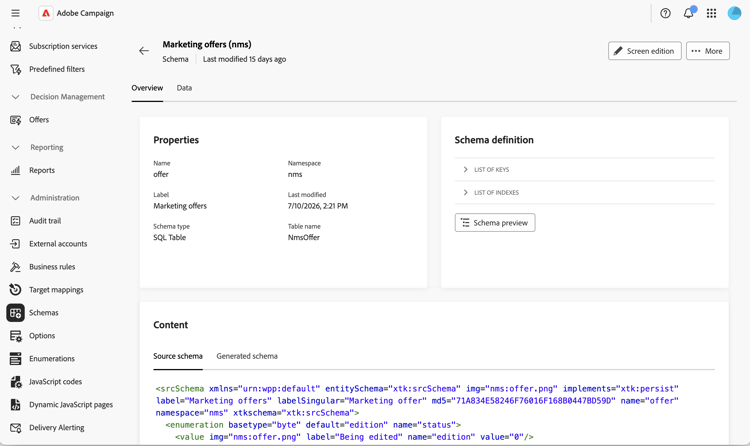
Extend the nms:offer schema with your custom collection, then browse to the Schemas menu, open the Marketing offers schema, and click Screen edition. Learn more.
-
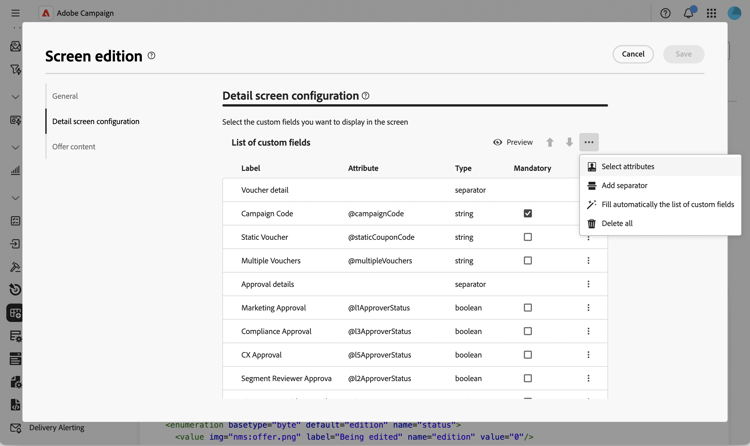
In the Detail screen configuration section, click the ellipsis icon above the List of custom fields table and choose Select attributes. Learn more.
-
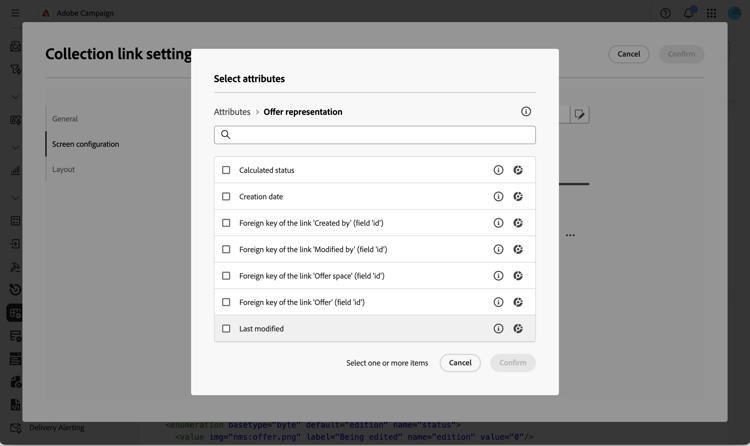
Browse the attributes and select your custom collection link, identified by its collection icon.
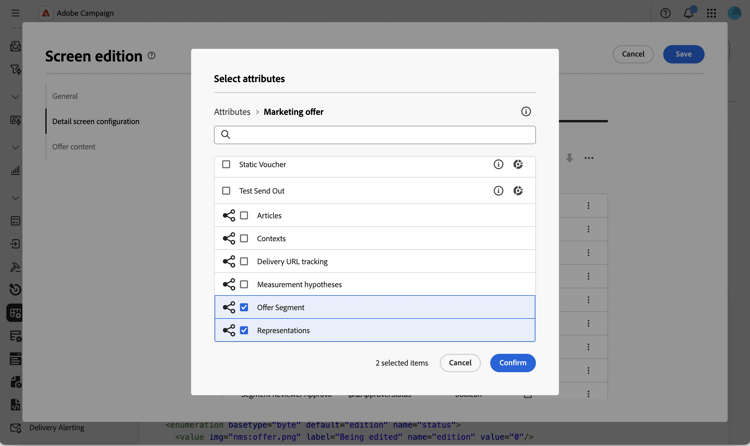
note NOTE Collection link fields cannot be made mandatory, and do not support sub-attributes. By default, they span two columns in the form. -
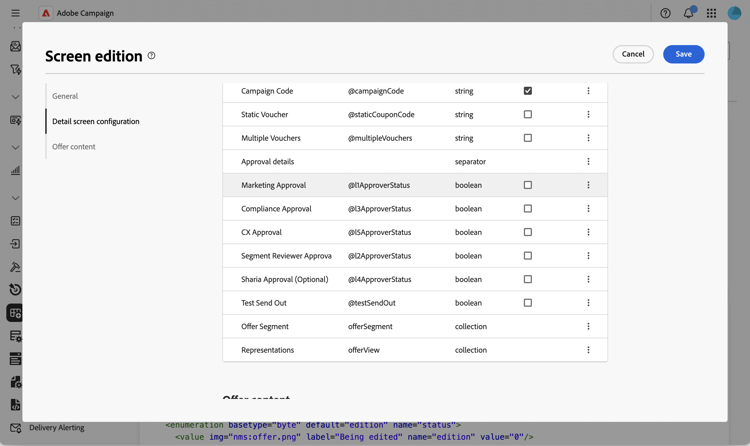
Confirm your selection. The collection link is added to the List of custom fields table, with collection as its type.
Configure the collection’s editable list configure-list
-
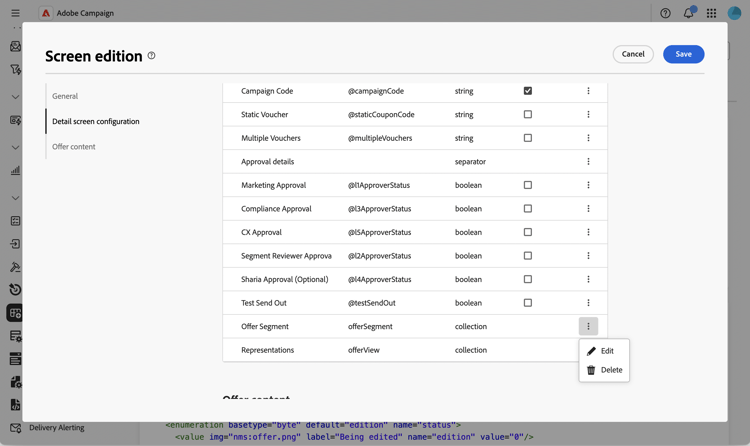
Click the ellipsis icon on the collection field’s row and choose Edit to open the Collection link settings dialog.
-
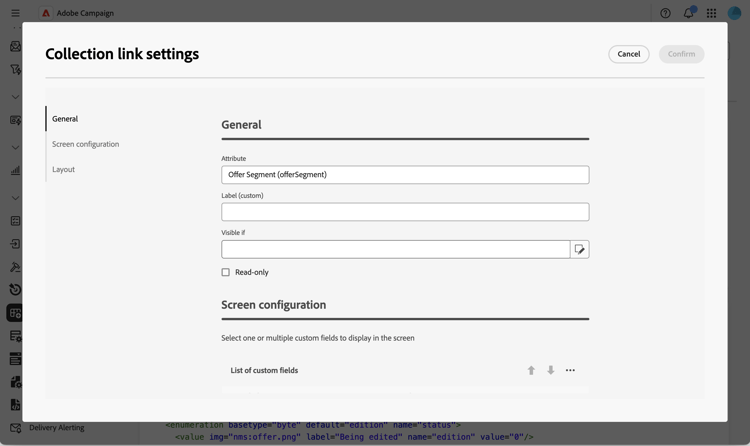
In the General tab, optionally set a Visible if condition, or enable Read-only.
-
In the Screen configuration tab, click Select attributes and select the attributes to use when adding a new element to the list, for example a segment name and a custom field.
-
In the Layout tab, keep or clear Span two columns.
-
Click Confirm, then Save the screen definition.
Use the editable list in an offer use-list
-
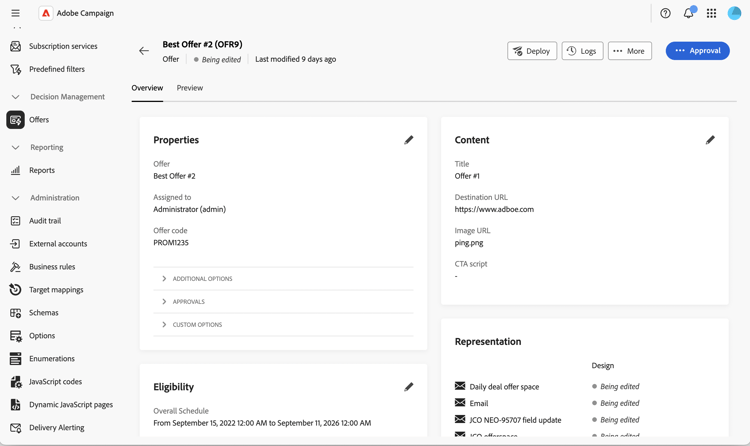
From the left menu, click Offers and open an offer. Read more
-
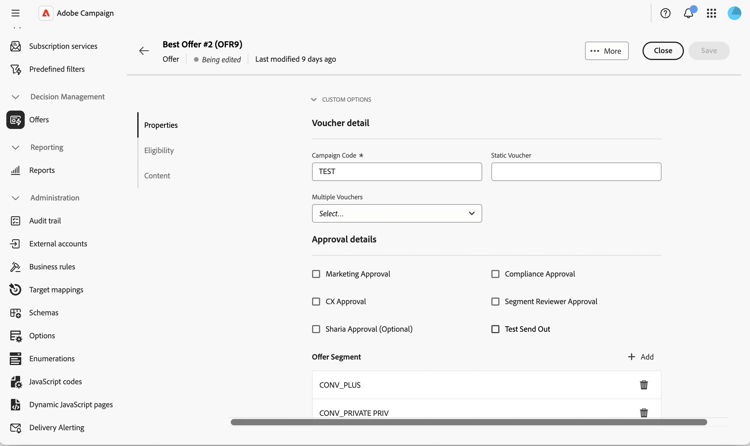
Access the offer properties. The collection is rendered as a list in the Custom options section.
-
Click Add to display the attributes you configured, fill them in, and click Confirm. The new element is added to the list.
You can add multiple elements to the same list, and the offer detail can contain more than one editable list.
-
Click Save.