Get started with offer management gs-offer-management
This capability lets you add personalized offers to your deliveries and present the most relevant one for each profile in a given context. Offers can be a simple communication message or promotions on one or several products. Based on eligibility rules and priority weights, the Offer engine selects the best proposition to present.
The Campaign Web user interface lets you manage offers end-to-end. You can create and configure offer environments, design offer spaces, build your offer catalog, set eligibility rules, edit offer content, and publish offers.
Offers are then presented to recipients through deliveries based on eligibility rules and priority weights, so that the best offer is selected for each profile in a given context.
Key concepts concepts
Before you start working with offers, get familiar with the main objects involved.
-
Offer environment — Container that holds an offer catalog and the related offer spaces. There are two types, the Design environment, where you create and configure offers, and the read-only Live one, which contains the approved and deployed objects available for delivery. Learn more
-
Offer space — Defines where and how an offer is exposed (email, direct mail, SMS, inbound web, etc.). The space lists the content fields that can be used in the offer, the rendering function that builds the offer representation, and the storage settings that drive the proposition status. Learn more
-
Offer catalog and categories — Offers are organized in a hierarchical catalog of categories and sub-categories. Each category can share eligibility rules, validity dates, and application themes. A default category is provided in the design environment to receive all offers.
-
Offer — An individual offer with its own eligibility period, target filter, weight, and content. Offers are approved and deployed before they can be presented to recipients. Learn more
-
Offer proposition — Result of presenting an offer to a contact in a given space (a banner on a website, an email, a SMS, etc.). The number of propositions per delivery is configured when setting up offers in a delivery.
-
Arbitrage — Principle by which the Offer engine ranks eligible offers by priority to select which ones to present. Arbitrage uses the criteria defined on the categories, the offers, and the context offers.
Offer management flow workflow
The typical end-to-end flow in Campaign Web UI is the following:
-
Review the offer environment settings — Check the design / live mapping, eligibility and weight management settings. Learn more
-
Create an offer space — Define the content fields, the rendering function, and the advanced parameters that match your channel. Learn more
-
Create offers in the catalog — Set the eligibility period, the target filter, the weight, and the content for each offer. Learn more
-
Approve and deploy — Submit the offer for approval, approve its content and eligibility, then let the deployment process publish it to the live environment. Learn more
-
Add the offer to a delivery — Reference the offer space and the propositions in your email, SMS, push, or direct mail delivery. Learn more
Access offers in the Web UI access
Offers are available from the Offers left menu. From there you can browse the catalog, open an offer for edition, and monitor its approval and deployment status.
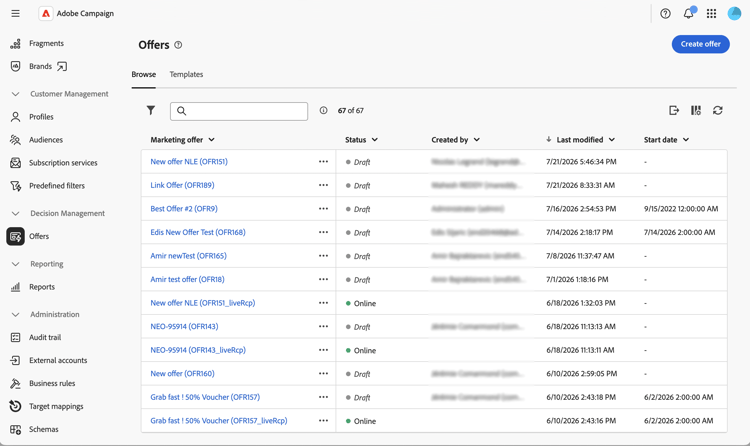
Offer environments and offer spaces are accessed through the Explorer, by navigating to the corresponding folder.
Console-only complements console-complements
Some offer features are not yet exposed in the Web user interface and must still be configured from the client console:
-
Offer simulation — The Simulation module that lets you test the distribution of offers before sending. See Offer simulation.
-
Predefined filters management — Reusable filter rules that can be referenced from any offer. See Manage predefined filters.
-
Offer tracking — Configuring tracking for offer propositions to feed the proposition history. See Track offer propositions.
-
Operator roles — Assigning Offer manager / Delivery manager rights. See Operators of the Interaction module.
-
Interaction best practices and arbitrage rules. See Campaign Interaction best practices.
-
Reporting — Dedicated offer and proposition reports are not yet available in the Web user interface.