Generate text generative-text
Use AI in Adobe Campaign Web to generate engaging text that resonates with your audience. Whether you’re enhancing email copy, crafting persuasive landing page content, writing push notification messages, or composing SMS text, AI helps you deliver clear, impactful communication.
For Email and Landing Pages email-web-channels
Use AI to generate high-quality text content for your email deliveries and landing pages. This capability enables you to create compelling, on-brand messaging that connects with your audience across digital touchpoints.
Access and configure access-configure
Before you can start generating text content with AI, you will need to set up your delivery and access the content editor. Follow these steps to prepare your workspace and open the Generate Content panel.
-
Create and configure your delivery:
- Email: After creating and configuring your email delivery, click Edit content. Learn more
- Landing Page: After creating and configuring your landing page, click Edit content. Learn more
-
Select a Text component to target specific content, and access the Generate Content menu.
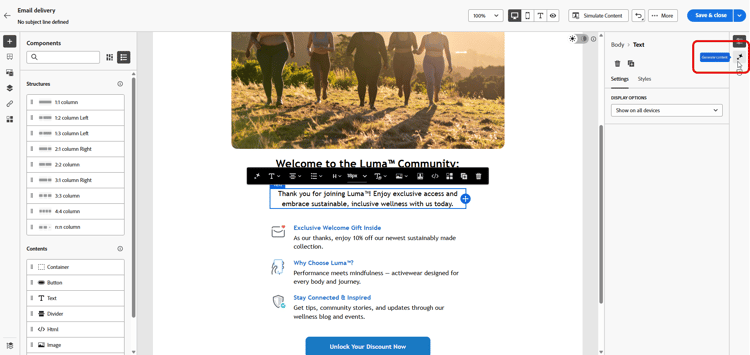
Generate text generate-content
Learn how to craft clear prompts, fine-tune settings, and generate tailored text using AI, ensuring that your messaging aligns with your brand and communication goals.
-
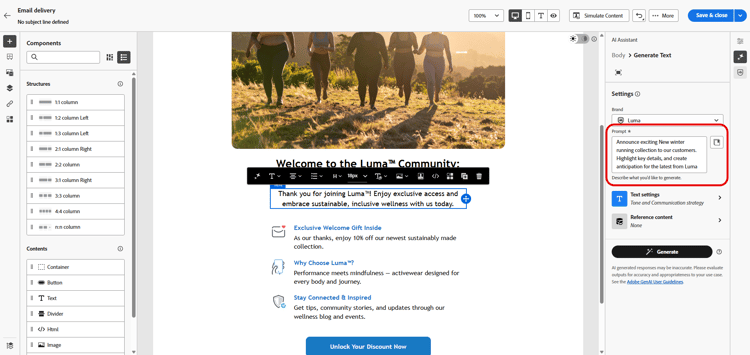
Select your Brand to ensure AI-generated content aligns with your brand specifications. Learn more on Brands.
-
Fine-tune the content by describing what you want to generate in the Prompt field.
If you need assistance crafting your prompt, access the Prompt Library, which provides a diverse range of prompt ideas to improve your deliveries. Learn more on prompt best practices
-
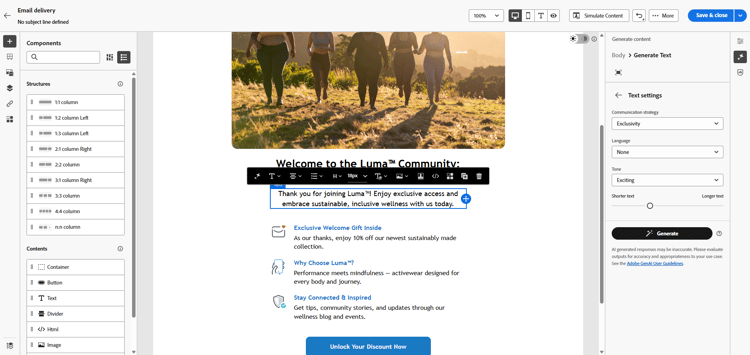
Tailor your prompt using the Text settings option:
-
Communication strategy: Choose the most suitable communication style for your generated text.
-
Languages: Choose the language of your generated content.
-
Tone: Ensure the tone of your email resonates with your audience. Whether you want to sound informative, playful, or persuasive, AI adapts the message accordingly.
-
Text Length: Use the slider to select the desired length of your text.
-
-
From the Reference content menu, click Upload file to add any brand asset which contains content that can provide additional context AI or select a previously uploaded one.
Previously uploaded files are available in the Uploaded reference content drop-down. Simply toggle the assets you wish to include in your generation.
-
Once your prompt is ready, click Generate.
Refine and finalize refine-finalize
Learn how to review the generated text, make refinements, and apply personalization to finalize your content, creating polished and engaging messages ready for delivery.
-
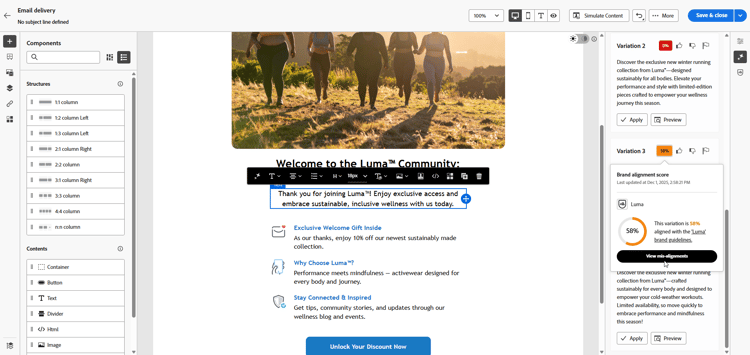
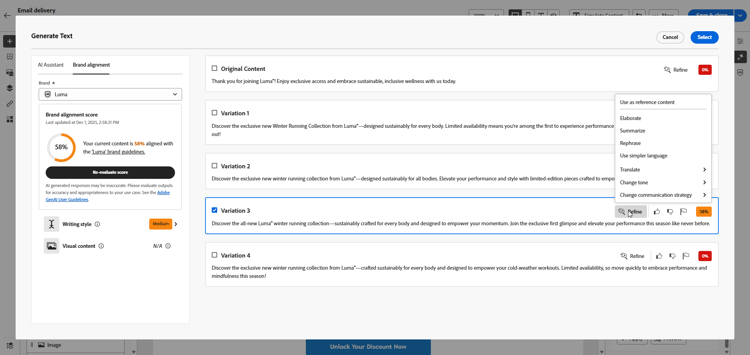
Browse through the generated Variations.
-
Click the percentage icon to view your Brand Alignment Score and identify any misalignments with your brand.
Learn more on Brand alignment score.
-
Click Preview to view a full-screen version of the selected variation or Apply to replace your current content.
-
Navigate to the Refine option within the Preview window to access additional customization features:
- Use as reference content: The chosen variant serves as the reference content for generating other results.
- Elaborate: Expand on specific topics, providing additional details for better understanding and engagement.
- Summarize: Condense key points into clear, concise summaries to grab attention and encourage further reading.
- Rephrase: Rephrase your message in different ways, keeping your writing fresh and engaging for diverse audiences.
- Use simpler language: Simplify your language to ensure clarity and accessibility for a wider audience.
- Translate: Simplify your language to ensure clarity and accessibility for a wider audience.
You can also change the Tone and Communication strategy of your text.
-
Open the Brand Alignment tab to see how your content aligns with your brand guidelines.
-
Click Select once you find the appropriate content.
-
Insert personalization fields to customize your content based on profile data. Then, click the Simulate content button to control the rendering and check personalization settings with test profiles. Learn more
-
Review and activate your content:
- Email: When you have defined your content, audience and schedule, you are ready to prepare your email delivery. Learn more
- Landing Page: Once your landing page is ready, you can publish it to make it available for use in a message. Learn more
For Mobile Channels mobile-channels
Use AI to generate compelling text content for your push notifications and SMS messages, helping you create engaging mobile communications that connect with your audience across all mobile touchpoints.
Access and configure mobile-access-configure
Before you begin generating text with AI for mobile channels, you must set up your delivery and access Generate Content.
-
Create and configure your mobile delivery:
- Push notifications: After creating and configuring your push notification delivery, click Edit content. Learn more
- SMS: After creating and configuring your SMS delivery, click Edit content. Learn more
-
Personalize your message as needed:
- Push notifications: Learn more
- SMS: Learn more
-
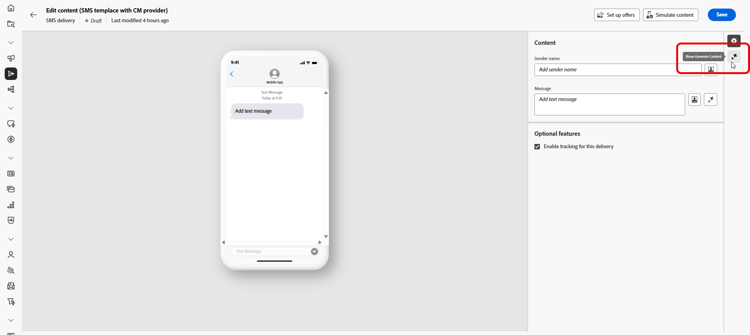
Access the Show Generate Content menu.
Generate text mobile-generate-content
Once you have accessed Generate Content, you can configure the generation settings to create mobile content that matches your brand and delivery goals. Customize text parameters, add brand assets, and provide prompts to guide the AI in generating relevant variations.
-
Select your Brand to ensure AI-generated content aligns with your brand specifications. Learn more on Brands.
-
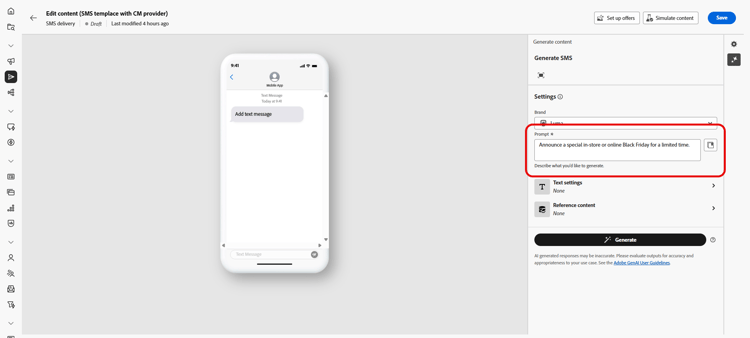
Fine tune the content by describing what you want to generate in the Prompt field.
If you are looking for assistance in crafting your prompt, access the Prompt Library which provides a diverse range of prompt ideas to improve your delivery. Learn more on prompt best practices
-
For Push notifications, choose the text field you want to generate: Title, Subtitle and/or Message.
-
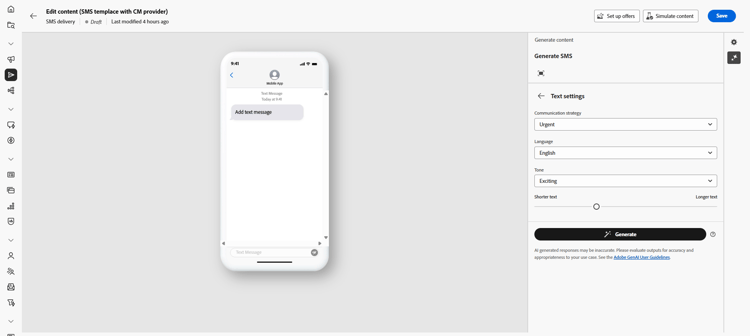
Tailor your prompt with the Text settings option:
-
Communication strategy: Choose the most suitable communication style for your generated text.
-
Languages: Choose the language of your generated content.
-
Tone: The tone should resonate with your audience. Whether you want to sound informative, playful, or persuasive, AI can adapt the message accordingly.
-
Length: Select the length of your content using the range slider.
-
-
From the Reference content menu, click Upload file to add any brand asset which contains content that can provide additional context AI or select a previously uploaded one.
Previously uploaded files are available in the Uploaded reference content drop-down. Simply toggle the assets you wish to include in your generation.
-
Once your prompt is ready, click Generate.
Refine and finalize mobile-refine-finalize
After generating text variations for your mobile messages, you can fine-tune the results to ensure they meet your exact requirements. Review the brand alignment, adjust tone and language, and prepare the content for activation.
-
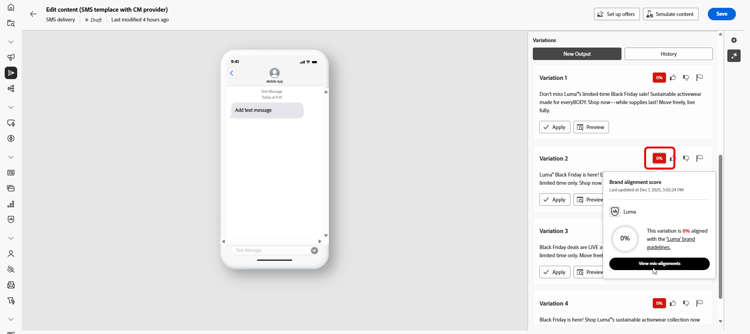
After generation, browse through the Variations.
-
Click the percentage icon to view your Brand Alignment Score and identify any misalignments with your brand.
Learn more on Brand alignment score.
-
Click Preview to view a full-screen version of the selected variation or click Apply to replace your current content.
-
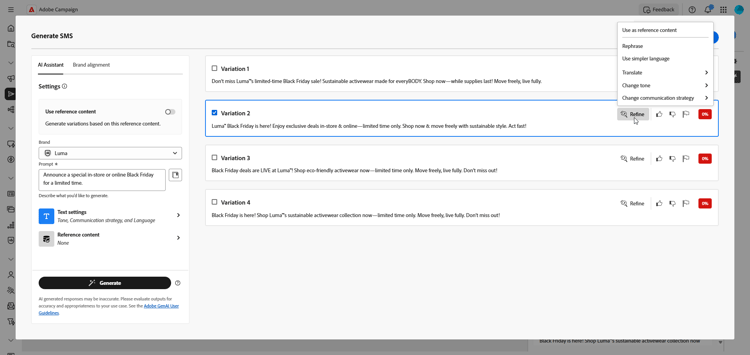
Navigate to the Refine option within the Preview window to access additional customization features:
-
Use as reference content: The chosen variant will serve as the reference content for generating other results.
-
Rephrase: Rewrite the message while preserving its meaning. This option helps you generate alternative wording, improve flow, or adjust phrasing without changing the core message.
-
Use simpler language: Use AI to edit/refine your language, ensuring clarity and accessibility for a wider audience.
-
Translate: Simplify your language to ensure clarity and accessibility for a wider audience.
-
Change tone: Adjust the tone of the message to better match your communication style, i.e. making it more friendly, professional, urgent, or inspirational.
-
Change Communication strategy: Modify the messaging approach based on your objectives, such as creating urgency, or emphasizing exciting appeal.
-
-
Open the Brand Alignment tab to see how your content aligns with your brand guidelines.
-
Click Select once you found the appropriate content.
-
Insert personalization fields to customize your content based on profiles data. Then, click the Simulate content button to control the rendering, and check personalization settings with test profiles. Learn more
-
Review and activate your content:
- Push notification: When you have defined your content, audience and schedule, you are ready to prepare your push notification delivery. Learn more
- SMS: Once your SMS is ready, you can publish it to make it available for use in a message. Learn more