Create & manage your brands brands
Brand guidelines are a comprehensive set of rules and standards that define a brand’s visual and verbal identity. They serve as a reference to ensure consistent brand representation across all marketing and communication channels.
In Adobe Campaign Web, users can manually enter and organize brand information or upload brand guideline documents for automatic data extraction.
Access brands generative-access
To access the Brands menu in Adobe Campaign Web, users must be assigned the Administrator (admin) and Brand kit product profiles to create and manage brands. For read-only access, users need the AI assistant product profile. Learn more
-
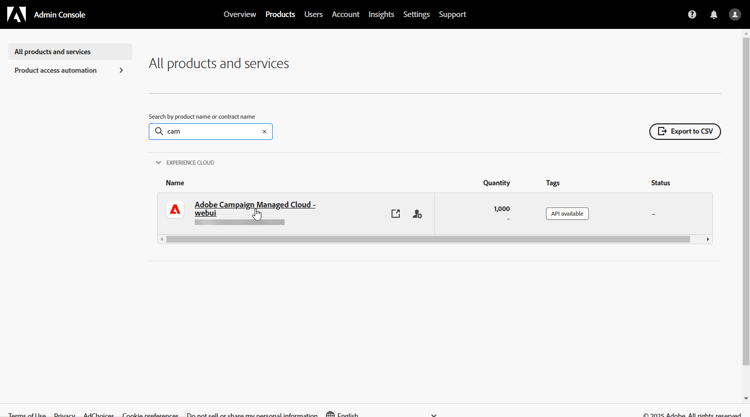
In the Admin Console home page, access your Campaign product.
-
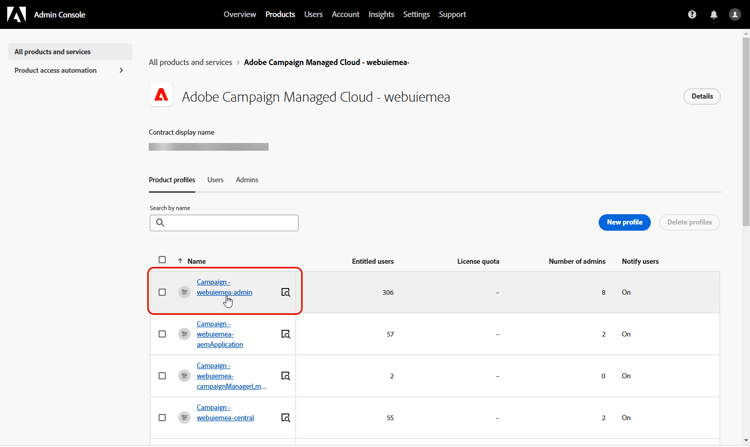
Select the Product profile based on the level of permissions you want to grant your user.
-
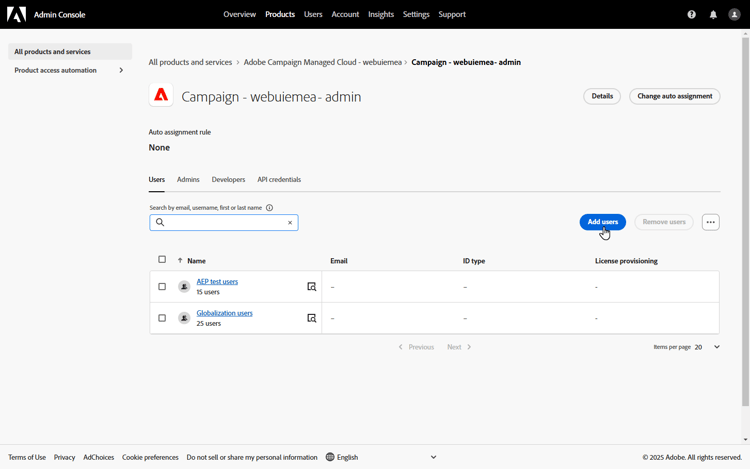
Click Add users to assign the selected product profile.
-
Type your user’s name, user group, or email address.
-
Click Save to apply changes.
Users already assigned to this role have their permissions automatically updated.
Create your brand create-brand-kit
To create and manage your brand guidelines, follow the steps below.
Users can either enter the details manually or upload a brand guidelines document to extract the information automatically:
-
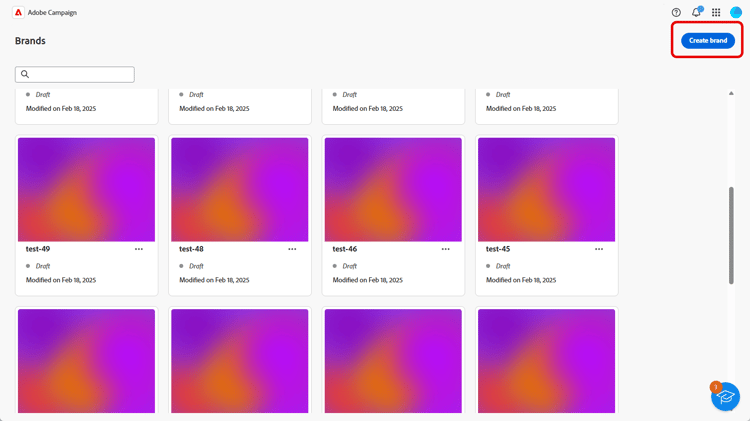
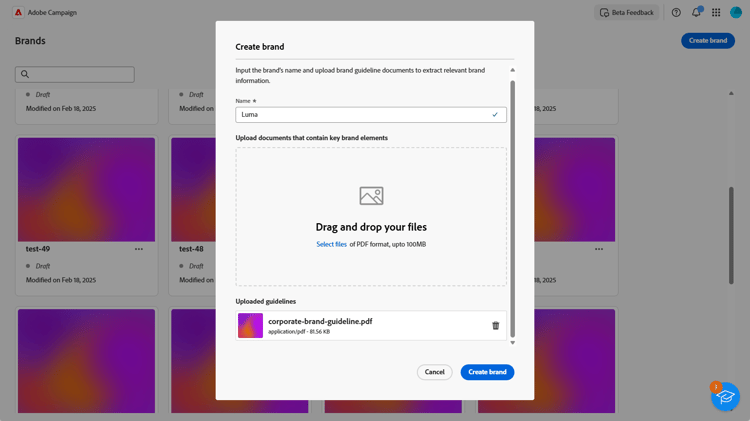
In the Brands menu, click Create brand.
-
Enter a Name for your brand.
-
Drag and drop or select your file to upload your brand guidelines and extract automatically relevant brand information. Click Create brand.
The information extraction process now begins. Note that it may take several minutes to complete.
-
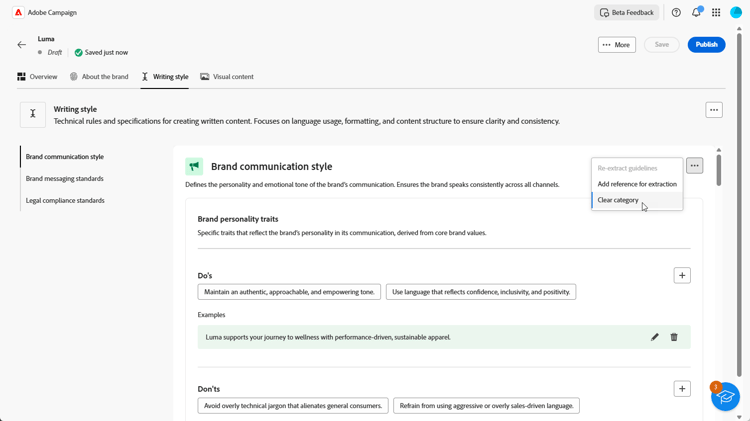
Your Content and visual creation standards are now automatically populated. Browse through the different tabs to adapt the information as needed. Learn more
-
From the advanced menu of each section or category, you can add references to extract relevant brand information automatically.
To remove existing content, use the Clear section or Clear category options.
-
Once configured, click Save, then Publish to make your brand guideline available in AI Assistant.
-
To make modifications to your published brand, click Edit brand.
note note NOTE This creates a temporary copy in edit mode, replacing the live version once published. 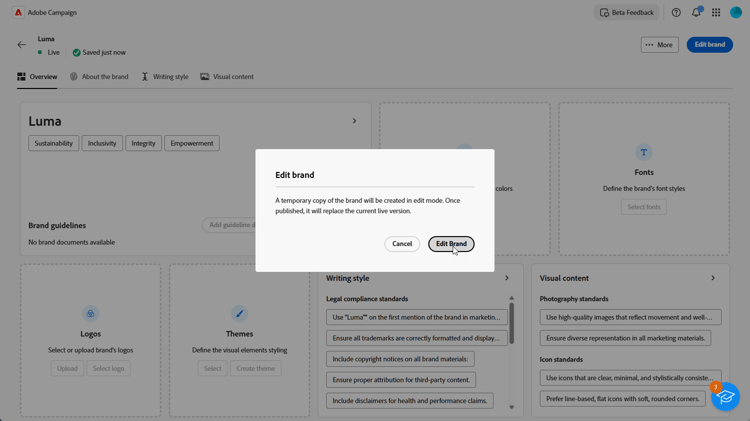
-
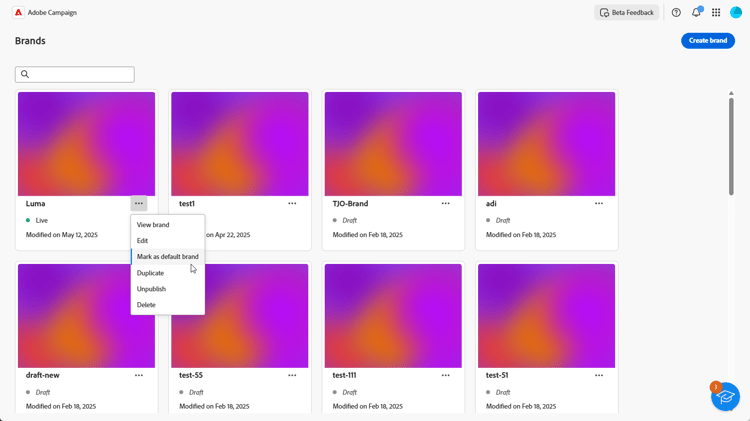
From your Brands dashboard, open the advanced menu by clicking the

- View brand
- Edit
- Mark as default brand
- Duplicate
- Publish
- Unpublish
- Delete
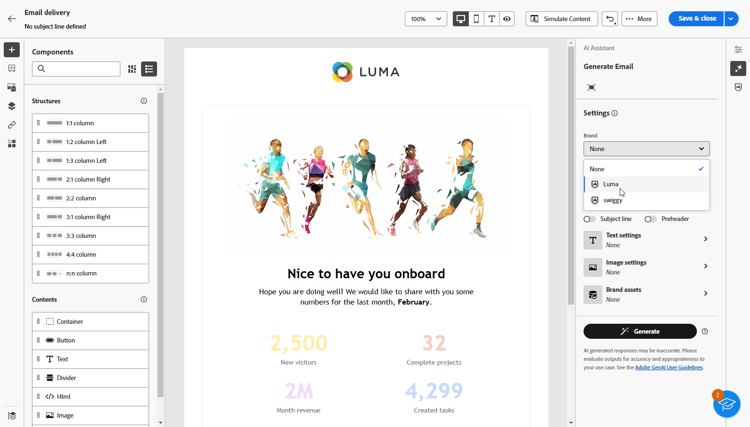
Your brand guidelines are now accessible from the Brand drop-down in AI Assistant menu. This enables AI Assistant to generate content and assets aligned with your specifications. Learn more about AI Assistant
You can also use your brand guidelines to evaluate your content quality and brand alignment. Learn more about content quality validation
Set a default brand default-brand
You can designate a default brand to be automatically applied when generating content and calculating alignment scores during campaign creation.
To set a default brand, go to your Brands dashboard. Open the advanced menu by clicking the by clicking the