This article documents the Journey canvas visualization in

See Journey canvas overview for the

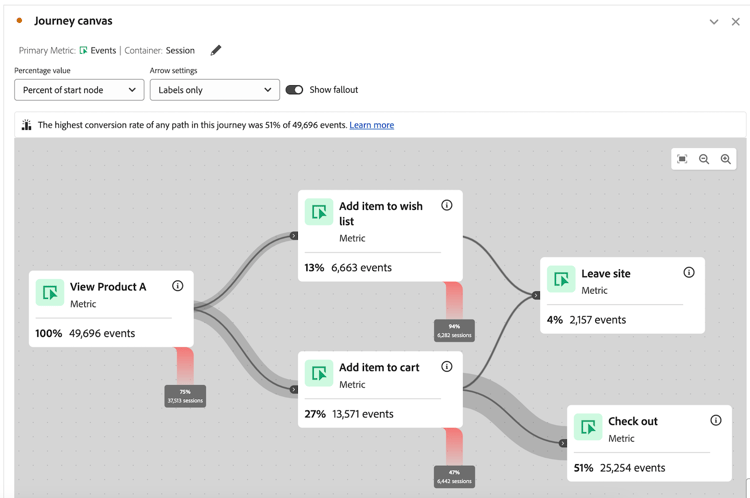
The Journey canvas visualization allows you to analyze and gain deep insights on the journeys that you provide to your users and customers. It allows you to define a journey, then see how people left (fell out) or continued through (fell through) the journey.
You can build analyses of user journeys by using any combination of events, dimension items, segments, and date ranges to create journey nodes. Connect the nodes to create the journey’s flow, and include multiple paths and decision points. Drag nodes on the canvas to rearrange the events and conditions of the journey. Data updates in real time as you make changes.
Nodes are connected as an “eventual path,” which means that visitors are counted as long as they eventually move from one node to the other, regardless of any events occurring between the two nodes. The time allotted for users to move along the path is determined by the container setting.
Key features
Key features of the Journey canvas visualization include:
-
Deep analysis of fallout and fallthrough that accommodates the most complex user journeys.
-
A canvas for mapping and visualizing the various entry points, nodes, and paths of a user journey.
-
Drag-and-drop interactions for adding components to the canvas and for repositioning existing nodes.
Potential insights
Journey canvas provides actionable insights for the most complex journeys.
Path with the highest conversion rate conversion-rate-caption
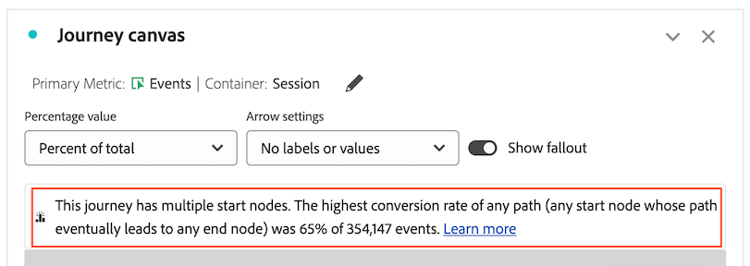
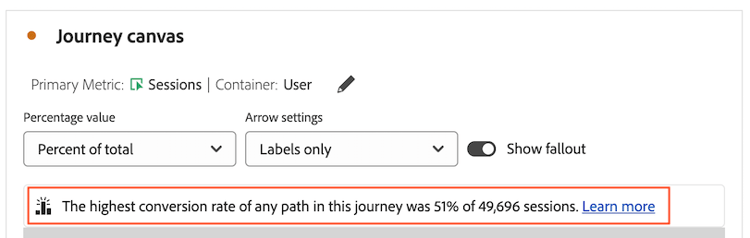
The most prominent insight in Journey canvas is shown as a caption at the top of the canvas itself.
This caption summarizes which of all the paths in the journey had the highest conversion rate.
When the journey contains multiple start nodes, the caption looks like this:
When the journey contains a single start node, the caption looks like this:
Consider the following when interpreting this caption:
-
A path is defined as a start node that is connected by arrows to an end node, with any number of nodes connected between them.
-
The conversion rate calculation depends on the type of journey (the number of start nodes and end nodes contained in the journey, and whether the paths intersect between them).
The following table describes how conversion rates are calculated based on the journey type:
table 0-row-3 1-row-3 2-row-3 3-row-3 4-row-3 Journey type Conversion rate calculation Example A single start node and a single end node Conversion rate is calculated by dividing the number of the end node by that of the start node. 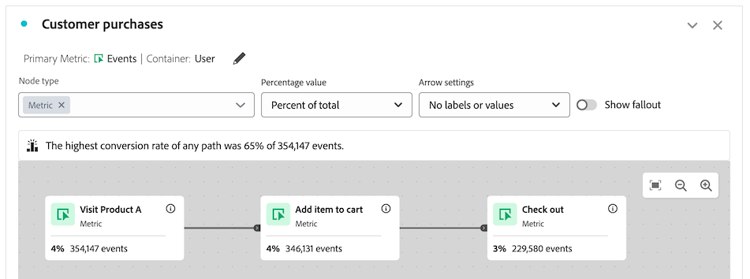
A single start node and multiple end nodes Conversion rate is calculated by finding the end node with the highest number, and dividing that number by that of the start node. 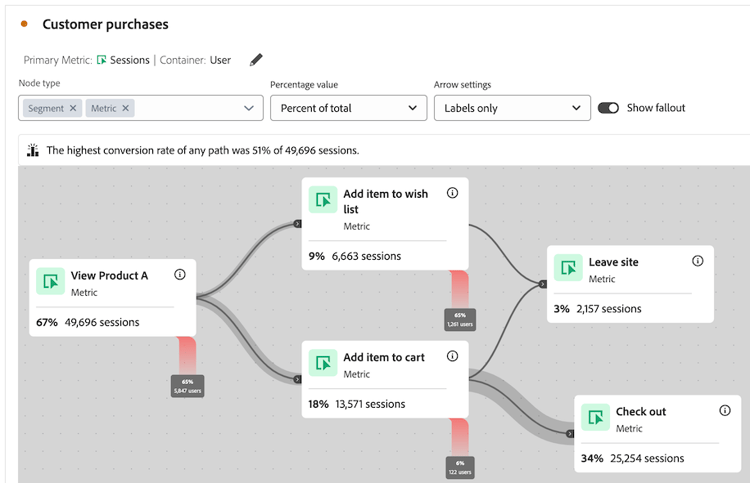
Multiple standalone paths, with each path containing a single start node and a single end node Conversion rate is calculated by dividing the number of the end node by that of the start node. The path with the highest conversion rate is described in the caption. 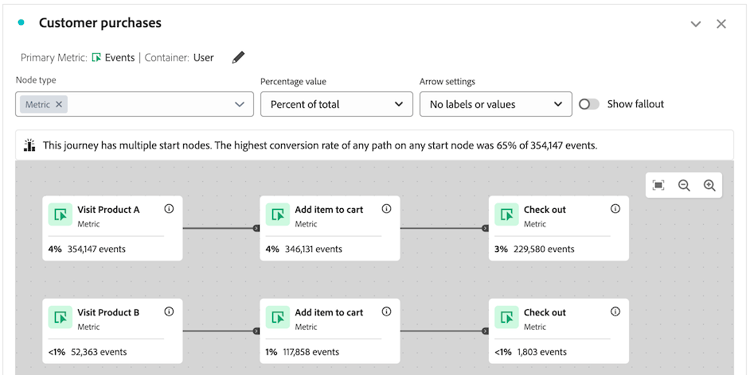
Multiple start nodes that at any point in the journey converge into a common node Conversion rate is calculated by finding the end node with the highest number, and dividing that number by that of the start node with the lowest number. 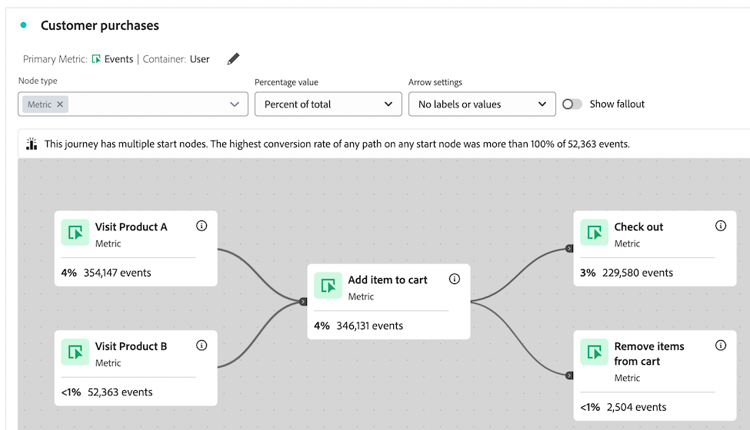
Fallthrough, Fallout, and more
Following are a few examples of other insights Journey canvas can help provide. You can choose whether these insights are based on all people in the report suite, all people who started the journey, or all people from the previous node of the journey.
Fallthrough
-
The number and percentage of people who completed the journey (arrived at the ending node)
-
The number and percentage of people who arrived at a given node of the journey
-
The most common step that came after or before a given node of the journey
Fallout
- The nodes of the journey where people most commonly fell out of the journey (never arrived at any of the immediate next nodes)
Additional data for each node
- Add a breakdown dimension on any node of the journey to view additional data for that specific node
Choose between Journey canvas, Fallout, or Flow visualizations
The Journey canvas visualization has similarities with the Fallout visualization and the Flow visualization, but with important differences.
Understand the differences
Various visualizations in Customer Journey analytics are designed to analyze the journeys you provide to your customers.
Use the following information to choose the visualization that best meets your needs.
Combines predefined and exploratory analysis. The eventual path is used when using predefined nodes on the path (visitors are counted as long as they eventually move from one predefined node to the other). The immediate (not eventual) next nodes can also be shown.
The path can be an eventual path or can be constrained to the next touchpoint
Combines predefined and exploratory analysis. The eventual path is used when using predefined nodes on the path (visitors are counted as long as they eventually move from one predefined node to the other). The immediate (not eventual) next nodes can also be shown.
Allows you to right-click and view immediate fallout in a Freeform table.
Exploratory analysis only. Always within one dimension instance between nodes. This means that each node shows the immediate (not eventual) next touchpoint along the path.
Shows for both predefined and exploratory journeys
Shows predefined journeys
Shows for exploratory journeys
Yes
Any metric, including calculated metrics
Yes
Perform side-by-side comparisons of two different filters in the same report.
When to use Journey canvas
Journey canvas is essential for:
-
Fallout analysis involving journeys with multiple entry points and paths.
-
Non-linear journeys with multiple entry points and paths, with a predefined sequence of pages.
-
Exploratory, ad hoc analysis that is based on a predefined journey.
-
Analysis that requires a primary metric other than Session, Person, or Occurrences.
Use the table above to understand the differences between Journey canvas, Fallout, and Flow visualizations.
Build analyses in Journey canvas
You can build analyses in Journey canvas that are based on any dimensions or metrics that are available in Analysis Workspace. For more information, see Configure a Journey canvas visualization.