Enable stitching
You can enable stitching on one or more event datasets you have configured as part of your connection. The Customer Journey Analytics package that you have licensed determines the number of event datasets you can enable for stitching.
You enable stitching as part of the dataset settings for an event dataset when you create a connection or when you edit a connection.
Prerequisites
You need to check and meet the prerequisites for the stitching method you specify: field-based stitching or graph-based stitching.
Preflight checks
If you meet the prerequisites, perform some preflight checks on the data in the event dataset before you enable identity stitching:
-
If you use Experience Data Model (XDM) schema fields for persistent ID or person ID, ensure that identities are marked properly in the schema for the event dataset. See Identity namespace overview.
-
Verify identity coverage for both persistent ID and person ID:
-
Persistent ID
Query 7 days of data where your persistent ID field is not null and divide by a query of 7 days of data for all events in your dataset. This percentage should be above 95%.
Example of a query for verification:
code language-sql SELECT COUNT(*) AS total_events, COUNT({PERSISTENT_ID_FIELD}) AS events_with_persistentid, ROUND(COUNT({PERSISTENT_ID_FIELD}) / COUNT(*), 2) AS percent_with_persistentid_not_null FROM {DATASET_TABLE_NAME} WHERE TO_TIMESTAMP(timestamp, '{FORMAT_STRING}') >= TIMESTAMP '{START_DATE}' AND TO_TIMESTAMP(timestamp, '{FORMAT_STRING}') < TIMESTAMP '{END_DATE}';Where:
{PERSISTENT_ID_FIELD}is the field for the persistent ID. For example:identityMap.ecid[0].{DATASET_TABLE_NAME}is the table name for the event dataset.{FORMAT_STRING}is the format string for the timestamp field. For example:MM/DD/YY HH12:MI AM.{START_DATE}is the start date. For example:2024-01-01 00:00:00.{END_DATE}is the end date in standard format. For example:2024-01-08 00:00:00.
-
Person ID
-
For graph-based stitching, ensure that the identity graph contains fragments that link ID values from your chosen persistent ID namespace and person ID namespace. Go to the Experience Platform Identity graph viewer and query the graph by some sample persistent ID values. To verify, check if these persistent ID values are linked to person ID values in the graph.
-
For field-based stitching, query 7 days of data where your person ID field is not null and divide by a query of 7 days of data for all events in your dataset. This percentage should ideally be above 5%.
Example of a query for verification:
code language-sql SELECT COUNT(*) AS total_events, COUNT({PERSON_ID_FIELD}) AS events_with_personid, ROUND(COUNT({PERSON_ID_FIELD}) / COUNT(*), 2) AS percent_with_personid_not_null FROM {DATASET_TABLE_NAME} WHERE TO_TIMESTAMP(timestamp, '{FORMAT_STRING}') >= TIMESTAMP '{START_DATE}' AND TO_TIMESTAMP(timestamp, '{FORMAT_STRING}') < TIMESTAMP '{END_DATE}';Where:
{PERSON_ID_FIELD}is the field for the person ID. For example:identityMap.crmId[0].{DATASET_TABLE_NAME}is the table name for the event dataset.{FORMAT_STRING}is the format string for the timestamp field. For example:MM/DD/YY HH12:MI AM.{START_DATE}is the start date. For example:2024-01-01 00:00:00.{END_DATE}is the end date in standard format. For example:2024-01-08 00:00:00.
-
-
Enable identity stitching enable-identity-stitching
You can enable identity stitching when you add or edit an event dataset in a person-based connection. Identity stitching is not available for account-based connections.
Dataset settings
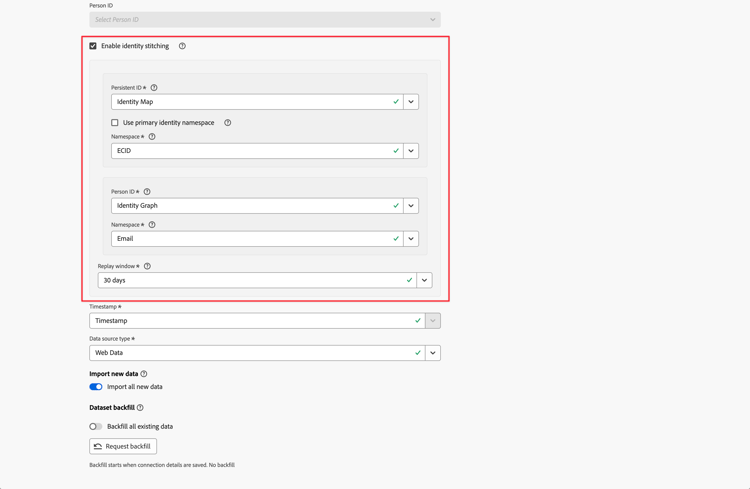
To enable stitching, use the event dataset Datasets settings section of the Add datasets or Edit dataset dialog.
-
Select Enable identity stitching.
If you enable or disable stitching for a saved event dataset in the connection, the Change Person ID dialog displays the implications of a change of the person ID. Select Continue to continue.
The Enable identity stitching dialog summarizes the consequences of stitching identities. Select Continue to continue.
-
Select a persistent ID from the Persistent ID drop-down menu.
If you select Identity Map for the persistent ID, select a namespace. You have two options:
- Select Use primary identity namespace to use the primary identity namespace.
- Select a namespace from the Namespace drop-down menu.
-
Select a person ID from the Person ID drop-down menu.
If you select Identity Map for the person ID, select a namespace. You have two options:
- Select Use primary identity namespace to use the primary identity namespace.
- Select a namespace from the Namespace drop-down menu.
If you select Identity Graph for the person ID (to use graph-based stitching), you have to select a namespace.
note NOTE Ensure that you are entitled to use the identity graph. Before that, a Change to identity graph dialog is displayed to ensure you have finished the setup of the identity graph for the dataset. This setup is part of the graph-based prerequisites before you can use the identity graph for stitching. Select Continue to continue.
- Select a namespace from the Namespace drop-down menu.
-
Select a replay window from the Replay window drop-down menu. The available options are dependent on the Customer Journey Analytics package that you are entitled to.
-
Select Next to see a preview of the event dataset subject to stitching.
Datasets preview
On top of the standard Datasets preview interface, when adding or editing datasets in a person-based connection, two additional information panels are available.

Stitching metrics
Stitching metrics are calculated using a sample set of data with event timestamps from the last 7 days. This sample set of data usually differs from the sample data used in the Preview table. Stitching metrics provide details for:
-
Person ID coverage: The coverage of the selected person ID used for identification during the stitching process (live and replay).
- For the best field-based stitching results, a person ID (user info) should be sent on at least one event for each persistent ID (device info).
- For the best graph-based stitching results, a (persistent ID, person ID) relation should be present in the identity graph for each persistent ID.
Person ID coverage is shown as a percentage and compared to what is recommended on a stable development or on a production setup. The higher this coverage value is, the better stitching results are obtained with the selected person ID.
-
Persistent ID coverage: This value is used for identification during the stitching process (live and replay), in case a person ID value cannot be detected. Events with no persistent ID and no person ID are dropped from the data. For best stitching results, a persistent ID should be present on all events.
Persistent ID coverage is shown as a percentage and compared to what is the minimum recommended on a stable development or on a production setup.
Bad IDs
In Customer Journey Analytics, a Bad ID is an identifier:
- with a specific ID value that originates from either a persistent ID or a person ID field in stitching-enabled datasets, and
- appears on more than one million (1,000,000) events in the connection data monthly.
When an ID value is marked as a Bad ID, any future events that contain that ID value are discarded from the connection data and do not show up in the reporting.
Examples of Bad IDs use cases:
- You have custom or placeholder values in the person ID field (for example,
undefined). Such values can also affect stitching and reporting data quality. - In a field-based stitching configuration, if multiple people share a device and the total number of transitions between users exceeds 50,000. In this scenario, the stitching process stops using the person ID info for that device, and only uses persistent ID info instead. Consequently, all dataset events from that device are sent into connection data with the persistent ID identity, likely causing a Bad IDs situation.
Save
Once you save a connection, the process of enabling stitching on the configured datasets is triggered. Once stitching service is set up, the service processes the live-streamed data and any requested backfill from the event datasets in Experience Platform. Subsequently, data is ingested into the Customer Journey Analytics connection.
Each part of the process adds certain delays. Processing times below are guardrails, not contractual service level agreements (SLAs).
For a valid initial connection setup that is saved and contains a stitching enabled dataset:
-
Live data initially shows up in Customer Journey Analytics after some hours (less than 14 hours). New live data is available within a few hours. The live data starts with event timestamp values that match the actual moment when stitching enablement got completed.
To ensure live data starts to flow in, enable the Import all new data option for the dataset.
-
Backfilled data (if initially requested) shows up in Customer Journey Analytics around the same time as live data, but can take days to fully process, depending on the volumes involved. The backfilled data starts with the oldest event timestamp values.
note caution CAUTION For datasets that are enabled for stitching in the Connections interface, the backfill status cannot be reported due to a known limitation. Use alternative ways to verify whether data from the stitched dataset is backfilled. For example, use the Experience Platform Query Service UI to extract the events count for the relevant period from the dataset. Compare that events count against the Events metric value in Customer Journey Analytics reporting for the same timeframe. If those numbers match, the backfill is completed.
Limitations
On top of the field-based stitching limitations and graph-based stitching limitations, the following limitations apply when you enable stitching in the Connections interface:
- You can only stitch an event dataset once as part of a single connection. You cannot define the same event dataset more than once and use a separate stitching configuration for each instance. If you want to apply different stitching configurations on the same dataset, use a separate connection for each configuration.
Migration
Stitching enabled in the Connections interface can coexist without any issues with request-based stitching.
For example, you have web-based stitched datasets in the data lake as a result of earlier or current stitching requests. You can add stitched data from a call-center dataset using the Connections interface to combine that data with the web-based data.
Eventually, Adobe migrates your request-based stitched datasets to the new stitching in connections experience.