Power BI Desktop
To ensure the date range apply to all visualizations, drag and drop daterangeday from the Data pane on to Filters on this page .
Select the daterangeday is (All) from Filters on this page .
Select Relative date as the Filter type .
Define the filter to Show items when the value is in the last 1 calendar years .
Select Apply filter .
In the Data pane:
Select datarangeday .
Select product_category .
Select product_name .
Select sum purchase_revenue
Select sum purchases
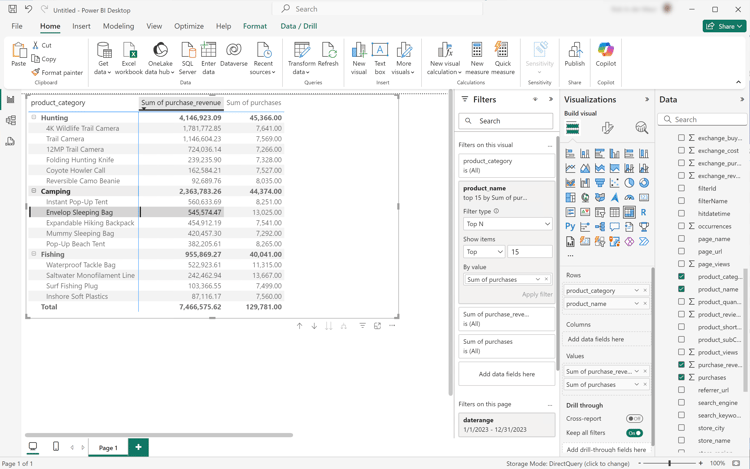
To modify the vertical bar chart to a Table, ensure you have the table selected and select Matrix from the Visualizations pane.
Drag product_name from Columns and drop the field underneath product_categor y in Rows in the Visualization pane.
To limit the number of displayed products within the table, select product_name is (All) in the Filters pane.
Select Advanced filtering .
Select Filter type Top N Show items Top 15 By Value .
Drag purchases from the Data pane onto the Add data fields here .
Select Apply filter .
To improve readability, select View from the top menu, and select Page View > Actual size and resize the table visualization.
To break down each category in the table, select + at the product category level. Your Power BI Desktop should look like below.
Select Home from the top menu, and select New visual . A new visual is added to your report.
In the Data pane:
Select product_category .
Select product_name .
Select purchase_revenue .
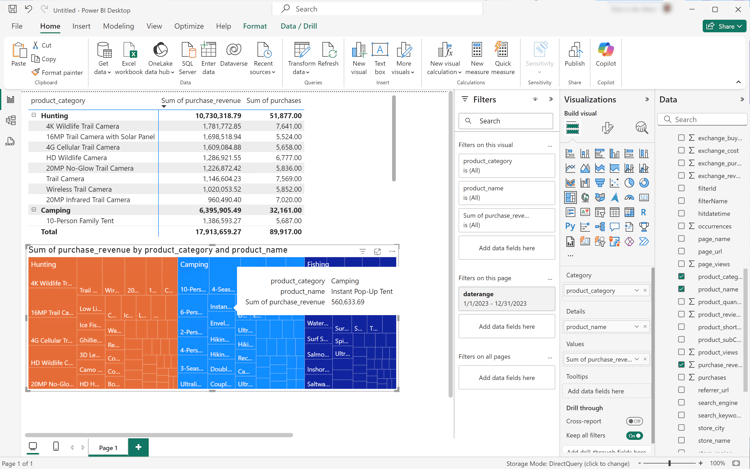
To modify the visual, select the bar chart and select Treemap from the Visualizations pane.
Ensure that product_category is listed underneath Category , and product_name is listed underneath Details in the Visualizations pane.
Your Power BI Desktop should look like below.
Select Home from the top menu, and select New visual . A new visual is added to your report.
In the Data pane:
Select product_category .
Select purchase_revenue .
Select purchase .
In the Visualizations pane:
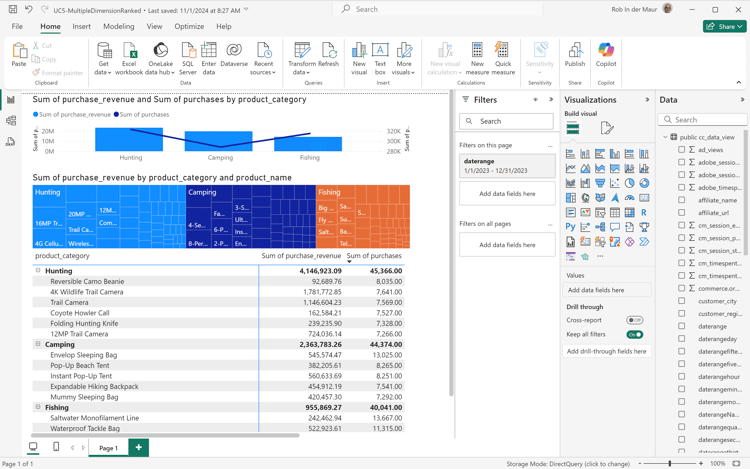
To modify the visualization, select Line and stacked column chart .
Drag sum_of_purchases from Column y-axis to Line y-axis .
In the report, reshuffle the individual visualizations.
Your Power BI Desktop should look like below.
Tableau Desktop
Select the Sheet 1 tab at the bottom to switch from Data source . In the Sheet 1 view:
Drag the Daterange entry from the Tables list in the Data pane and drop the entry onto the Filters shelf.
In the Filters Field [Daterange] dialog, select Range of Dates and select Next > .
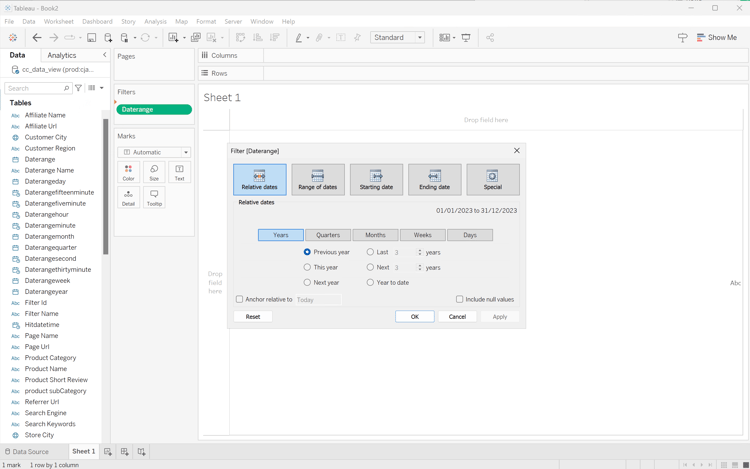
In the Filter [Daterange] dialog, select Relative dates , select Years , and specify Previous year . Select Apply and OK .
Your Tableau Desktop should look like below.
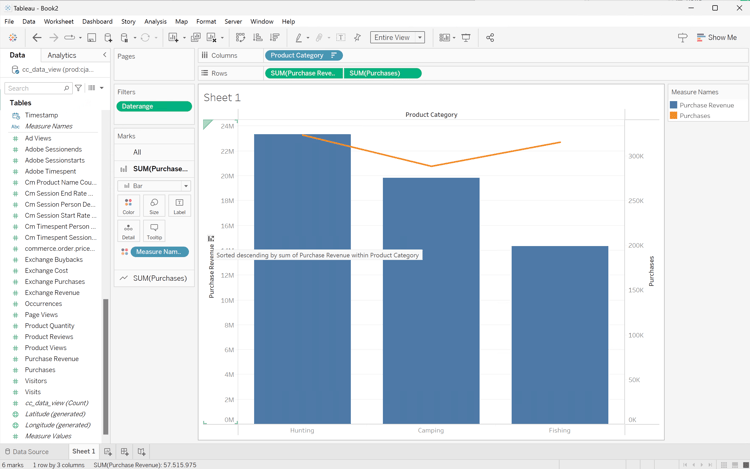
Drag Product Category and drop next to Columns .
Drag Purchase Revenue and drop next to Rows . The value changes to SUM(Purchase Revenue) .
Drag Purchases and drop next to Rows . The value changes to SUM(Purchases) .
Select SUM(Purchases) and from the drop-down menu select Dual Axis .
Select SUM(Purchases) in Marks and select Line from the drop-down menu.
Select SUM(Purchase Revenue) in Marks and select Bar from the drop-down menu.
Select Entire View from the Fit menu.
Select the Purchase Revenue title in the chart and ensure that the purchase revenue is in ascending order.
Your Tableau Desktop should look like below.
Rename the current Sheet 1 sheet to Category.
Select New Worksheet to create a new sheet, and rename it to Data.
Drag the Daterange entry from the Tables list in the Data pane and drop the entry onto the Filters shelf.
In the Filters Field [Daterange] dialog, select Range of Dates and select Next > .
In the Filter [Daterange] dialog, select Relative dates , select Years , and specify Previous year . Select Apply and OK .
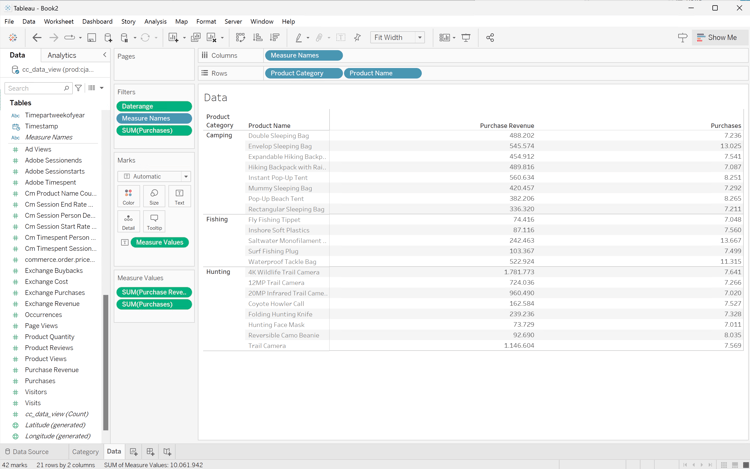
Drag Purchase Revenue from Data pane to Columns . The value changes to SUM(Purchase Revenue) .
Drag Purchase from Data pane to Columns , next to Purchase Revenue . The value changes to SUM(Purchases) .
Drag Product Category from the Data pane to Rows .
Drag Product Name from the Data pane to Rows , next to Product Category .
To change the two horizontal bars to a table, select Text Table from Show Me .
To limit the number of products, select Purchases in Measure Values . From the drop-down menu, select Filter .
In the Filter [Purchases] dialog, select At least and enter 7000. Select Apply and OK .
Select Fit Width from the Fit drop-down menu.
Your Tableau Desktop should look like below.
Select New worksheet to create a new sheet and rename it to Treemap .
Drag the Daterange entry from the Tables list in the Data pane and drop the entry onto the Filters shelf.
In the Filters Field [Daterange] dialog, select Range of Dates and select Next > .
In the Filter [Daterange] dialog, select Relative dates , select Years , and specify Previous year . Select Apply and OK .
Drag Purchase Revenue from the Data pane to Rows . The values changes to SUM(Purchase Revenue) .
Drag Purchase from the Data pane to Rows , next to Purchase Revenue . The value changes to SUM(Purchases) .
Drag Product Category from the Data pane to Columns .
Drag Product Name from the Data pane to Columns .
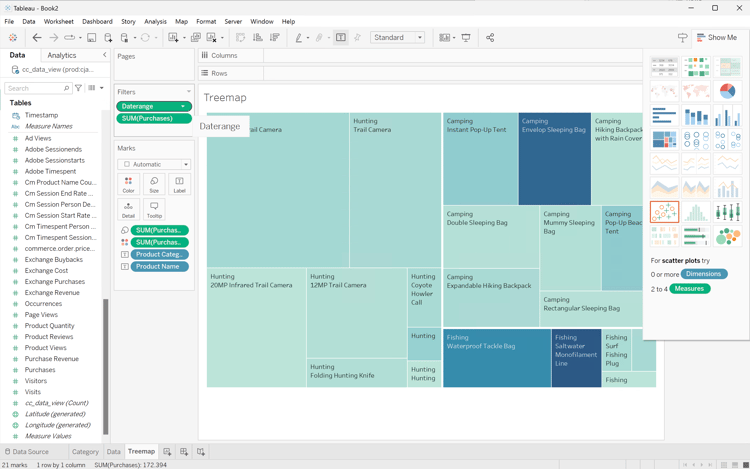
To change the two vertical bar charts to a treemap, select Treemap from Show Me .
To limit the number of products, select Purchases in Measure Values . From the drop-down menu, select Filter .
In the Filter [Purchases] dialog, select At least and enter 7000. Select Apply and OK .
Select Fit Width from the Fit drop-down menu.
Your Tableau Desktop should look like below.
Select New Dashboard tab button (at the bottom) to create a new Dashboard 1 view. In the Dashboard 1 view:
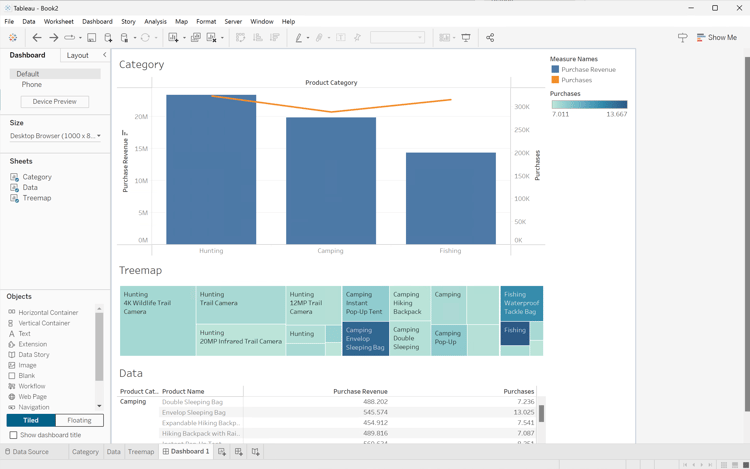
Drag and drop the Category sheet from the Sheets shelf onto the Dashboard 1 view that reads Drop sheets here .
Drag and drop the Treemap sheet from the Sheets shelf underneath the Category sheet on the Dashboard 1 view.
Drag and drop the Data sheet from the Sheets shelf underneath the Treemap sheet on the Dashboard 1 view.
Resize each of the sheets in the view.
Your Dashboard 1 view should look like below.
Looker
In the Explore interface of Looker, ensure you do have a clean setup. If not, select
Remove fields and filters .
Select + Filter underneath Filters .
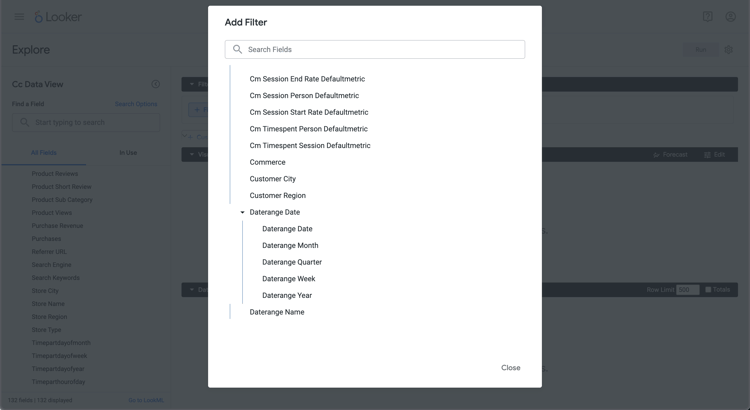
In the Add Filter dialog:
Select ‣ Cc Data View
From the list of fields, select ‣ Daterange Date then Daterange Date .
Specify the Cc Data View Daterange Date filter as is in range 2023/01/01 until (before) 2024/01/01 .
From the ‣ Cc Data View section in the left rail:
Select Product Category .
Select Product Name .
From the ‣ Custom Fields section in the left rail:
Select Custom Measure from the + Add drop-down menu.
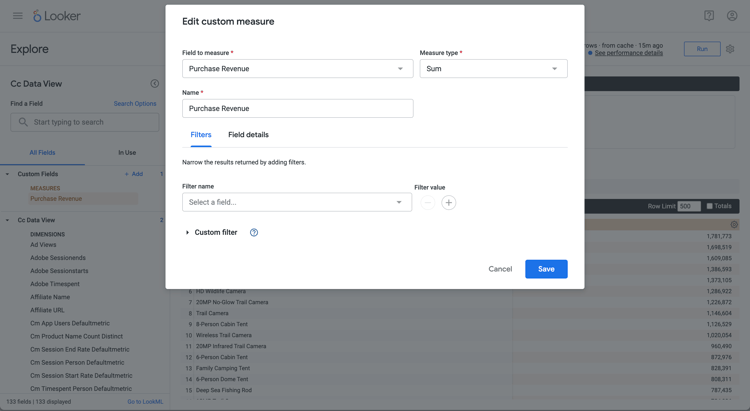
In the Create custom measure dialog:
Select Purchase Revenue from the Field to measure drop-down menu.
Select Sum from the Measure type drop-down menu.
Enter a custom field name for Name . For example: Sum of Purchase Revenue.
Select the Field details tab.
Select Decimals from the Format drop-down menu and ensure 0 is entered in Decimals .
Select Save .
Select Custom Measure once more from the + Add drop-down menu. In the Create custom measure dialog:
Select Purchases from the Field to measure drop-down menu.
Select Sum from the Measure type drop-down menu.
Enter a custom field name for Name . For example: Sum of Purchases.
Select the Field details tab.
Select Decimals from the Format drop-down menu and ensure 0 is entered in Decimals .
Select Save .
Both fields are automatically added to the Data view.
In the Filters section, select + Filter . In the Add Filter dialog. Select ‣ Custom Fields , then Purchase Revenue .
Select is > and enter 800000 to limit the results.
Select Run .
Select ‣ Visualization to display the line visualization.
Select Edit in Visualization to update the visualization. In the popup dialog:
Select the Plot tab.
Scroll down and select Edit Chart Config .
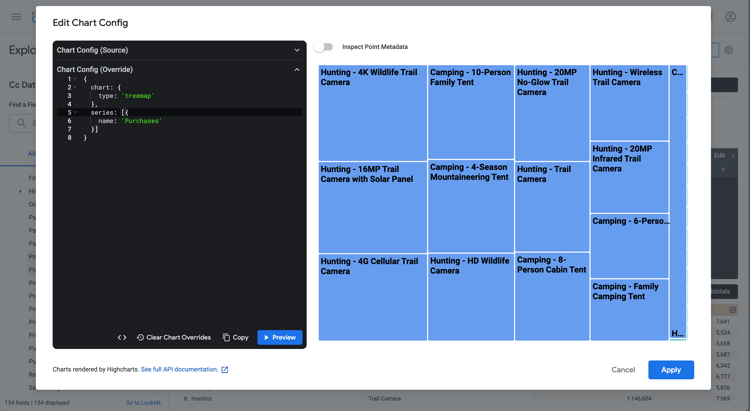
Modify the JSON in Chart Config (Override) like in the screenshot below, and then select Preview .
Select Apply .
Select
next to Edit to hide the popup dialog
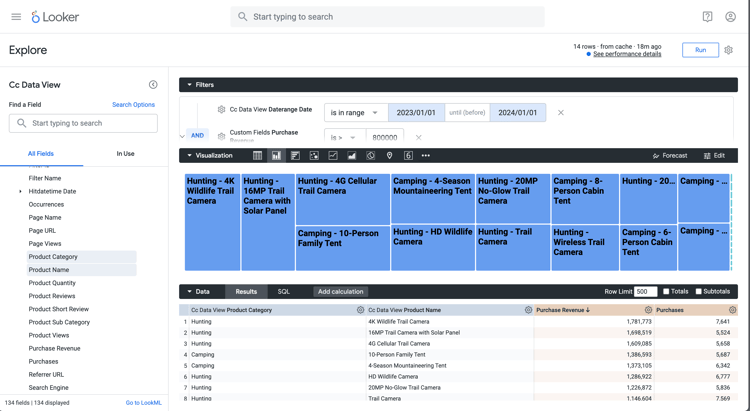
You should see a visualization and table similar as shown below.
Jupyter Notebook
Enter the following statements in a new cell.
code language-none
import seaborn as sns
import matplotlib.pyplot as plt
data = %sql SELECT product_category AS `Product Category`, product_name AS `Product Name`, SUM(purchase_revenue) AS `Purchase Revenue`, SUM(purchases) AS `Purchases` \
            FROM cc_data_view \
            WHERE daterange BETWEEN '2023-01-01' AND '2024-01-01' \
            GROUP BY 1, 2 \
            ORDER BY `Purchase Revenue` DESC \
            LIMIT 10;
df = data.DataFrame()
df = df.groupby(['Product Category', 'Product Name'], as_index=False).sum()
plt.figure(figsize=(8, 8))
sns.scatterplot(x='Product Category', y='Product Name', size='Purchase Revenue', sizes=(10, 200), hue='Purchases', palette='husl', data=df)
plt.show()
display(data)
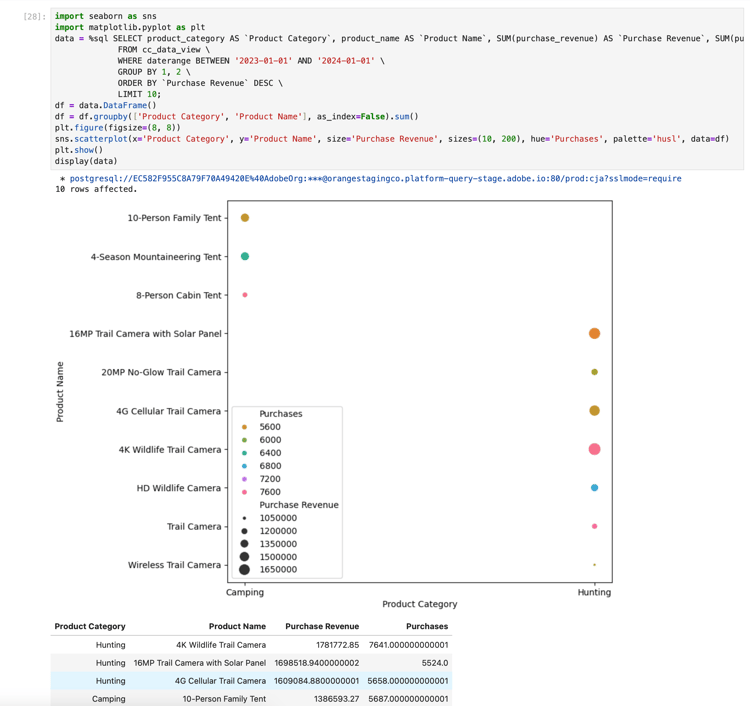
Execute the cell. You should see output similar to the screenshot below.
RStudio
Enter the following code block in a new chunk.
code language-r
## Multiple dimensions ranked
df <- dv %>%
   filter(daterange >= "2023-01-01" & daterange < "2024-01-01") %>%
   group_by(product_category, product_name) %>%
   summarise(purchase_revenue = sum(purchase_revenue), purchases = sum(purchases), .groups = "keep") %>%
   arrange(desc(purchase_revenue), .by_group = FALSE)
print(df)
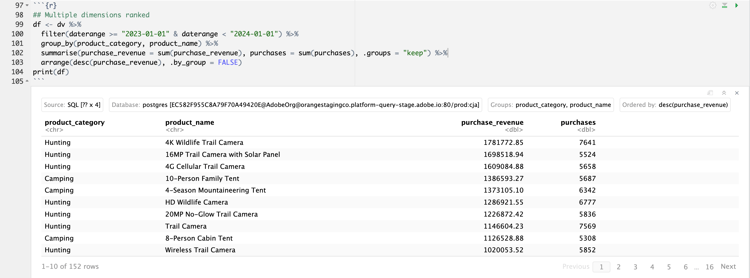
Run the chunk. You should see output similar to the screenshot below.