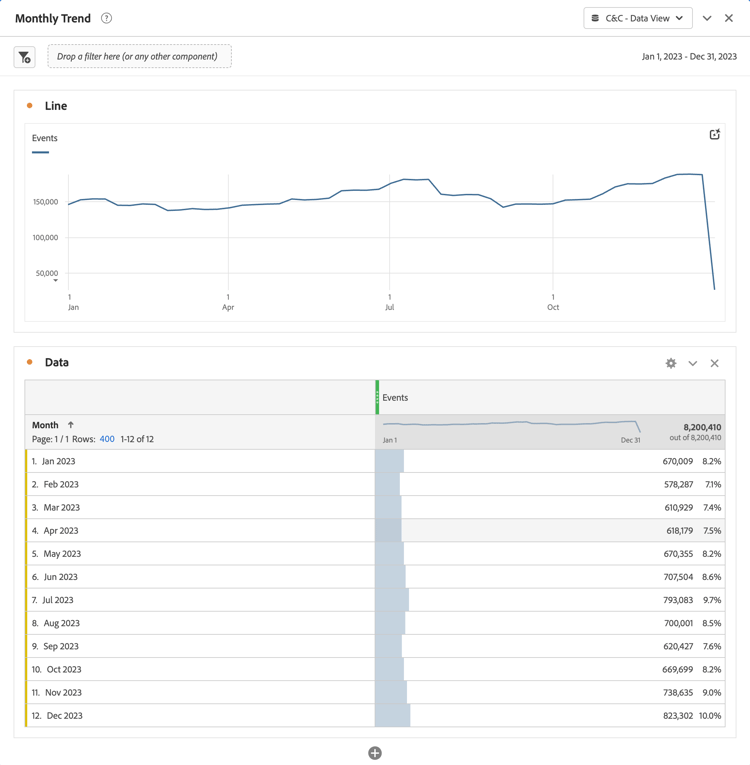
You see a table displaying the occurrences for the current month. For better visibility, enlarge the visualization.
In the Filters pane:
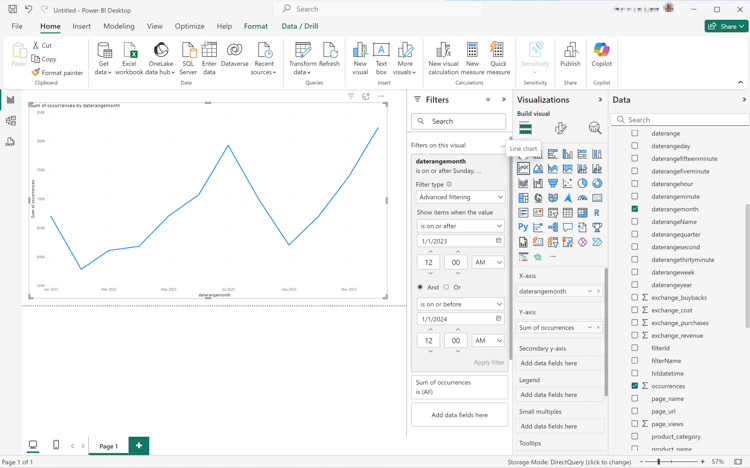
Select the daterangemonth is (All) from Filters on this visual.
Select Advanced filtering as the Filter type.
Define the filter to Show items when the valueis on or after1/1/2023Andis before1/1/2024. You can use the calendar icon to pick and select dates.
Select Apply filter.
You see the table updated with the applied daterangemonth filter.
In the Visualizations pane:
Select the Line chart visualization.
A line chart visualization replaces the table while using the same data as the table. Your Power BI Desktop should look like below.
On the Line chart visualization:
Select
.
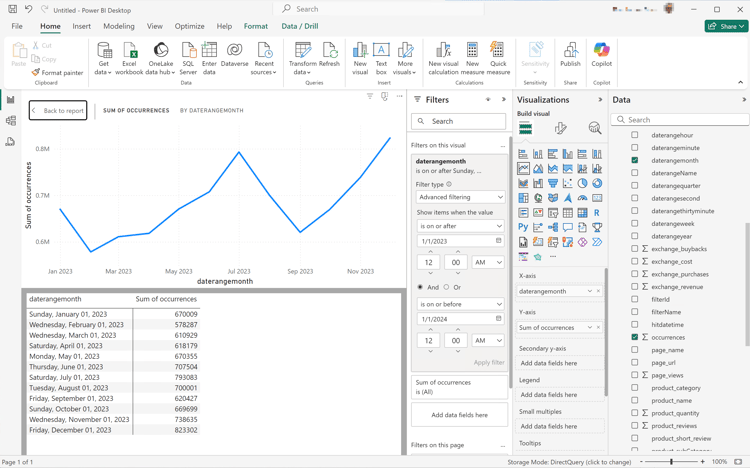
From the context menu, select Show as a table.
The main view is updated to show both a line visualization and a table. Your Power BI Desktop should look like below.
Tableau Desktop
Select the Sheet 1 tab at the bottom to switch from Data source. In the Sheet 1 view:
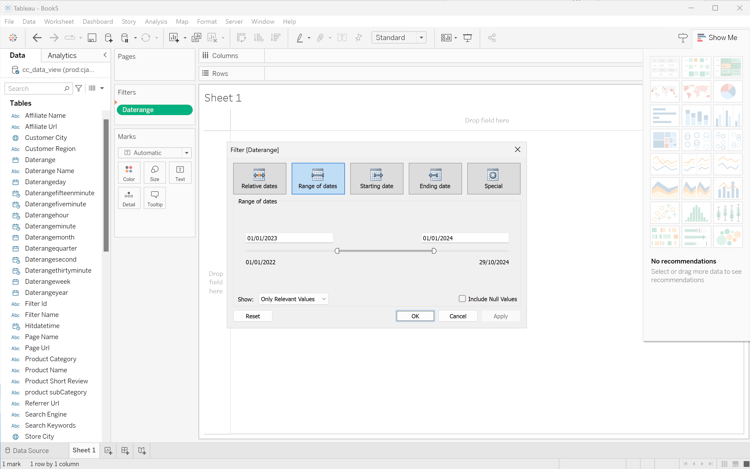
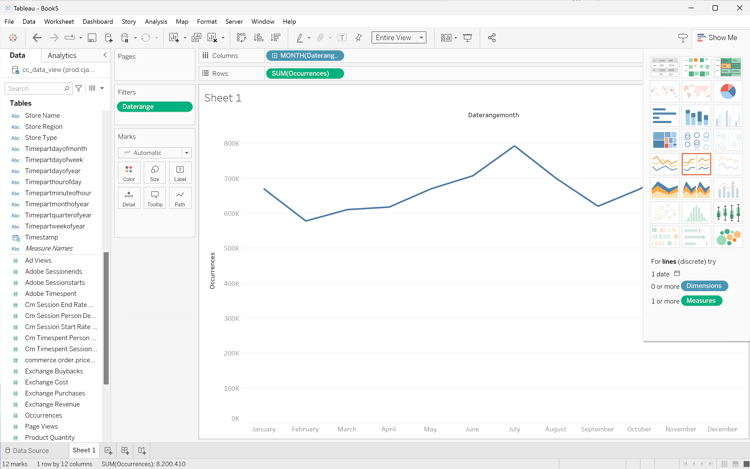
Drag the Daterange entry from the Tables list in the Data pane and drop the entry onto the Filters shelf.
In the Filters Field [Daterange] dialog, select Range of Dates and select Next >.
In the Filter [Daterange] dialog, select Range of dates and specify a period of 01/01/2023 - 01/01/2024.
Drag and drop Daterangeday from the Tables list in the Data pane and drop the entry in the field next to Columns.
Select MONTH from the Daterangeday drop-down menu, so that the value is updated to MONTH(Daterangeday).
Drag and drop Occurrences from the Tables (Measure Names) list in the Data pane and drop the entry in the field next to Rows. The value is automatically converted to SUM(Occurrences).
Modify Standard to Entire View from the Fit drop-down menu in the toolbar.
Your Tableau Desktop should look like below.
Select Duplicate from the Sheet 1 tab context menu to create a second sheet.
Select Rename from the Sheet 1 tab context menu to rename the sheet to Graph.
Select Rename from the Sheet 1 (2) tab context menu to rename the sheet to Data.
Ensure that the Data sheet is selected. In the Data view:
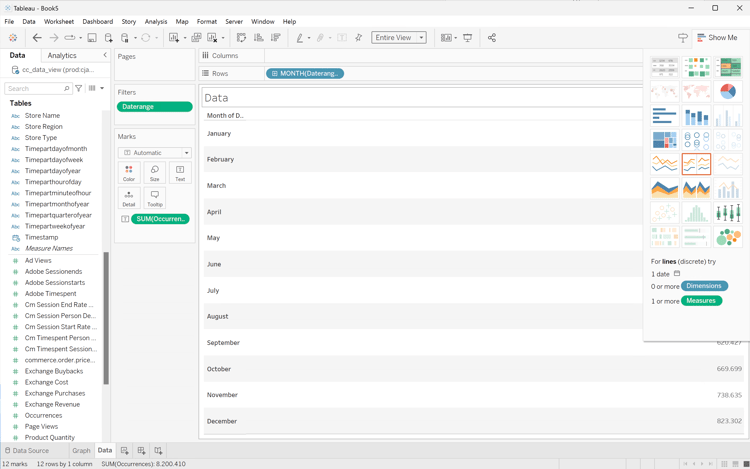
Select Show me at the top right and select Text table (upper left top visualization) to modify the content of the Data view to a table.
Drag MONTH(Daterangeday) from Columns to Rows.
Modify Standard to Entire View from the Fit drop-down menu in the toolbar.
Your Tableau Desktop should look like below.
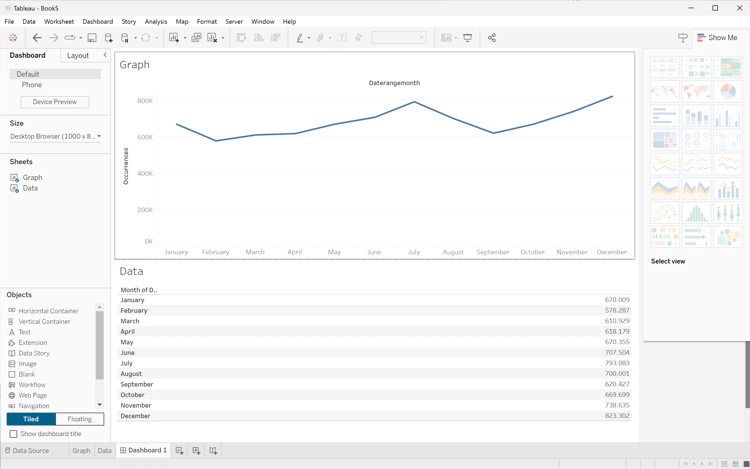
Select New Dashboard tab button (at the bottom) to create a new Dashboard 1 view. In the Dashboard 1 view:
Drag and drop the Graph sheet from the Sheets shelf onto the Dashboard 1 view that reads Drop sheets here.
Drag and drop the Data sheet from the Sheets shelf below the Graph sheet onto the Dashboard 1 view.
Select the Data sheet in the view and modify Entire View to Fix Width.
Your Tableau Desktop should look like below.
Looker
In the Explore interface of Looker, ensure you do have a clean setup. If not, select
Remove fields and filters.
Select + Filter underneath Filters.
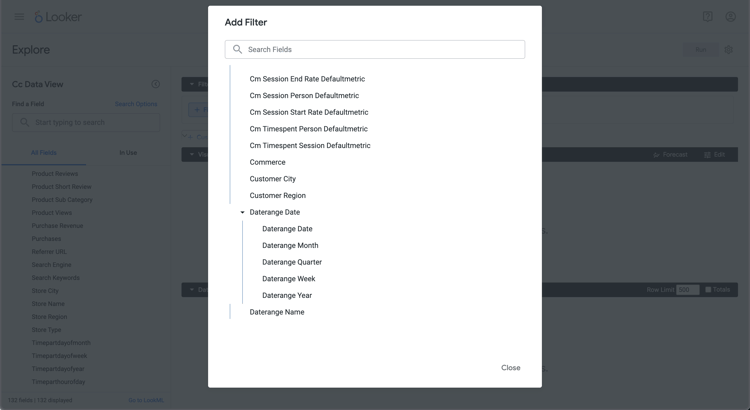
In the Add Filter dialog:
Select ‣ Cc Data View
From the list of fields, select ‣ Daterange Date then Daterange Date.
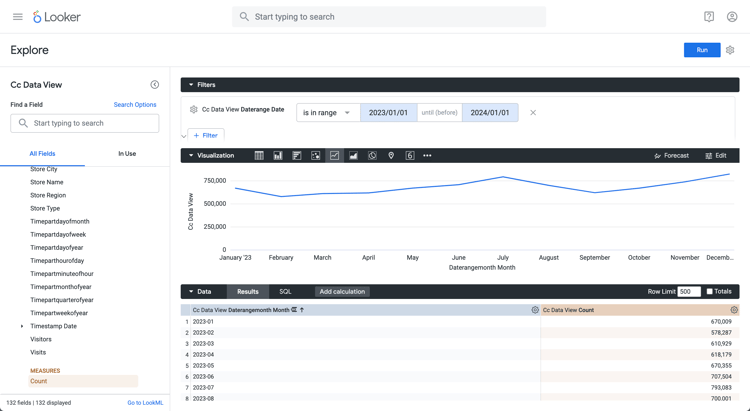
Specify the Cc Data View Daterange Date filter as is in range2023/01/01until (before)2024/01/01.
From the left Cc Data View rail,
Select ‣ Daterangemonth Date, then Month from the list of DIMENSIONS.
Select Count underneath MEASURES in the left rail (at the bottom).
Select Run.
Select ‣ Visualization to display the line visualization.
You should see a visualization and table similar as shown below.
Jupyter Notebook
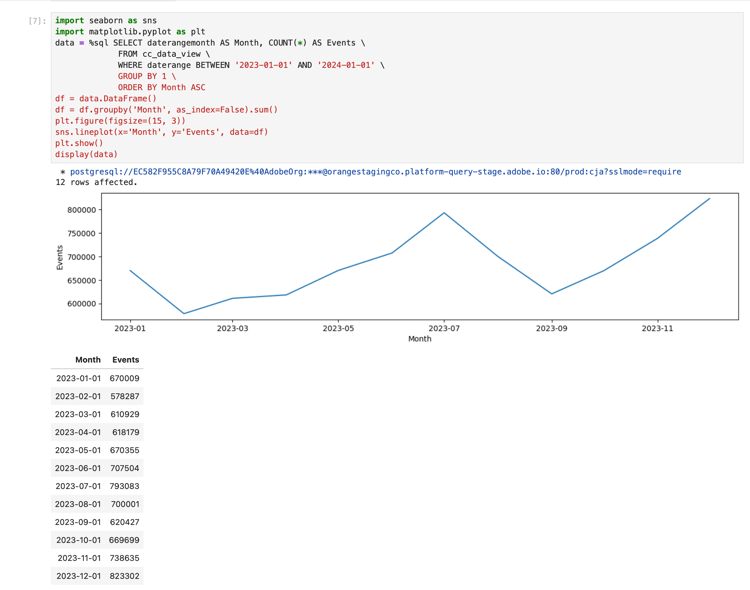
Enter the following statements in a new cell.
code language-python
import seaborn as sns
import matplotlib.pyplot as plt
data = %sql SELECT daterangemonth AS Month, COUNT(*) AS Events \
            FROM cc_data_view \
            WHERE daterange BETWEEN '2023-01-01' AND '2024-01-01' \
            GROUP BY 1 \
            ORDER BY Month ASC
df = data.DataFrame()
df = df.groupby('Month', as_index=False).sum()
plt.figure(figsize=(15, 3))
sns.lineplot(x='Month', y='Events', data=df)
plt.show()
display(data)
Execute the cell. You should see output similar to the screenshot below.